How to Connect Google Drive as Data Source
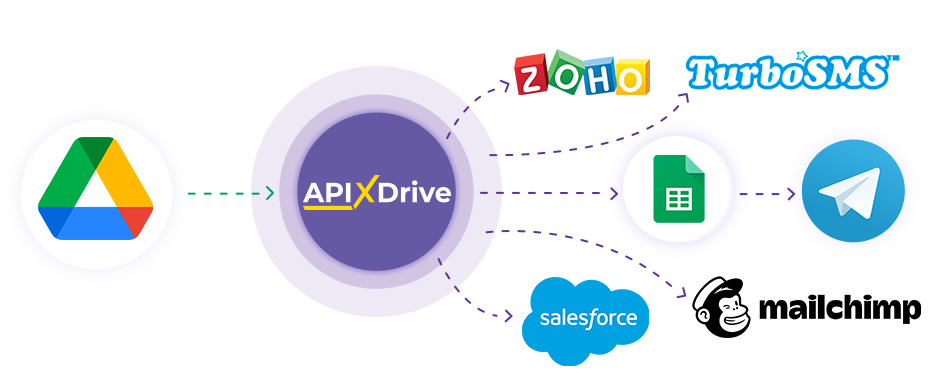
The integration will allow you to get statistics on your account, campaigns, groups and ads from Google Drive. For example, you can transfer account statistics (by day) to CRM or GoogleSheets, send as notifications to yourself or the marketer. This will allow you to efficiently automate your workflows and save you a lot of time.
Let's go through the entire Google Drive setup steps together!
Navigation:
1. What data Apix-Drive will get from Google Drive?
2. How to connect your Google Drive account to ApiX-Drive?
3. Selecting a destination for downloaded data
4. Example of uploaded files
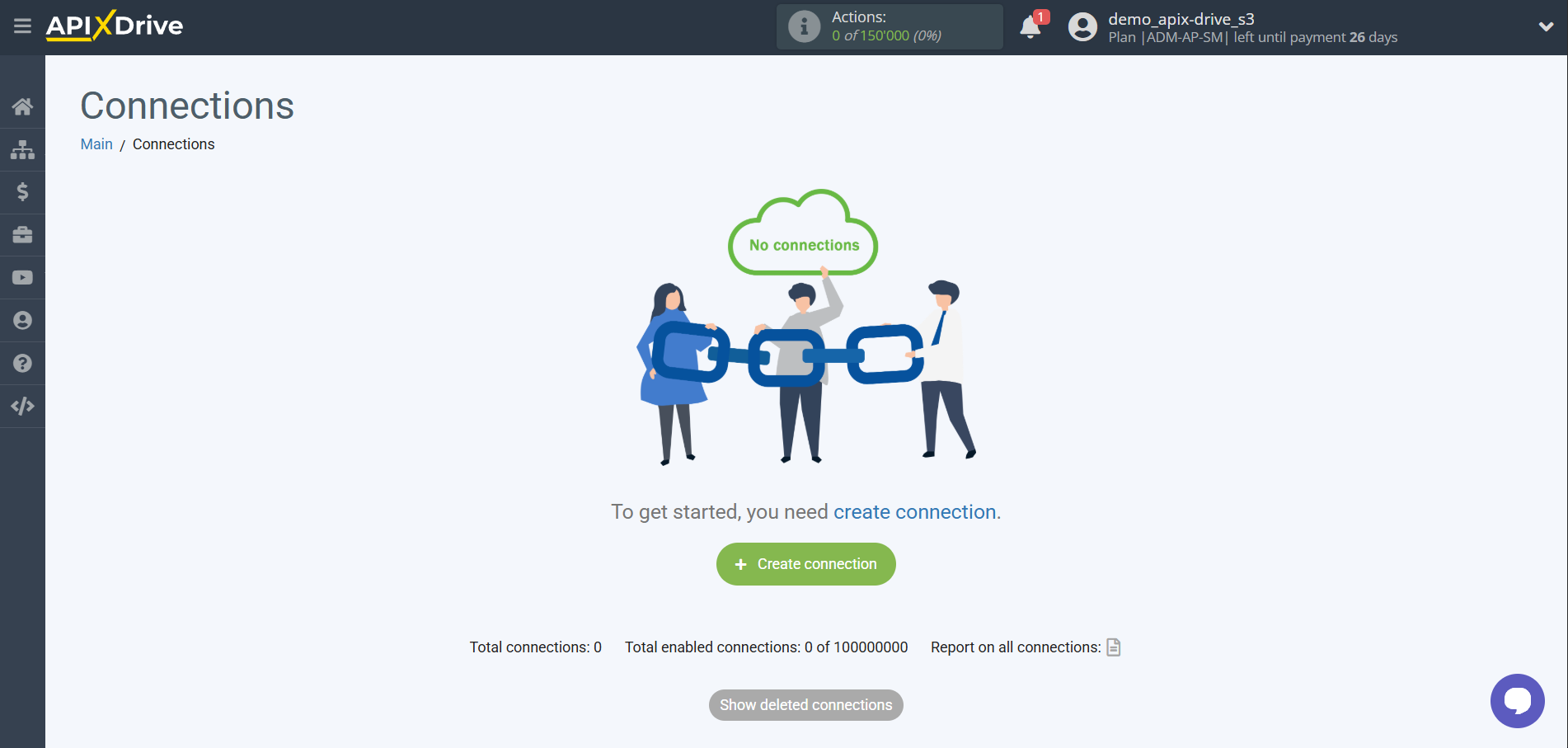
To start setup click "Create Connection".
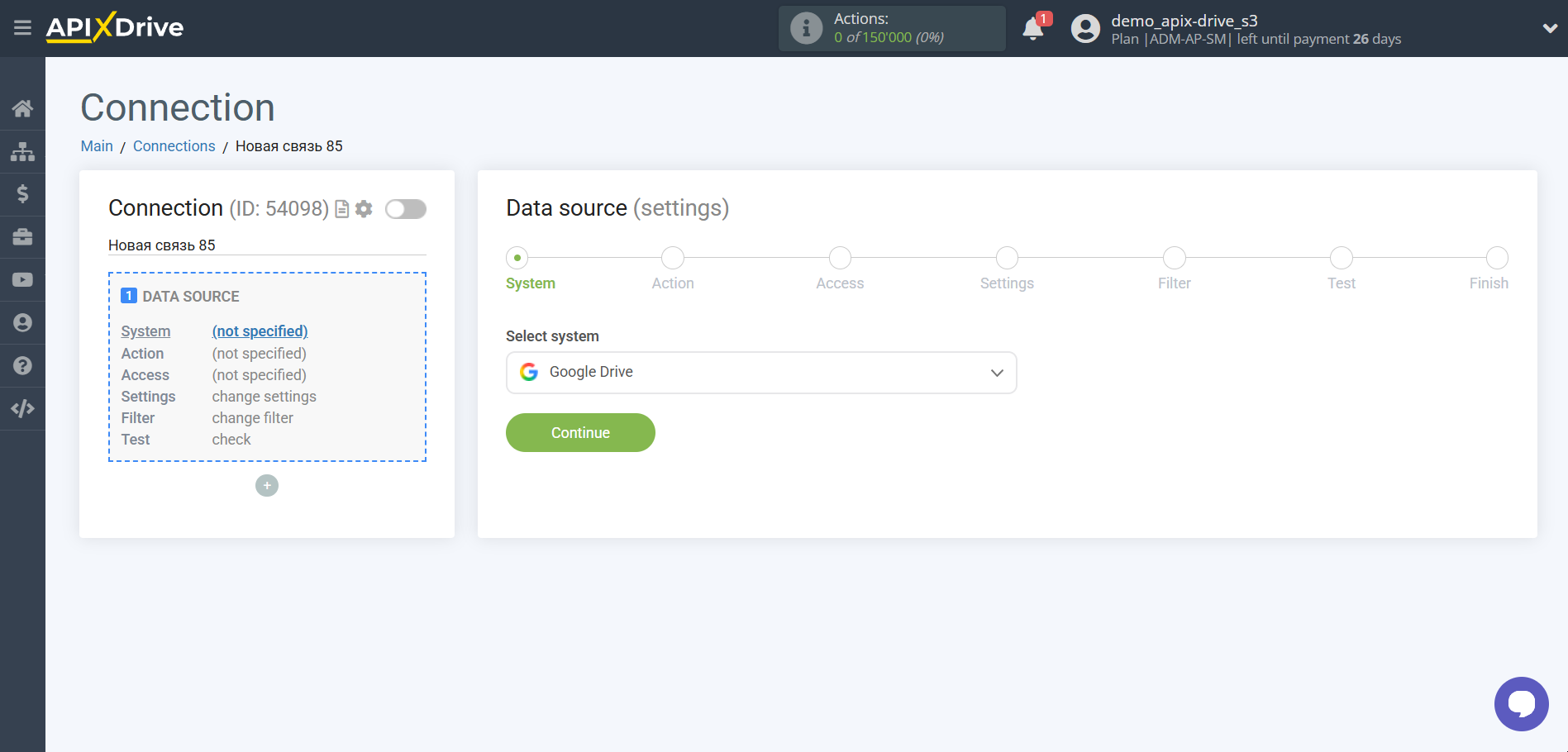
Select a system as the Data Source. In this case, you must specify Google Drive.
Next, you need to specify the action, for example, "Get FILE (new)".
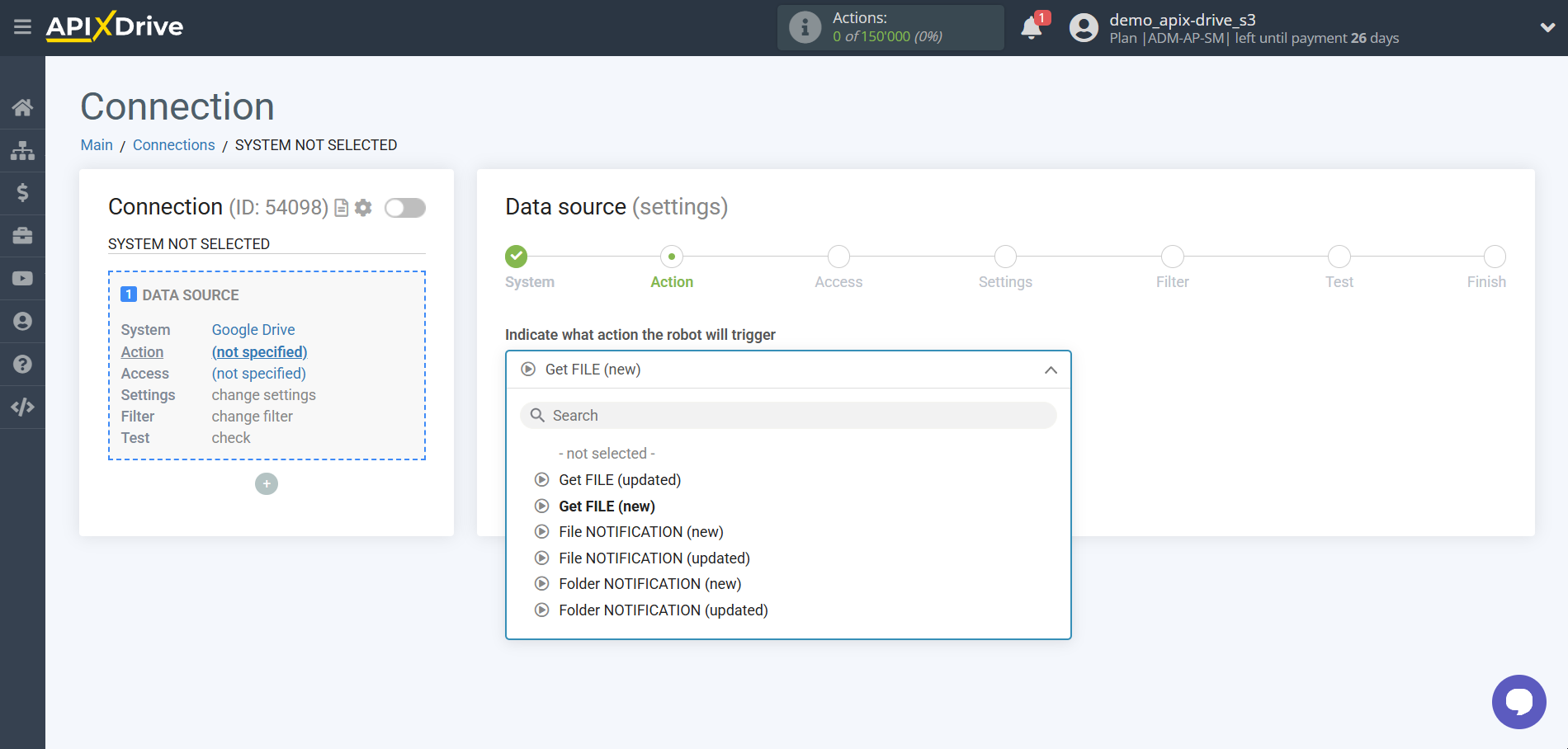
- Get FILE (updated) - Files that have changed since you set up the connection and started auto-updates will be uploaded from your Google Drive account.
- Get FILE (new) - Files that appear after you set up the connection and started auto-updates will be uploaded from your Google Drive account.
- File Notification (new) - Files that appear after you set up the connection and started auto-updates will be uploaded from your Google Drive account.
- File Notification (updated) - Files that have changed since you set up the connection and started auto-updates will be uploaded from your Google Drive account.
- Folder Notification (new) - Files that appear after you set up the connection and started auto-updates will be uploaded from your Google Drive account.
- Folder notification (updated) - your Google Drive account will download data about folders that have changed since you set up the connection and started auto-update.
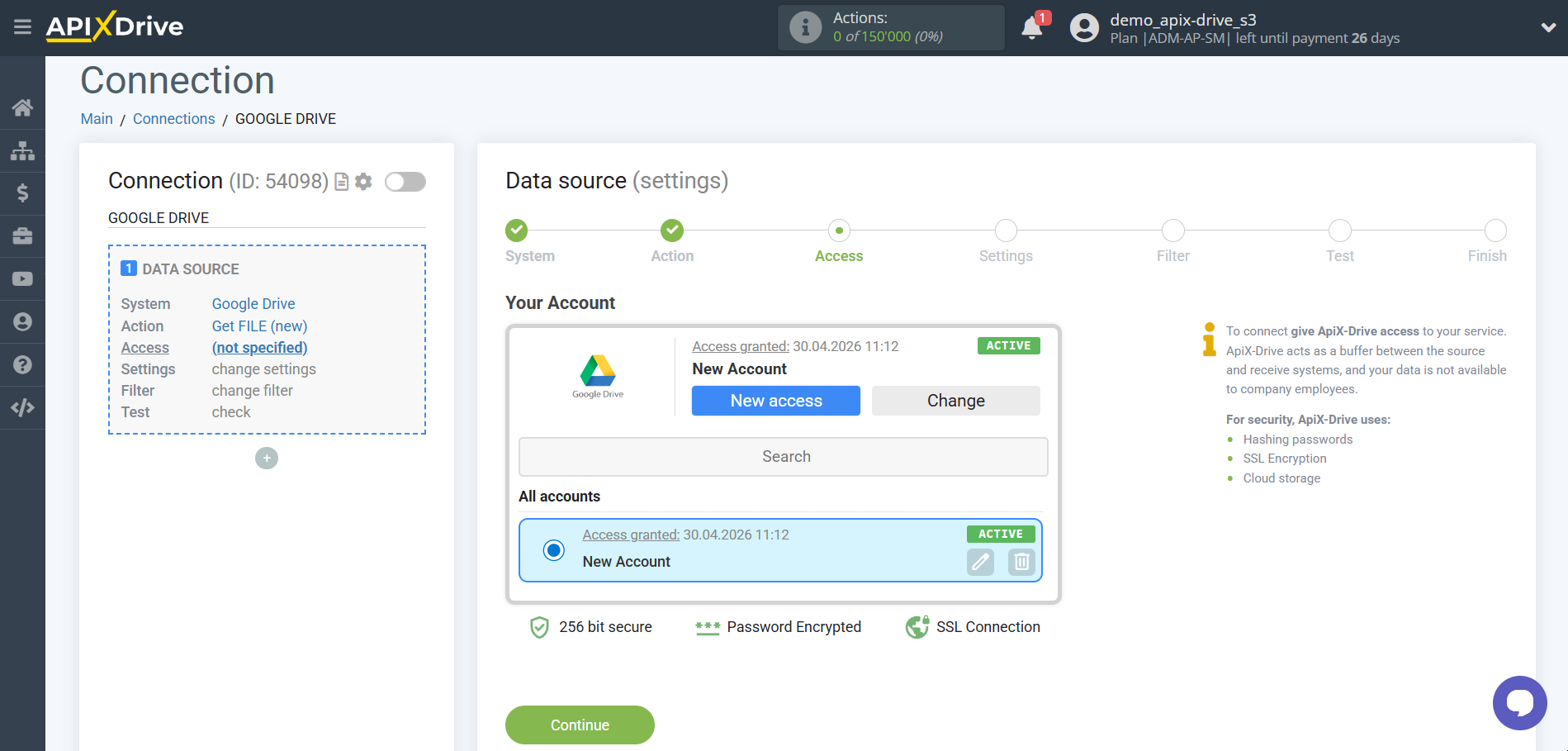
The next step is to select the Google Drive account from which Apix-Drive will get the data.
If there are no account connected to the system, click "Connect account".
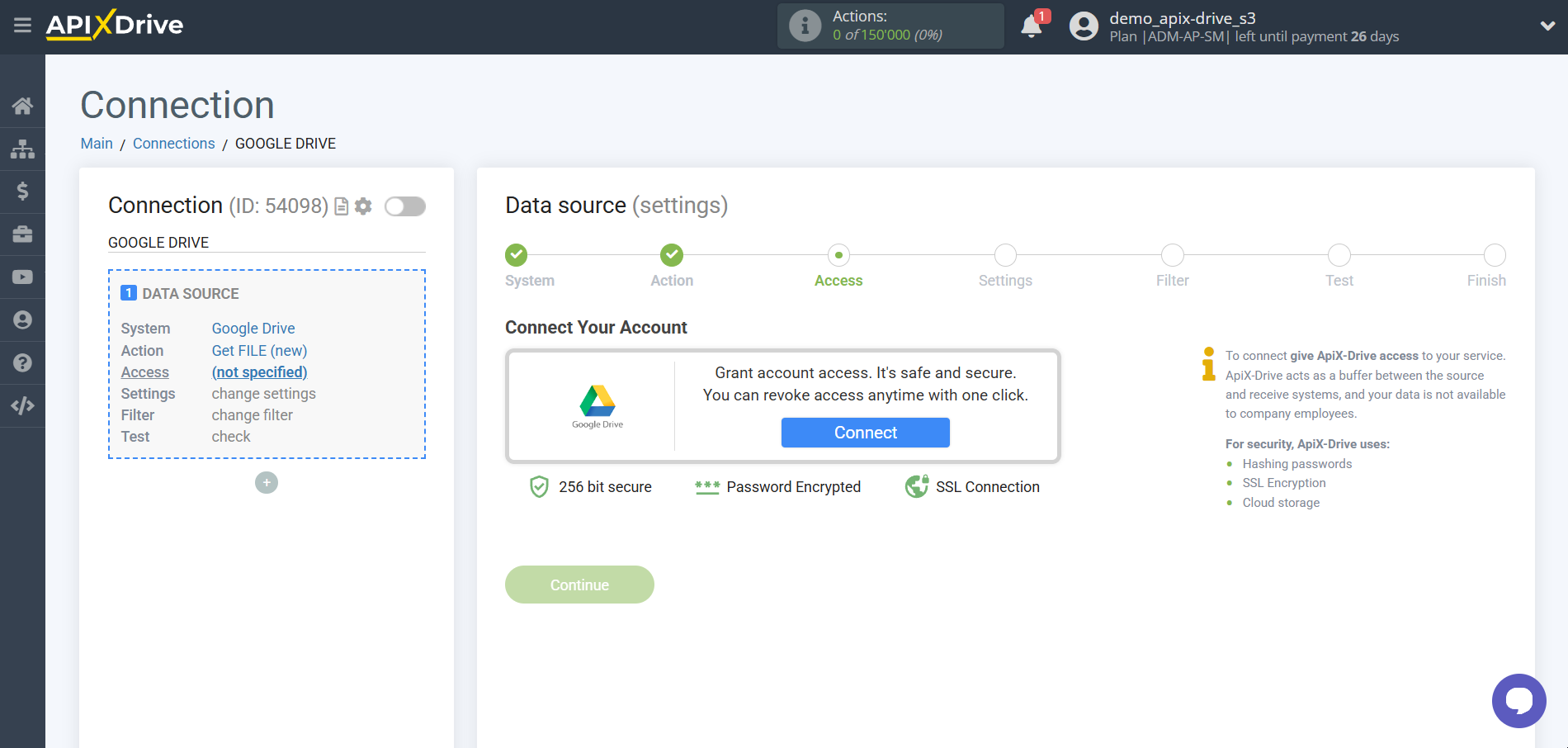
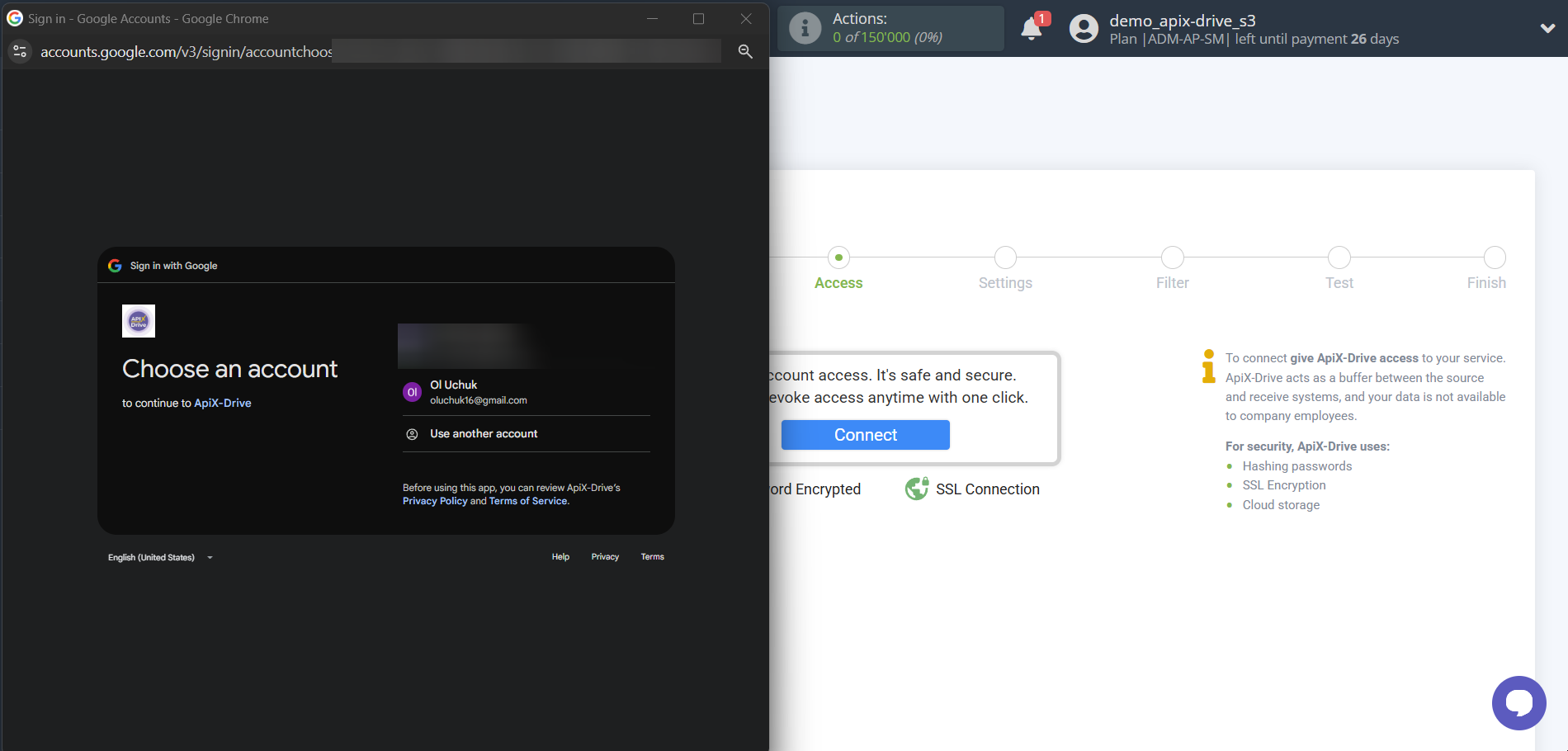
Choose which account you want to connect to ApiX-Drive and grant all permissions to work with this account.
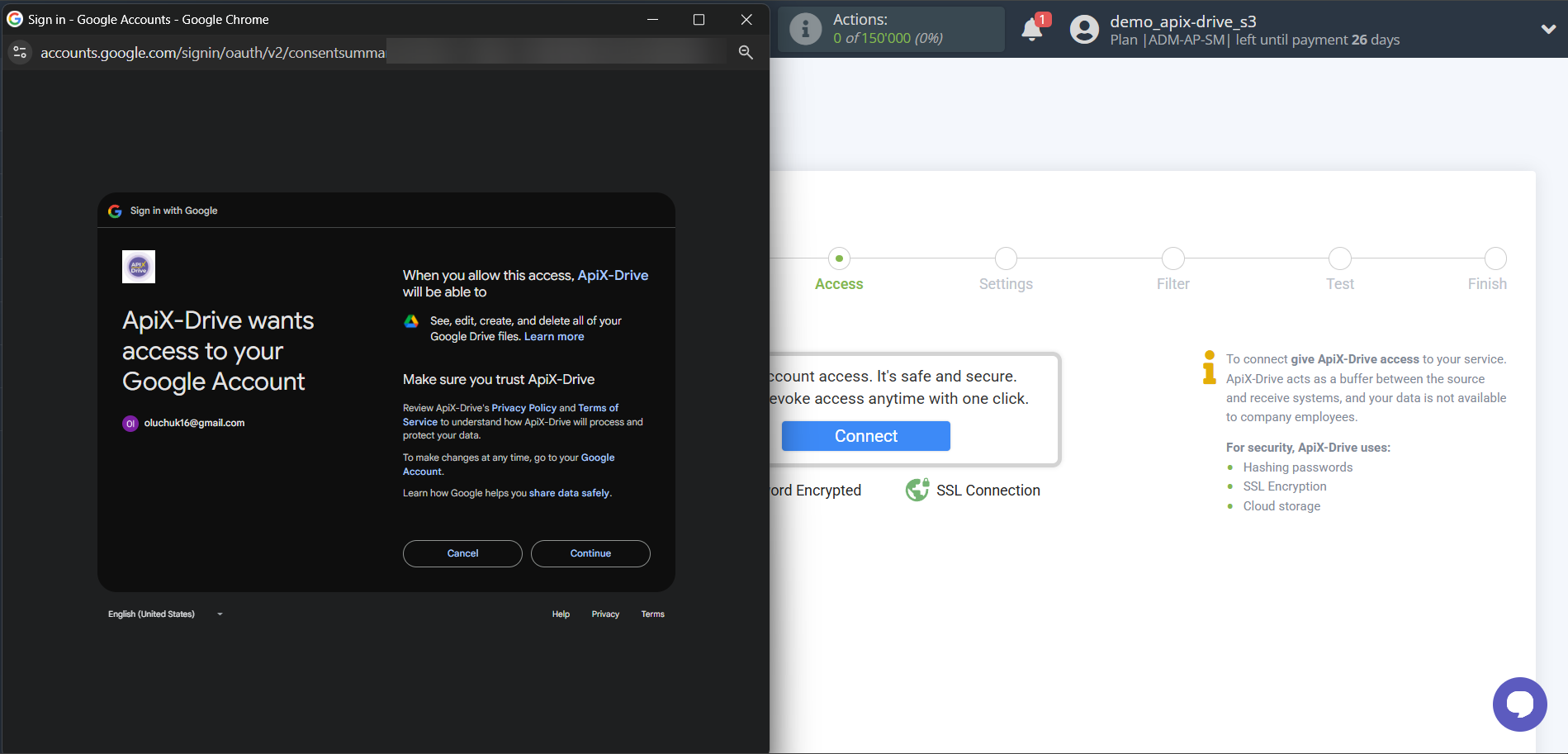
When the connected account is displayed in the "active accounts" list, select it for further work.
Attention! If your account is in the "inactive accounts" list, check your access to this account!
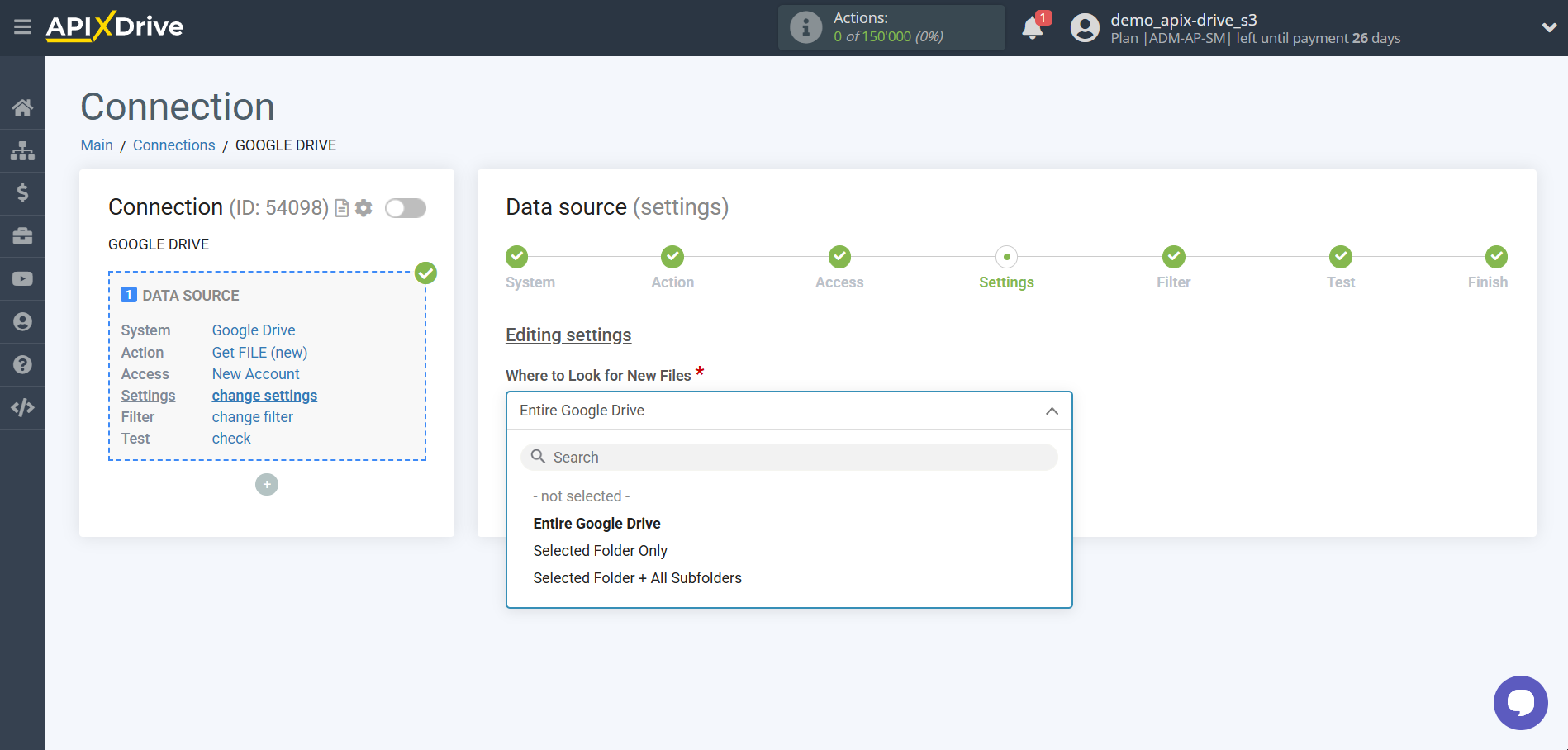
Select stars will be used to collect Google Drive data.
- Entire Google Drive - your Google Drive account will display data found in all folders of your storage.
- Selected Folder Only - your Google Drive account will only display data from the specific folder you select in settings.
- Selected Folder + All Subfolders - from your Google Drive account, data from both the selected folder and all its folders will be extracted.
Please note: If you choose Selected Folder Only or Selected Folder + All Subfolders, new files should be uploaded directly to the folder you selected. Files that have been moved to that folder may not be transferred.
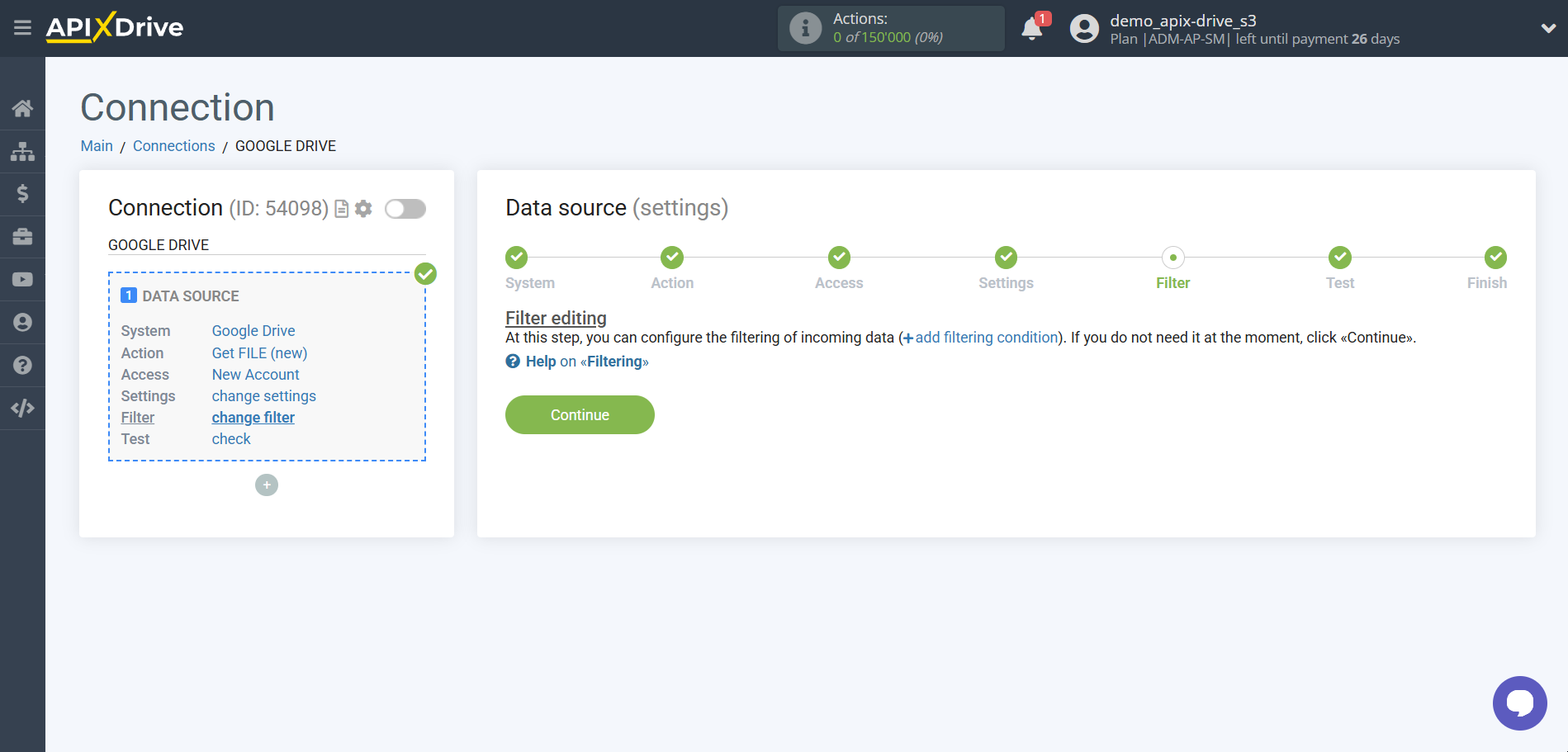
If necessary, you can set up a Data Filter, or click "Continue" to skip this step.
To find out how to setup the Data Filter, follow the link: https://apix-drive.com/en/help/data-filter
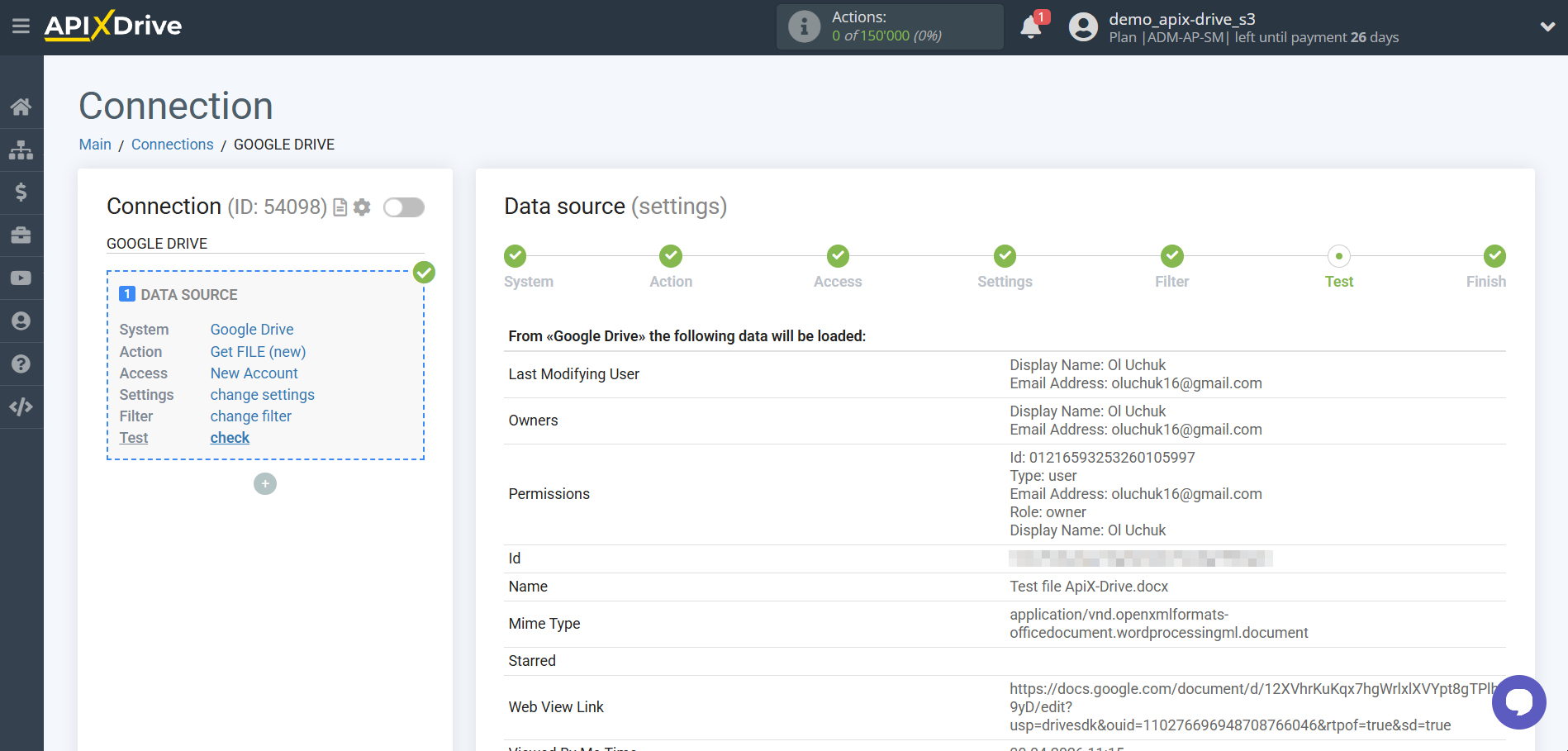
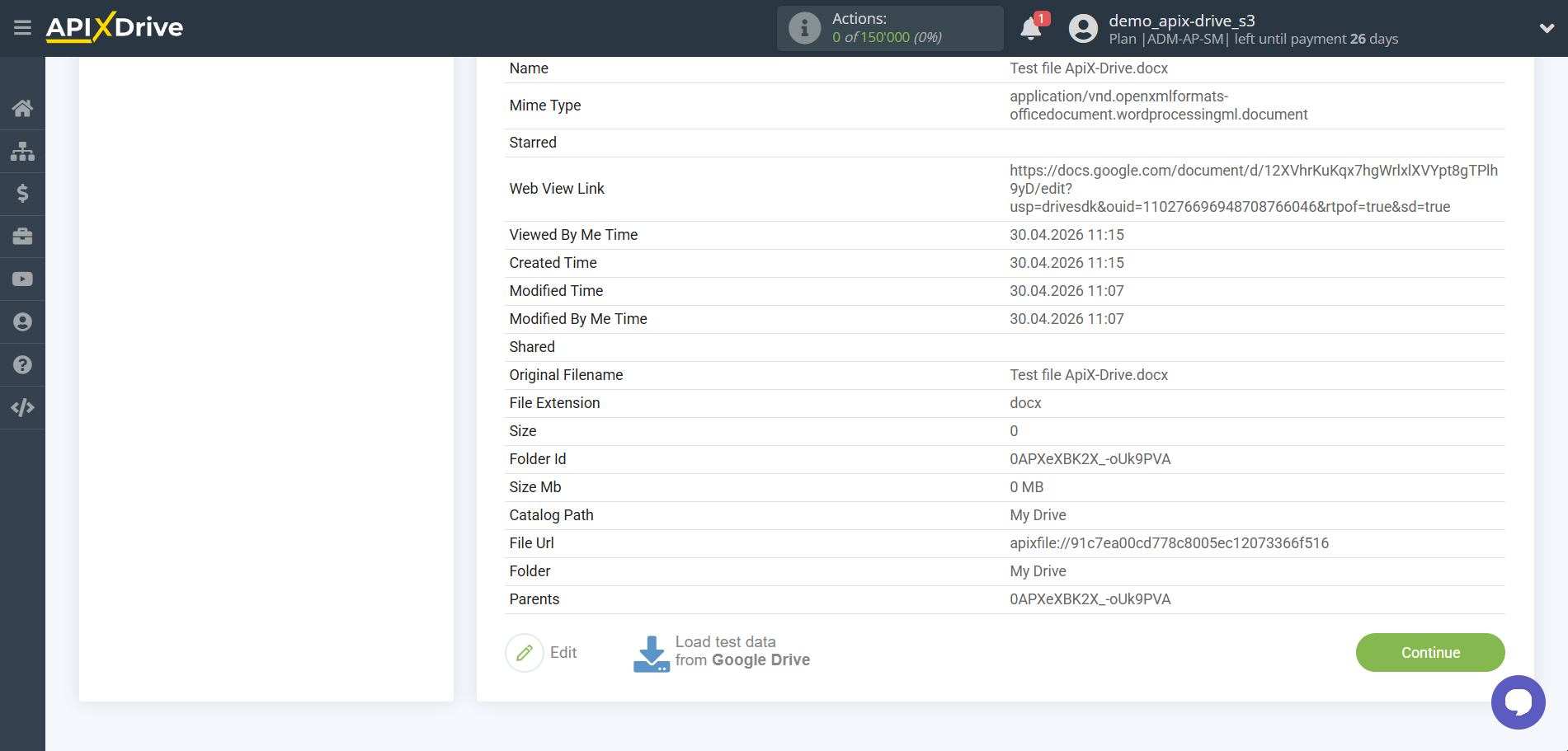
Now you can see the test data.
The test data will display the last uploaded file.
If you want to update the test data - click "Load test data from Google Drive".
If you want to change the settings - click "Edit" and you will go back one step.
If everything suits you, click "Next".
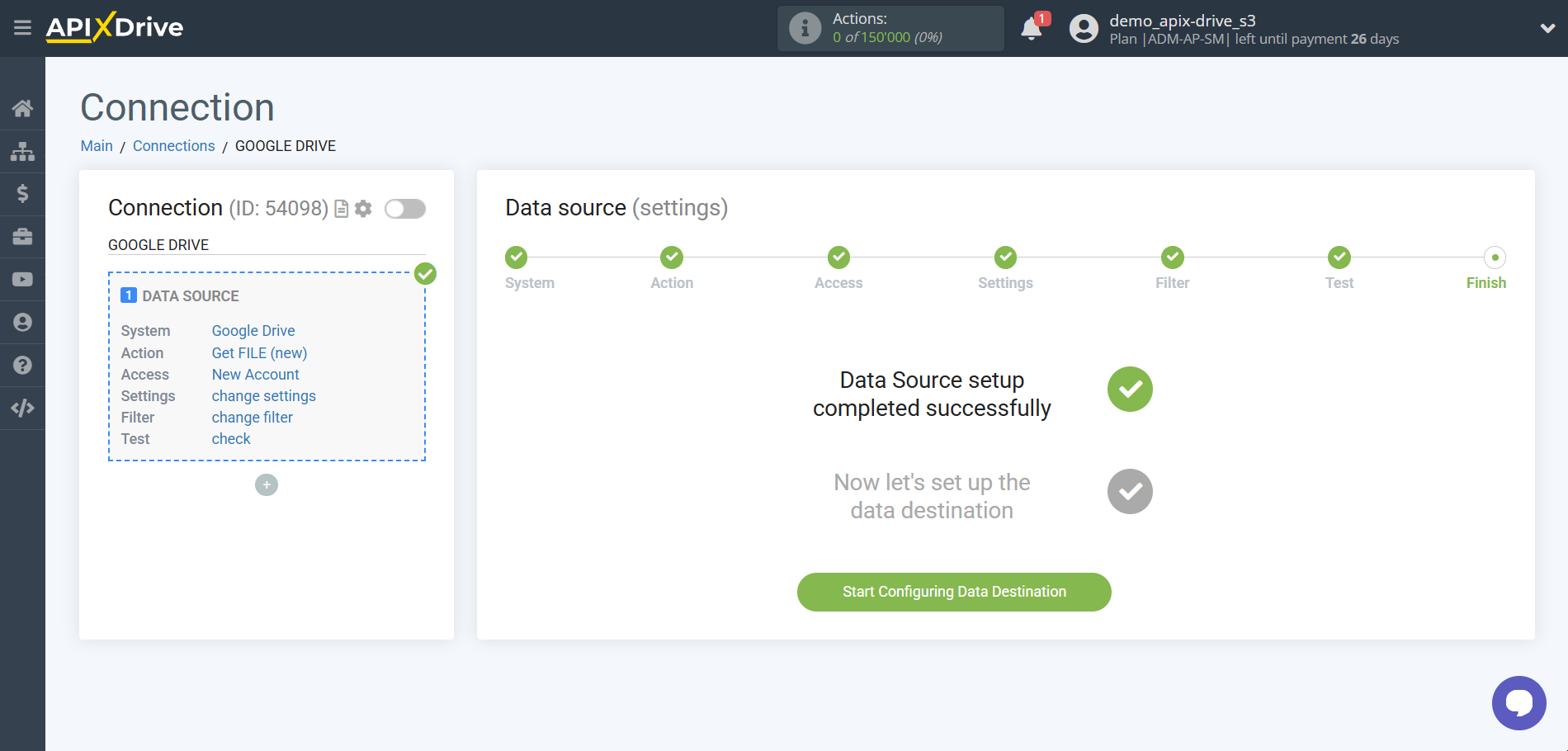
This completes the entire Data Source setup! See how easy it is!?
Now you can start setup the Data Destination system.
To do this, setup it yourself or go to the help section "Data Destination", select the service you need as Data Destination, and follow the setup recommendations.
Good luck!