How to Connect Omnisend as Data Source
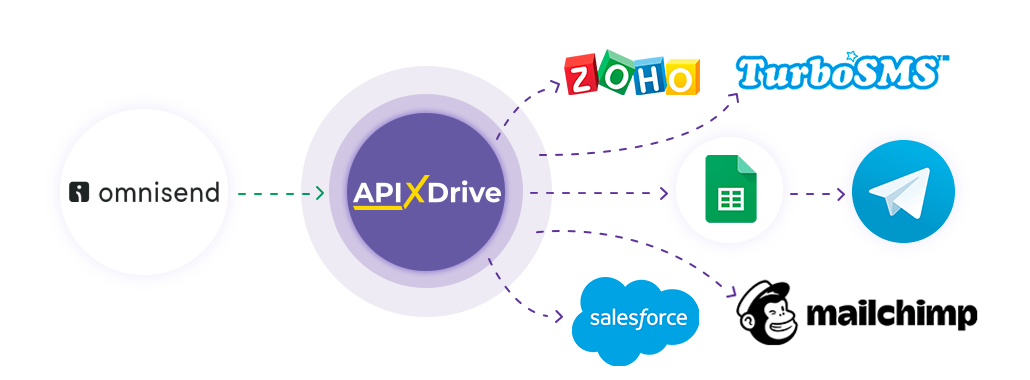
The integration will allow you get new contacts , transferring them to other systems. For example, you can send new contacts to CRM or GoogleSheets, and send them as notifications to yourself or a group of managers. You can also send contacts to the SMS or Email mailing service. This will allow you to maximize the automation interaction of Omnisend with other services and systems.
Let's go through the entire Omnisend setup steps together!
Navigation:
1. What data can be get from Omnisend?
2. How to connect your Omnisend account to ApiX-Drive?
3. An example of data for a new contact.
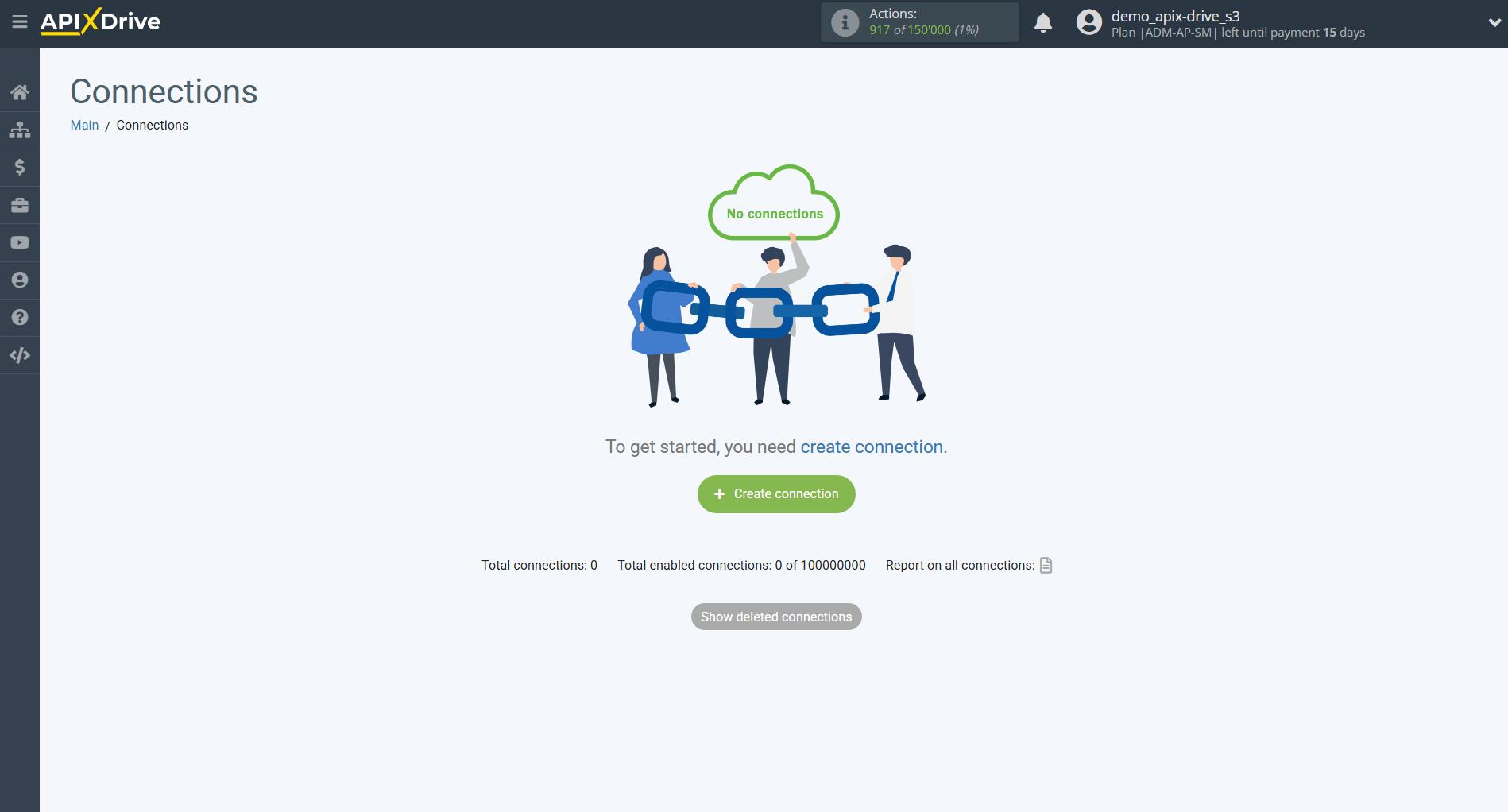
To start setup a new connection, click "Create Connection".
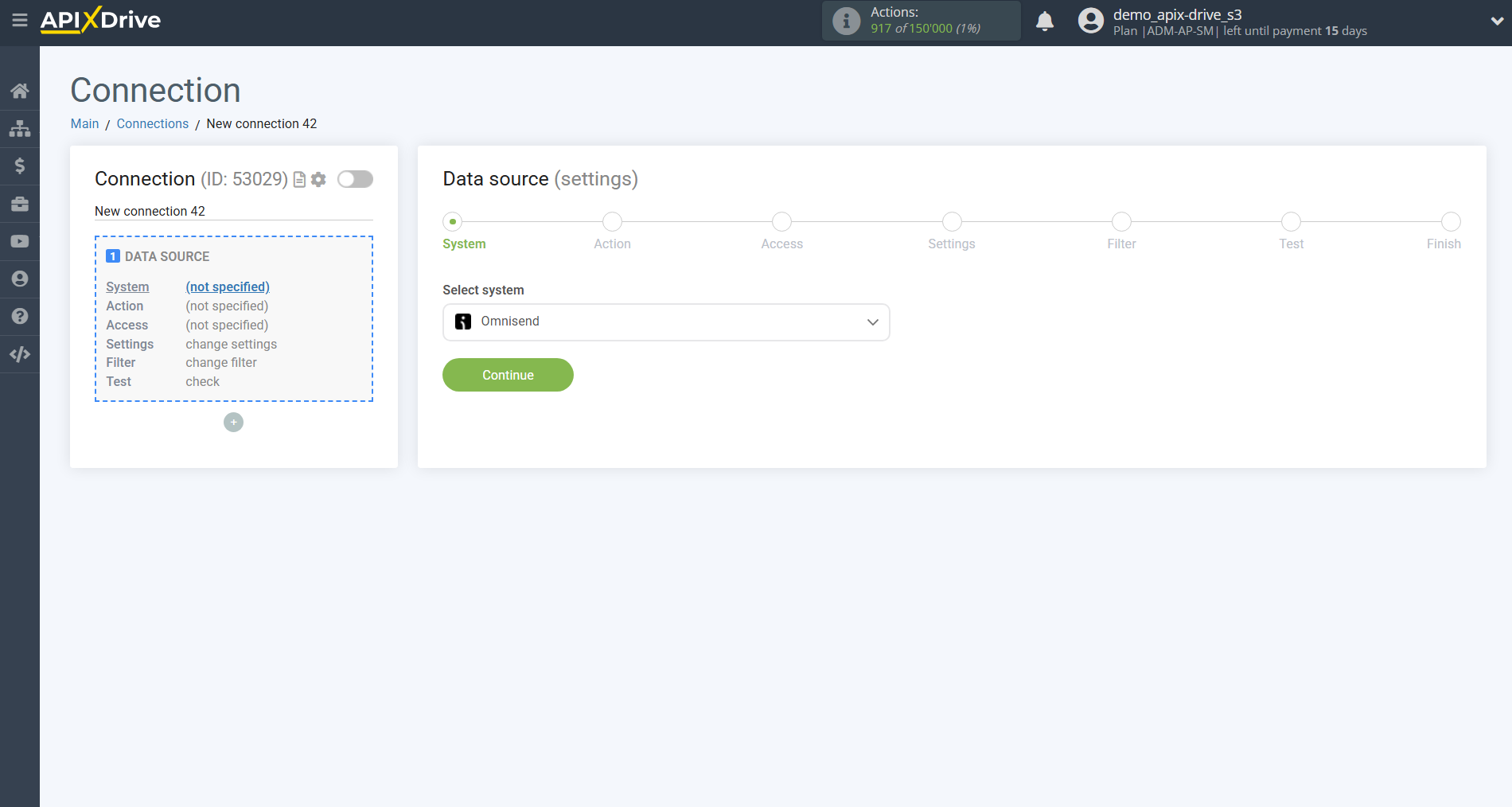
Select a system as the Data Source. In this case, you must specify Omnisend.
Next, you need to specify an action, for example, "Get CONTACT (new)".
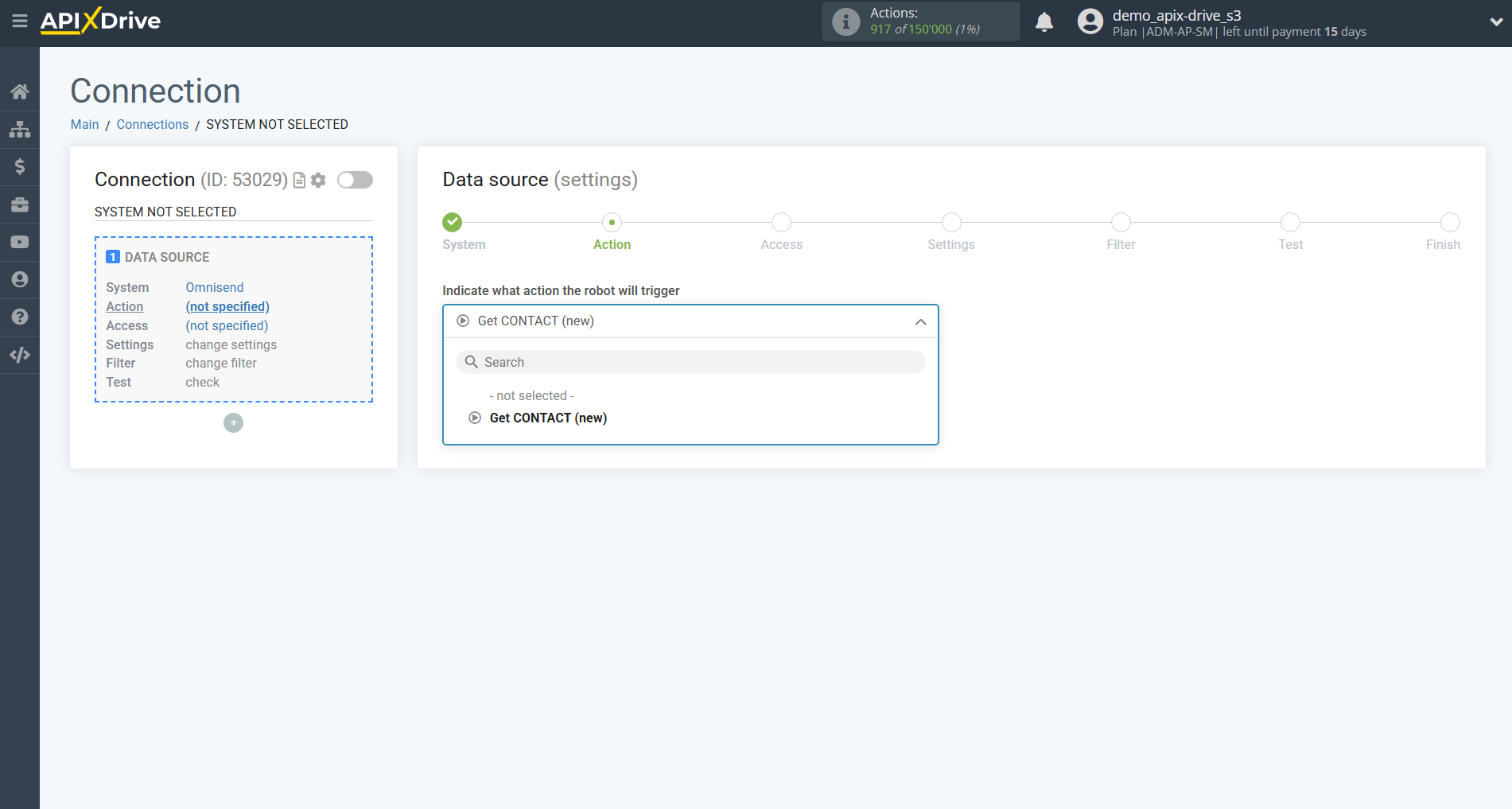
- Get CONTACT (new) – Apix-Drive will receive from Omnisend only the contacts that are created after setting up the connection and starting auto-update. The system will automatically load every new contact that appears in Omnisend and transfer it to the selected destination.
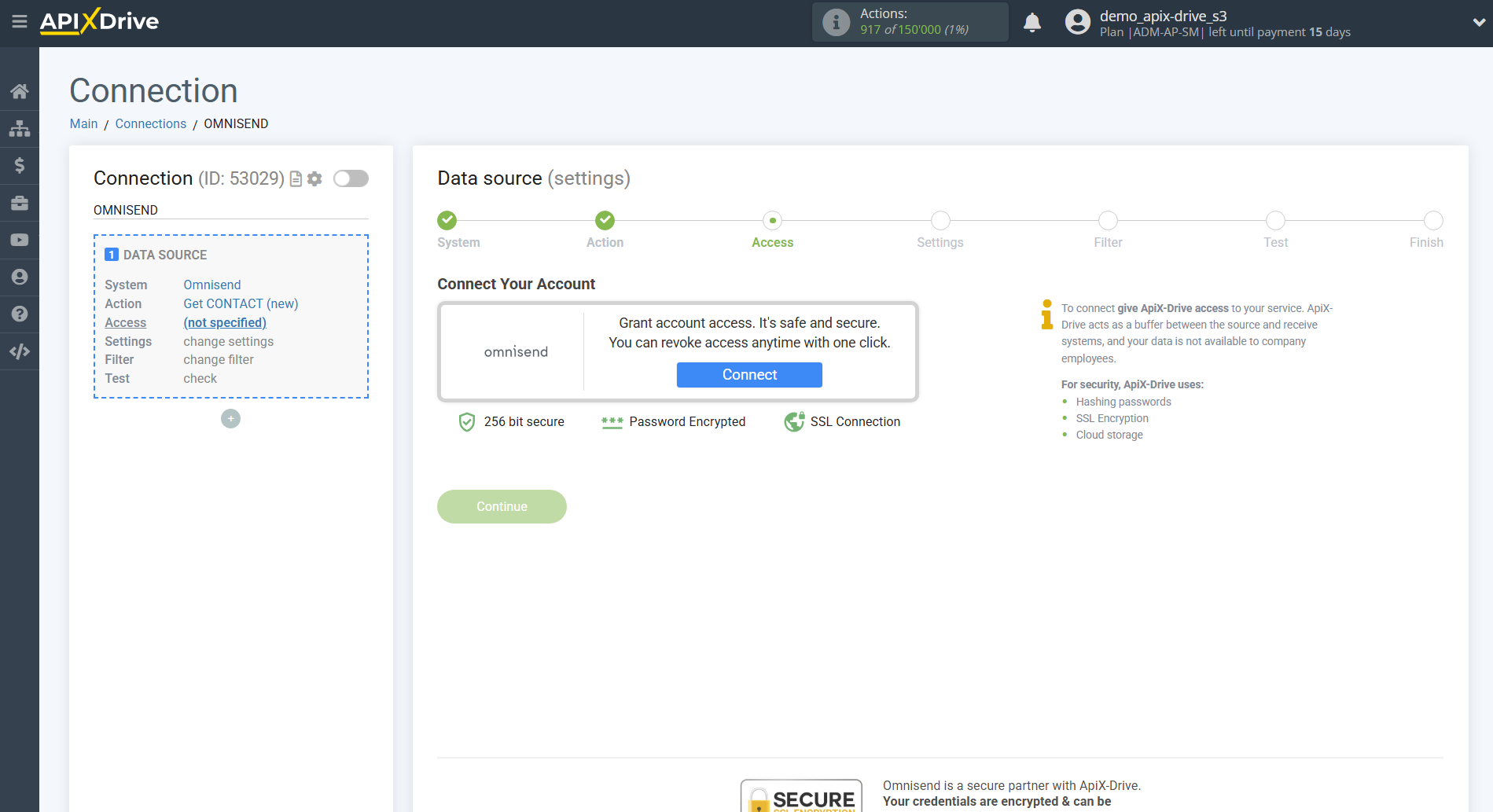
The next step is to select the Omnisend account from which will get the data.
If there are no accounts connected to the system, click "Connect account"
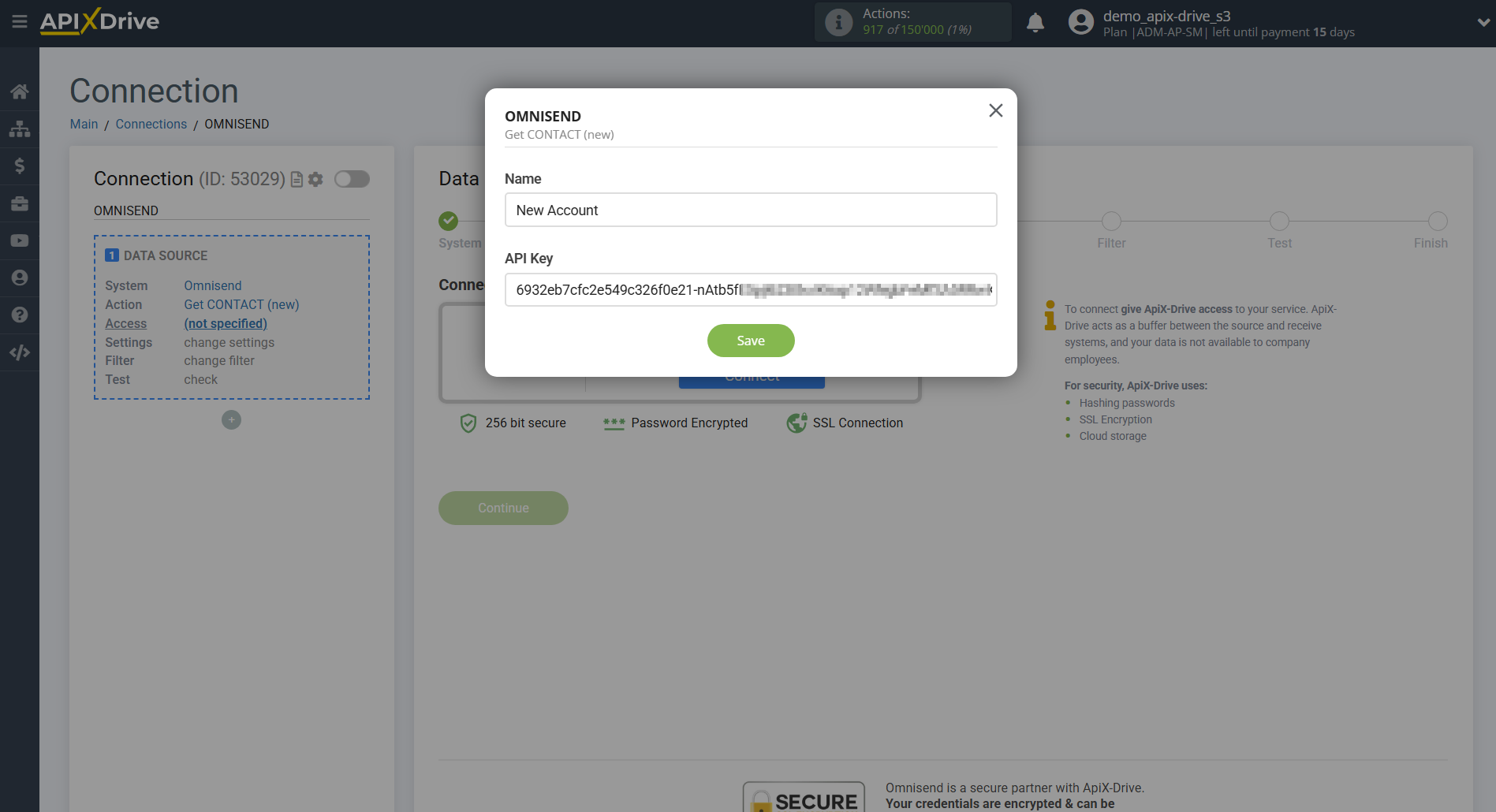
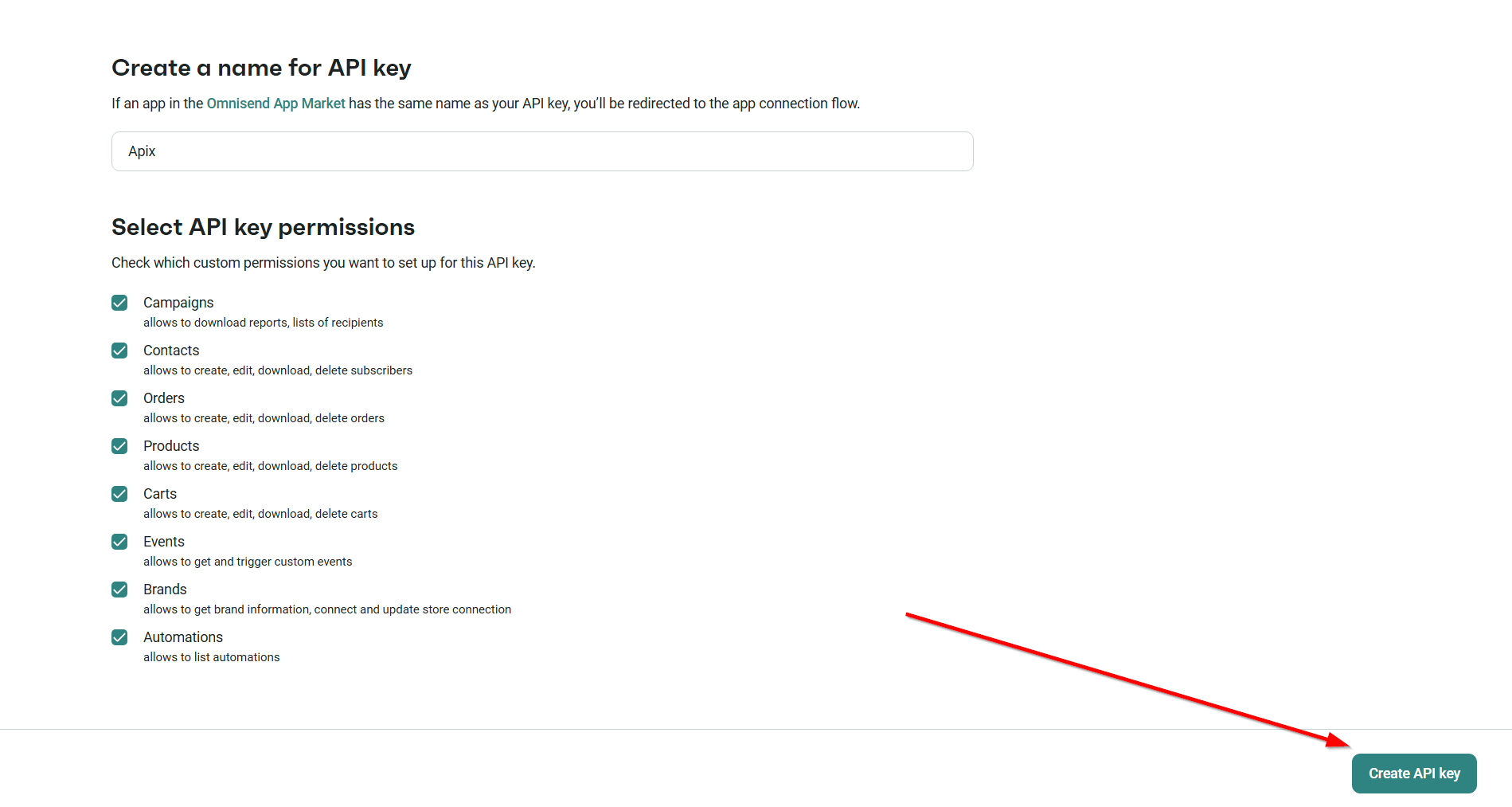
Next, you need to enter the API key of your Omnisend account.
After filling in, click save and reload the page, if necessary.
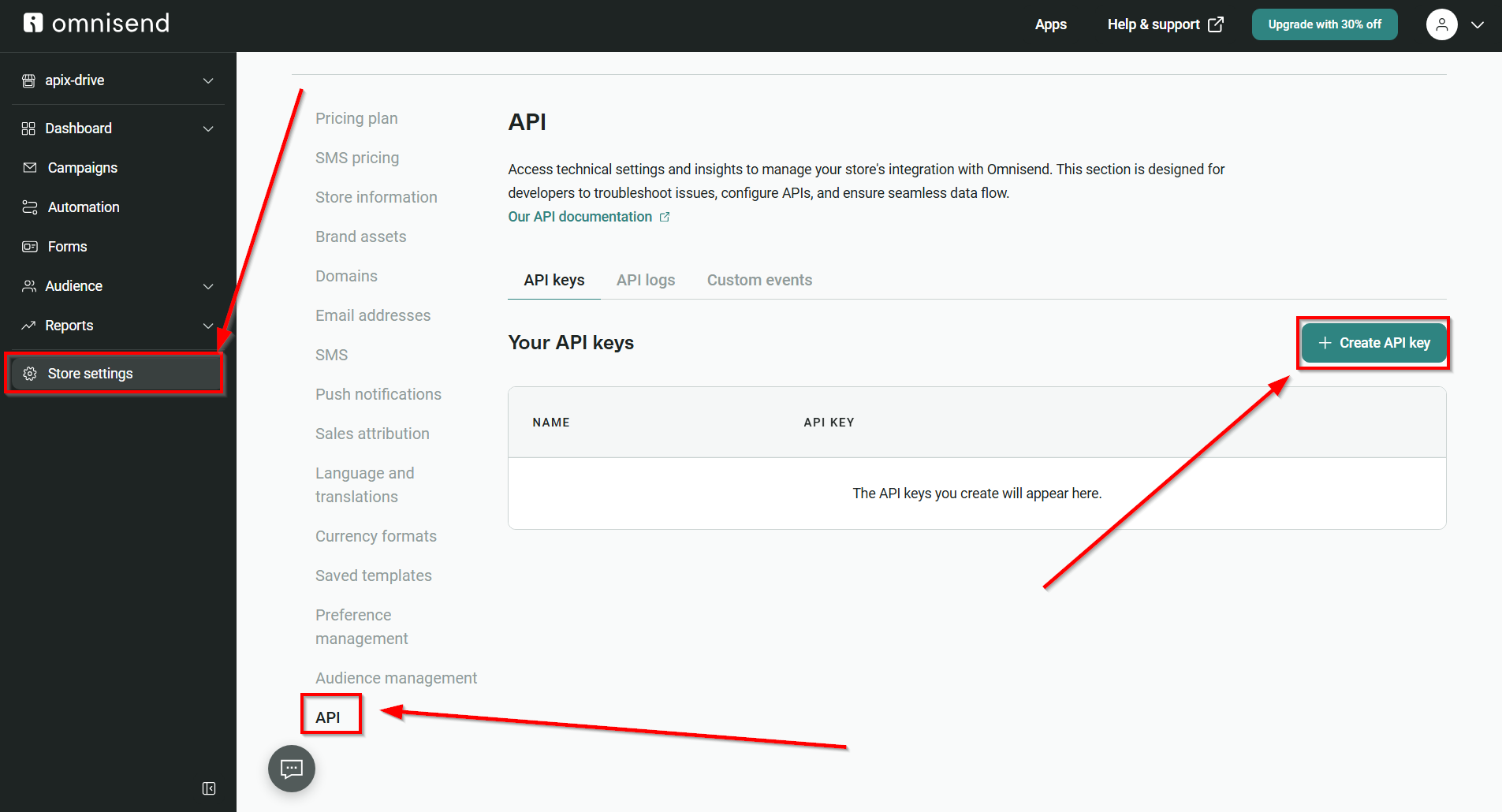
Go to "Store Settings" of your Omnisend account. Then go to the "API" tab, create a new API Key, copy and paste it into the appropriate field in your ApiX-Drive account.
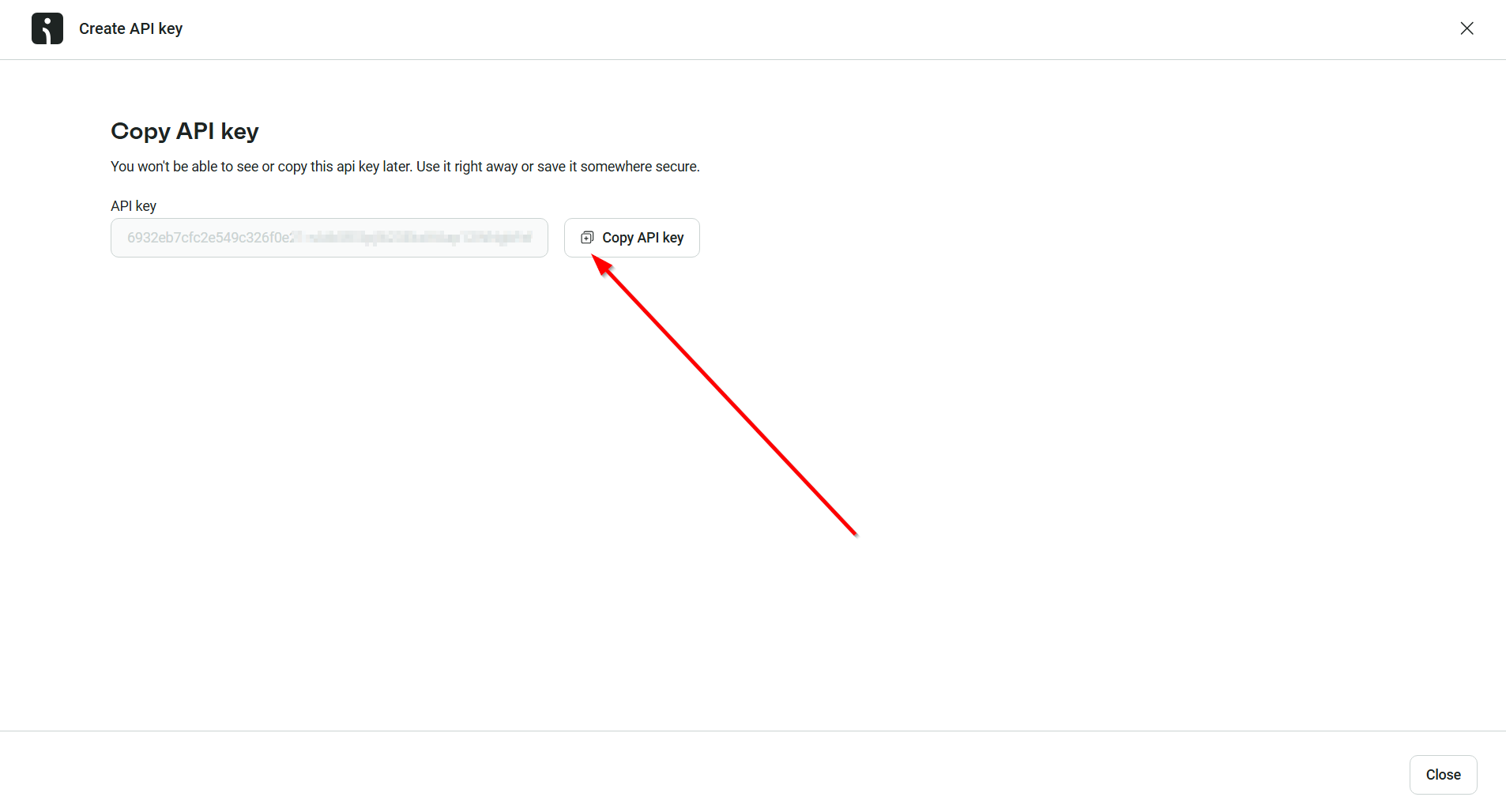
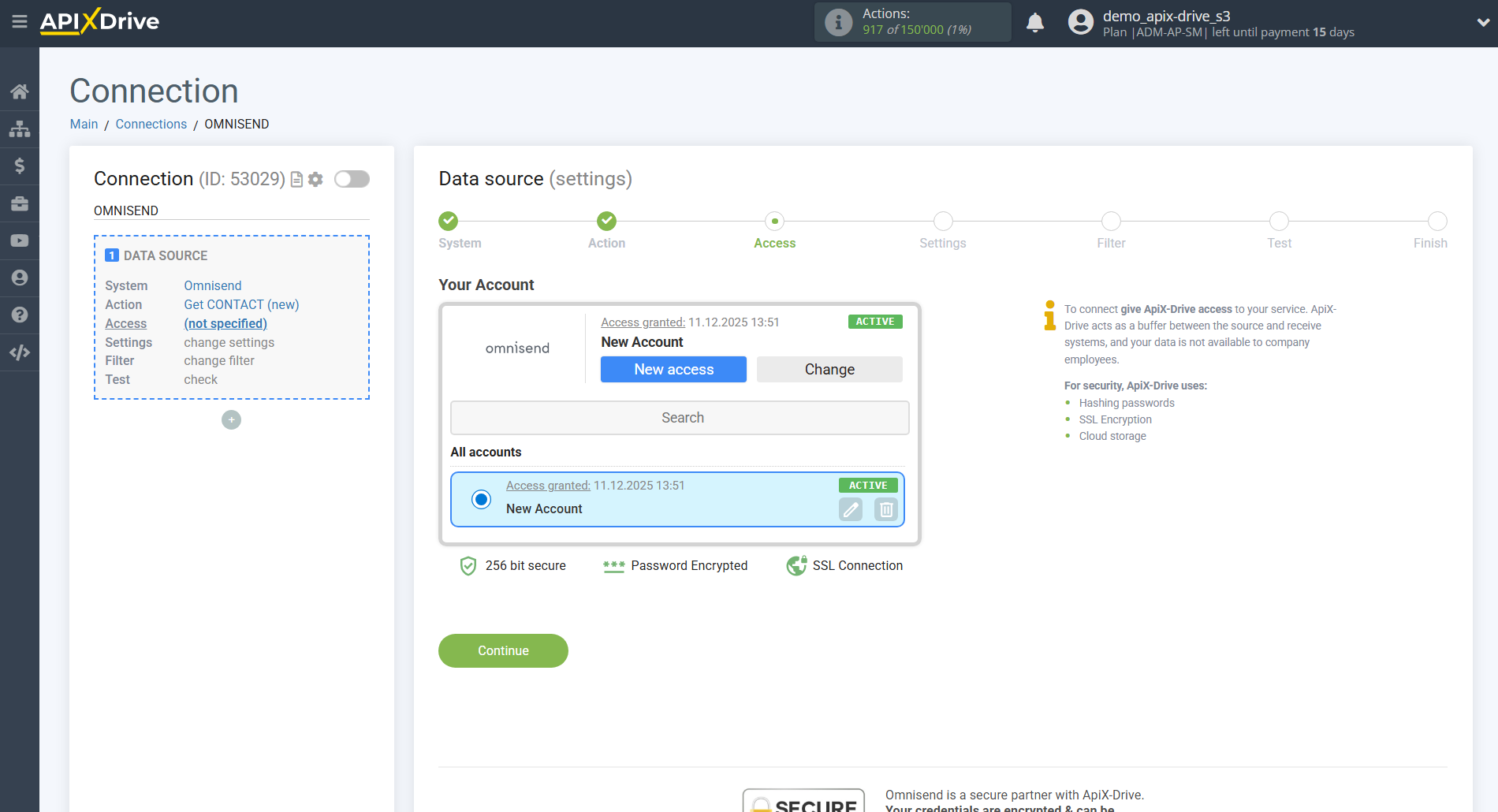
When the connected account is displayed in the "active accounts" list, select it.
Attention! If your account is in the "inactive accounts" list, check your access to this account!
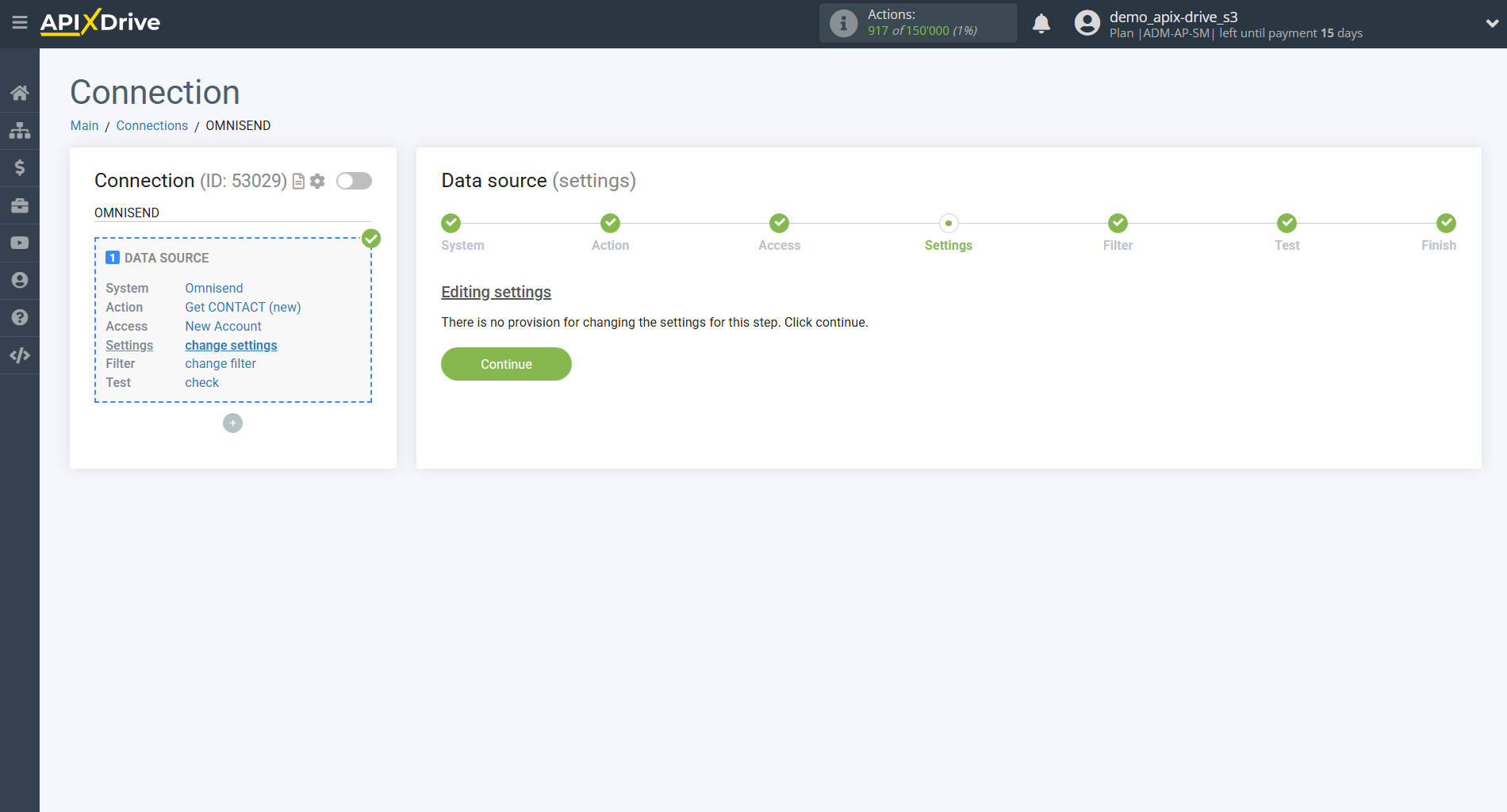
If there are no settings for the selected action, click Continue.
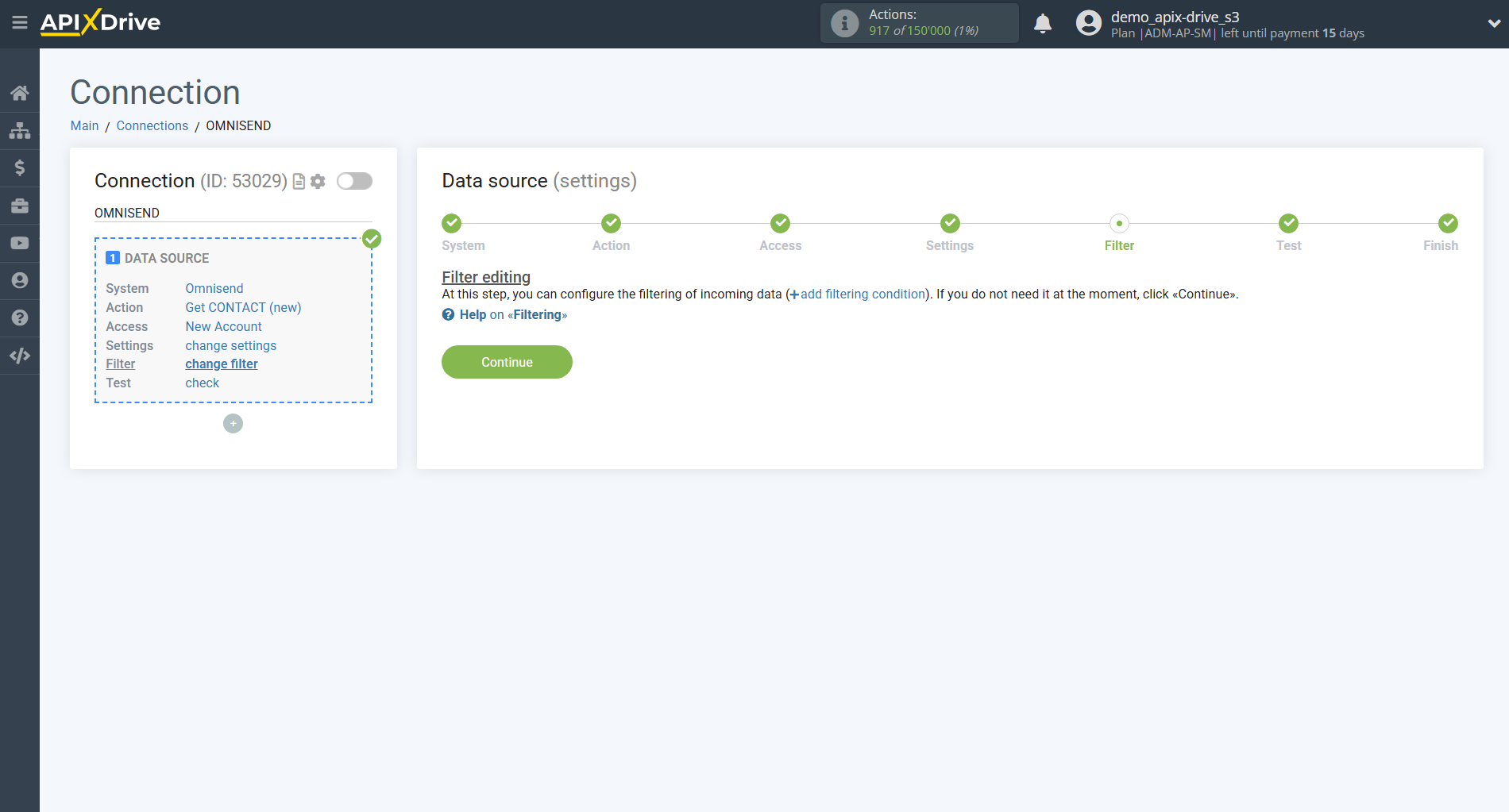
If necessary, you can set up a Data Filter, or click "Continue" to skip this step.
To find out how to setup the Data Filter, follow the link: https://apix-drive.com/en/help/data-filter
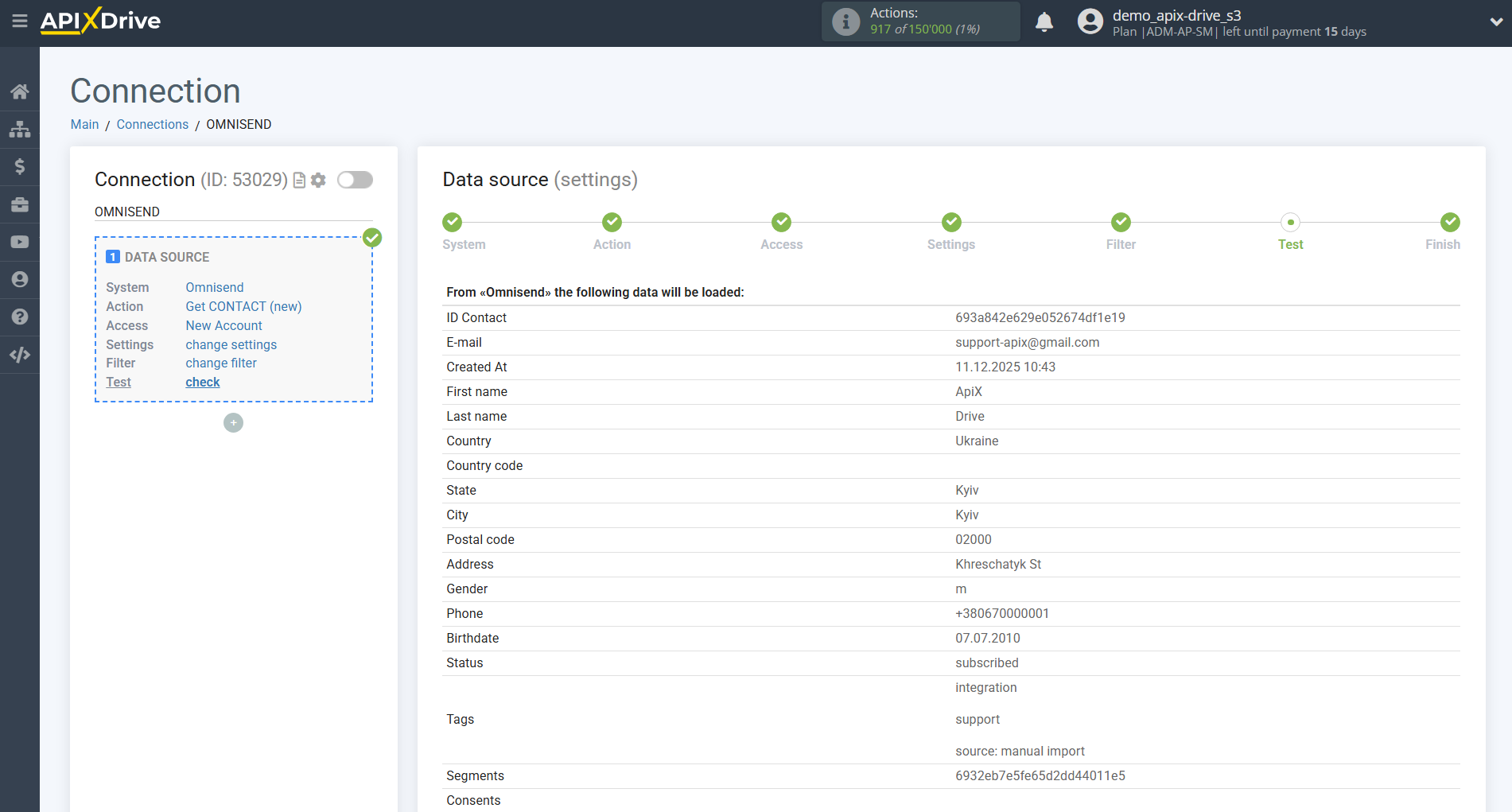
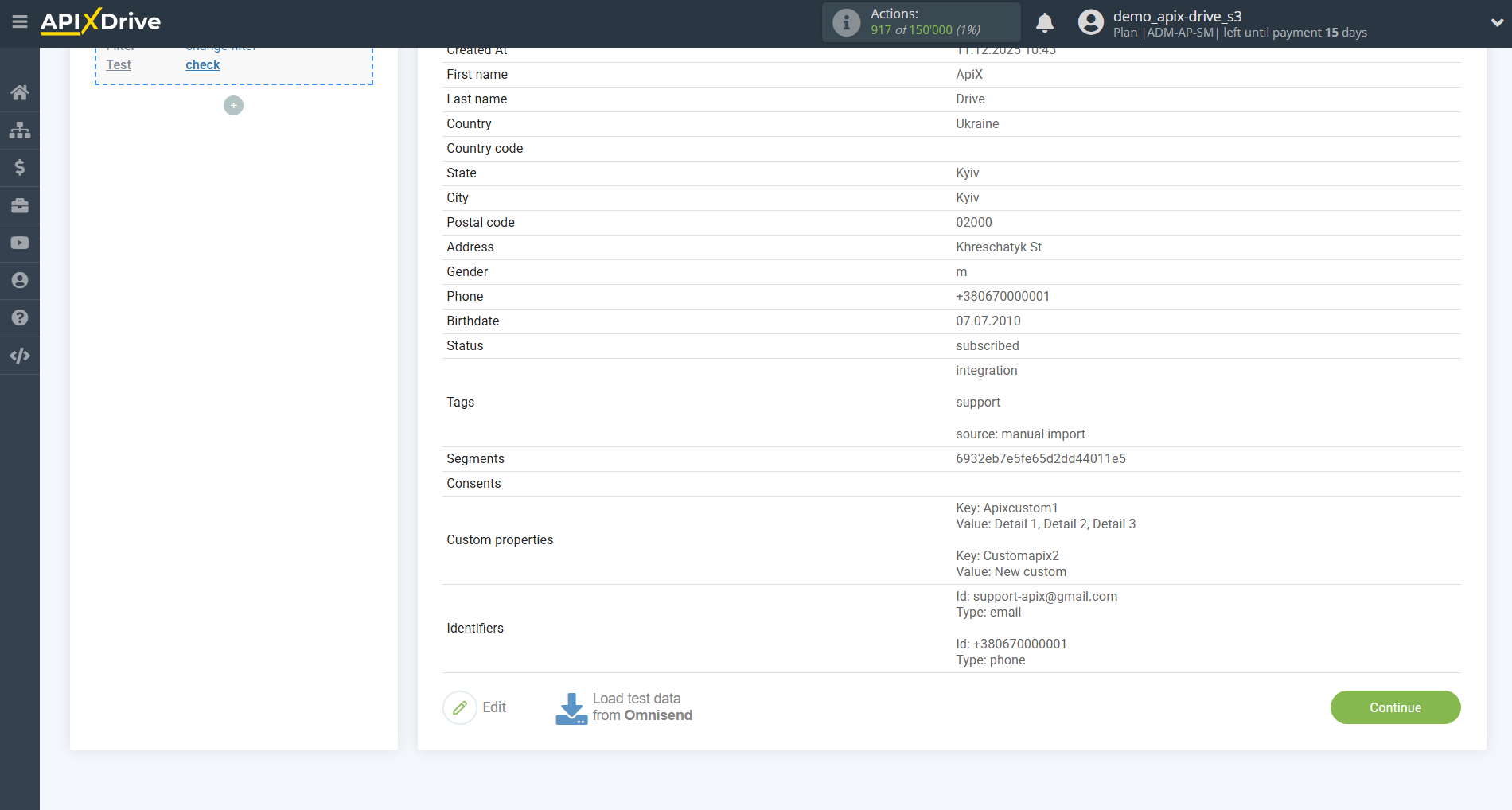
Now you can see the test data for one of the contacts in your Omnisend.
If you want to update the test data - click "Load test data from Omnisend".
If you want to change the settings - click "Edit" and you will go back one step.
If everything suits you, click "Next".
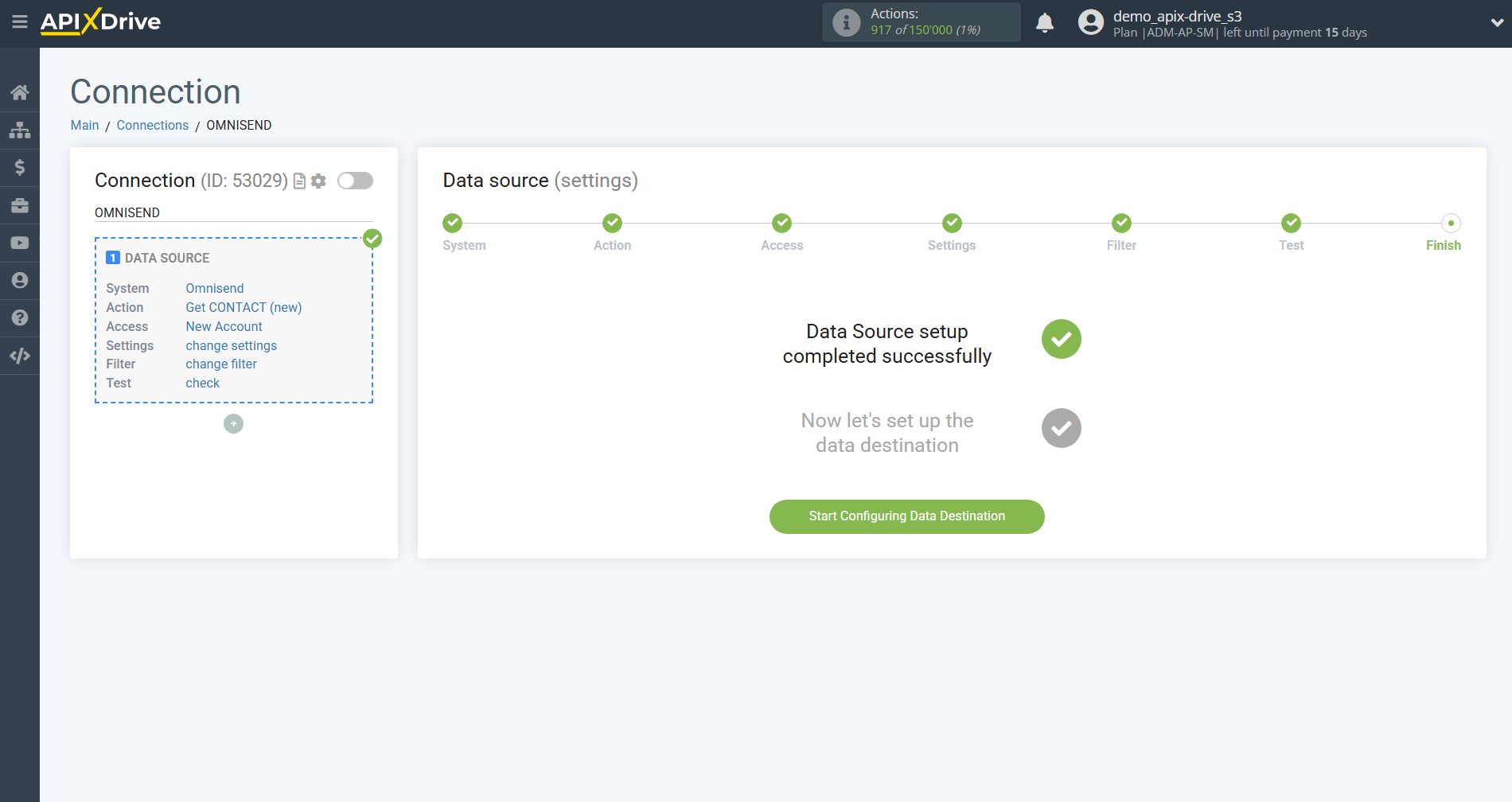
This completes the entire Data Source setup! See how easy it is!?
Now you can start setup the Data Destination system.
To do this, setup it yourself or go to the help section "Data Destination", select the service you need as Data Destination, and follow the setup recommendations.
Good luck!