How to Connect Webex Interact as Data Destination
Integration will allow you to send messages to Webex Interact in response to some action in other systems. For example, when a new line appears in Google Sheets, an order in your CRM moves to another stage of the funnel, or when a new order appears on your website. This will allow you to effectively automate your workflows and save a lot of time.
Let's go through the entire Webex Interact setup steps together!
Navigation:
1. What will the integration with Webex Interact do?
2. How to connect your Webex Interact account to ApiX-Drive?
3. How can I set up data transfer to Webex Interact in the selected action?
4. Example of data that will be sent to your Webex Interact.
5. Auto-update and update interval.
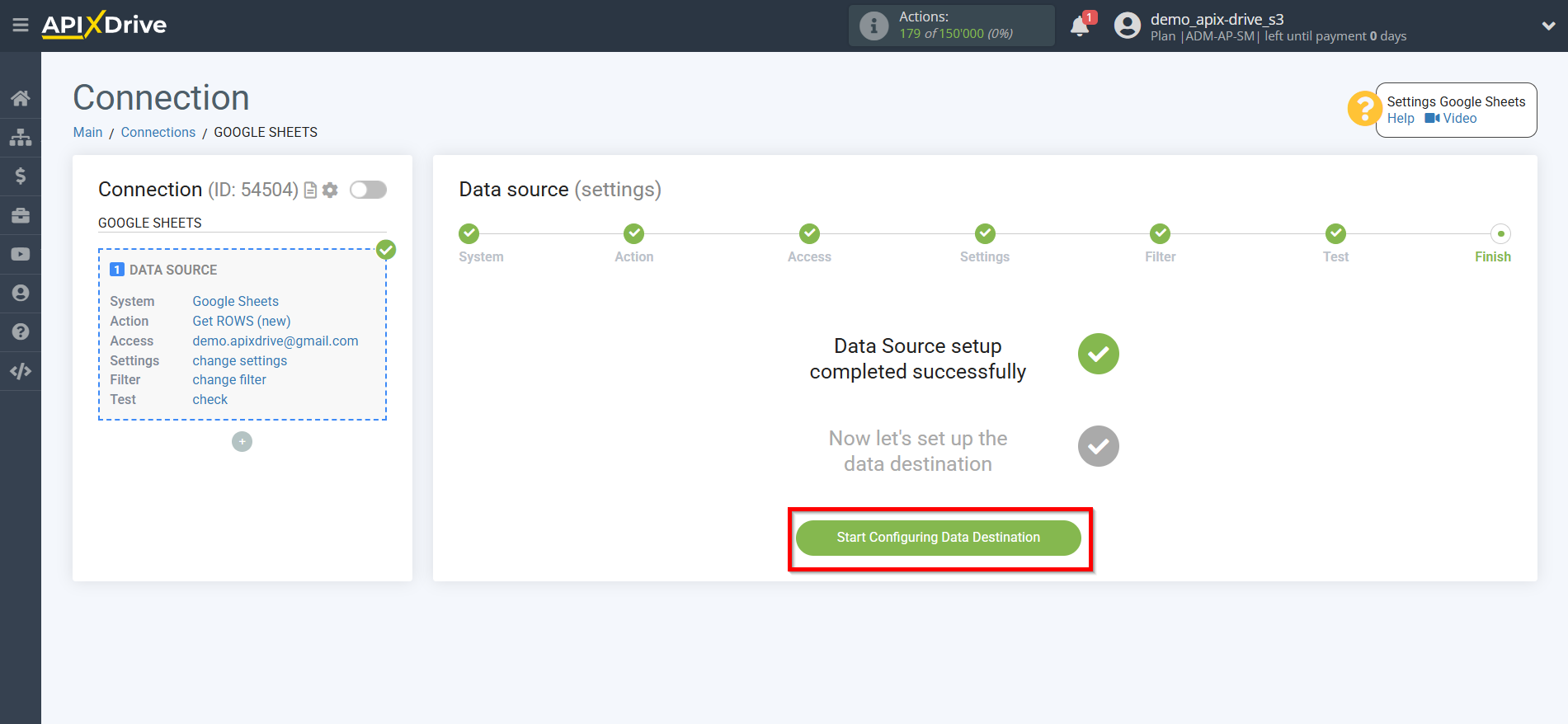
Once you have set up a Data Source system, such as Google Sheets, you can begin setting up Webex Interact as a Data Destination.
To do this, click “Start configuring Data Destination”.
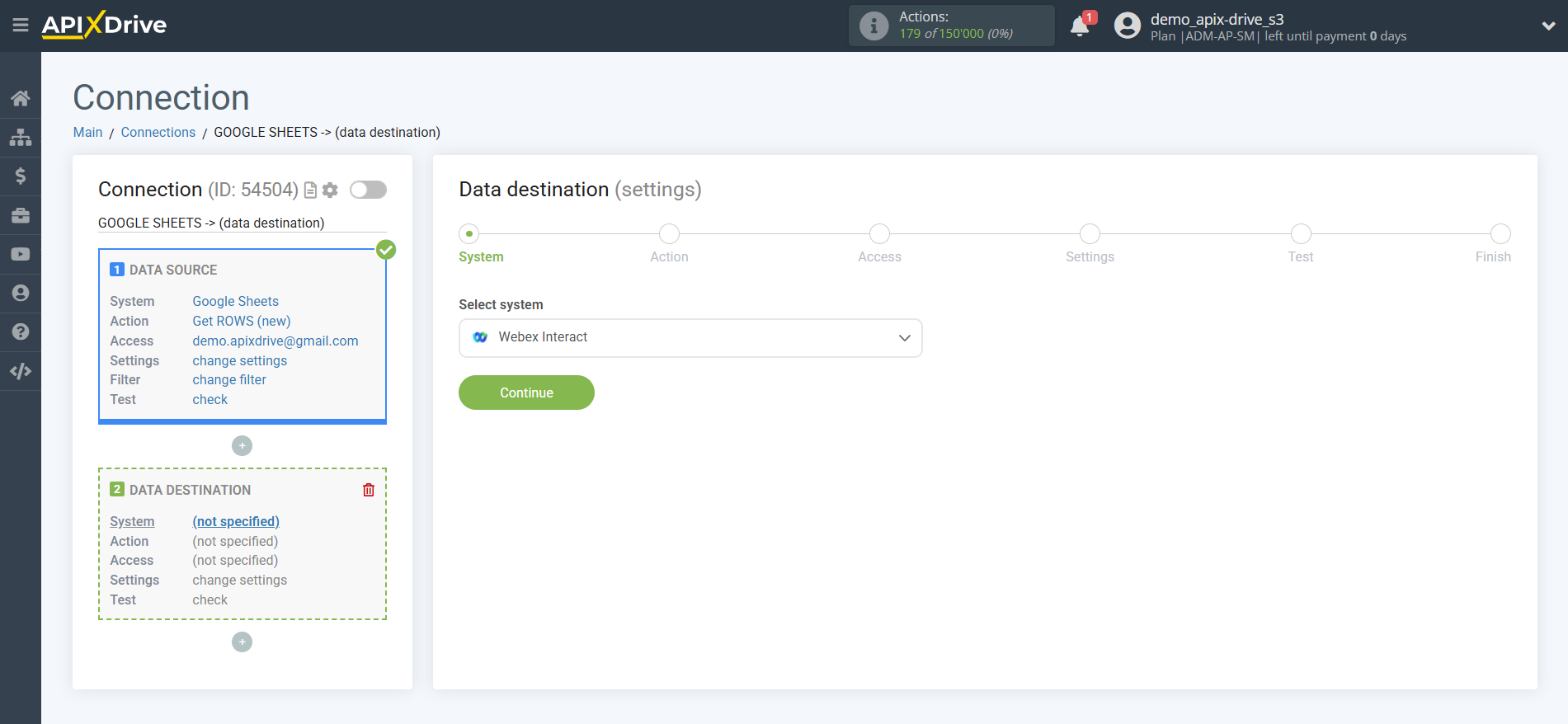
Select the system as Data Destination. In this case, you must specify Webex Interact.
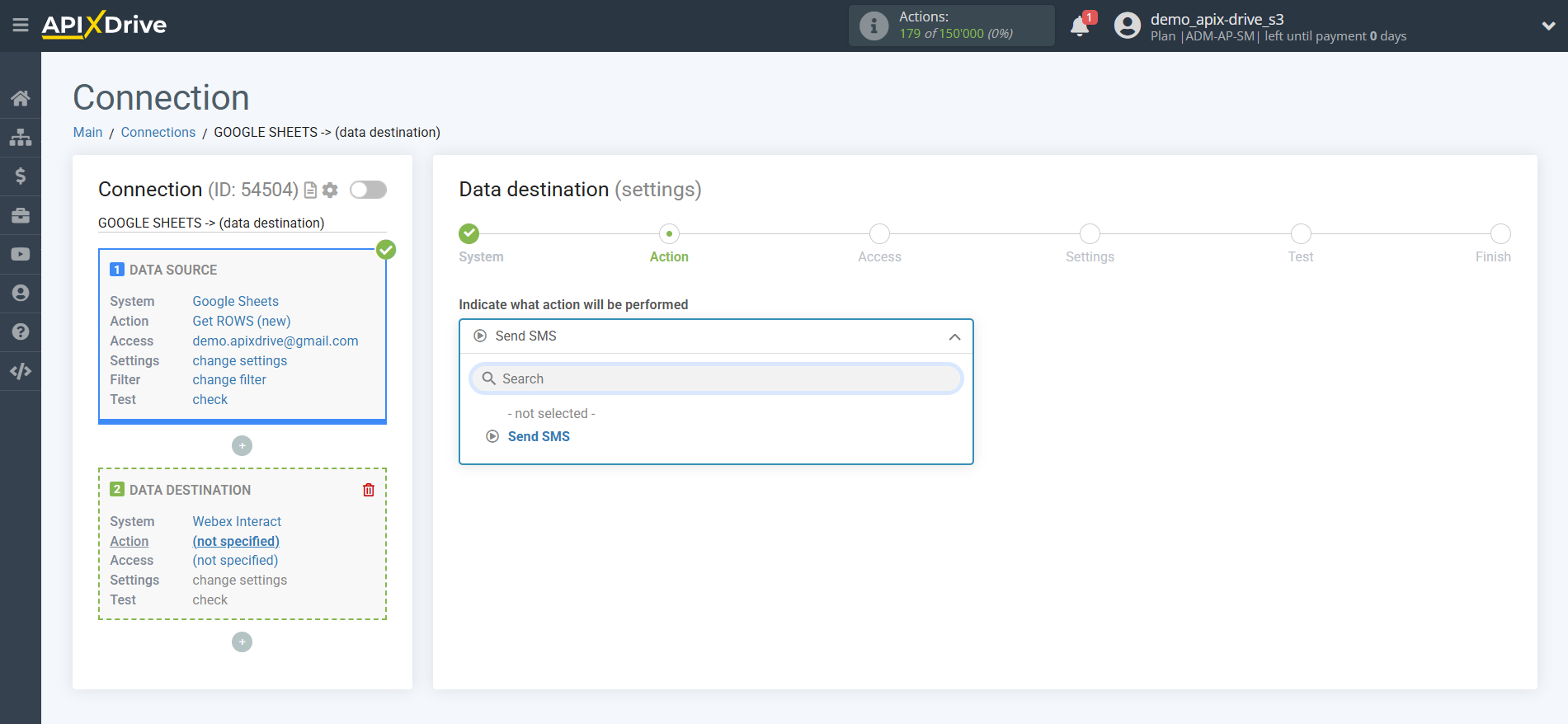
Next, you need to specify the action “Send SMS”.
The next step is to select the Webex Interact account to which the data will be sent.
If there are no accounts connected to the ApiX-Drive system, click “Connect account”.
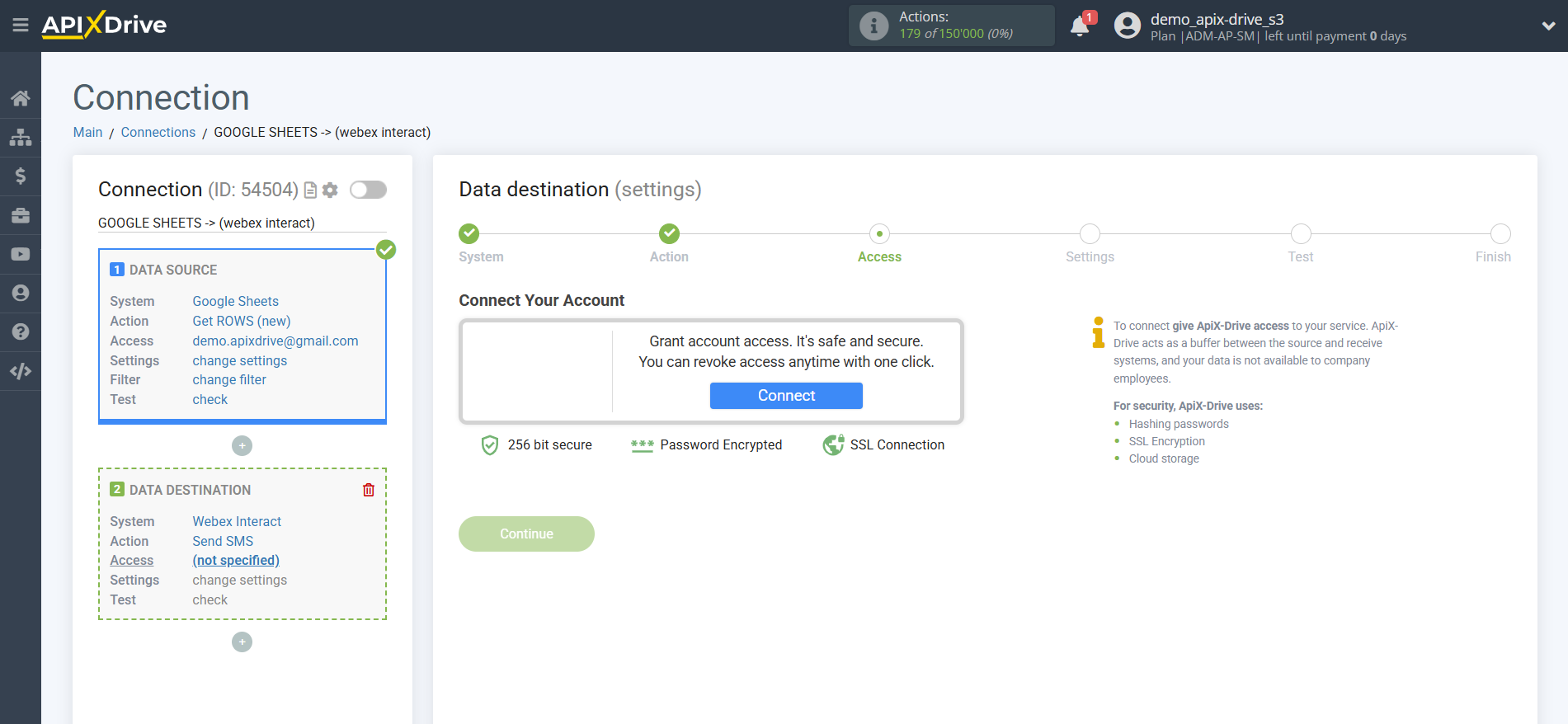
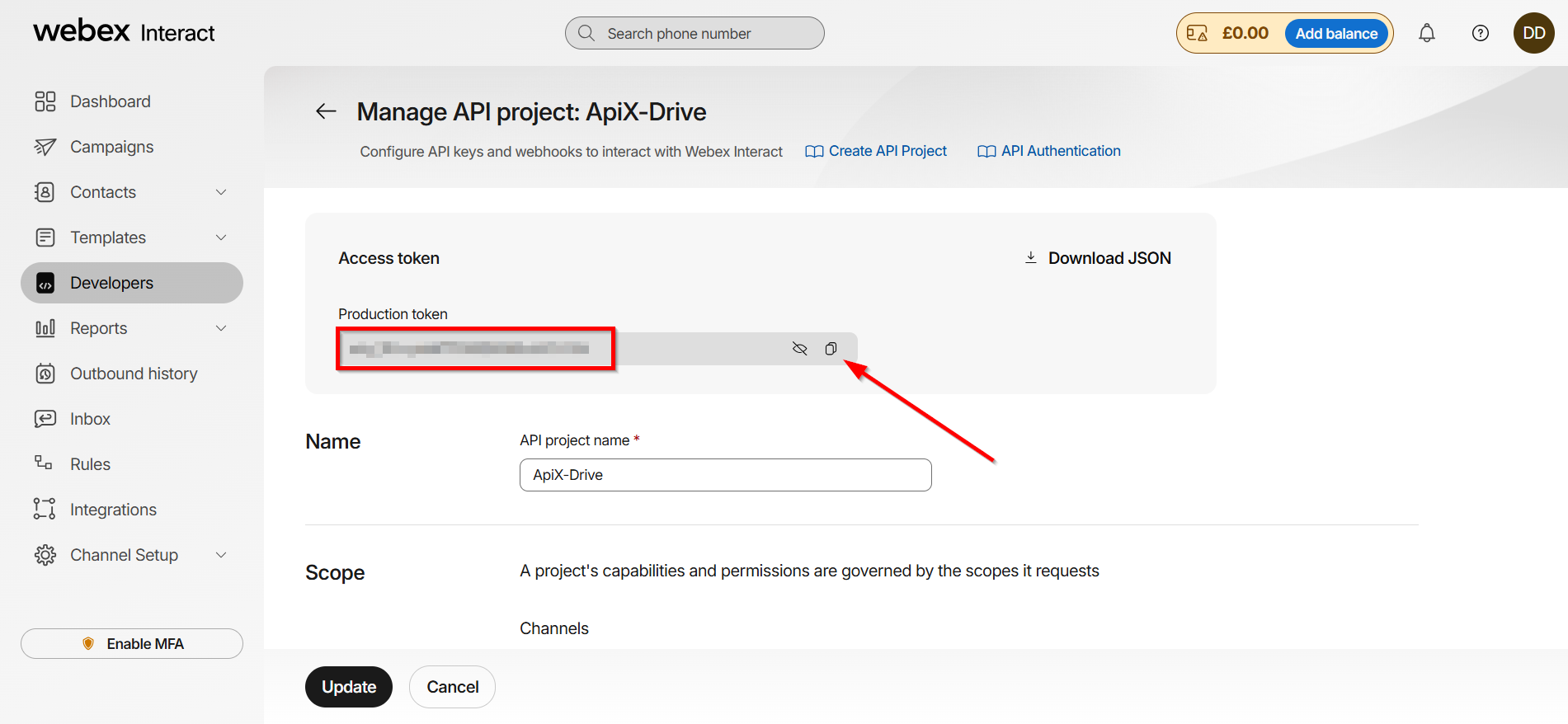
In the window that opens, you need to fill in the "API Key" field.
To do this, go to your Webex Interact personal account.
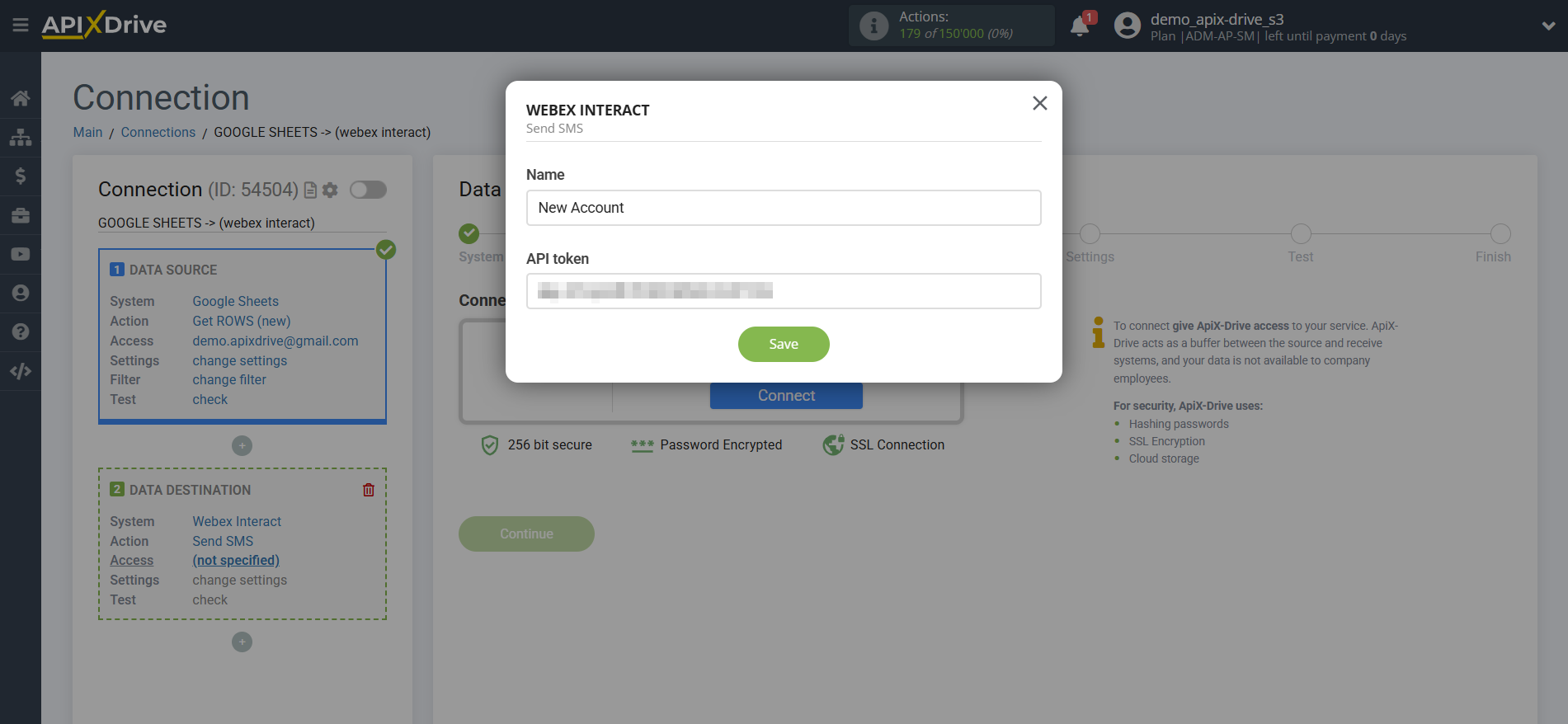
Go to the "Developers" - "API projects" tab.
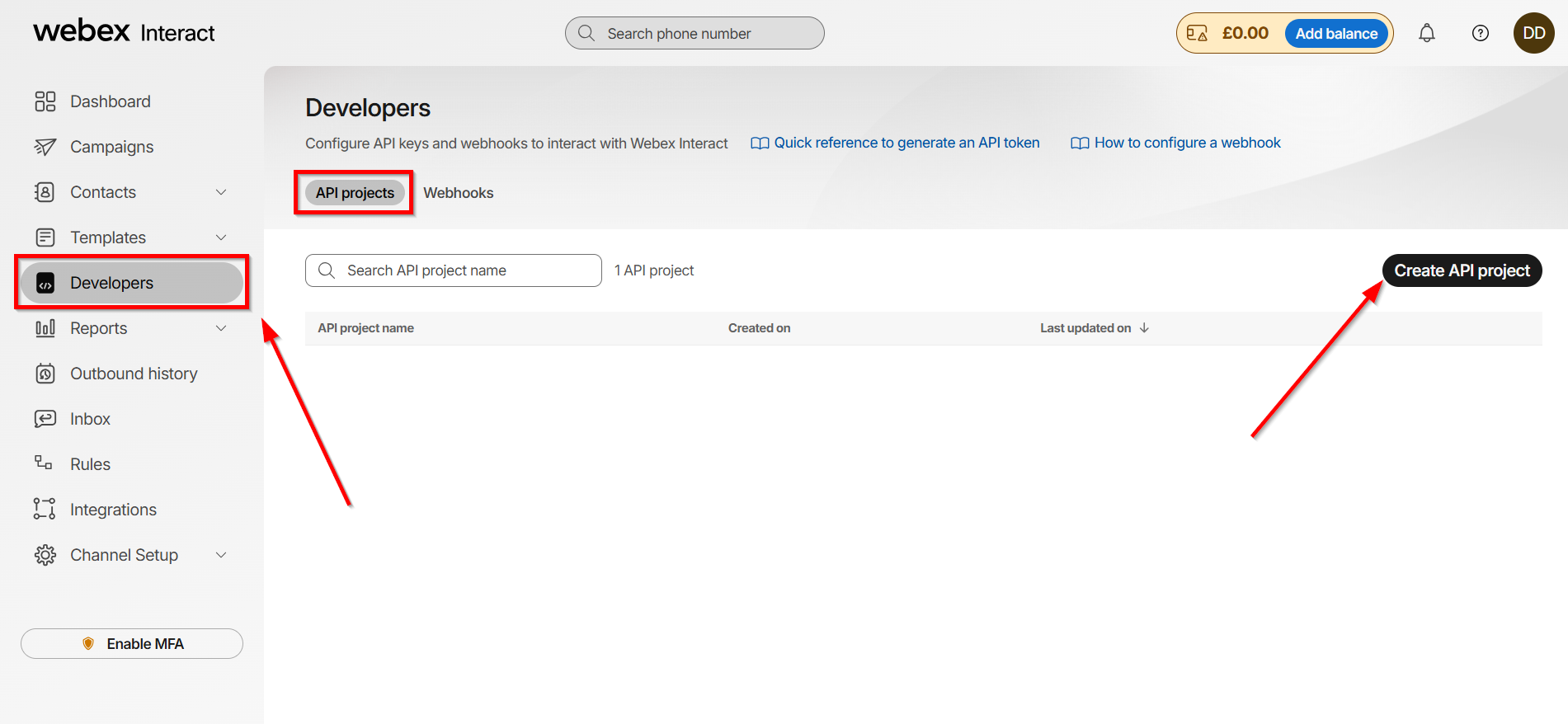
Click "Create".
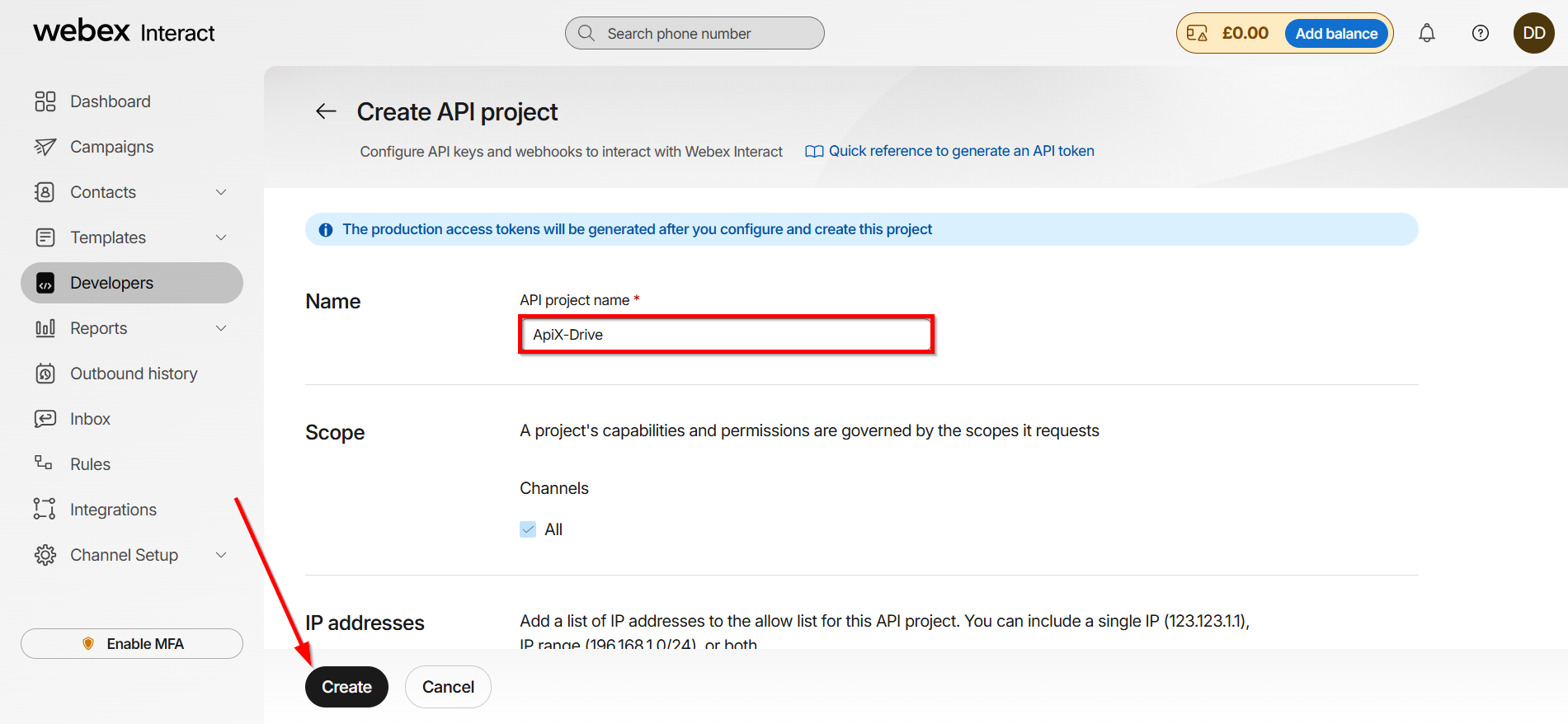
After that, copy the API key and paste it into the appropriate field in the ApiX-Drive system.
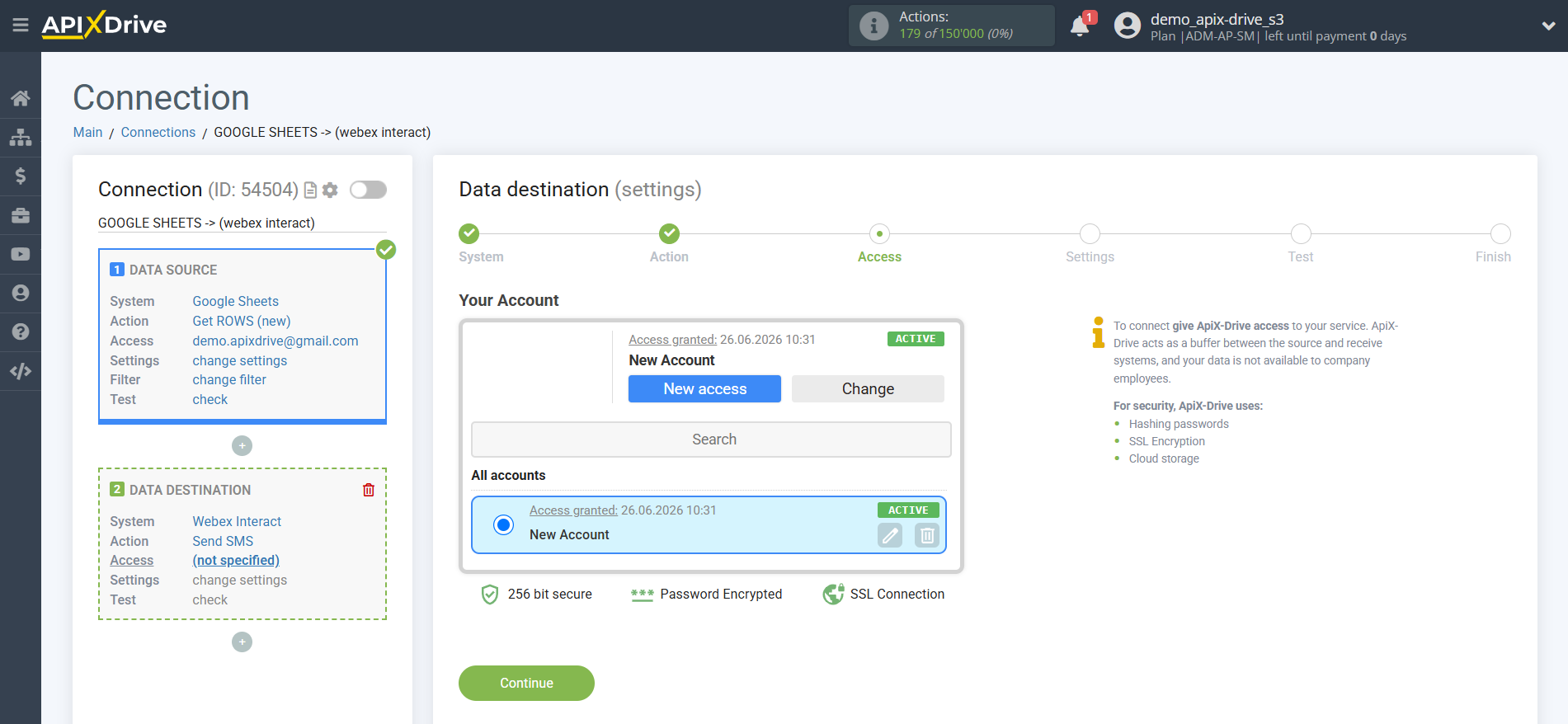
When the connected account appears in the "active accounts" list, select it.
Attention! If your account is on the "inactive accounts" list, check your access to this account!
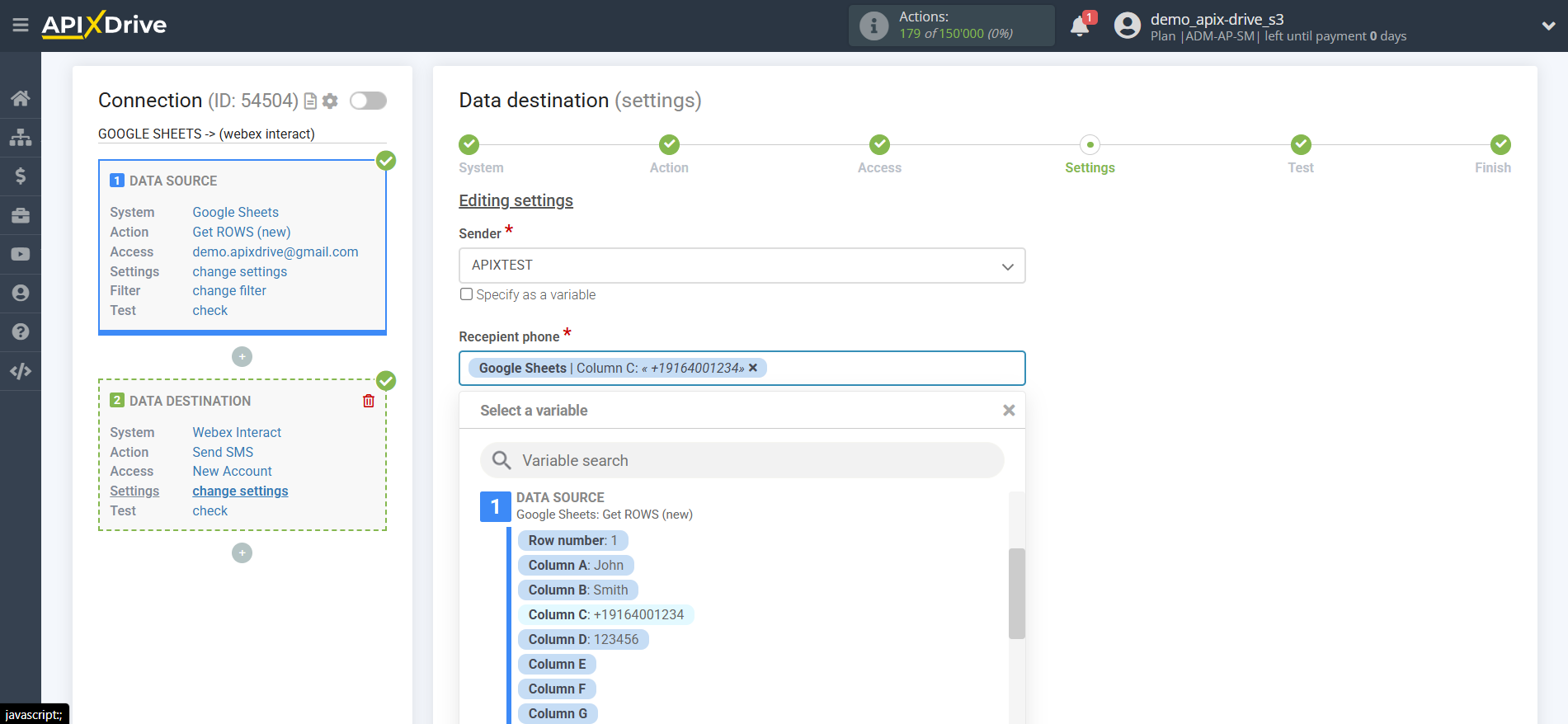
Now you need to specify the field where the recipient's phone number will be taken from.
Also, you need to indicate the sender's phone number, which you have registered in the Webex Interact service.
In the "Message" field, you can use both system variables, such as time, date, year, month, day, and variables from the data source system, in this case Google Sheets.
You can combine these variables in any way you like. For example, take a name from one cell, then put a comma, and then indicate the main text of the message from another cell, as shown in the example.
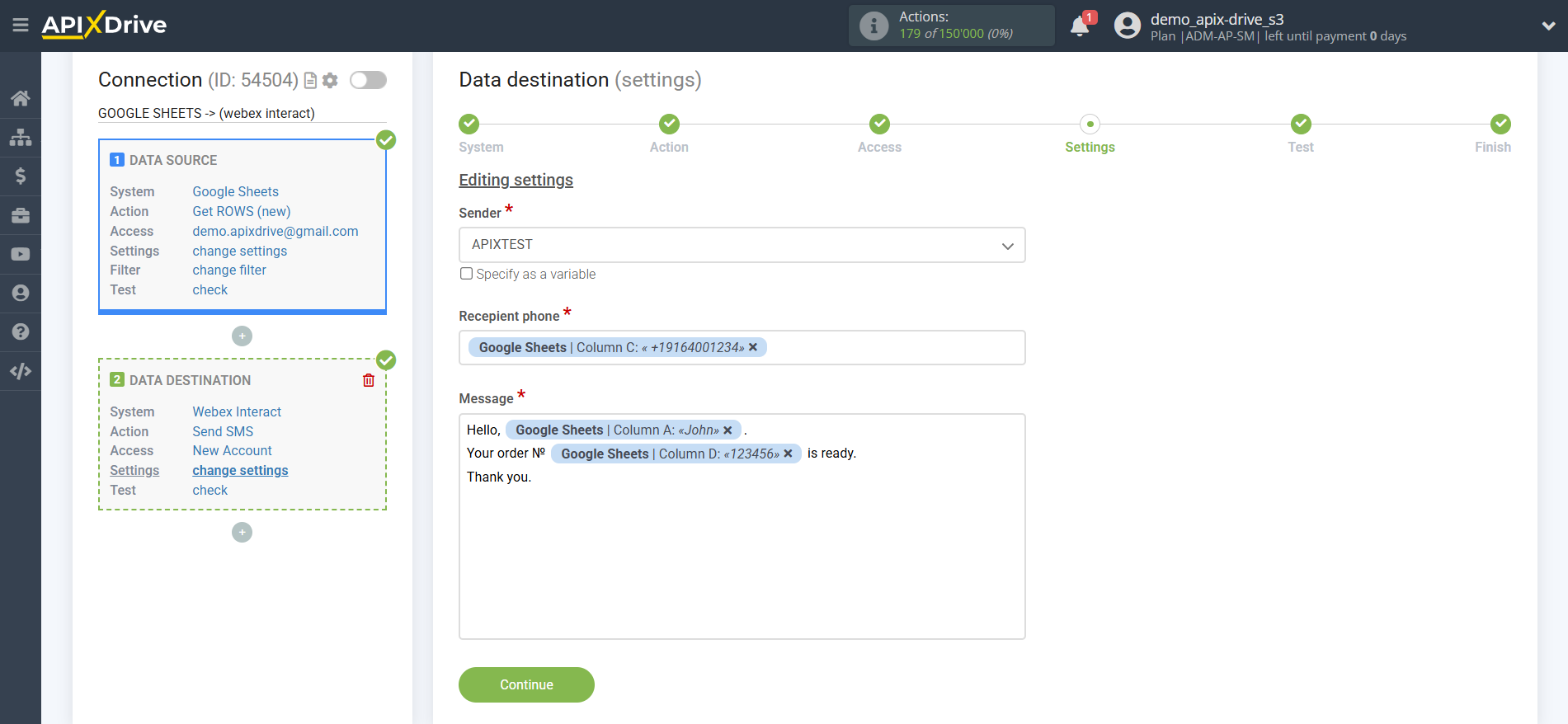
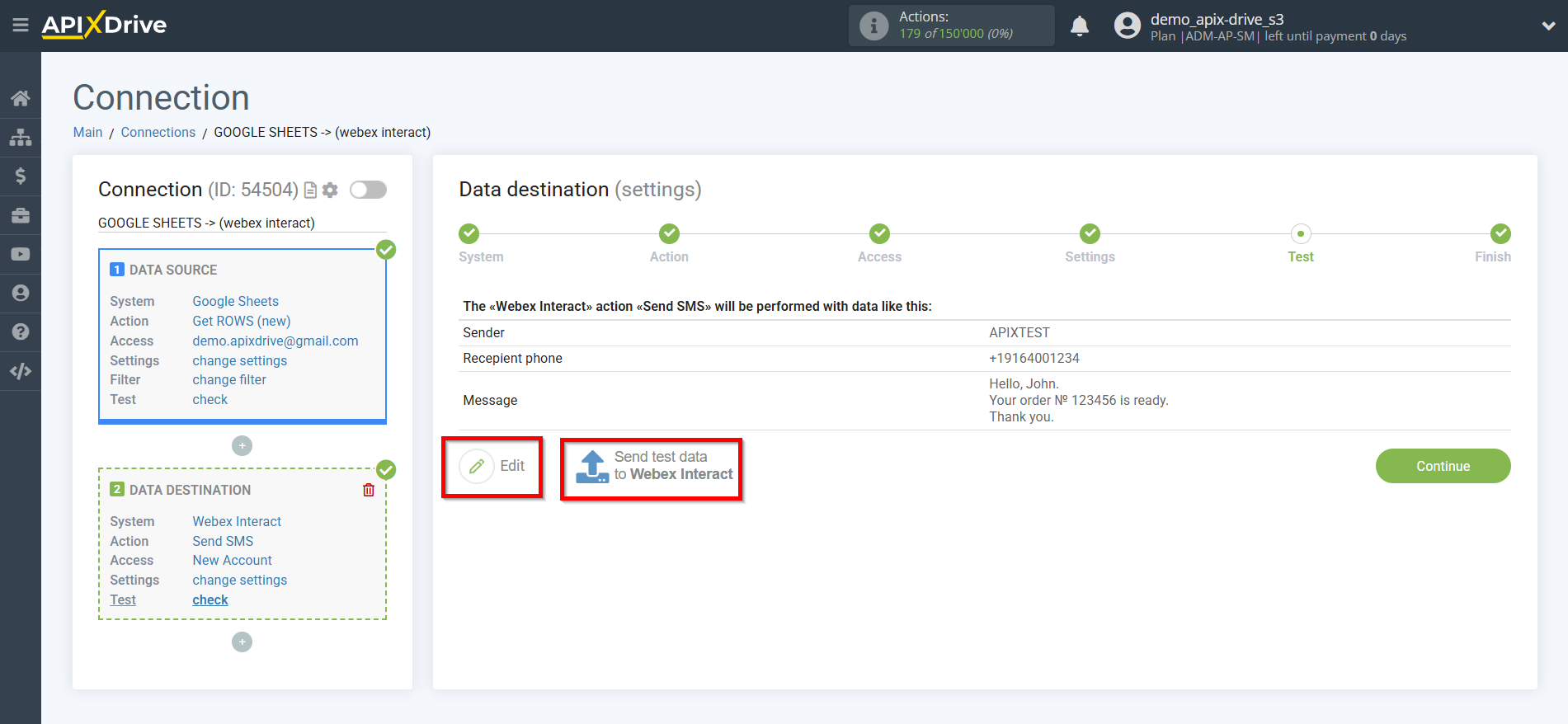
Now you see what the future SMS message will look like, according to the selected data.
Click "Send test data to Webex Interact" and an SMS message will be sent to the phone number specified in the test data.
If you are not satisfied with something, click “Edit” and go back a step.
If you are satisfied with everything, click “Next” to continue the setup.
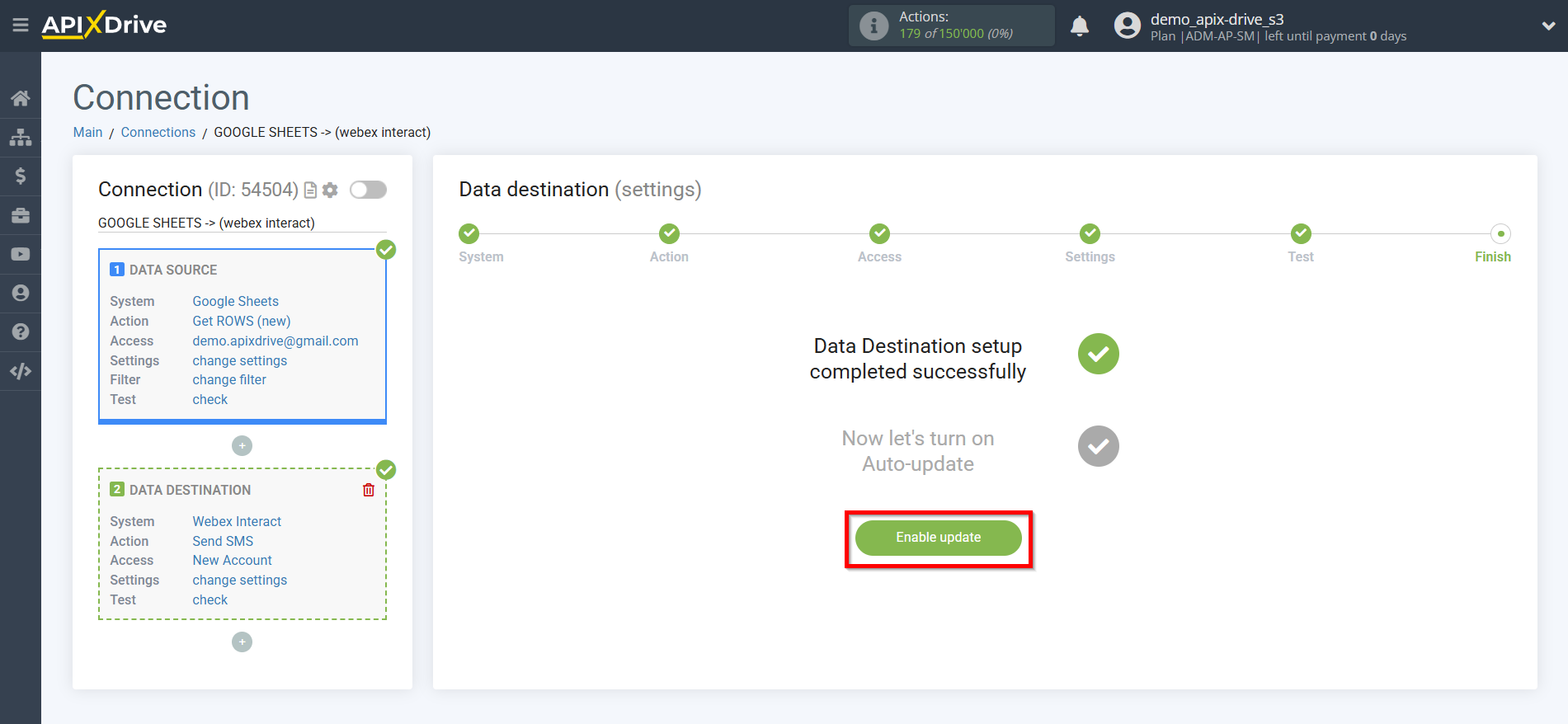
This completes the Data Destination setup!
Now you can start choosing the update interval and enabling auto-update.
To do this, click "Enable auto-update".
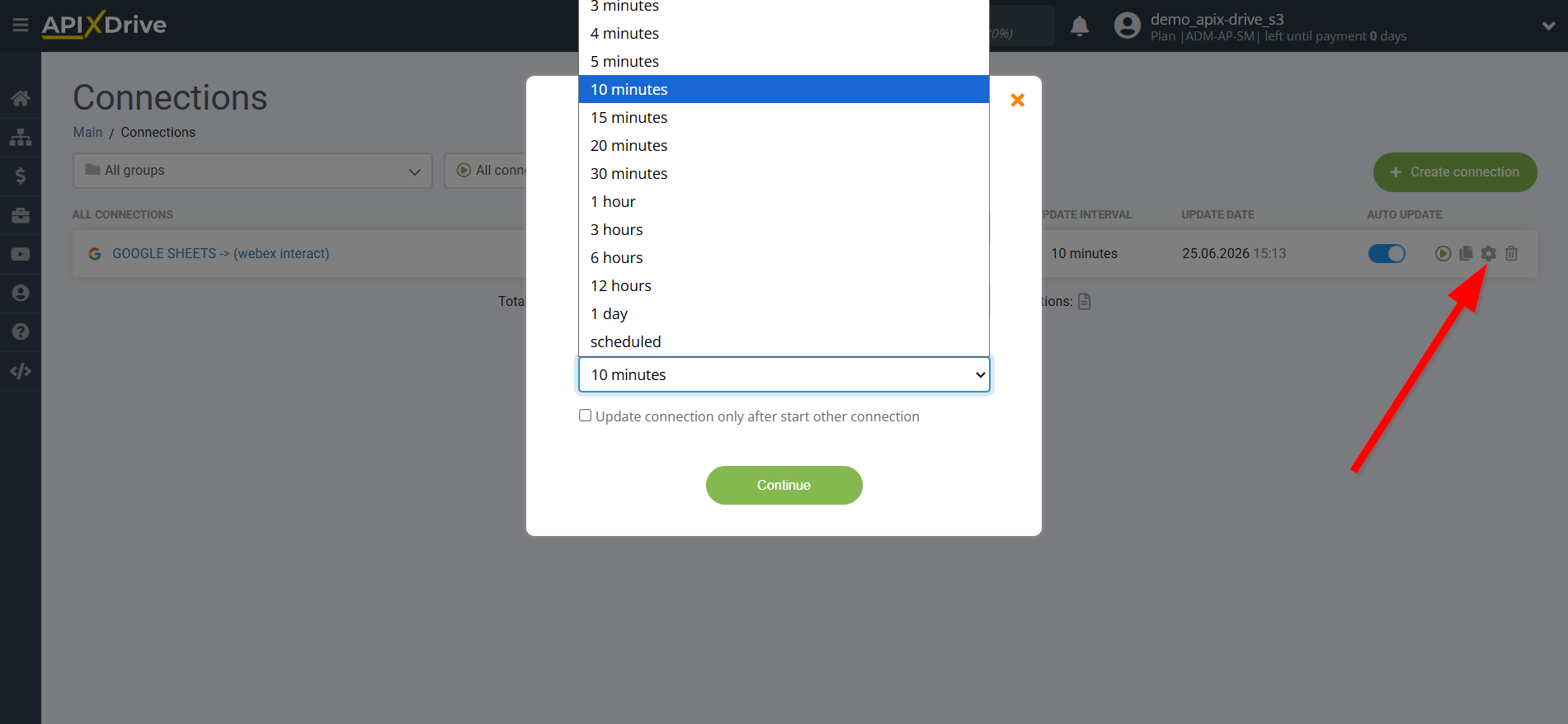
On the main screen, click on the gear icon to select the required update interval or setup scheduled launch. To start the connection by time, select scheduled start and specify the desired time for the connection update will be started, or add several options at once when you need the connection will be started.
Attention! In order for the scheduled run to work at the specified time, the interval between the current time and the specified time must be more than 5 minutes. For example, you select the time 12:10 and the current time is 12:08 - in this case, the automatic update of the connection will occur at 12:10 the next day. If you select the time 12:20 and the current time is 12:13 - the auto-update of the connection will work today and then every day at 12:20.
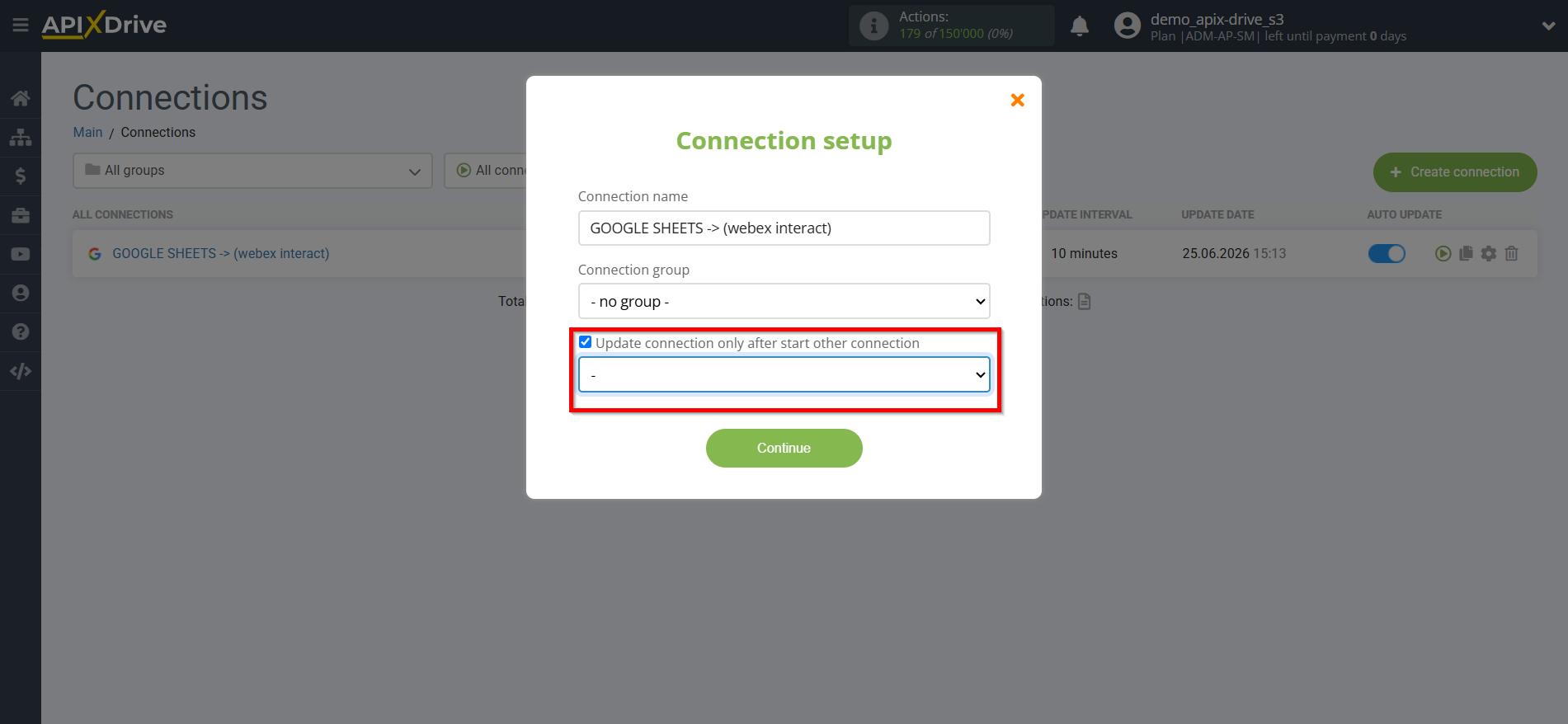
To make the current connection transmit data only after another connection, check the box "Update connection only after start other connection" and specify the connection after which the current connection will be started.
To enable auto-update, switch the slider to the position as shown in the picture.
To force a connection, click on the arrow icon.
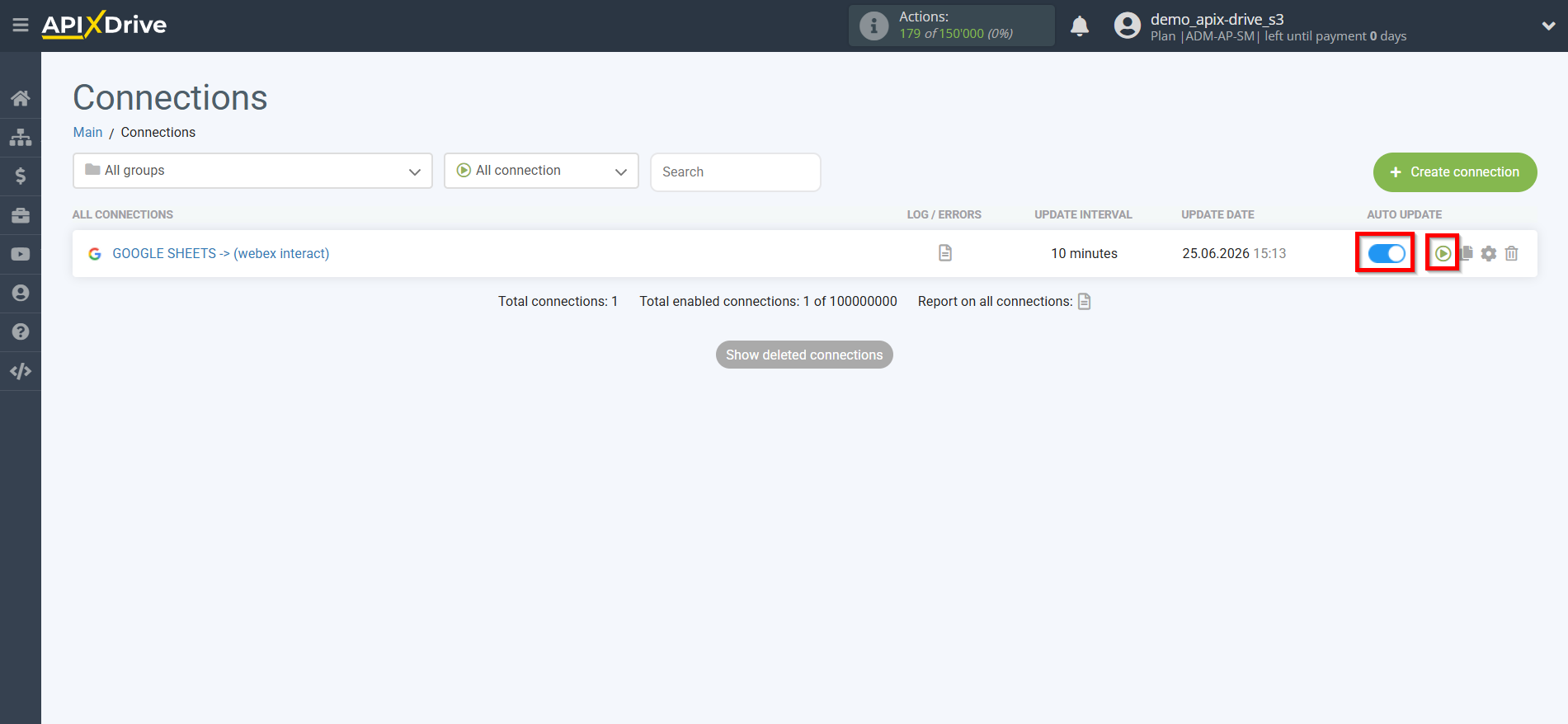
This completes setting up Webex Interact as a Data Destination ! See how simple it is!?
Now you don’t have to worry, ApiX-Drive will do everything on its own!