
Top 7 Integrations for Project Managers: Automate Routine Work

A project manager multitasks every day: coordinating schedules, monitoring deadlines, collecting materials from the team, recording client comments, and preparing reports. When all this happens in disconnected tools, workflows slow down: new requests get buried in email threads, deliverables wait hours for review, and critical blockers are discovered too late.
Project manager integrations connect the tools used across a workflow and automate data transfer between them, reducing manual work and keeping tasks organized. Below are seven practical no-code integrations for PM workflows built with ApiX-Drive and covering different stages of a project manager’s work.
Jotform → ClickUp: Requests Become Tasks
When accepting customer inquiries through Jotform, the manager has to check notifications for new submissions, log into the app, and manually copy the data into ClickUp tasks. This takes time and increases the risk of errors: you can miss an important detail or write down the phone number incorrectly.
How to automate the process. Using an online connector, you can set up a simple event-triggered automation. The system records the arrival of a new response and creates a task in ClickUp based on it, automatically arranging the request name, description, customer contacts, and due date in the appropriate fields.
Practical example. A client fills out a brief for developing a presentation: specifies requirements, adds a link to the brand book, and selects a deadline. At the next scheduled update, a ready-to-assign task appears in ClickUp, and the manager assigns it to a designer.
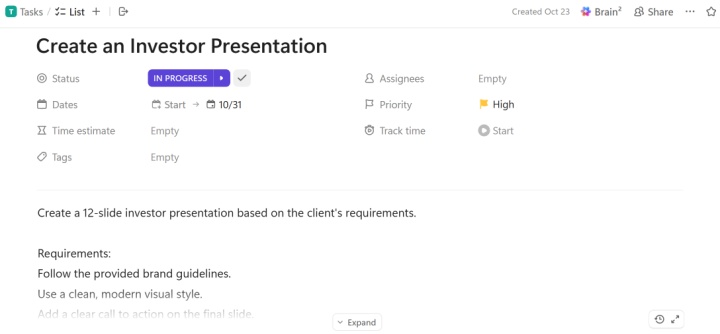
Benefits: Integration of the ClickUp task manager with Jotform frees the employee from the need to check for new requests and transfer all data from forms manually. Turning requests into standardized tasks helps the manager assess the scope of work, set priorities, and assign team members more quickly.
Gmail → Trello: Client Edits Turn Into Tasks
When a project deadline approaches and client feedback arrives by email, the manager has to monitor their inbox constantly. Getting distracted for even a moment means an urgent edit gets buried under dozens of unread messages. As a result, the edits don’t make it to Trello in time, so the team continues to work on an outdated version.
How to automate the process. To resolve this problem, it is advisable to set up integration between your Gmail inbox and Trello board. The system receives new emails from the selected Gmail folder and creates cards in Trello based on them. The subject of the email automatically becomes the card name, and the message text, along with the sender's contacts, is written in its description.
Practical example. A client sends an email with urgent clarifications to the product description and asks to replace the call to action. Without wasting time checking email and creating a card, the manager sees the new request in Trello, assesses the impact of the changes on the deadlines, and assigns it to a copywriter or content manager.
Benefits. Unscheduled requests and additional comments no longer hang in the inbox. All edits become transparent and visible to the entire team. This project management automation helps the manager keep work visible, identify additional tasks promptly, and allocate team capacity more effectively.
Pipedrive → Google Drive: Project Preparation Without Unnecessary Steps
A successful deal is recorded in CRM, and the contract is signed. From this moment on, the team is ready to get to work. However, at the start, the process often stalls due to small things: for example, the lack of a working folder in the cloud. When setup is done manually, valuable time is wasted, and files risk getting lost as team members create scattered folders.
How to automate the process. It is worth setting up a connection between the Pipedrive CRM system and the Google Drive cloud storage. The integration tracks deals that enter a selected stage and creates a Google Drive folder for each one. The folder name follows a predefined template.
Practical example: A sales manager moves a mobile app development deal to the selected final stage. At the next scheduled update, a folder named after the project appears in the designated Google Drive directory. Even before the first organizational call, the team already has a workspace where they can upload briefs and technical specifications.
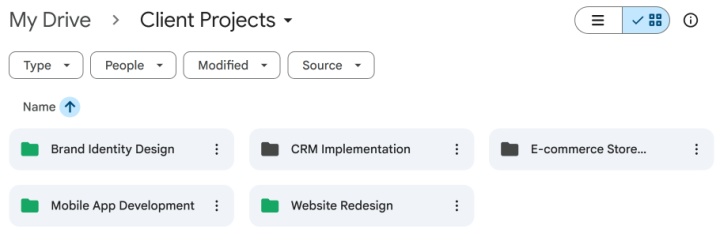
Benefits: Preparing for a project launch is quick and hassle-free. The team immediately gets an organized place for all work materials, which prevents confusion. This setup helps automate project manager tasks, allowing the team to move from a closed deal to project delivery without unnecessary manual setup.
Jira Software → Google Sheets: Automated Task List for Planning
Development teams often use Jira to track issues, but not all stakeholders, related departments, or project managers actively use this tool. When new tickets need to be collected to assess workload or coordinate plans with colleagues, the manager has to manually transfer the data into a spreadsheet. This takes time, during which the information can become outdated.
How to automate the process. It is advisable to integrate Jira Software and Google Sheets. The integration detects new Jira tickets and adds each one as a new row in the spreadsheet. Each row can include mapped fields such as the issue key, description, and other available data.

- Automate the work of an online store or landing
- Empower through integration
- Don't spend money on programmers and integrators
- Save time by automating routine tasks
Practical example. Developers create a Jira issue for an additional module. At the next scheduled update, the ticket is added to the shared spreadsheet. The project manager opens the issue register during a scheduled call with stakeholders, shows them the scope of work, and, together with the team, estimates resources for future releases.
Benefits: The manager no longer needs to manually copy issue details or export updated spreadsheets for stakeholders. An automatically updated ticket register gives the team access to planned work in one place. This makes it easier to discuss task scope and priorities with those who don’t use Jira.
Google Drive → Asana: Timely Verification of Uploaded Files
When a team member finishes a deliverable and uploads it to the cloud, they might consider the task done. However, simply dropping a file into a folder does not mean the project stage is complete. If no one is notified about the upload, the materials may wait a long time for verification, and the workflow will slow down due to the lack of timely feedback.
How to automate the process. Connect Google Drive to Asana and select the folder the integration should monitor. When the integration detects a new file, it creates an Asana task containing the file name and a direct link.
Practical example. A content writer has finished working on an article and uploaded the finished material to a folder for approval on Google Drive. After that, a task is created in Asana with a link to this document. The editor-in-chief or manager receives it, reviews the text, checks it against the brief, and sends it to the client for approval.
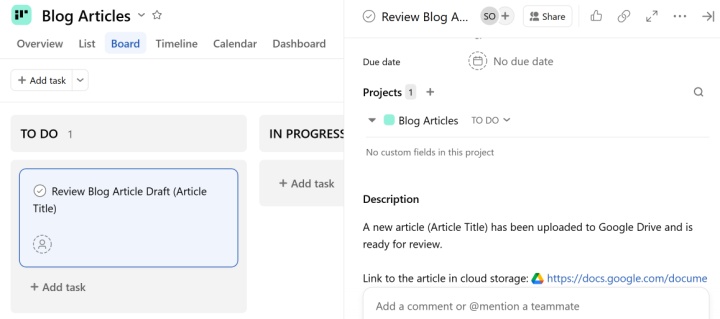
Benefits: Reviewing materials becomes streamlined. The editor or manager no longer needs to periodically check the folder or ask the writer about the readiness of the material. This example of workflow automation for project managers speeds up quality control, reduces the risk of work getting stuck between stages, and helps maintain project momentum.
Dropbox → Gmail: Notification of New Report
A manager finishes preparing a weekly report, saves it to the cloud, and suddenly gets distracted by an urgent call, then switches to another task. As a result, the finished report sits unseen in a folder, forcing the client to follow up. These small delays can damage client trust and hurt your company's reputation.
How to automate the process. Using the connector, you can configure the integration of Dropbox cloud storage with Gmail. When a report file is created in the selected Dropbox folder, the integration sends a predefined email to the client with the file attached.
Practical example. A project manager prepared weekly metrics and saved them in a PDF file in the “For the customer” folder in Dropbox. The integration creates an email, attaches the report, and sends it to the client.
Benefits: Client communication stays predictable and punctual, eliminating delays caused by human error. Clients receive reports on time, while the project manager avoids a repetitive administrative step and can focus on analyzing results and identifying improvements.
Tally → Airtable: Feedback After Completing a Project Phase
At the end of each project stage, the manager’s workload often increases: summarizing, planning the next sprint, and distributing tasks. At this point, a customer submits a Tally form with ratings and comments. Instead of analyzing feedback right away, the manager gets bogged down in manually copying ratings and comments into Airtable.
How to automate the process. To automatically collect data from forms and transfer it to the database, you need to connect Tally and Airtable. The integration detects a new form submission and adds its data to a new row in the selected Airtable table. The responses are mapped to the relevant fields: project and stage name, rating, comment category, and comment.
Practical example. After reviewing the prototype presentation, the client opens the form, gives it a 4 out of 5 rating, and adds a comment about the difficulty of navigating the side menu. At the next scheduled update, the response is added to the database. While planning the next sprint, the manager opens Airtable, sees the comment, and adds a menu improvement task to the next sprint.
Benefits: The project manager gets an automatically updated, organized database that helps them compare ratings across project stages or reporting periods, identify workflow bottlenecks, and prepare evidence-based improvement proposals from client feedback.
Conclusion
Automation helps the project manager maintain a continuous and transparent flow of work at all stages. Project management integrations help you capture requests, send deliverables for review without delay, catch blockers early, and keep your entire team aligned.
Start small: use ApiX-Drive to connect project management tools with the other apps involved in one repetitive or delay-prone process, then test the integration with sample data before using it in a live workflow.
Other automation implementation cases: