
Google Sheets and Vapi Integration: How to Automate Outbound Calls

Automation of routine tasks has long been more than just a way to optimize business processes. Today, it is an urgent need that provides businesses with competitive advantages. AI voice agents can handle selected routine outbound calls. Google Sheets and Vapi integration allows you to get a tool for autonomous communications. Now we will tell you what the principle of its operation is and how to set it up in just a few minutes.
Google Sheets and Vapi: Create an Autonomous Communication System
Vapi and Google Sheets integration is needed by companies that receive a daily stream of leads and want to finally free managers from the role of an autoresponder. The basic principle of its operation is simple: outgoing communication with leads is triggered based on the appearance of new data in the table. After a new row with a phone number and other data of a potential client is added to Google Sheets, this information is automatically transferred to Vapi. The service's voice AI agent processes it, calls the client, and conducts a conversation according to a pre-written prompt.
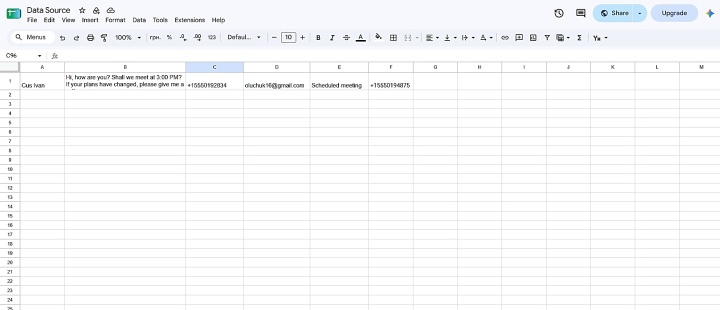
Businesses that automate Vapi calls from Google Sheets can reduce the manual work involved in contacting leads. This helps the company improve the quality of its service and demonstrate high customer focus. Here's what it looks like:
- Logistics company or delivery service. The manager adds a list of scheduled deliveries for the next day to a spreadsheet. AI voice agent calls recipients and asks if anyone will be at the specified address to receive the shipment.
- Service center. After completing the diagnostics of the equipment, the technician enters the data into Google Sheets. After that, the voice AI agent makes a call to the client, informs them that the diagnostics are complete, announces the cost of parts and repairs, and asks if the client consents to the repair.
- Training or business event organizers. Shortly after adding new event participants to the list maintained in Google Sheets, the AI voice assistant calls them to notify them of successful registration and remind them of the event start time.
If other components are added to the autonomous communication system for Vapi outbound calls from Google Sheets (for example, a CRM system, messenger, or database), the benefits for the business increase manifold. After completing the conversation with the client, you can automatically record the result of the call in the database, create the deal in CRM, or send a notification in the Slack channel. To achieve this, you need to set up a separate integration.
How to Connect Google Sheets to Vapi
This guide assumes you already have a configured Vapi assistant and a phone number enabled for outbound calls. Make sure your Vapi and telephony accounts have sufficient credit.
To connect Google Sheets and Vapi, we suggest using a code-free online connector. We recommend ApiX-Drive, as it is one of the most user-friendly platforms, with an intuitive interface. You will only need to connect your Google Sheets and Vapi accounts to it and select which spreadsheet fields to use for the call. This will be enough to create Vapi calls from Google Sheets.
Note: Before enabling automated calls, obtain any required consent and follow applicable rules on calling hours, do-not-call requests, AI disclosures, and recording. Adding a phone number to a spreadsheet does not by itself establish permission to call.
Below is a step-by-step guide that will help you go through the setup integration procedure quickly, confidently, and, most importantly, successfully.
Data Source Settings: Google Sheets
Create a new connection to get started.
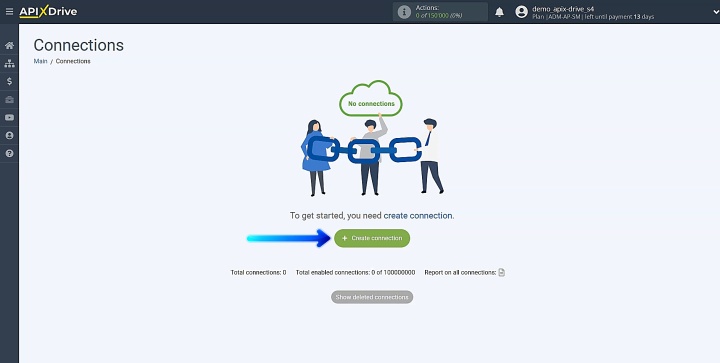
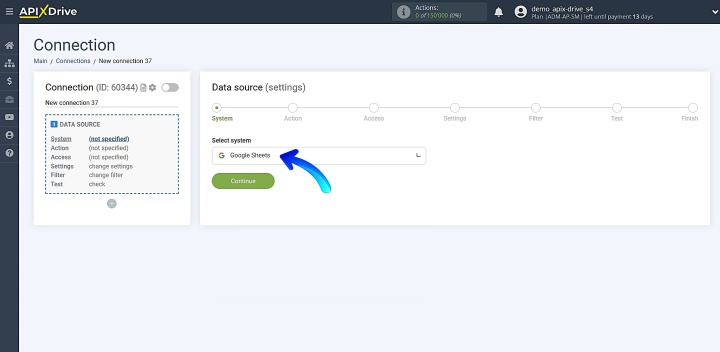
Select the system that will serve as your data source. Choose Google Sheets.
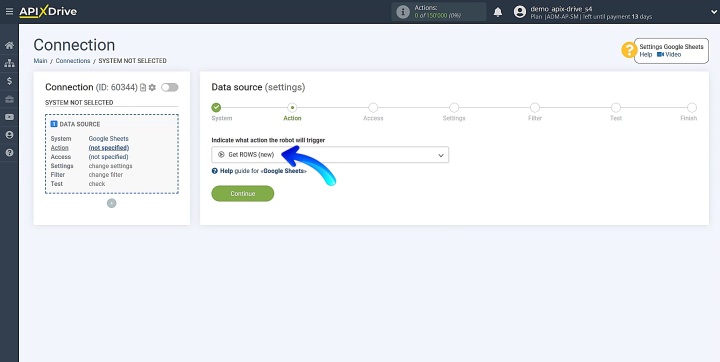
Choose the action. For this setup, select Get ROWS (new).
Connect your Google account to ApiX-Drive.
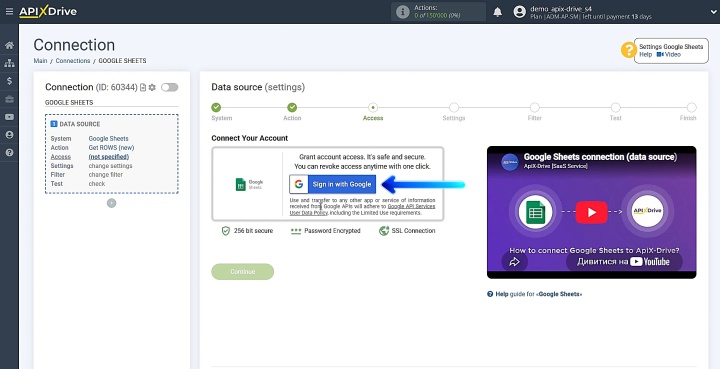
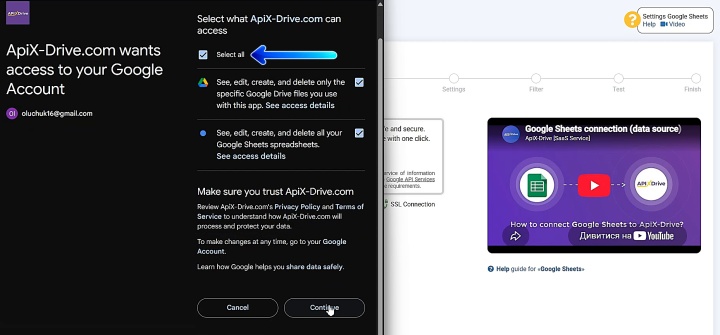
Sign in through Google’s authorization window and grant ApiX-Drive the required permissions.
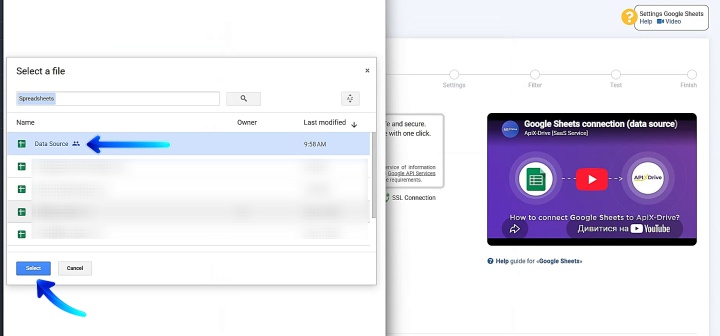
Next, select the spreadsheet from which the new rows will be exported.
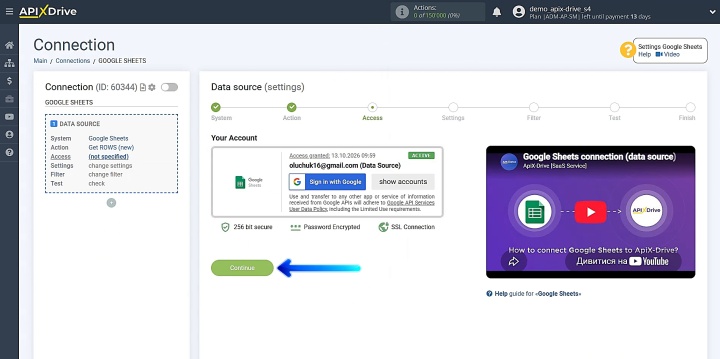
Wait for the account to appear in the active accounts section, then select it and click Continue.
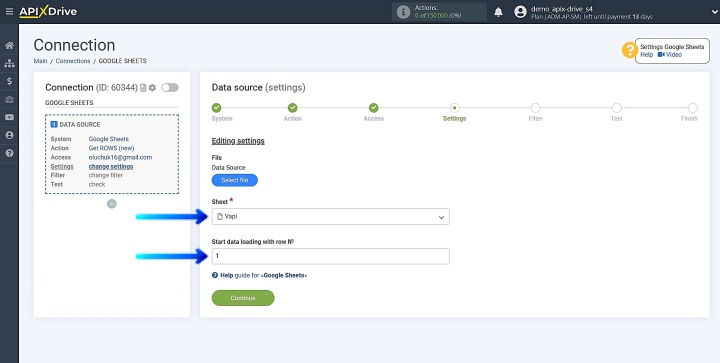
Select the sheet and starting row from which data loading will begin.
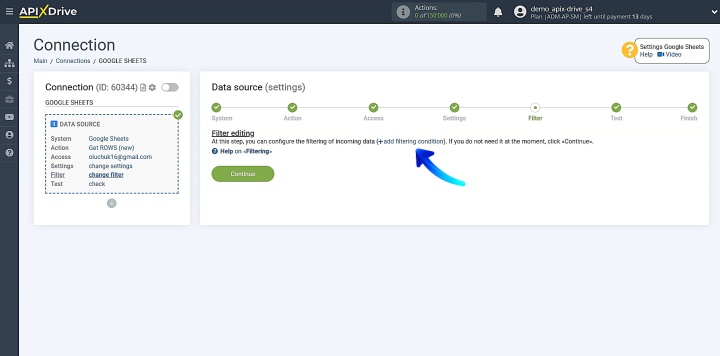
The next step is data filtering. If you need to filter incoming data, learn more about this feature here.
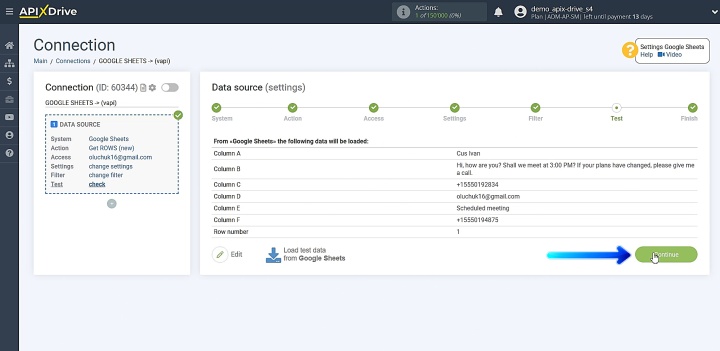
In the test section, you will see the data contained in the selected row. If everything looks correct, click Continue.
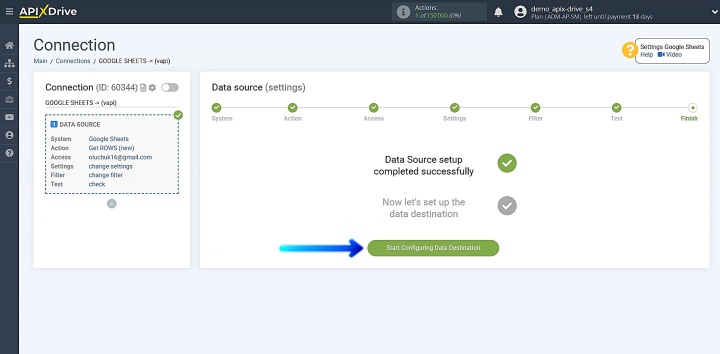
Setting up Google Sheets as a data source is complete.
Data Destination Settings: Vapi
Let's continue by configuring the data destination.
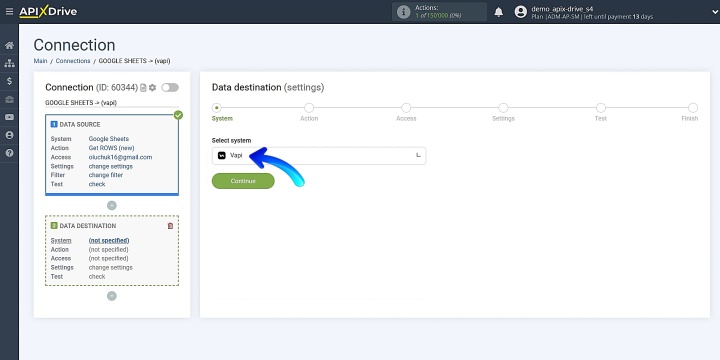
Select the system that will receive your data. You should choose Vapi here.
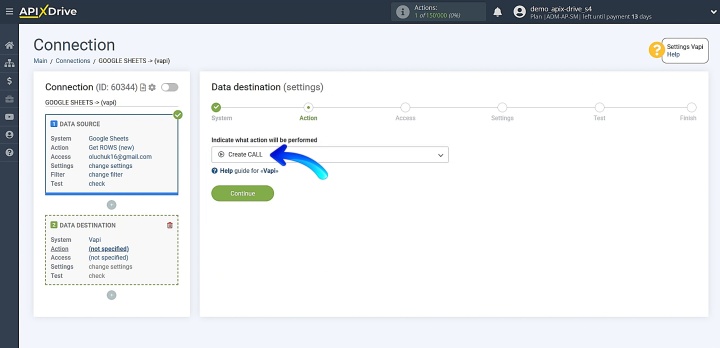
Select the required action: Create CALL.
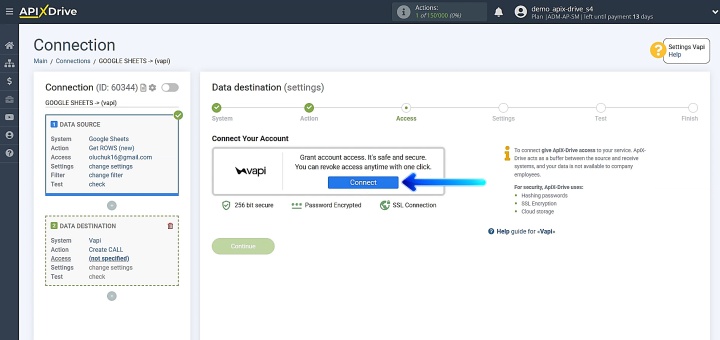
You'll need to establish a connection between your Vapi account and ApiX-Drive.
You see the field for entering the token.
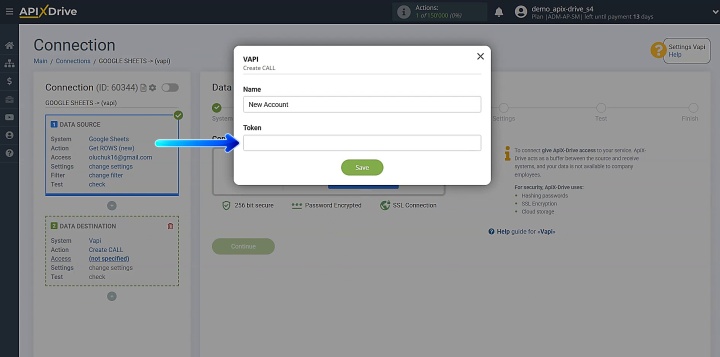
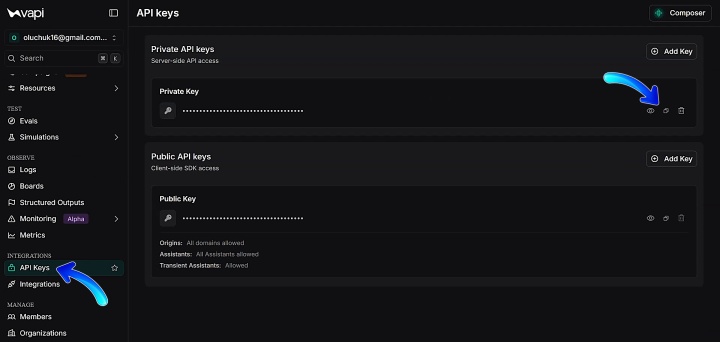
To obtain the token, go to your Vapi account and navigate to the API Keys section. Copy the key.
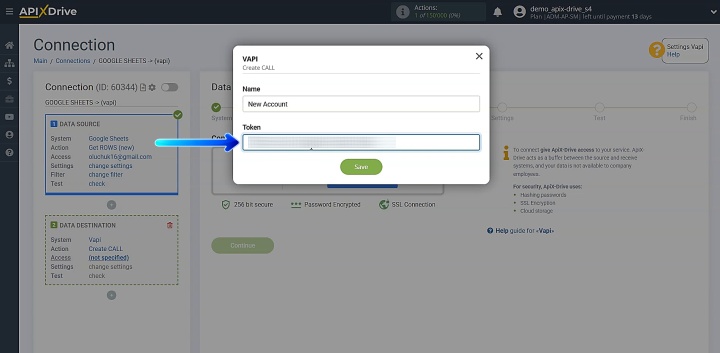
Return to ApiX-Drive and paste the copied key. Click Save.
Wait for the account to appear among the active accounts, then select it and proceed by clicking Continue. After that, map the fields. Please note that fields marked with an asterisk are mandatory.
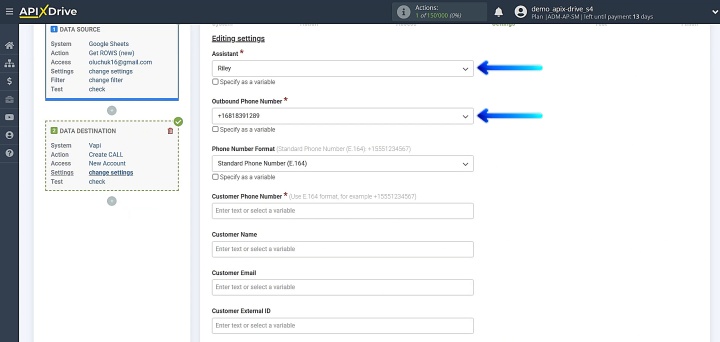
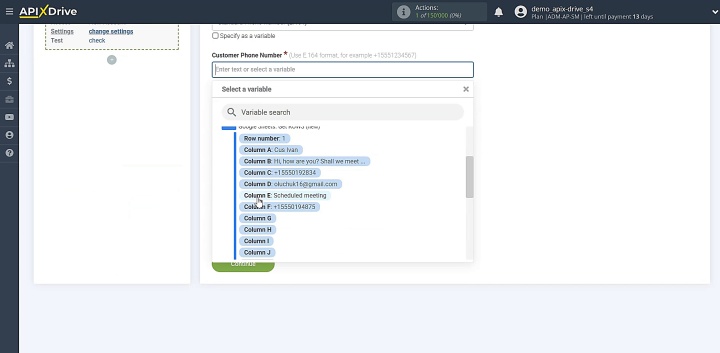
You can use variables, enter values manually, or combine both. Once all the necessary data has been assigned, scroll to the bottom of the page and click Continue.
Review the data and use your own phone number as the recipient for testing. Clicking Send test data to Vapi initiates a real outbound call and may incur charges. Check the call status and logs in Vapi before enabling auto-update.
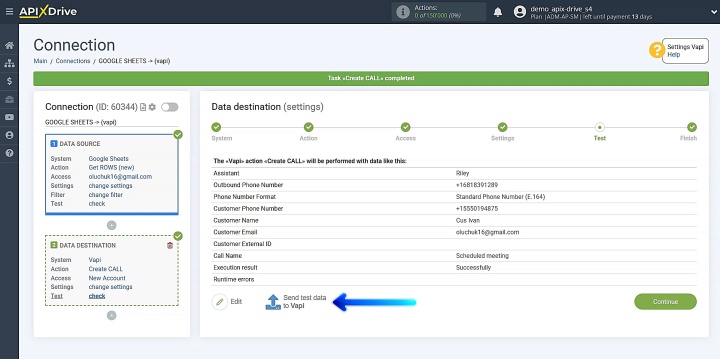
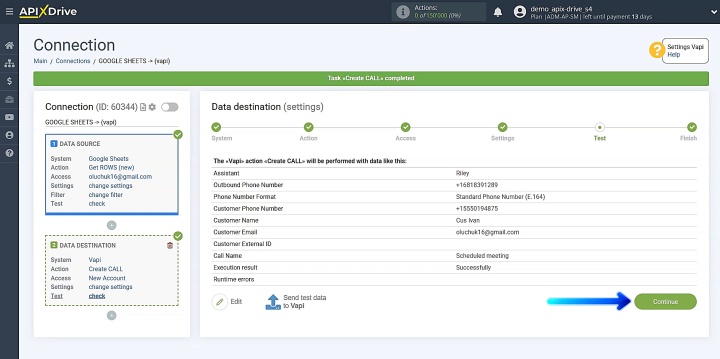
Once you receive the confirmation that the data was sent successfully, go to your Vapi account and check the result of the test. Then, return to the ApiX-Drive system and continue the setup process.
Auto-Update
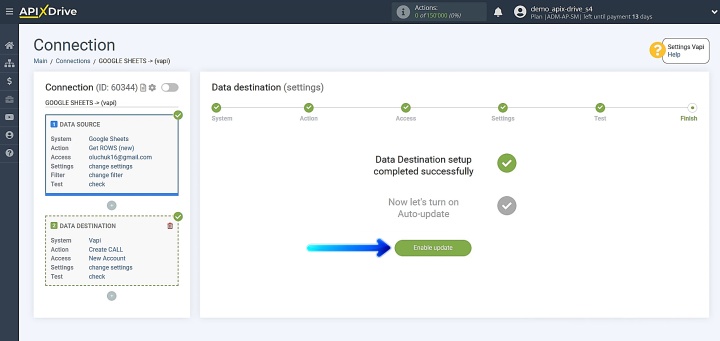
The next step is configuring auto-update to trigger Vapi calls from Google Sheets. Click the Enable update button to turn it on.
Click the gear icon to access the settings.
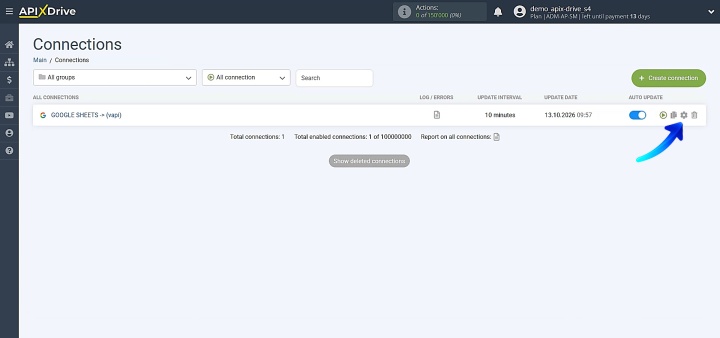
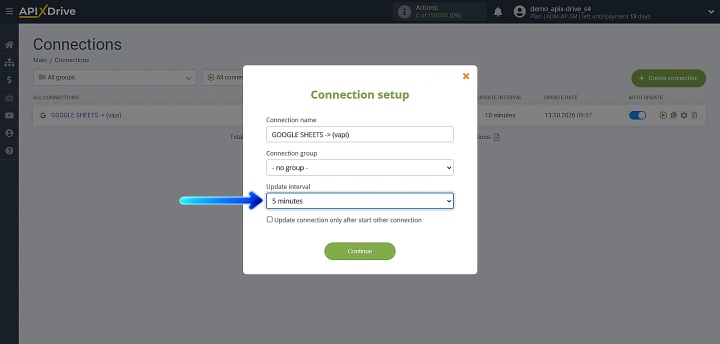
Pick the frequency for auto-update. You also have the option to rename the connection and place it in a specific group at this step. Click Continue when ready.
Congratulations! The integration has been configured successfully.
Results
Google Sheets and Vapi call automation allows businesses to reduce manual dialing for routine outbound calls. Its main advantage is the speed and accuracy of communication. Data from the spreadsheet is automatically sent to Vapi to initiate a call, which helps reduce delays and errors caused by manual data entry.
With this setup, teams can handle routine outbound calls with less manual work. Actual capacity and costs depend on Vapi’s concurrency limits, the connected providers, and the assistant’s configuration.
Recommended reads:
- Gmail and Google Drive Integration: How to Save Attachments Automatically
- Top 7 Integrations: How to Automate Marketing Workflow
- Google Drive and Slack Integration: How to Get Slack Alerts for New Files
- Top 7 Integrations for Project Managers: Automate Routine Work
- Google Drive to Gmail: How to Send File Attachments Automatically