
Google Drive and Slack Integration: How to Get Slack Alerts for New Files

When uploading new work files to Google Drive, keeping your team in the loop is essential. Manually sharing links in Slack wastes time, interrupts your focus, and slows down overall project momentum. Google Drive and Slack integration automates this process: links to new files are automatically sent to a Slack channel shortly after they appear. It takes just a few minutes to set up. Now we’ll show you how to do it.
Streamline File Sharing Between Drive and Slack
One of the biggest friction points in team collaboration is delayed communication when new files hit Google Drive. Someone uploads a key document and forgets to mention it, while the rest of the team finds out hours or days later. As a result, work processes are slowed down, and in some cases, deadlines are even missed.
Another common issue involves outdated local copies. Teammates often download files to their desktops and keep working on older versions, completely unaware that fresh materials are available.
The notification process itself is a weak spot. Manual sharing requires copying the link, switching to Slack, finding the right channel, drafting a message, and pasting the URL. Doing this repeatedly pulls employees away from their primary tasks.
Slack and Google Drive integration eliminates these problems by automating link sharing for new files. Here's how it works. The system tracks when a file is uploaded or created in your folder and automatically sends a direct link to your designated Slack channel.
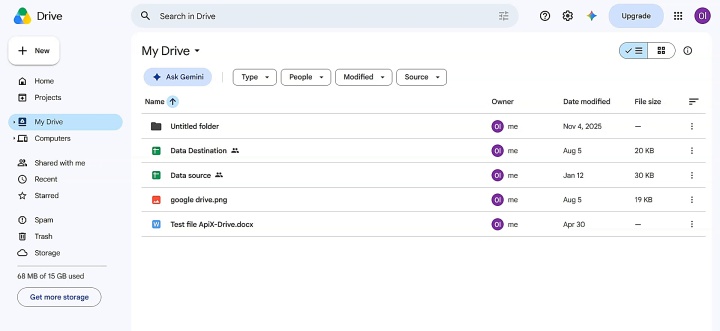
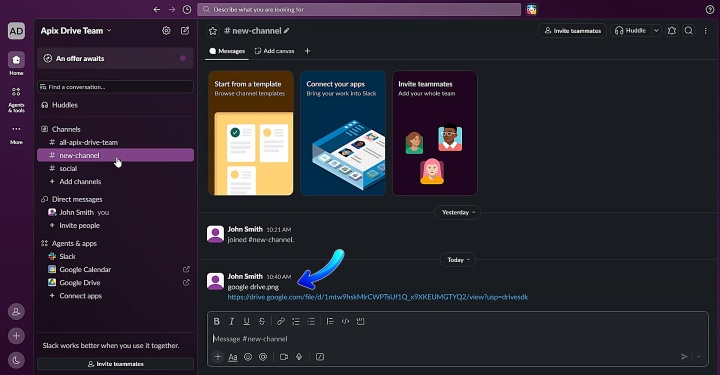
For example, shortly after uploading a new brief to the shared folder, the content team receives a link to it in their work channel. Once a new sales sheet is uploaded, the marketing team gets a message with a direct link. The notification process runs smoothly, consistently, and without any manual effort.
How to Connect Google Drive to Slack
You can connect Google Drive to Slack via the API yourself. However, this requires programming knowledge and experience. You need to know how to work with the API of both platforms, configure authentication, data transfer, and automated execution. You would also need to maintain the custom code and update it whenever either platform updates its API. For most teams, custom development simply isn't worth the hassle, especially when a no-code alternative is readily available.
The ApiX-Drive connector allows you to set up automatic transmission of Google Drive file alerts in Slack in a few minutes and without specialized technical training. Users receive a fully ready-made integration that they only need to adjust a little for themselves. Once finished, the integration runs automatically in the background without requiring extra attention.
Setting up this workflow takes only a few minutes. Here is a straightforward step-by-step guide to get your integration running.
Data Source Settings: Google Drive
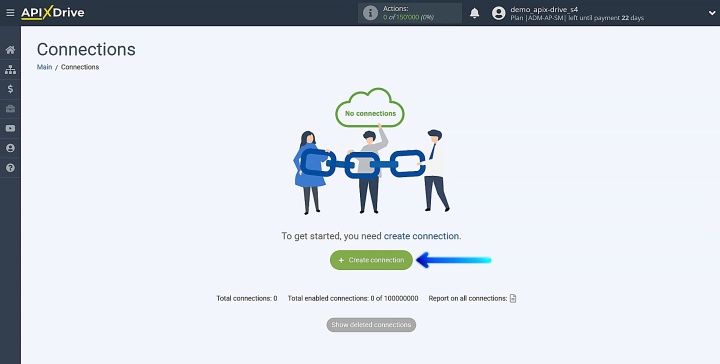
Begin with creating a new connection.
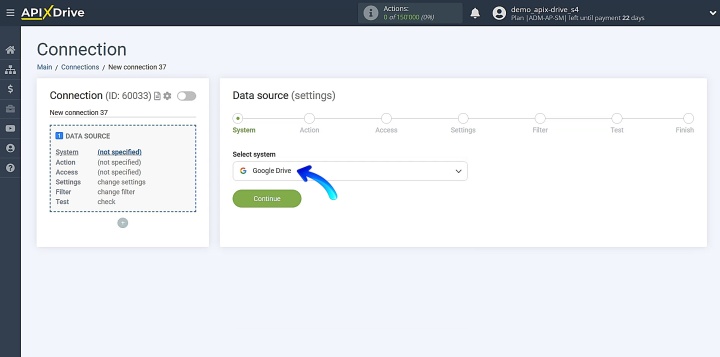
Pick the data source system. Here, you need to select Google Drive.
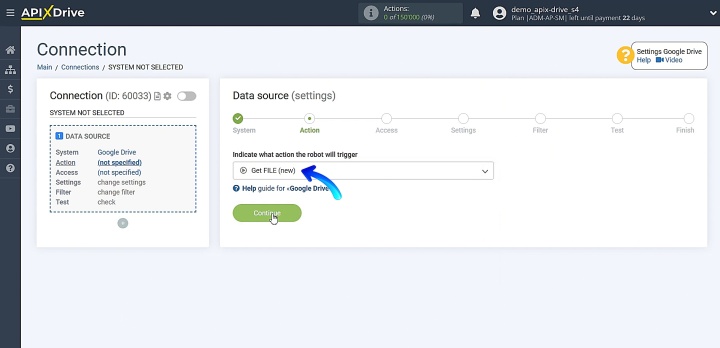
Choose the action Get FILE (new).
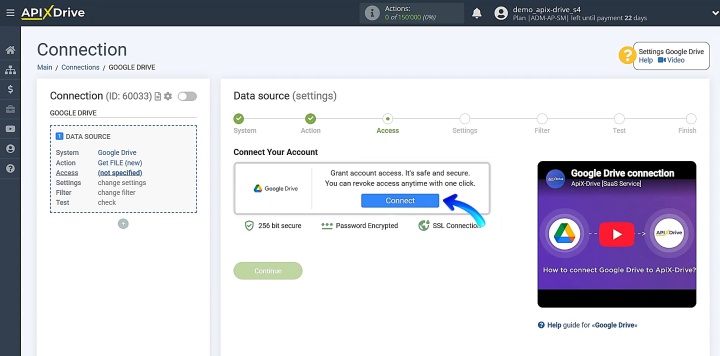
Connect your Google Drive account.
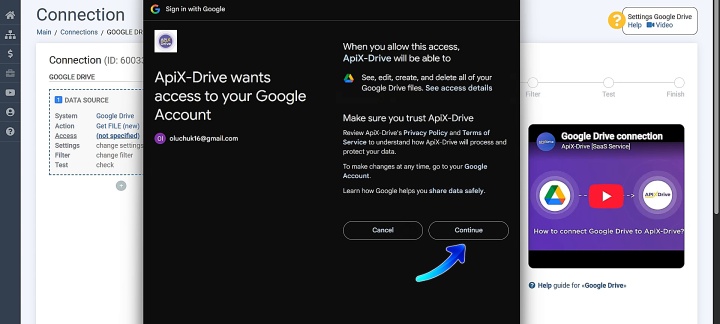
Log in to your Google account. Provide the required permissions.
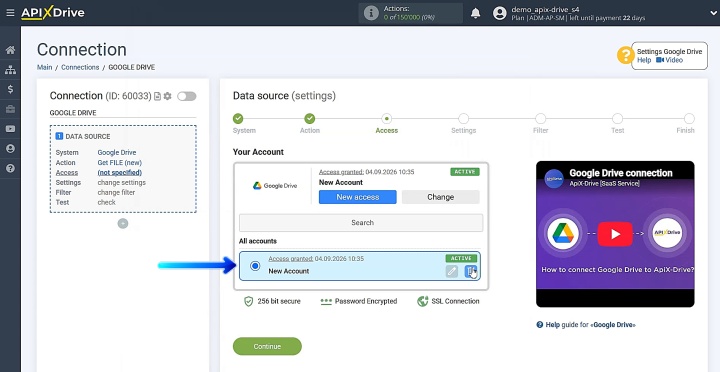
Select your newly added account from the active connections list and hit Continue.
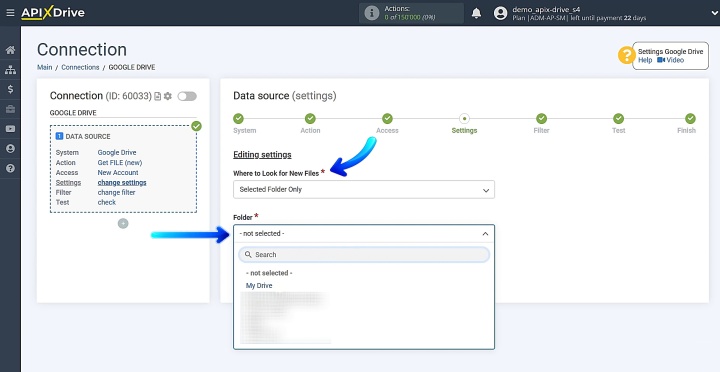
In the settings section, you need to select the folder from which the data will be uploaded. In the dropdown list, select the required section. In our case, it is Selected Folder Only. Then, specify the desired folder.
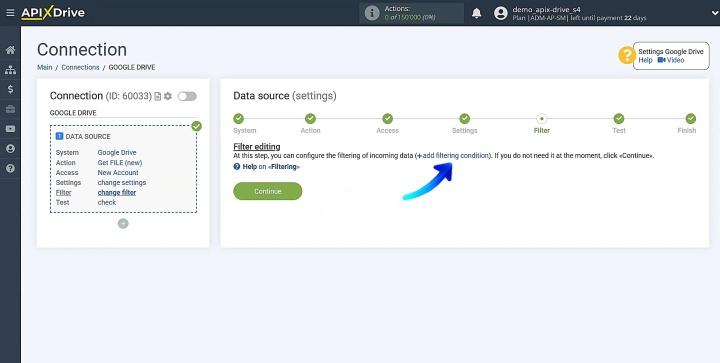
Here you can configure data filtering. If you need to filter incoming data, please review the details of this functionality at the link provided. Or simply click Continue.
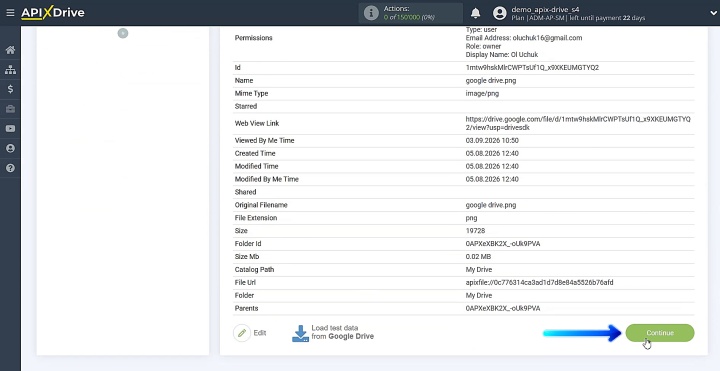
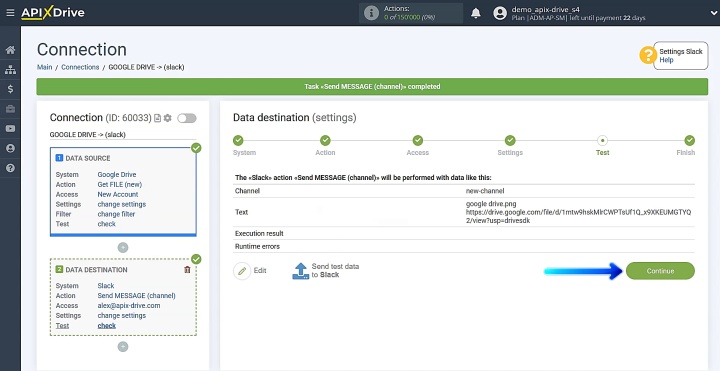
Now you see the test data that will be transmitted to Slack. Click Continue.
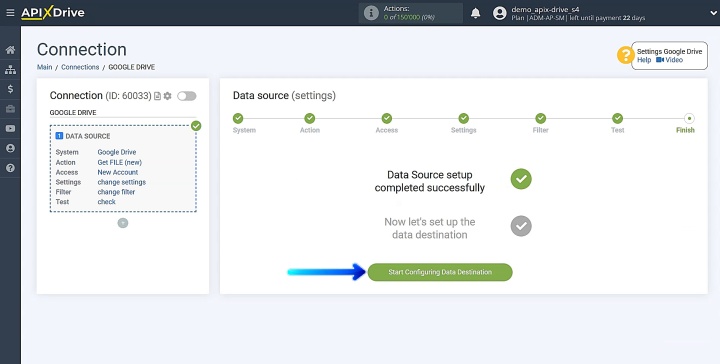
Data Destination Settings: Slack
Now we must proceed to setting up where the data will be sent.
Pick the data destination system. For this integration, select Slack.
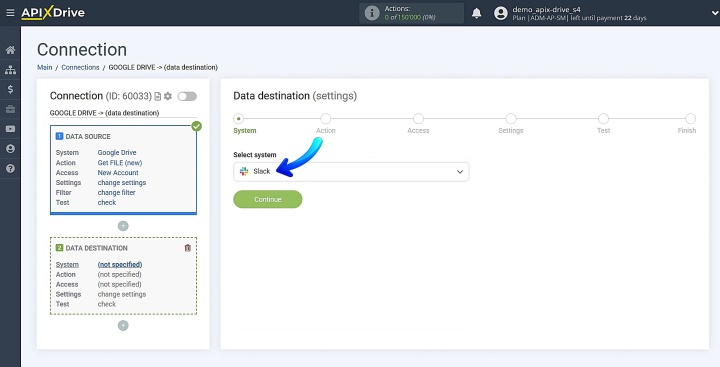
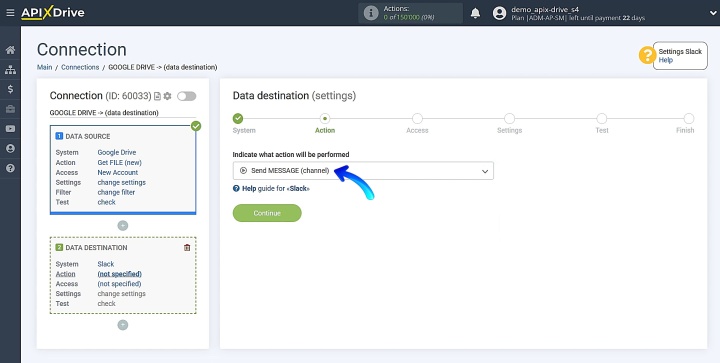
Choose the action Send MESSAGE (channel).
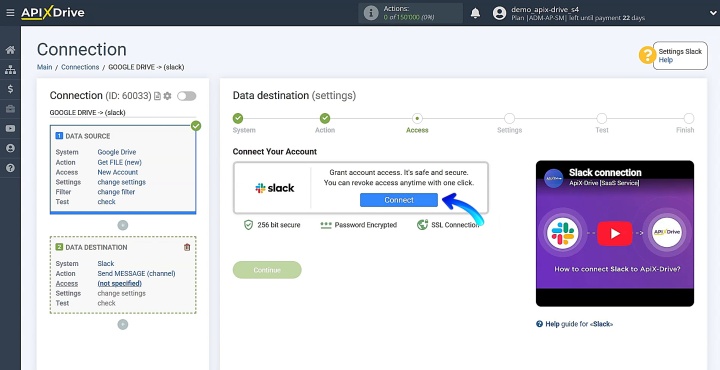
Connect your Slack account with ApiX-Drive.
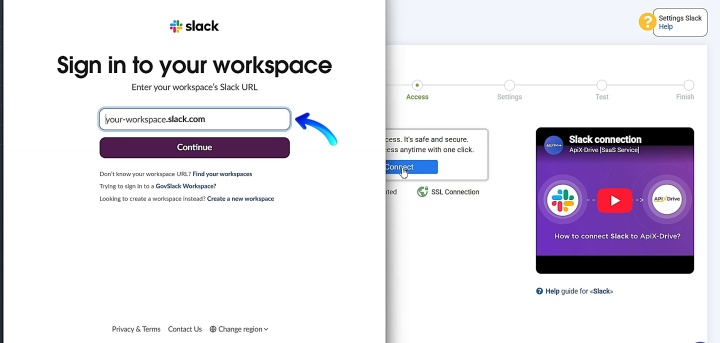
Sign in to your Slack workspace.
You need to grant permissions to ApiX-Drive to work with your Slack account.
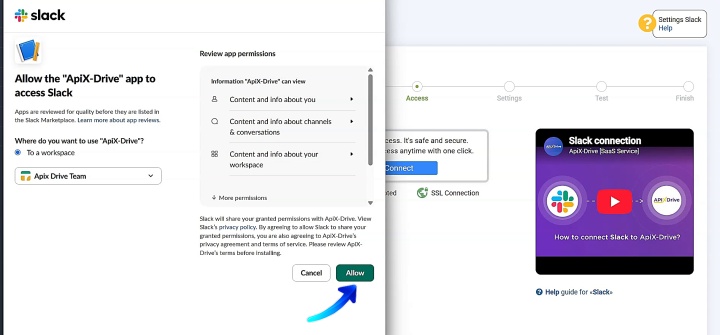
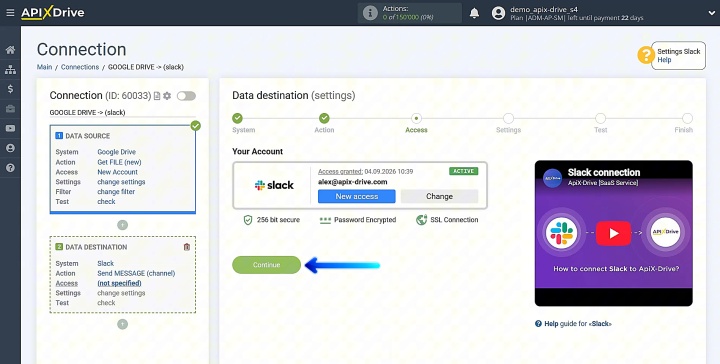
When you see the connected account displayed in the list, click on it and then click Continue.
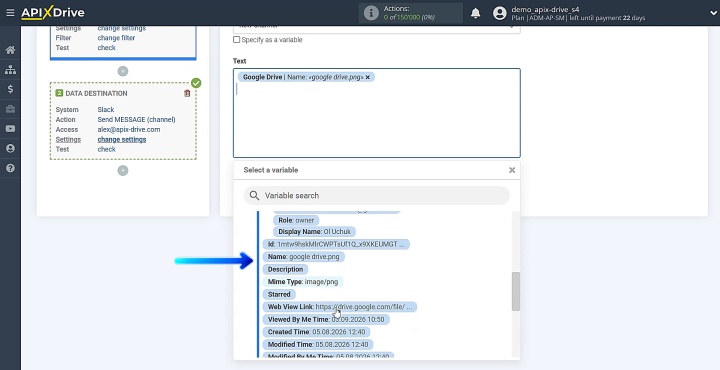
Select your target channel from the list. Next, map the required variables in the message field. You can combine variables with custom plain text to structure your message. Once finished, click Continue.
Send a test message to check that the connection is working.
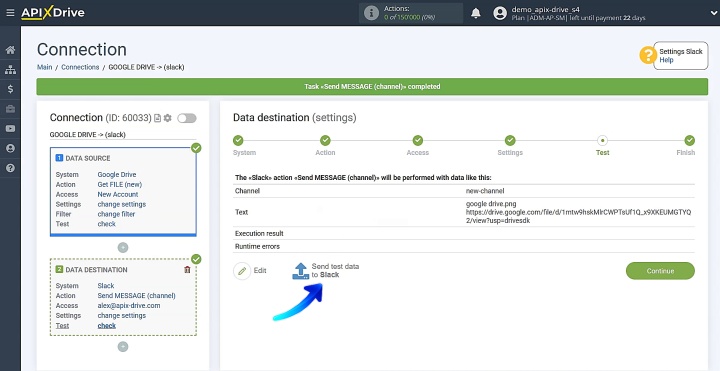
Switch to your Slack account and see if the test message came through.
Return to ApiX-Drive to complete the remaining steps.
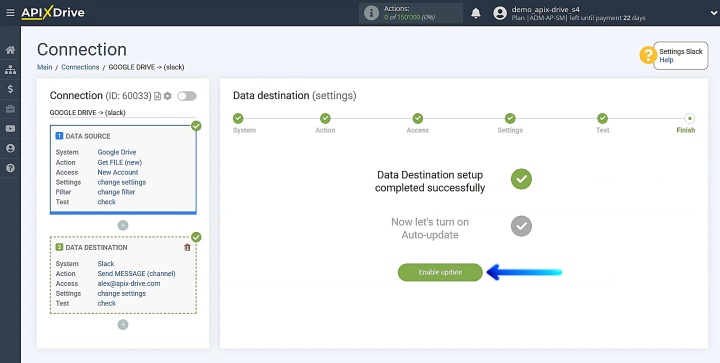
Auto-Update Settings
Configure auto-update so that the system can automatically send Slack alerts for new Google Drive files. Click the Enable update button.
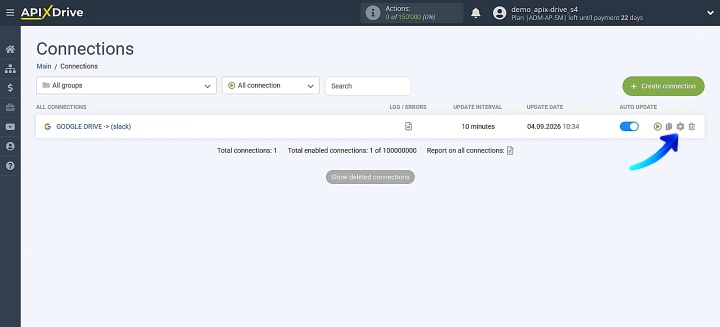
Click on the gear icon to go to the settings.
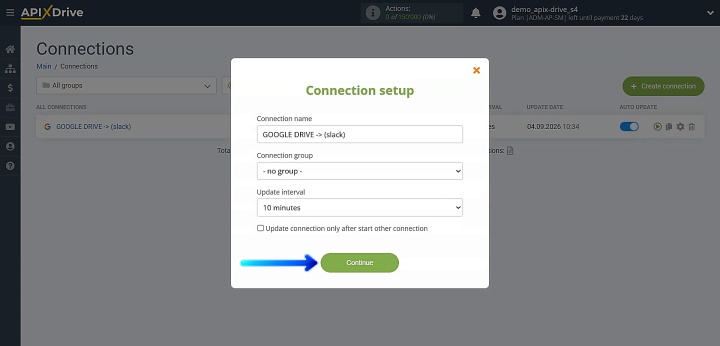
Set your preferred auto-update interval, such as 10 minutes. You can also rename the connection and organize it into a group here. Once everything is configured, click Continue.
Results
Connecting Google Drive to Slack solves several key workflow issues: overlooked new files in cloud storage and time wasted manually copying links into team chat. Its implementation provides teams with quick access to work materials directly in the communication environment. In addition, it saves time, promotes focus on tasks, and helps prevent workflow delays.
Recommended reads:
- Gmail and Google Drive Integration: How to Save Attachments Automatically
- Automating Employee Onboarding: Practical Use Case for HR
- Facebook and Airtable Integration: Automatic Transfer of New Leads
- Use Case: Connecting Google Drive to Task Manager
- Google Drive to Gmail: How to Send File Attachments Automatically