Use Case: Connecting Google Drive to Task Manager

Automatic communication between the cloud and the task manager is useful for any processes, from copywriting to analytics, because manual notifications in chats often slow down work. For example, in marketing teams, cameramen, or video creators regularly upload materials to Google Drive but forget to report on time. The manager cannot check the storage every hour, so tasks for SMM specialists or other colleagues are created with delays.
The solution is to automate task creation. Google Drive integration with Trello, ClickUp, or Asana ensures the automatic creation of cards with direct links to files when they appear in the repository. Now we will tell you how to set up this process in just a few minutes using the no-code ApiX-Drive connector.
Manual Notifications: Why This Is a Weak Point
When information about new files appearing in the cloud storage is not automatically transmitted to the project management tool, the content manager or department head is forced to provide all these logistics on their own. This is guaranteed to lead to constant distractions and unnecessary time consumption, negatively affecting the stability of workflows.
Here's what it looks like from the inside. To deliver the footage to the videographer or SMM specialist on time, you either need to regularly ask the operator about the readiness of the materials or monitor the corresponding folder in Google Drive yourself. And that's not all.
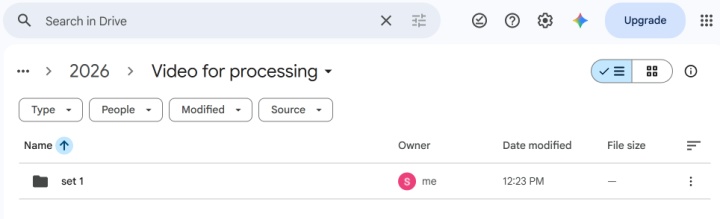
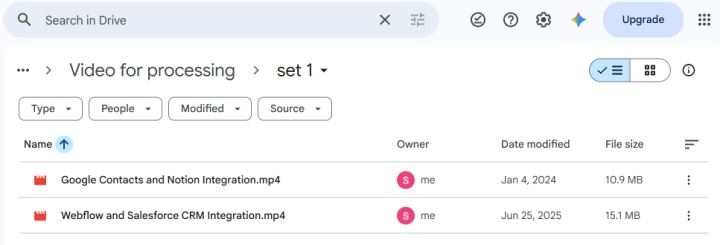
Having noticed new files, you need to copy the links to them, go to the task manager, and manually create cards with a task for an SMM specialist or video creator. At first glance, it looks simple. However, this chain of simple operations quietly consumes hours of working time that a manager or content manager could spend on developing new creatives, analyzing data, or focusing on strategic tasks.
The main reason for critical delays is the human element in the workflow. If the videographer forgets to send a notification about a new promo video, and the content manager fails to assign the task on time, production slows down. The finished video content sits in the cloud for hours while the SMM specialist is left waiting, completely unaware that the materials are ready. The solution to this problem lies in introducing automation.
Two Automation Scenarios: Raw Footage and Finished Video Content
Integrating Google Drive with a task manager (such as Trello, ClickUp, or Asana) does much more than just notify you when video content is ready. It fully automates the entire operational cycle, from monitoring the storage to issuing a task to the responsible specialist. Let's see how this works using two common scenarios:
- Transfer of raw footage. The operator uploads the filmed materials to Google Drive in the “RAW Video” folder. The system reacts to the appearance of a new folder and automatically creates a task for the videographer in the task manager, “View the source videos and edit the promo video,” with a link to the folder.
- Transfer of finished video content. The video creator uploads the edited promo video to the “Ready Creatives” folder. The system responds to the upload of a new file by creating a task for the manager or content manager, “Check promo video,” with a direct link to the video.
To integrate Google Drive and the task manager, we recommend using the no-code connector ApiX-Drive. It is very user-friendly, so it allows you to do it quickly and easily even for those who do not have special technical skills. Basic PC skills are enough.
How to Choose the Right Trigger: File or Folder
When setting up integration in ApiX-Drive, you must specify the trigger correctly.
Action “File NOTIFICATION (new).” Suitable for scenarios when a videographer uploads a video file to the repository as an independent finished project, for example, an edited advertising promo video. In this case, one task is created per file.

- Automate the work of an online store or landing
- Empower through integration
- Don't spend money on programmers and integrators
- Save time by automating routine tasks
Action “Folder NOTIFICATION (new).” Suitable for scenarios when the operator uploads a series of filmed videos to the storage, from which a video clip will be “assembled.” Materials for each project are uploaded to the drive as a separate folder, so it makes sense to configure tracking of the appearance of new directories. When the connector detects the new folder, the video creator receives a task in ClickUp, Trello, Asana, etc.
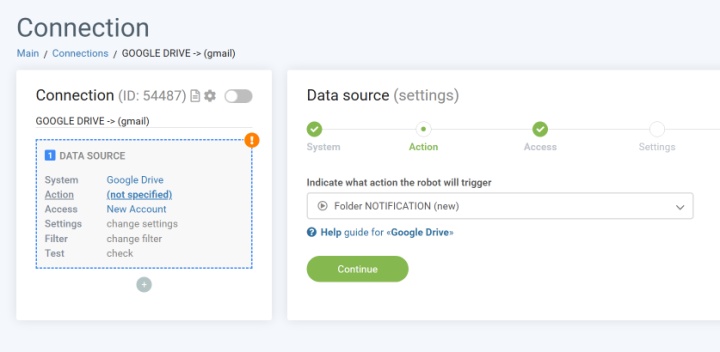
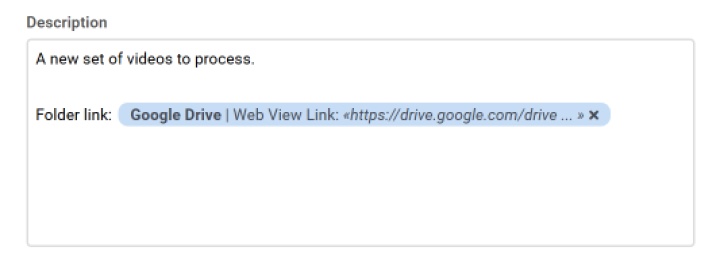
For the task, you can customize the title and description. You can also add an active link to the folder with new videos.
What to Prepare Before Starting
To ensure that the integration takes place as quickly and correctly as possible, it is advisable to prepare everything in advance:
- Check for a separate folder on Google Drive for finished videos. Grant the necessary access to the participants in the workflow.
- Organize your workspace in the task manager: create relevant lists.
- Formulate a task template and determine what data ApiX-Drive should retrieve from Google Drive. Typically, you will need the name of the file or folder and a link to it.
Set Up Automation in 3 Steps
The process of setting up Google Drive integration with Trello/ClickUp/Asana takes no more than 10 minutes.
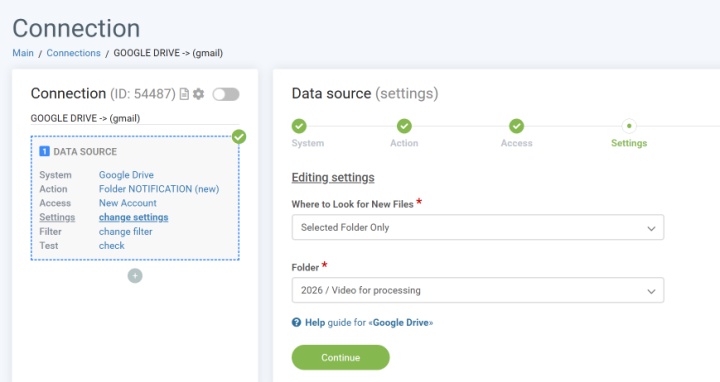
Source settings (Google Drive). The user needs to log in to their Google account, grant the connector necessary permission, select the desired trigger, and test whether data is read correctly for the file or folder.
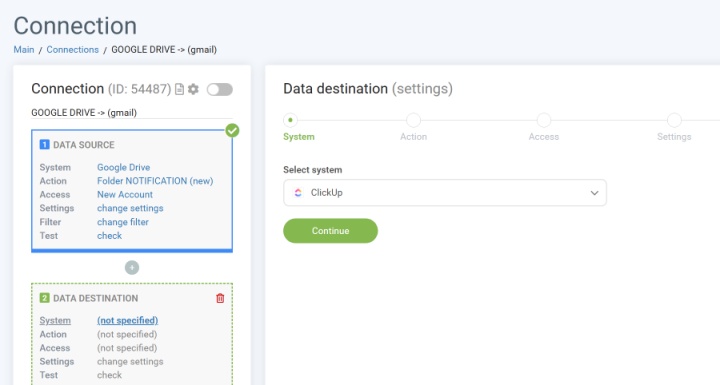
Destination settings (task manager). At this stage, you need to connect the task manager, select a working project, and coordinate the fields for correct data transfer (for example, the file name should be in the task title, and the link to it should be in the description).
Testing and activating auto-update. After completing the source and receiver settings, you need to test sending data and check the result. If there are no errors, you should enable auto-update of the connection, choosing the optimal interval at which it will occur.
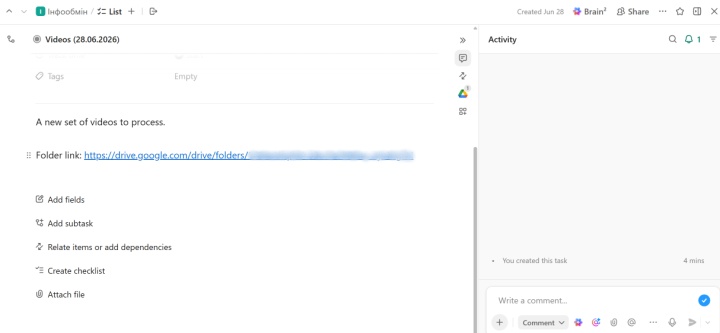
After starting the integration, tasks will appear in the task manager automatically.
Results: How Many Hours per Week Does Automation Free Up
Integrating Google Drive with ClickUp, Trello, Asana, or another task manager makes it possible to get rid of the need to constantly monitor the storage, as well as a number of manual routine operations. Automated task creation can free up a department head or content manager from approximately 5 to 10 working hours per week.
No more forgotten files, no more manual reporting of work done by the cameraman and videographer, and no more distractions from creativity. As a result, team collaboration improves, video production speeds up, and the workflows become more streamlined, predictable, and manageable.
Reference guides for this use case:
- Google Drive setup (data source)
- ClickUp setup (data destination)
- Trello setup (data destination)
- Asana setup (data destination)
Other automation use cases: