Google Drive and Dropbox Integration: How to Automate File Transfers

Many companies use two cloud storage services simultaneously, such as Google Drive and Dropbox. As a result, managers often have to manually transfer files from one service to another, leading to delays, confusion, and errors. The solution that allows you to get rid of these problems is to connect Google Drive to Dropbox and configure automatic file transfer between them. In this guide, we will explain and show you how to do it.
Why Automate File Transfers From Google Drive to Dropbox
Google Drive often works well for collaborative document work, comments, and real-time editing in the browser. Dropbox is often preferred for file synchronization with local folders and handling creative assets across devices.
Project managers in such a situation unwittingly become digital couriers. They are forced to manually download sketches, logos, graphic materials, or ready-made advertising creatives from one cloud and upload them to another, distributing them to designers, photographers, videographers, etc.
This routine wastes valuable time, and when the manager is occupied with other tasks, delays begin. As a result, specialists have to wait until they are provided with materials for work. In addition, manual file handling always increases the risk of human error. Sending the wrong materials to the wrong specialist will at least slow down the workflow and, in the worst case, lead to financial and reputational losses.
All these problems can be solved comprehensively by automating data transfer. To implement it, you need to set up a Google Drive and Dropbox integration, acting as a bridge between both services. Thanks to it, file transfer between cloud storage services will take place in the background, without human intervention.
How to Connect Google Drive to Dropbox
To set up Dropbox and Google Drive integration, we chose the automation platform ApiX-Drive. It allows you to connect both services in a few minutes without requiring technical assistance. After starting the integration, the connector checks for new files in a specified folder on Google Drive and automatically transfers them to Dropbox.
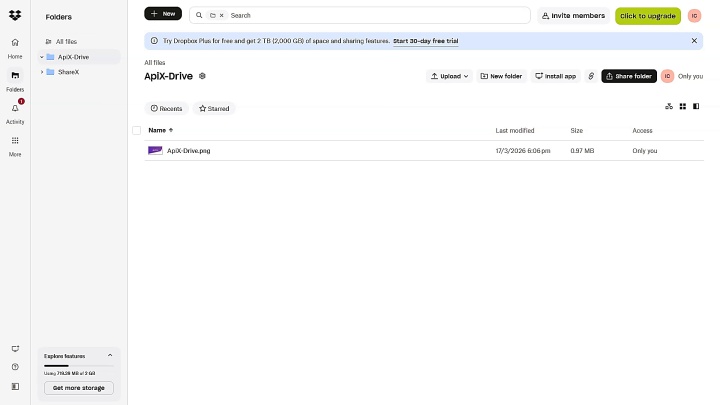
You will need Google Drive and Dropbox accounts. If you use both services, you already have them. You also need to register a personal account in ApiX-Drive. This is where you will configure the integration.
We suggest you start right now. Below is a step-by-step guide with screenshots that will help you go through all the stages in a few minutes.
Data Source Settings: Google Drive
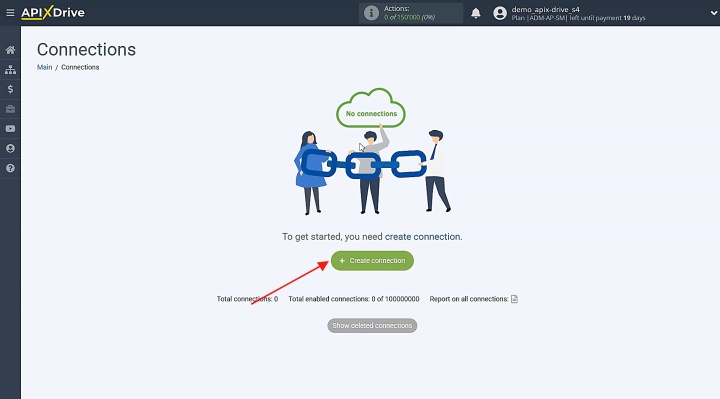
Create a new connection to get started.
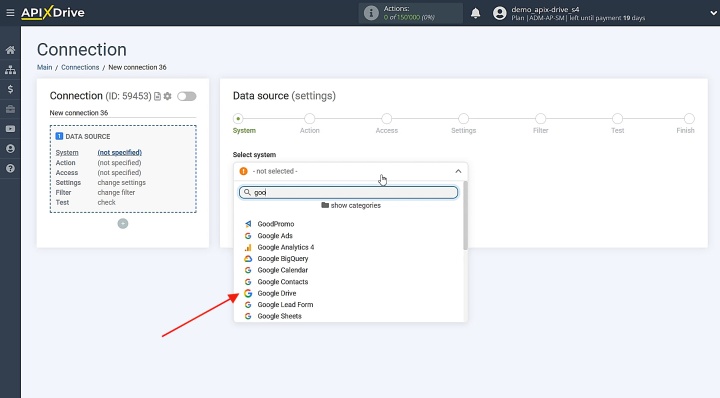
Select the system you want to use as the data source. Choose Google Drive.
Choose the action. For this setup, select the Get FILE (new) option.
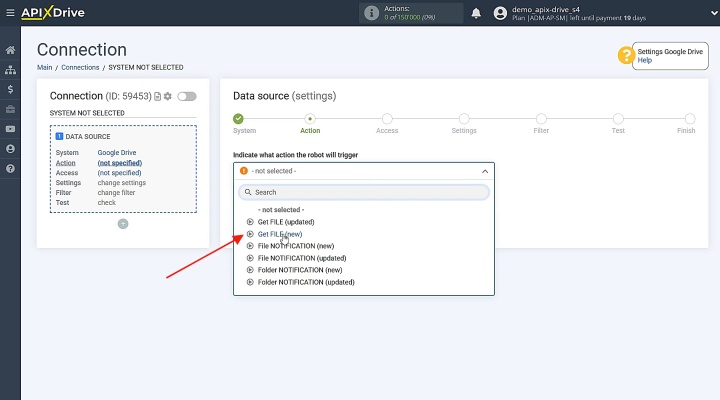
Proceed to connect your Google Drive account to ApiX-Drive.
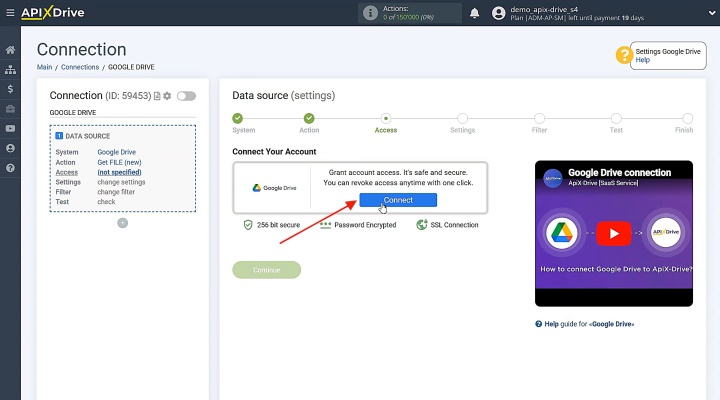
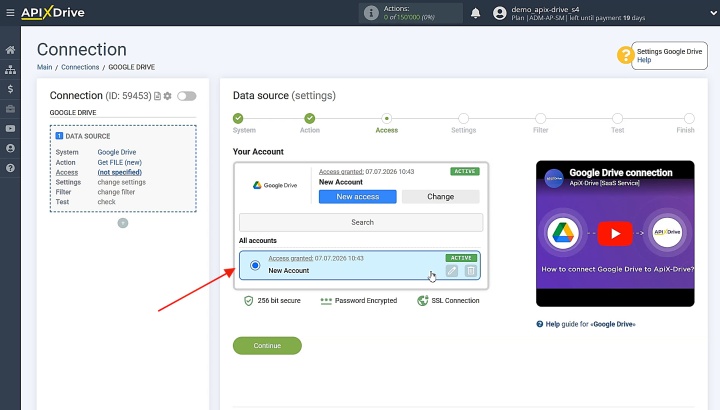
Fill in the login details for your Google Drive account. Grant all the necessary permissions. Select the active account and click Continue.
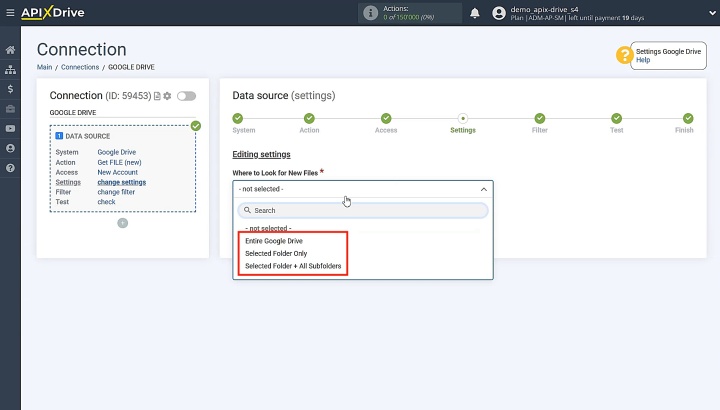
Choose where to search for new files in your Google Drive account. For example, Entire Google Drive.
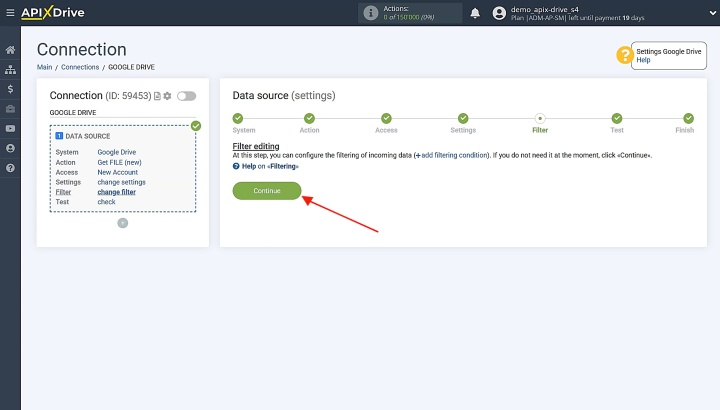
Data filtering can be configured here. We won't be using this feature, so go ahead and click Continue.
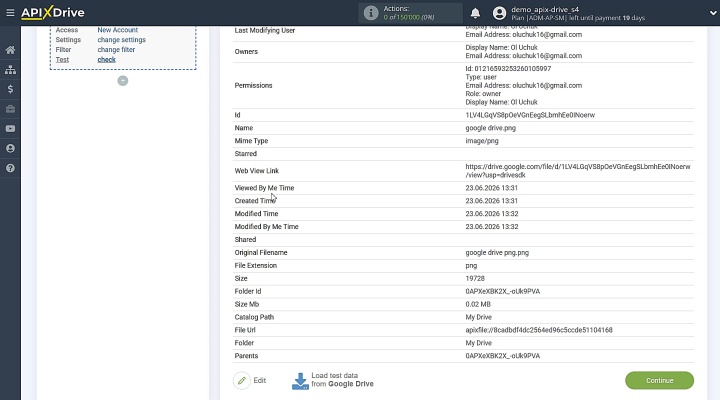
Now, you see the test data. If everything suits you, click Continue to proceed.
Data Destination Settings: Dropbox
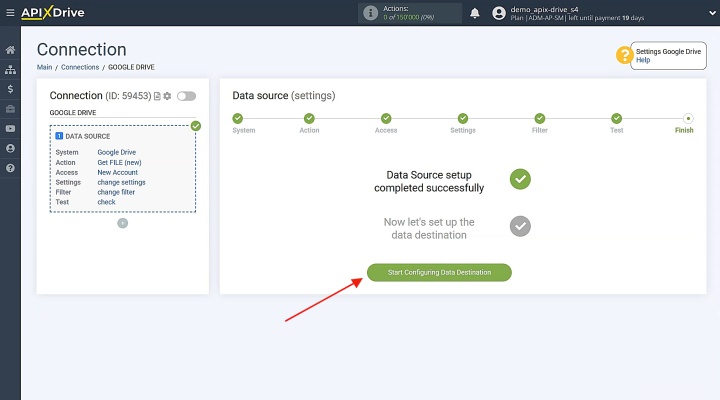
Let's continue by configuring the data destination.
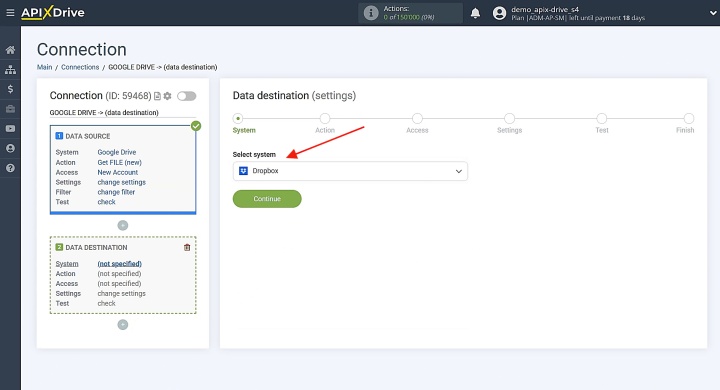
Select the system that will receive the data. You should choose Dropbox here.
Select the required action: Upload FILE.
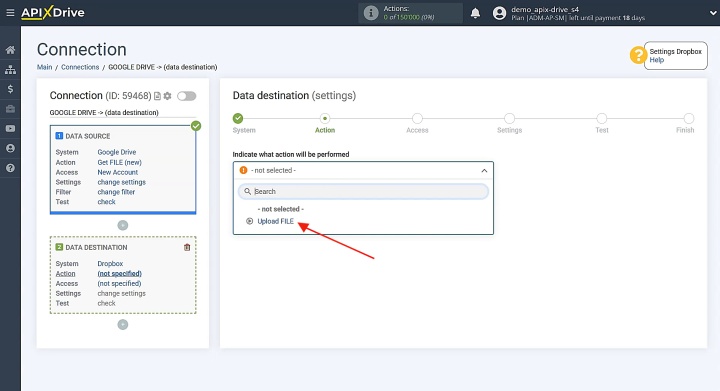
Next, link your Dropbox account with ApiX-Drive.
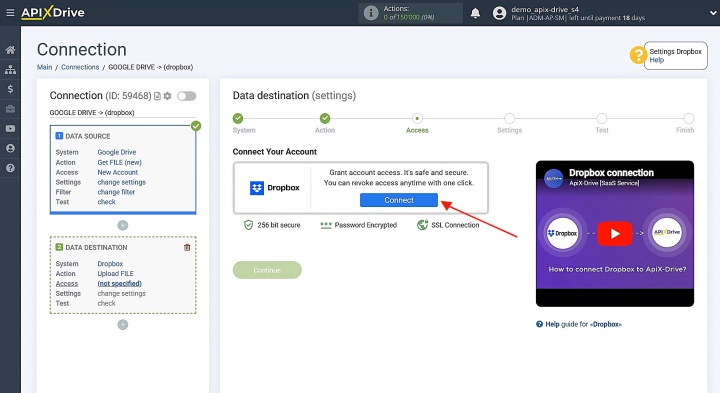
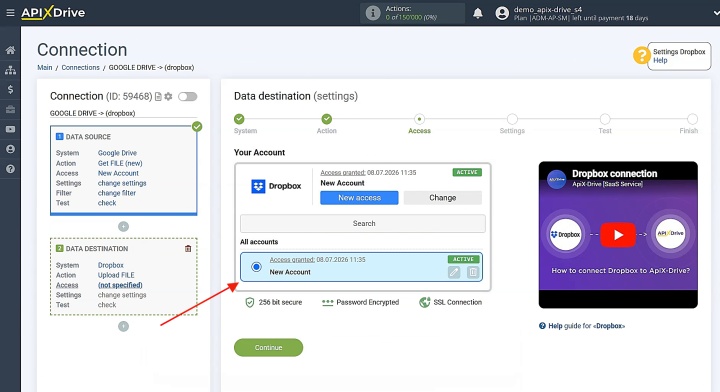
Sign in to your Dropbox account. Select the activated login and proceed by clicking Continue.
Now you need to specify the file link, file name, and folder where you want to transfer the files.
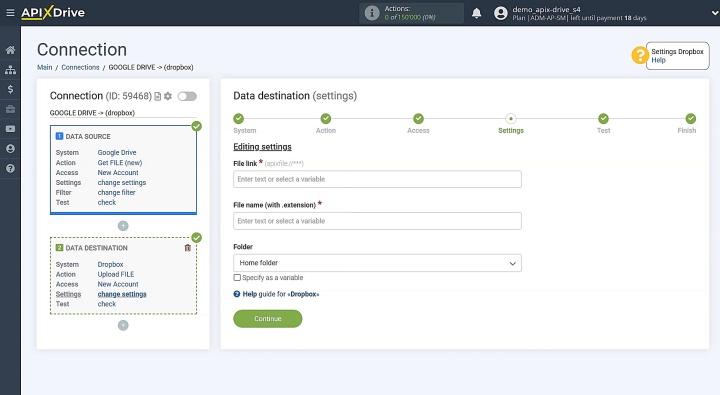
You can do this by selecting the option from the dropdown list.
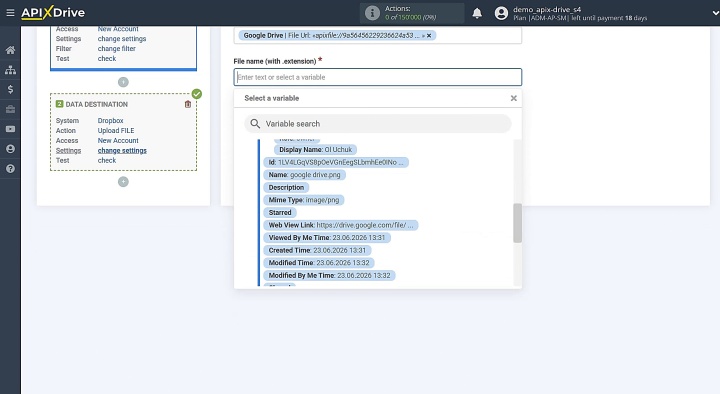
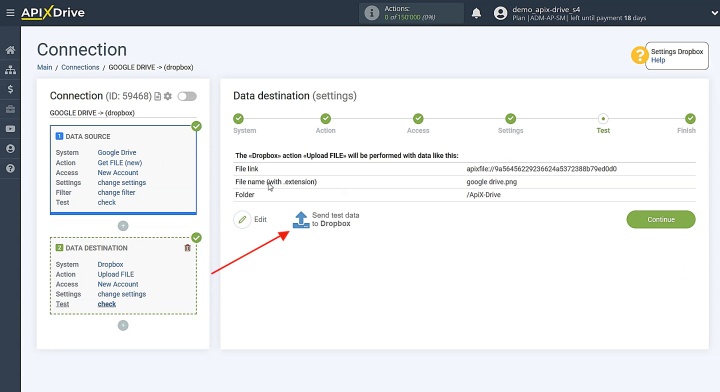
When all the necessary data is assigned, click Continue. You see the test data that will be transferred. To verify the configuration, send a test file to Dropbox.
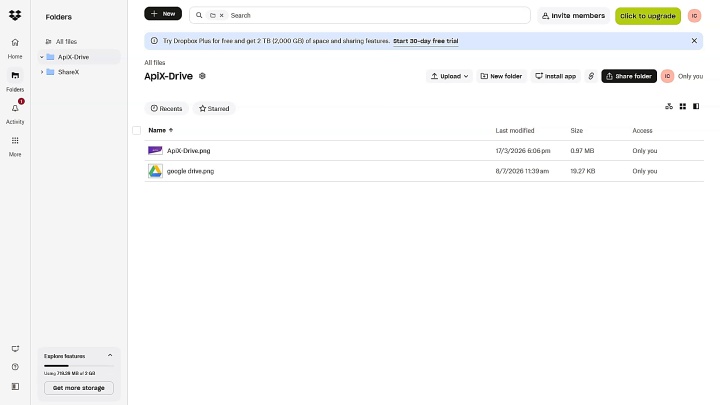
Go to Dropbox and check that the test data was delivered successfully.
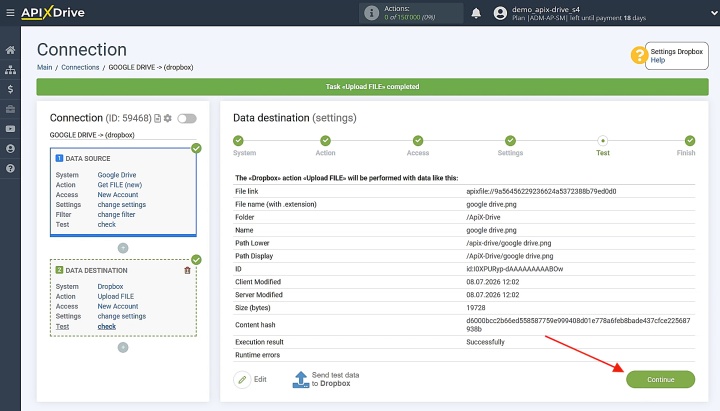
Navigate back to ApiX-Drive and continue setting up the integration.
Enable Auto-Update
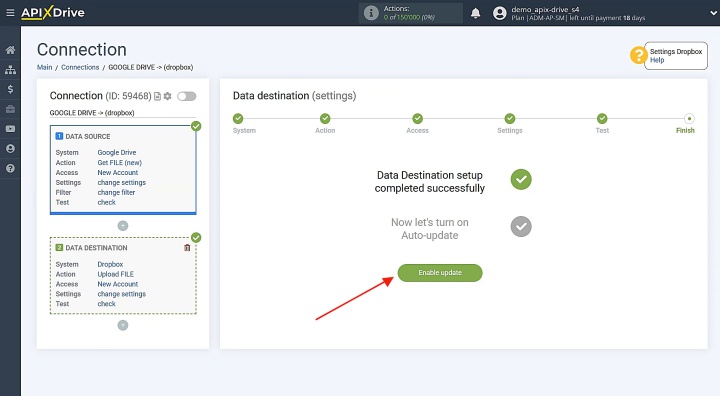
The integration allows you to transfer files from Google Drive to Dropbox after you configure auto-update. Click Enable update to turn it on.
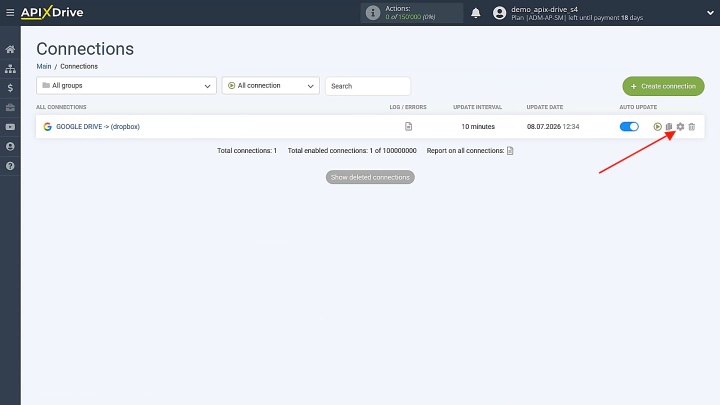
Click the gear icon to access the settings menu.
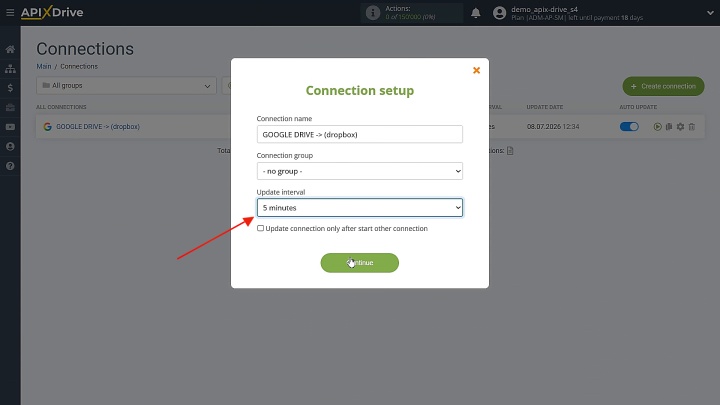
Select the update frequency. You also have the option to rename the connection and place it in a specific group at this step. Click Continue when ready.
Results
By automating file transfers from Google Drive to Dropbox, you eliminate errors and delays caused by manual routines. Logos, sketches, advertising creatives, and other assets are quickly delivered to the right specialists in the background without the involvement of a manager. The automation works 24/7, which is very convenient for companies whose employees are located in different time zones.
Customizable Google Drive to Dropbox automation turns the chaotic sharing of materials into a stable and seamless operational process. This allows the team to focus on creating a quality product without the distraction of transferring files between cloud storage services.
Read also about other integrations:
- How to Connect Google Drive to Google Sheets for Automatic File Tracking
- Webflow and Slack Integration: Setting Up Automatic Notifications
- Facebook and Airtable Integration: Automatic Transfer of New Leads
- Google Lead Form and Google Sheets Integration: Automatic Lead Transfer
- How to Get Data from Tally to Airtable: Step-by-Step Integration Setup