
How to Get Data from Tally to Airtable: Step-by-Step Integration Setup

Using Tally online forms, you can quickly and conveniently collect orders, inquiries, and lead contact information. However, this data is still often manually transferred to spreadsheets or other services (for example, Airtable) for further processing. This significantly slows down the entire process and increases the risk of errors. By connecting Tally and Airtable, you can automate the transfer of leads from forms to the database. Such automation will ensure data accuracy and organization, as well as improve its quality. In this article, you will receive step-by-step instructions for setting up Tally and Airtable integration.
How Tally and Airtable Integration Improves Data Processing Quality
Airtable and Tally integration provides reliable automation of data transfer, which now occurs clearly, reliably, and consistently. After the lead fills out a Tally form, the submitted data is transferred to Airtable without human intervention. Each new inquiry is automatically added as a table row with data populating the designated fields.
This integration allows you to avoid errors that can be made during manual transfer of information. As a result, the risk of losing applications and leads is significantly reduced.
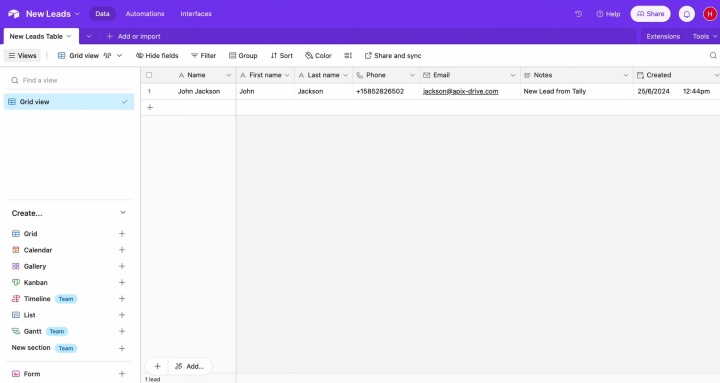
Automating data transfer from Tally to Airtable is critical for businesses that regularly receive inquiries or orders: sales departments, real estate agencies, online courses, recruiting companies, SaaS companies, etc. Therefore, automating the data transfer process is worthwhile for both small startups that are just starting out and large companies that have been on the market for a long time.
Here’s how it works in practice. The marketing team automatically collects leads from landing pages into an Airtable database, assigns each lead to a manager, and starts communicating with them without delay. By automating application collection, the recruiting company quickly routes orders for review, monitors the status of each candidate, and provides timely feedback.
Once the lead data from forms is in the database, it can be immediately used in subsequent automated processes — in email campaigns or analytical reports. As a result, the business receives not just a list of saved contacts, but a comprehensive lead database — high-quality and easy to manage.
How to Integrate Tally with Airtable
To connect Tally to Airtable, you will need an online connector. We recommend using our platform, ApiX-Drive. Its convenient interface allows you to connect the platforms or services you need in just a few minutes. You do not need programming skills or experience with APIs. The service is completely accessible and understandable for non-specialists.
Here's a brief overview of how to integrate Airtable with Tally. The setup process is clearly step-by-step. First, you need to assign Tally as the data source, specify an action, and select a form. The next step is to assign Airtable as the destination system, select the desired table, and match the form fields with the columns in your database. Once you enable automatic updates, each new lead from Tally will be automatically added to Airtable as a new filled row.
We suggest setting up the integration to automatically send Tally data to Airtable right now. Remember, while you wait, your competitors are already reaping all the benefits of automation — more leads, more sales. Our step-by-step instructions will help you do everything quickly and without errors. Each step is accompanied by a screenshot for greater convenience and clarity.
Data Source Settings: Tally
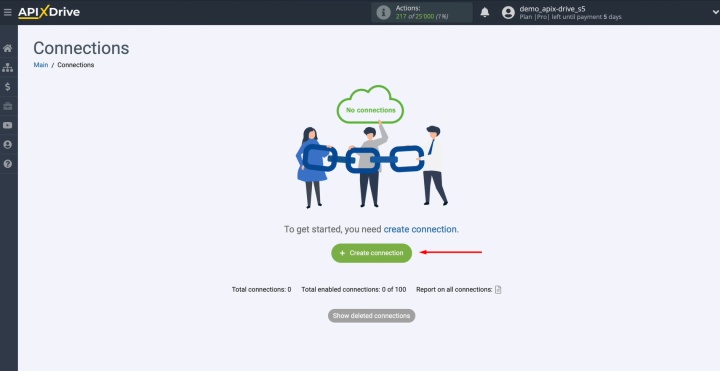
Start by creating a new integration. Click Create connection.
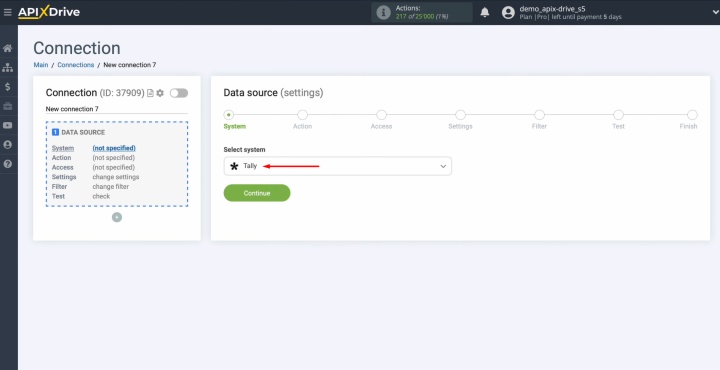
Select the data source system — Tally.
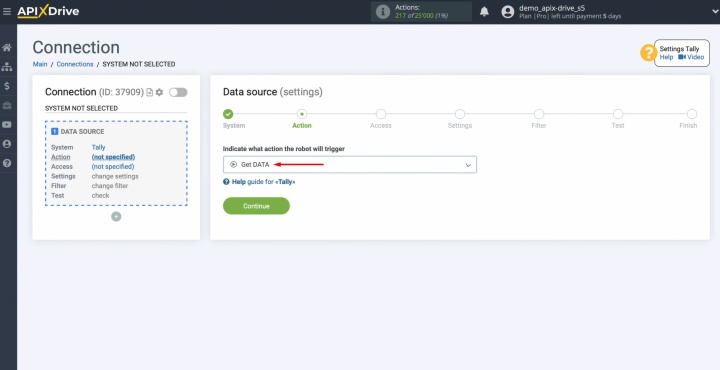
Choose the action Get DATA.
Now connect your Tally account to ApiX-Drive.
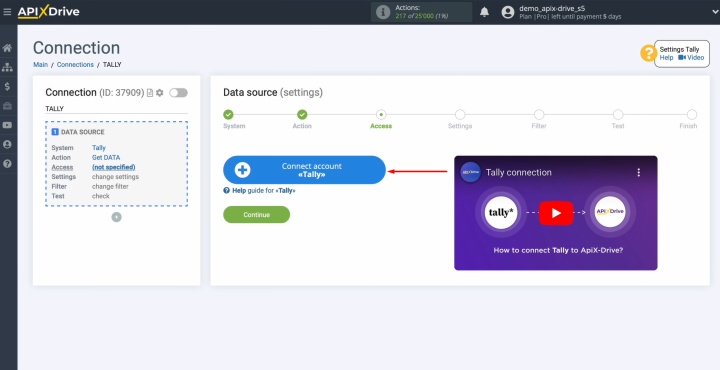
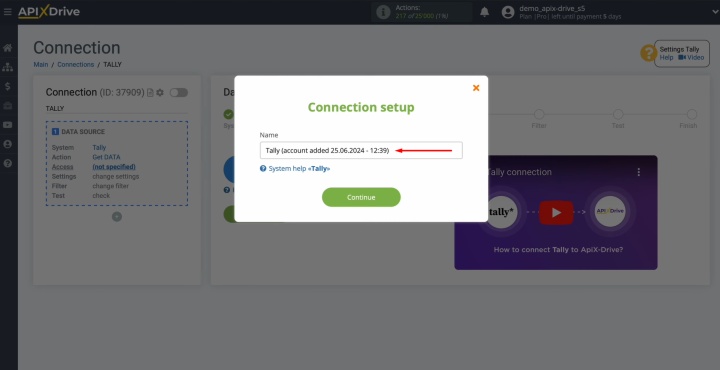
You can rename the connection or just click Continue.
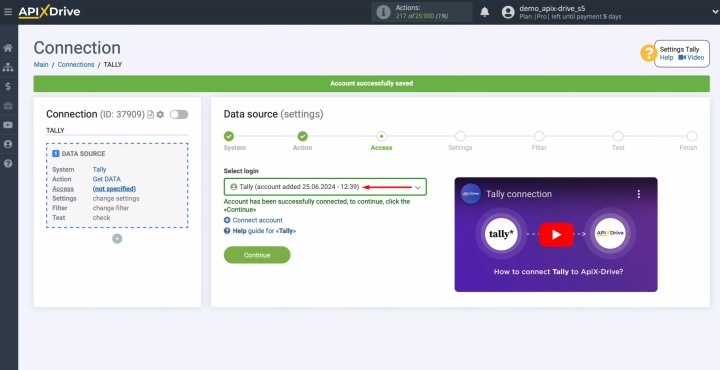
Once the account appears in the list of active logins, select it and click Continue.
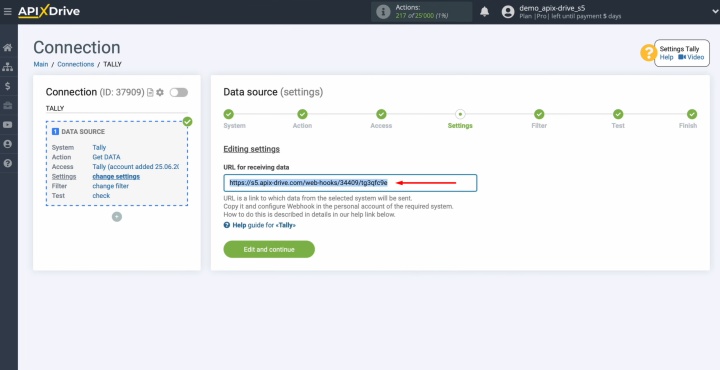
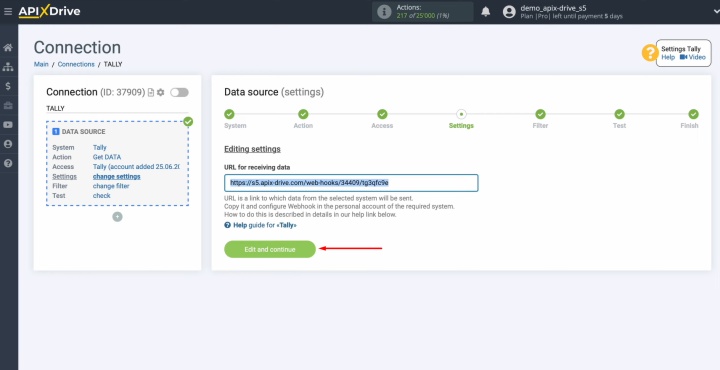
At this stage, you are provided with a URL designed to receive data, which will be used to accept new leads from Tally. To proceed with the setup, copy this URL and navigate to your Tally account.
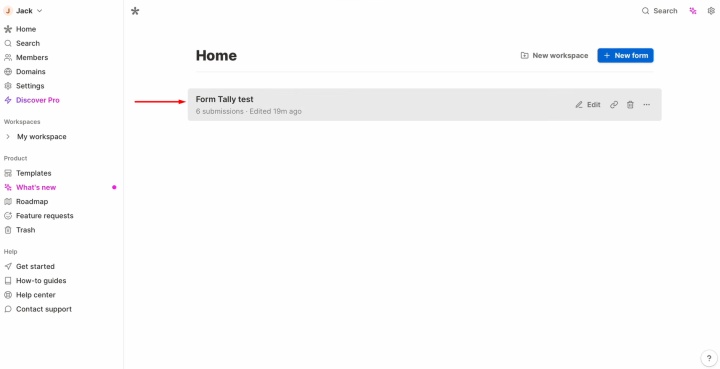
Next, continue to configuring the form that will be used to capture new leads.
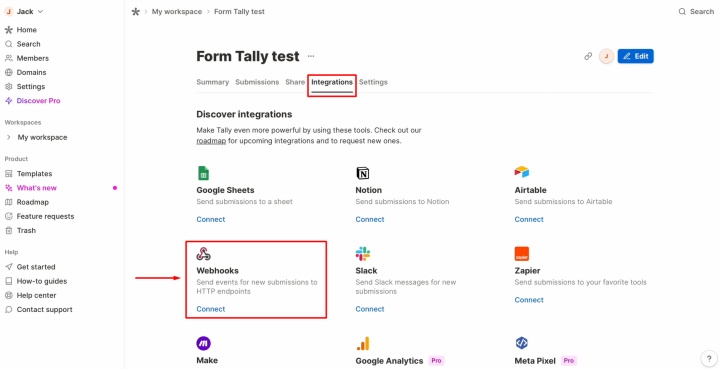
Open the Integration section in the settings, locate the Webhooks option, and click Connect.
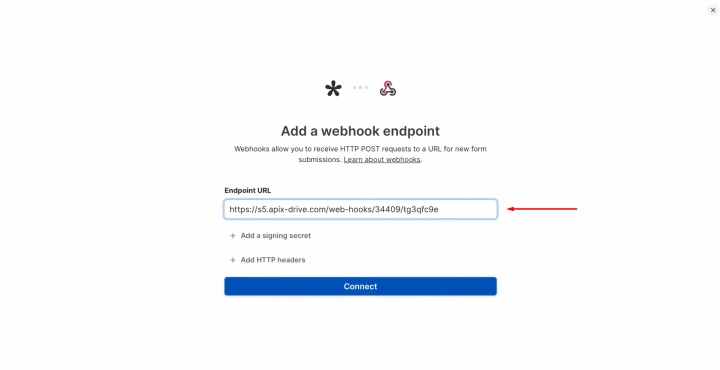
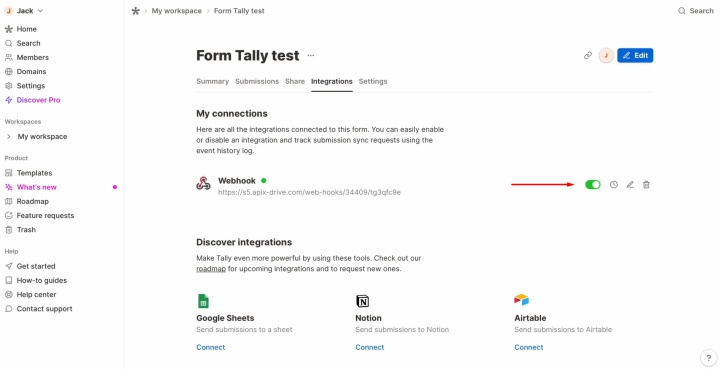
Paste the URL copied from ApiX-Drive and click Connect, making sure the webhook system is turned on.
The next step is to generate test data that will be sent to the specified URL. To do this, submit the form on your website.

Once the form has been successfully submitted, return to ApiX-Drive to continue the setup process.
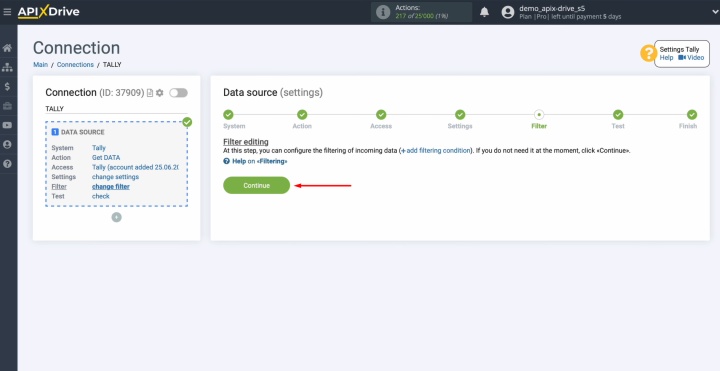
At this point, you have the option to configure a data filter. However, this is optional for now, so simply click Continue.
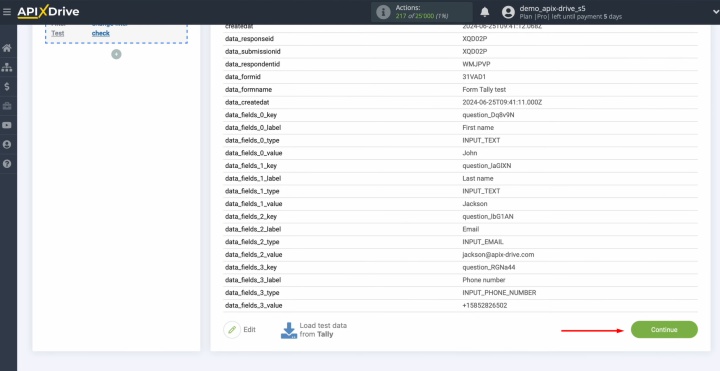
You will now see the data that was just submitted through the form. If the data doesn't appear, repeat the steps described earlier. If everything looks correct, click Continue to move forward.
Data Destination Settings: Airtable
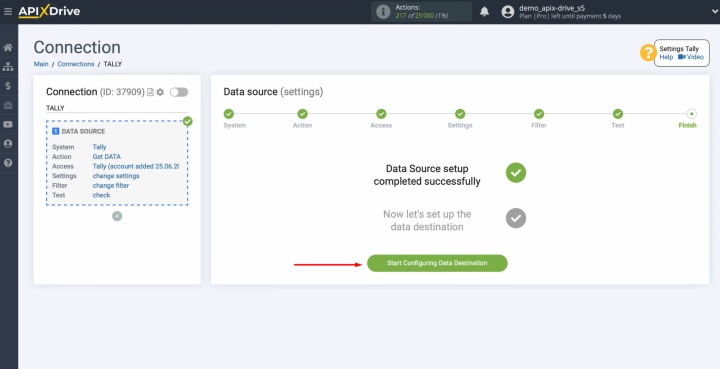
To connect Airtable to Tally, let's move on to configuring the data destination.
Select the data destination system — Airtable.
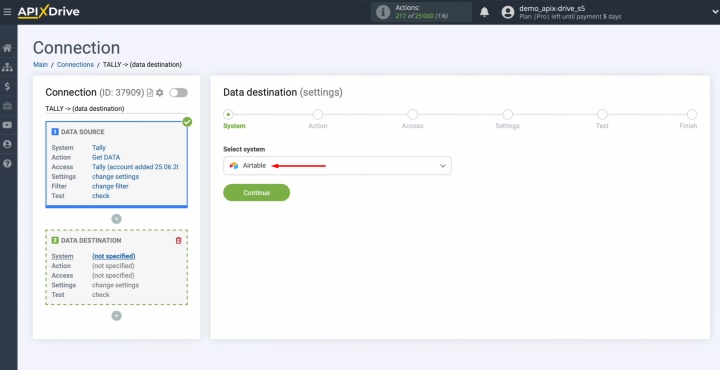
Select the action Add ROW.
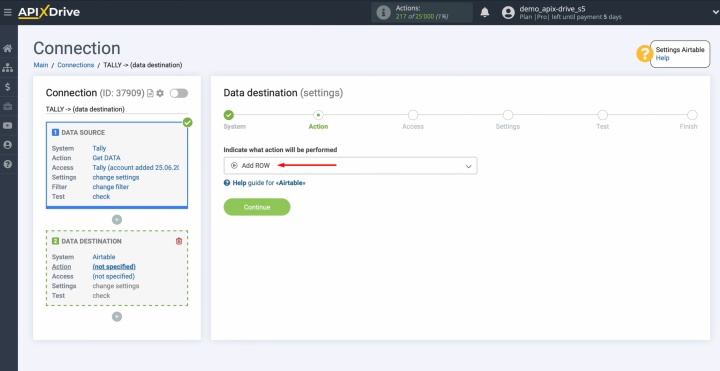
Now you need to connect the Airtable account to ApiX-Drive.
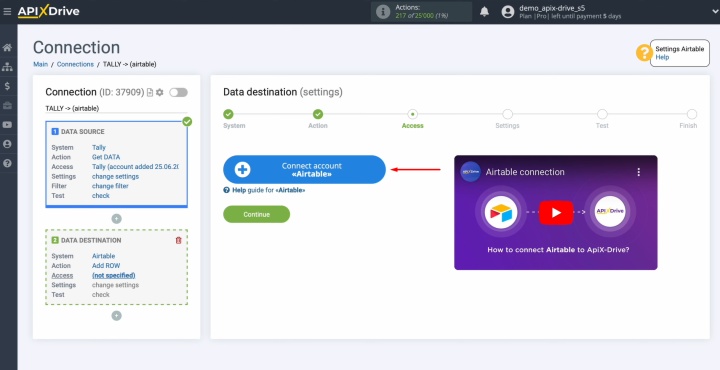
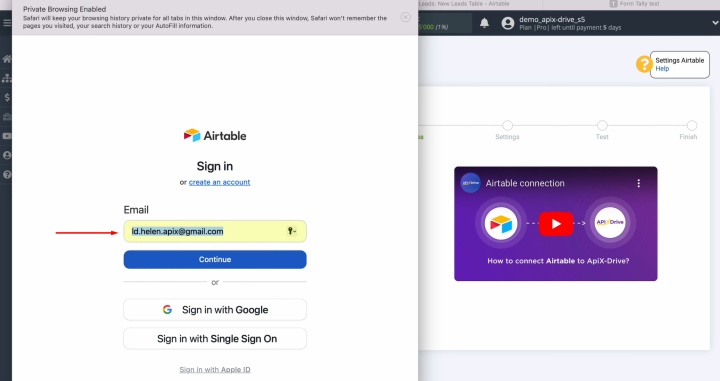
Sign in to your Airtable account. You can do this using your username and password.
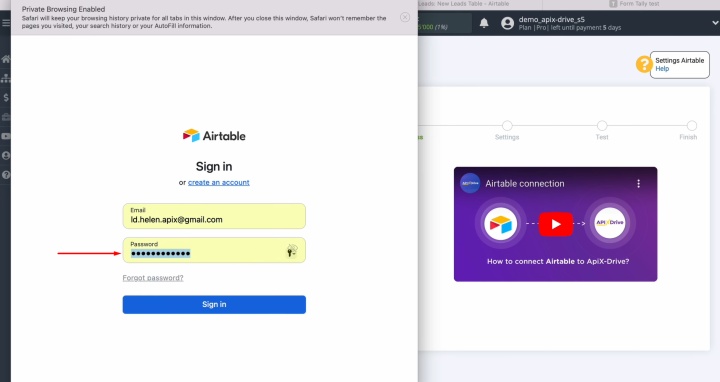
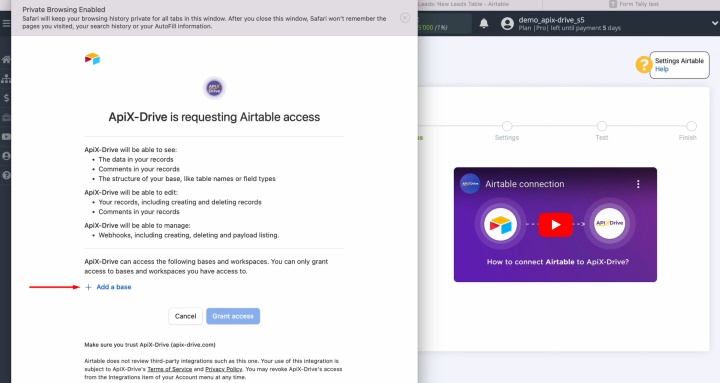
Provide ApiX-Drive access to your Airtable databases. To achieve this, click Add a base.
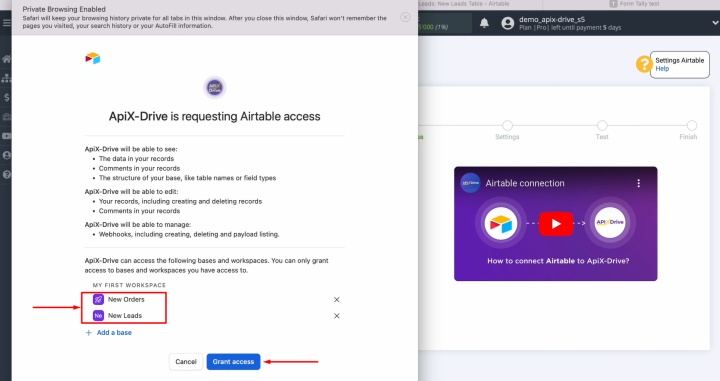
Select the connected account and press Continue.
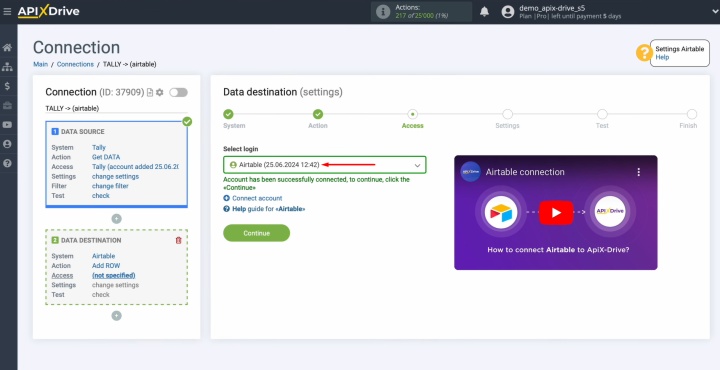
Select the base and the table in which new rows will be created.
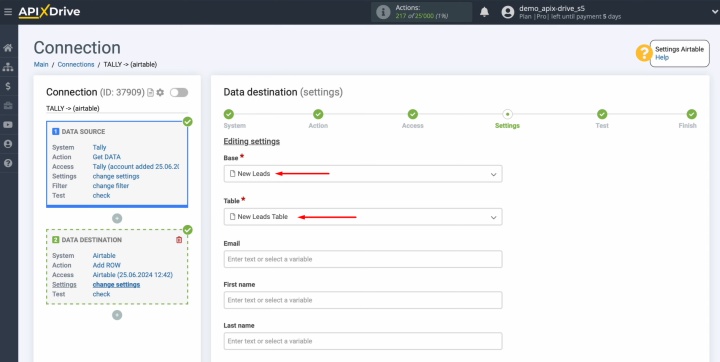
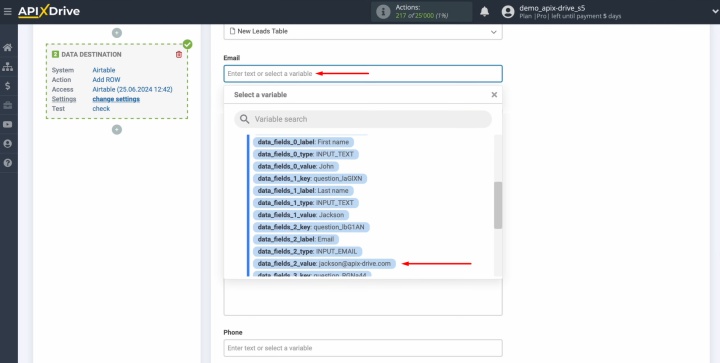
Now, you see the Airtable fields to create new rows. You can add variables from Tally in the text fields. Click inside the field and choose the variable from the dropdown list.
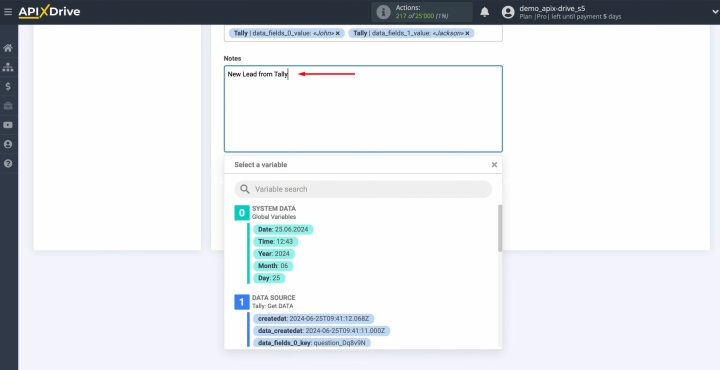
You can also type in custom text. Press Enter to move to a new line.
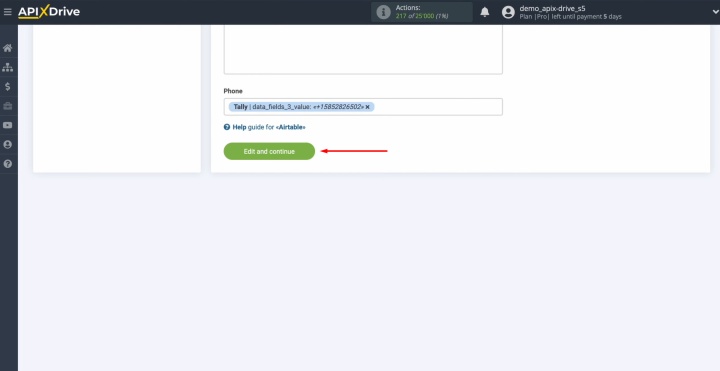
Fill in all required fields and click Edit and continue.
Check a preview of the data that will be transferred to Airtable as new rows with each new lead from Tally. If something doesn't look right, click Edit to go back and make changes. To verify your settings are correct, click Send test data to Airtable.
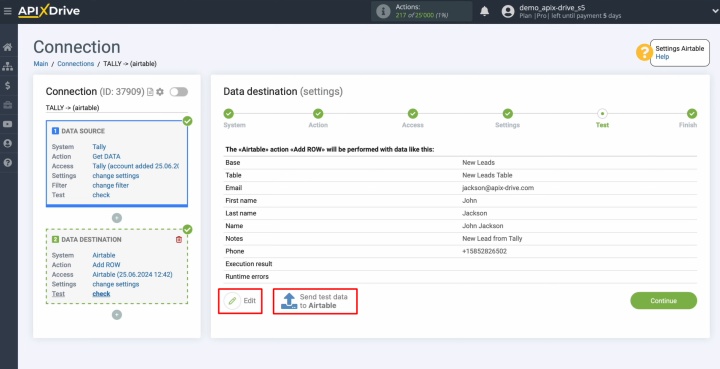
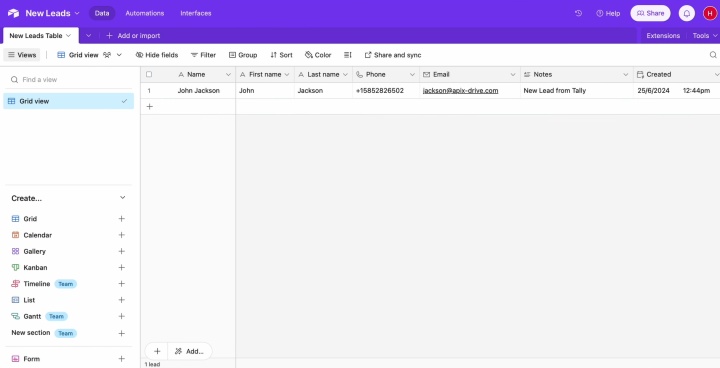
Now open Airtable and check the result.
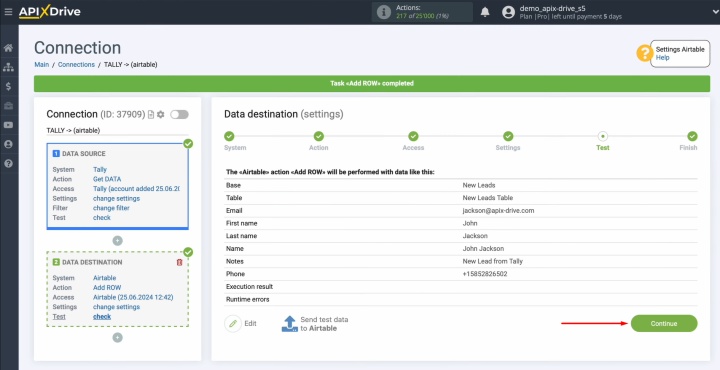
After that, go back to ApiX-Drive to continue with the configuration.
Enable Auto-Update
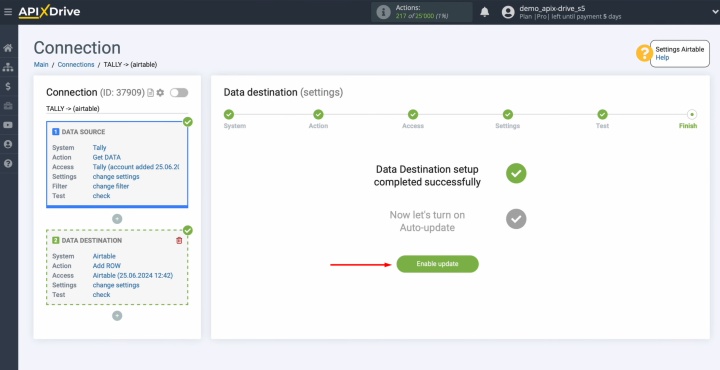
Now configure the auto-update settings for transferring Tally submissions to Airtable. To achieve this, click Enable update.
Next, click on the gear icon to access additional settings.
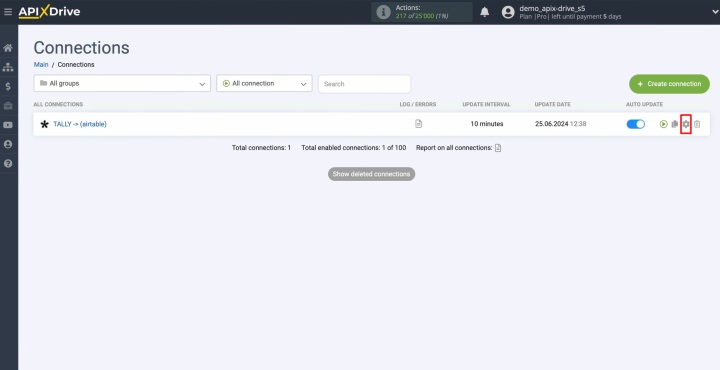
Choose how often the auto-update should run. For example, you can set it to 5 minutes. You can also rename the integration and assign it to a specific group.
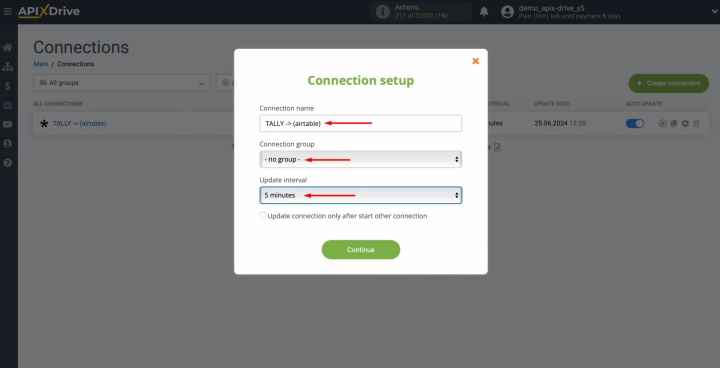
The integration between Tally and Airtable has been set up successfully.
Results
Tally forms and Airtable integration is a modern and effective solution for automating the lead transfer process, which helps to improve the quality of work with applications. It allows you to quickly collect all the necessary information at once in a structured form without additional actions, avoid errors that usually occur during manual transfer, and speed up communication with potential customers. As a result, the business saves time and human resources, increases team productivity, and is able to flexibly scale without losing the quality of interaction with leads.
Read also about other integrations:
- Google Contacts and Notion Integration: How to Set Up
- Webflow and Slack Integration: Setting Up Automatic Notifications
- Facebook and Airtable Integration: Automatic Transfer of New Leads
- Google Lead Form and Google Sheets Integration: Automatic Lead Transfer
- TikTok and Google Calendar Integration: Automatic Lead Transfer