Google Contacts and Notion Integration: How to Set Up

Despite the wide range and popularity of CRM systems, many companies store their leads and client data in Google Contacts and use the Notion platform to manage them. Automating the transfer of contacts to a universal workspace will eliminate the need for manual data entry, reduce errors, and address several other key challenges that every business faces today. A proven way to automate this process is the Google Contacts and Notion integration. In this article, we will tell you what problems it solves and provide a step-by-step guide that will help you set it up in a few minutes.
Google Contacts and Notion Integration for Business Efficiency
Every company that aims to grow and increase its competitiveness faces challenges. Among them are time-consuming routine tasks, human errors, slow information updates, the need for data unification, and scaling of business processes. Notion and Google Contacts integration helps solve these problems.
Automate Routine Operations
Managers spend valuable time manually transferring contacts. This negatively affects their efficiency, as further work with leads is delayed. If you connect Google Contacts to Notion, this fully resolves the issue, opening a window of opportunity for increasing productivity. For example, the HR department can automatically receive candidate contact details for a position in Notion and immediately start working with them. Similarly, the team responsible for partner programs can automatically receive contacts from companies wishing to conclude a partnership agreement.
Data Update Speed for the Entire Team
When working with leads, speed is crucial. It is significant that managers, team leaders, analysts, and department heads constantly have access to up-to-date data. After you connect Notion to Google Contacts and enable auto-update, each new contact automatically appears in Notion and becomes available to the team. This significantly speeds up the start of work with them and minimizes the risk of losing leads.
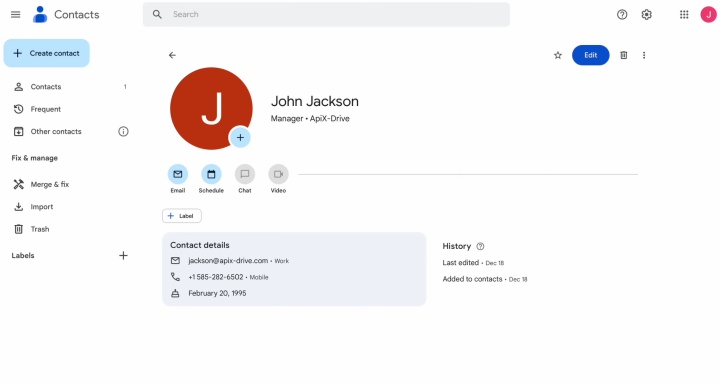
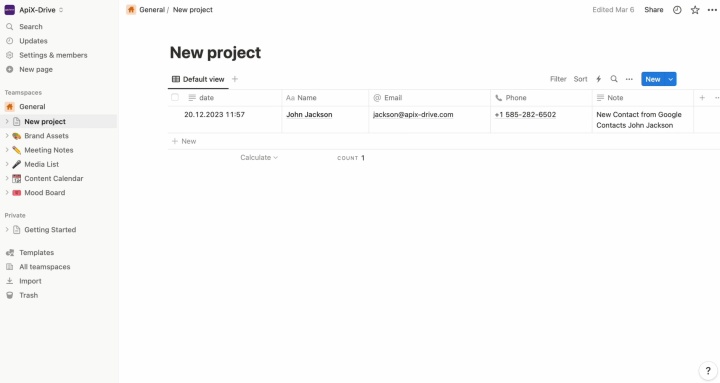
Data Unification
Notion allows you to build structured and clearly organized databases, specifying statuses, data types, dates, and assigning responsibilities. When entering information manually, different managers can do it differently. Inconsistencies reduce the analytical quality of data. In addition, managers can make mistakes during manual data transfer, which often costs them leads. When you import Google Contacts to Notion automatically, you can forget about this problem. Each new contact will arrive in a standardized form and without errors.
Better Control and Scaling Without Additional Costs
By automating the transfer of lead contacts to Notion, the team can spend more time improving the organization of work with them. Reminders, a status system, analytical tables, etc. will come in handy. Even if the number of leads increases sharply, the integration of Google Contacts and Notion will allow you to withstand this jump with ease. The company will be able to scale effectively, avoiding additional burden on employees.

How to Integrate Google Contacts with Notion
Choosing an online connector to configure Google Contacts and Notion integration will not be difficult. ApiX-Drive has an intuitive visual interface that will help you go through the entire process quickly and without errors. The setup is built on a step-by-step principle. The user understands what needs to be done next and can see how the data will look after the transfer, even before starting the automation. Thus, the integration can be configured without any problems by specialists who are not related to the IT sphere.
Main setup steps:
- Creating a new connection in ApiX-Drive.
- Selecting Google Contacts as the data source, the desired action (receiving new contacts), and connecting a Google account to the connector.
- Selecting Notion as the data sink, the desired action (adding a database item), and connecting a Notion account to the connector. In order for the system to automatically add Google Contacts to the Notion, you need to specify the database.
- Configure the fields from which data will be transferred to Notion.
- Activating auto-update mode.
As you can see, everything is very simple. So let's not put it off for later and set up the integration of Google Contacts and Notion right now. We have prepared for you a step-by-step guide, which describes in detail how to integrate Notion with Google Contacts. It will help you save time and do everything clearly and without errors.
Data Source Settings: Google Contacts
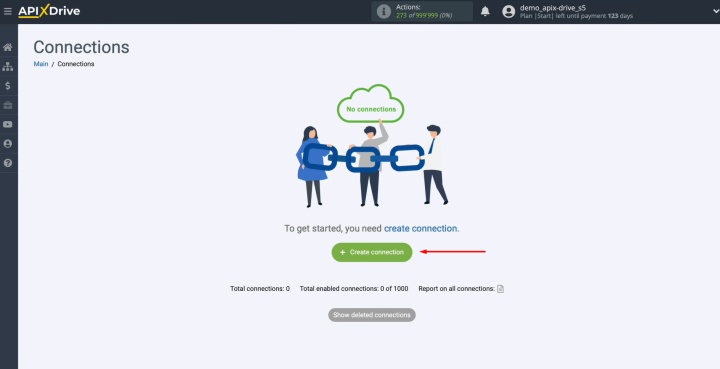
Start by creating a new connection.
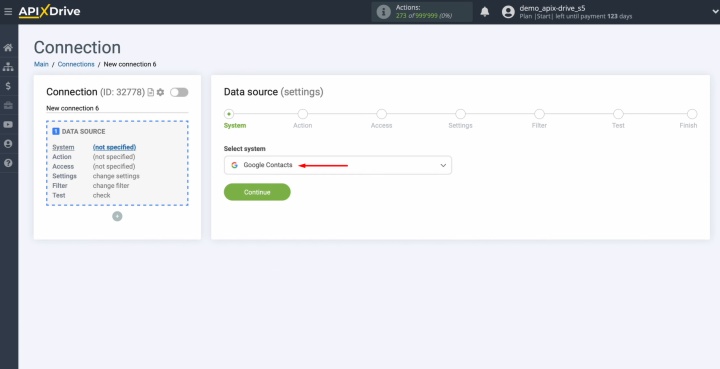
Select the data source system. In this case, it is Google Contacts.
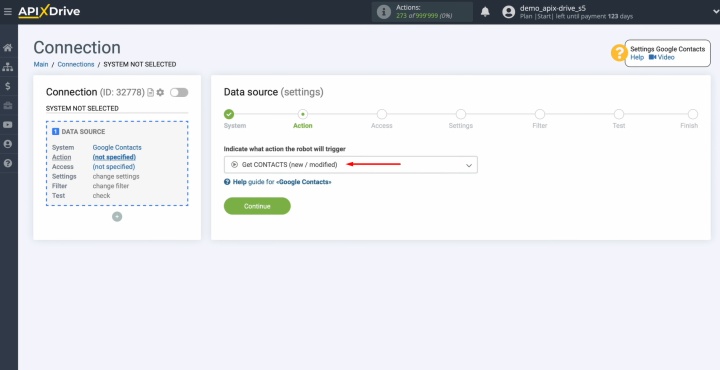
Choose the action you want to perform. You need Get CONTACTS (new/modified).
Now connect your Google account to ApiX-Drive.
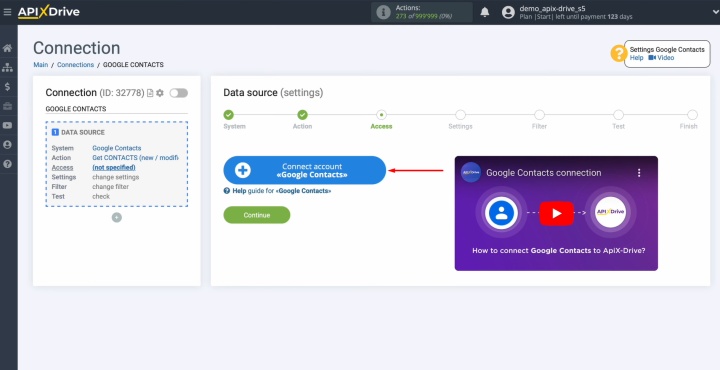
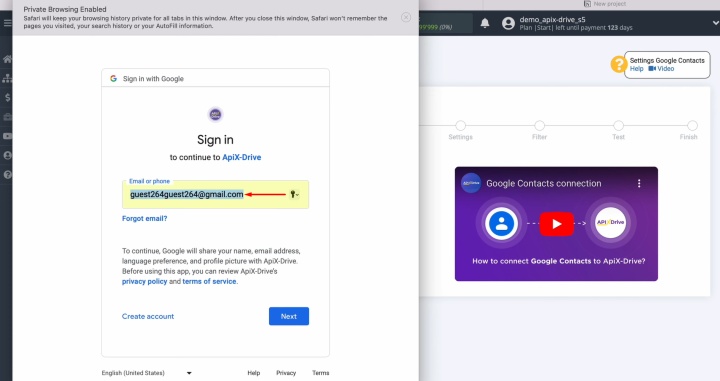
Enter the login credentials for your Google account.
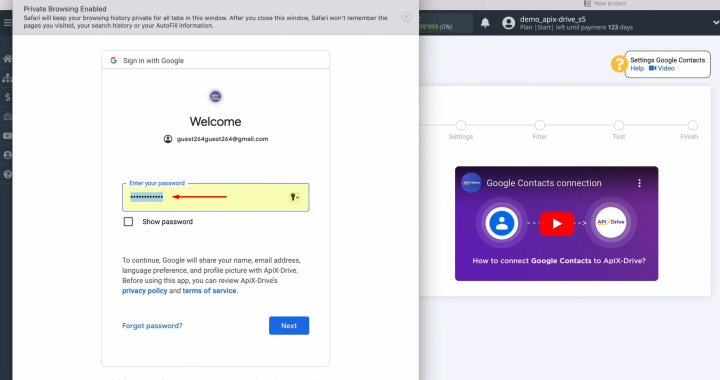
Grant the necessary access to your workspace.
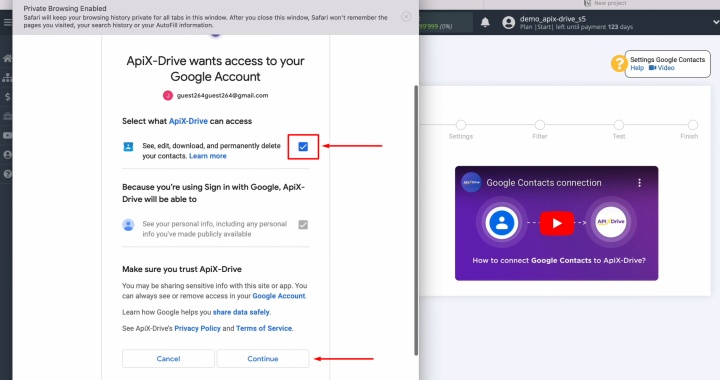
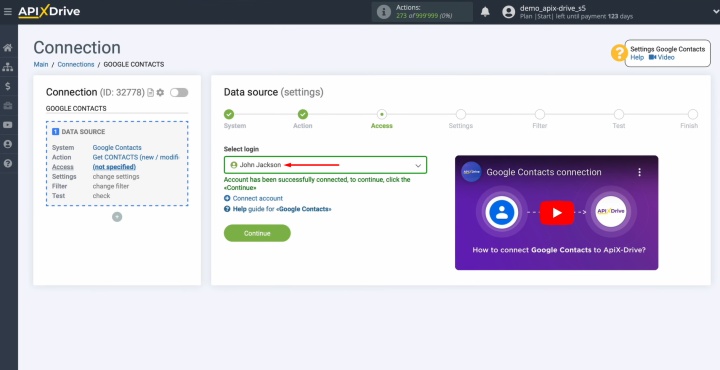
Select the connected account and click Continue.
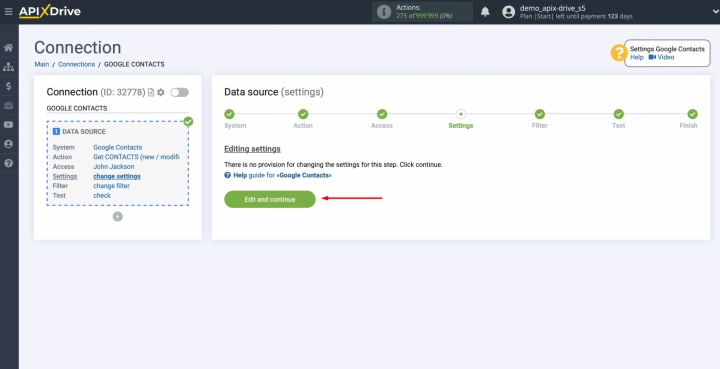
Google Contacts doesn't require any additional configuration at this step, so you can simply press Edit and continue.
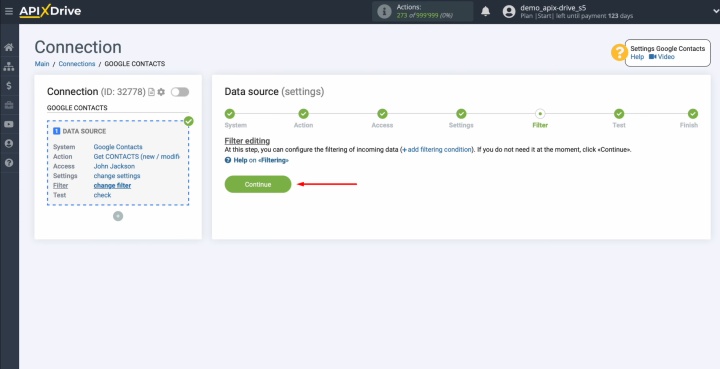
There is no need to configure a data filter at this stage, so go ahead and select Continue.
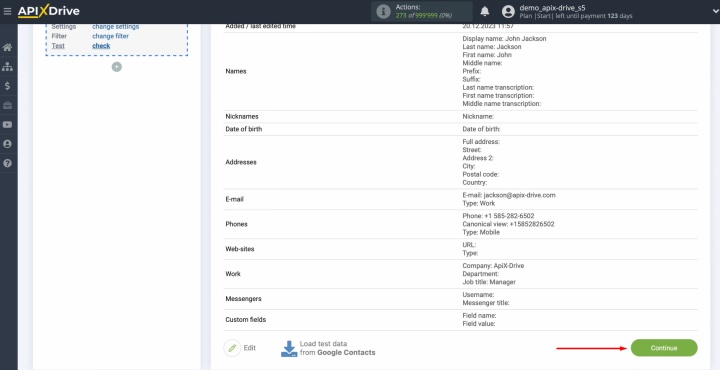
An example of the information pulled from one of your Google contacts will appear next.
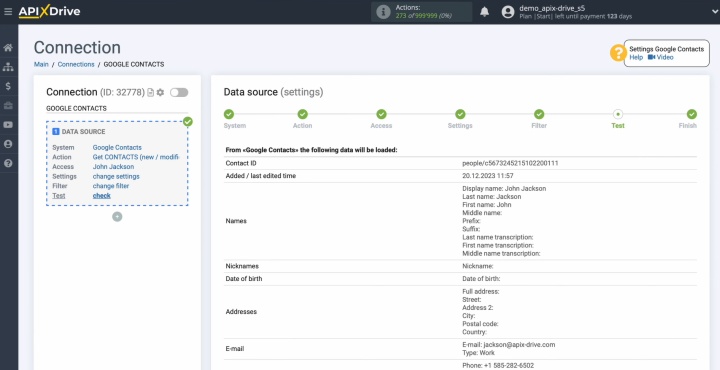
Proceed by clicking Continue.
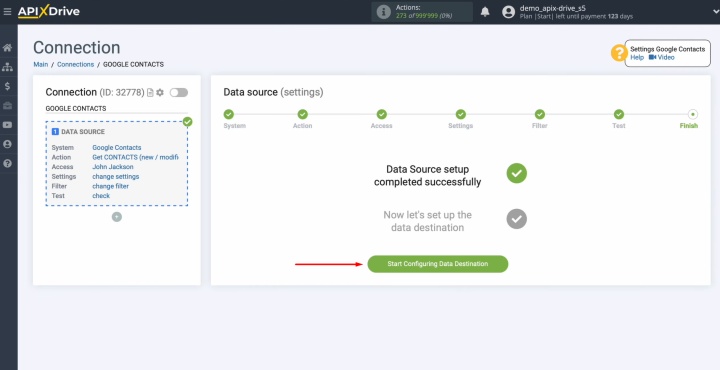
The setup of the Google Contacts data source is now finished.
Data Destination Settings: Notion
Now let's move on to configuring the data destination.
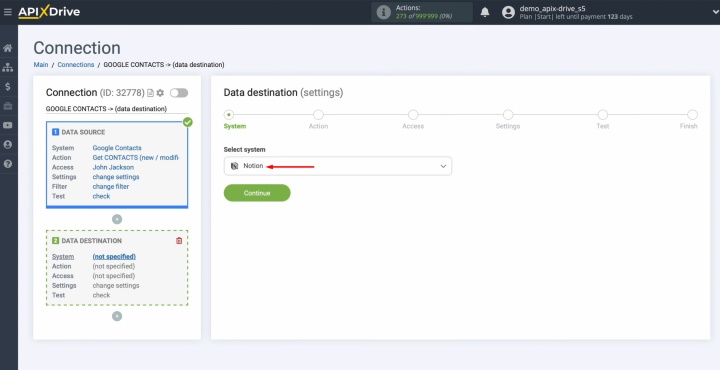
Select the data destination system. In this case, it will be Notion.
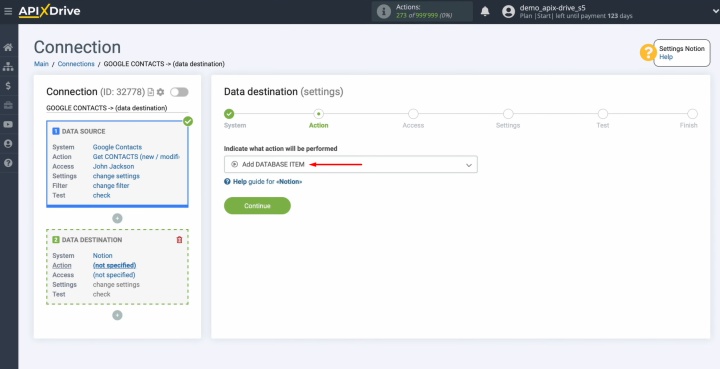
Choose the action Add DATABASE ITEM from the available options.
Now, you need to connect your Notion account to ApiX-Drive.
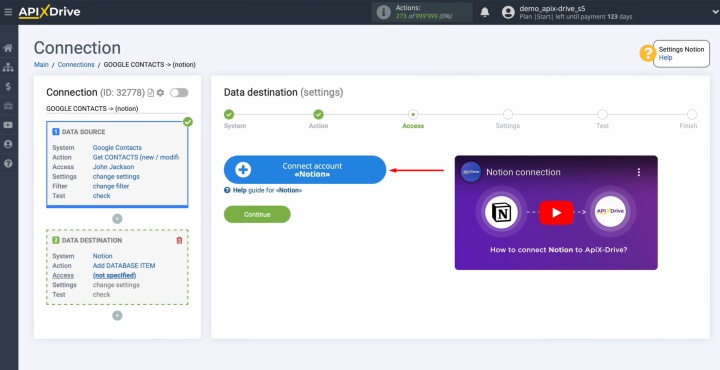
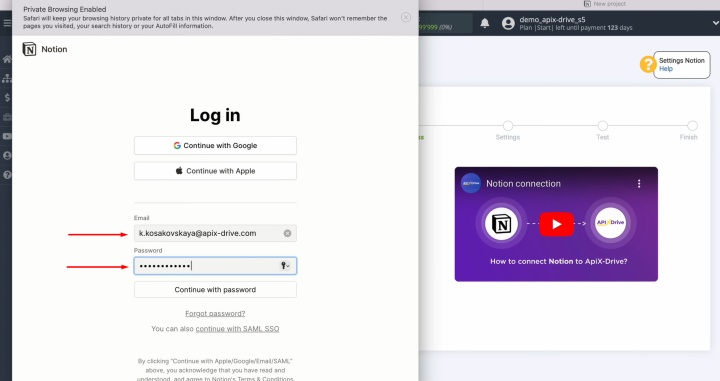
The next step is to log in to your Notion account. You can do this using your username and password.
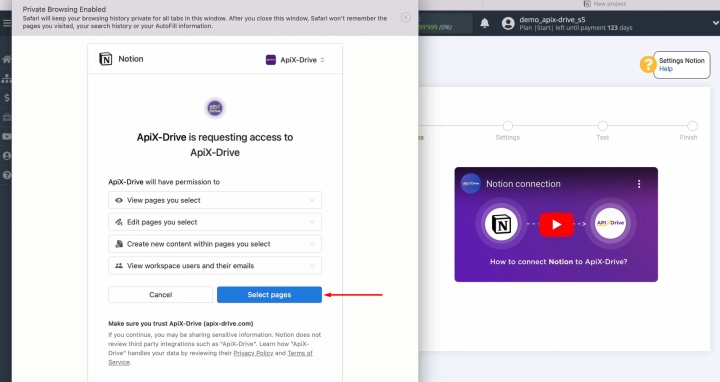
Allow ApiX-Drive to access and work with your Notion account.
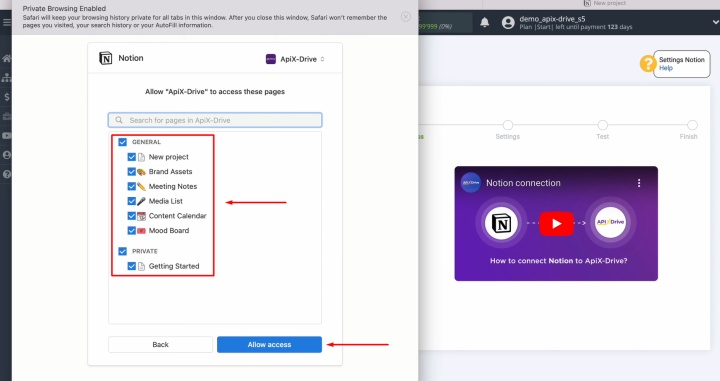
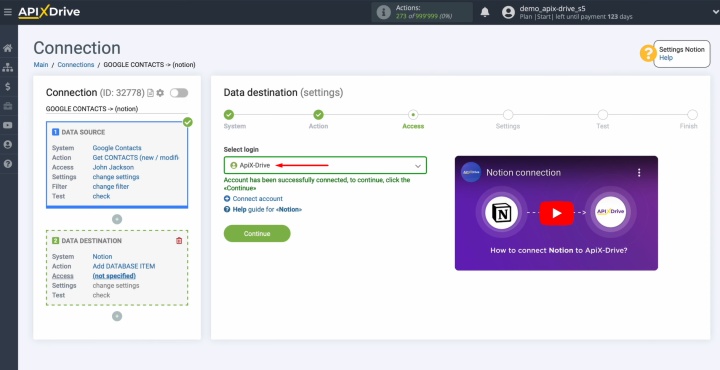
Once the account appears in the list of active accounts, select it and press Continue.
At this stage, you need to select a database in which new items will be created for each new contact from Google Contacts.
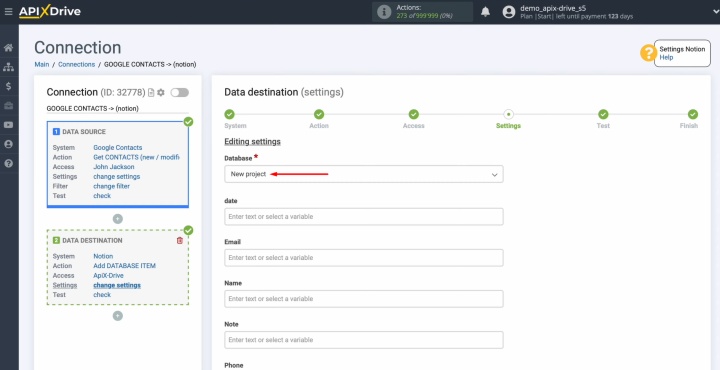
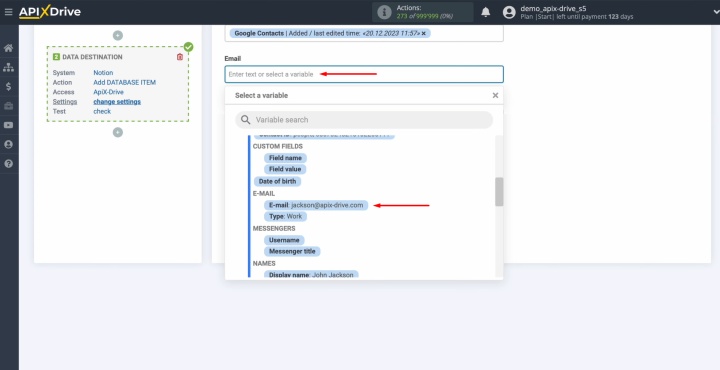
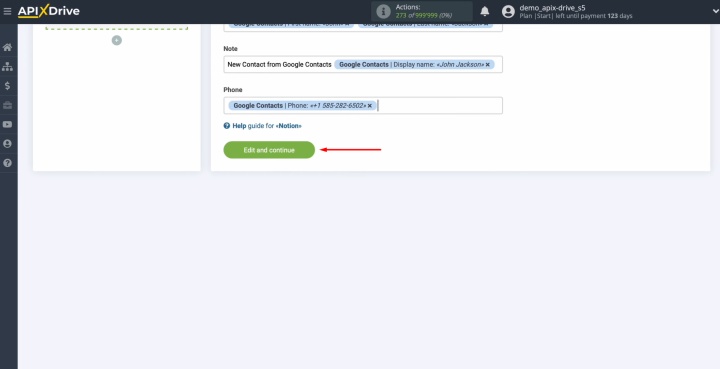
Now you'll see the database fields for creating new items. You can add variables from Google Contacts. Simply click inside the field and choose the variable you need from the dropdown list.
Besides using variables, you can also type in custom text manually.
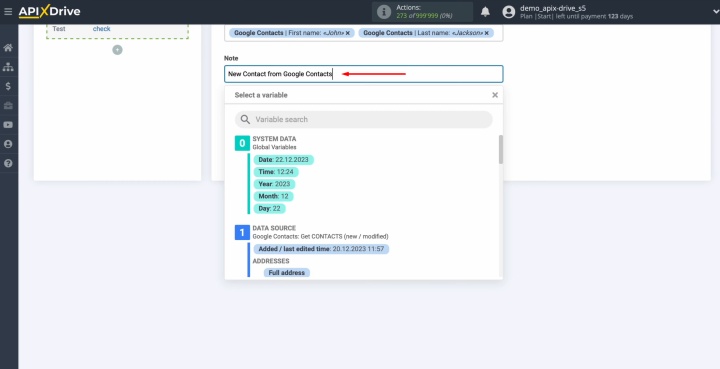
Once you've added all the variables you need, click Edit and continue to proceed.
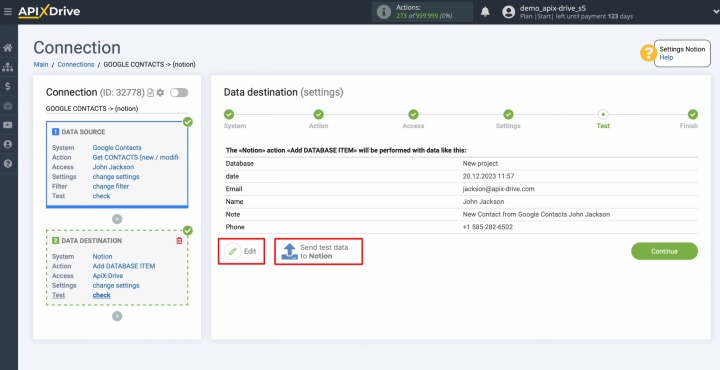
You're now looking at a preview of exactly how the data will be sent to Notion as a new database item for each new contact from Google Contacts. To verify that your settings are correct, click Send test data to Notion.
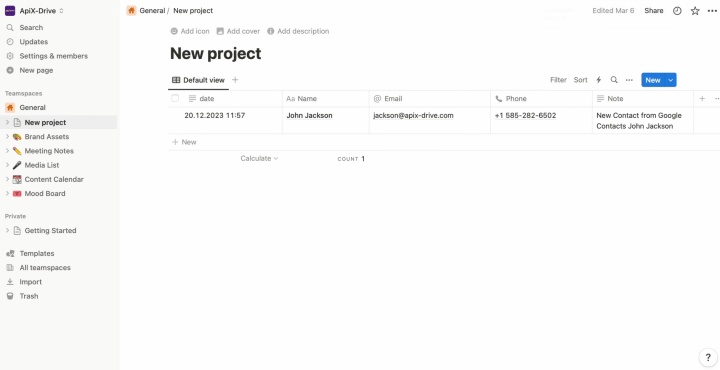
Now open Notion and verify that the test data arrived correctly.
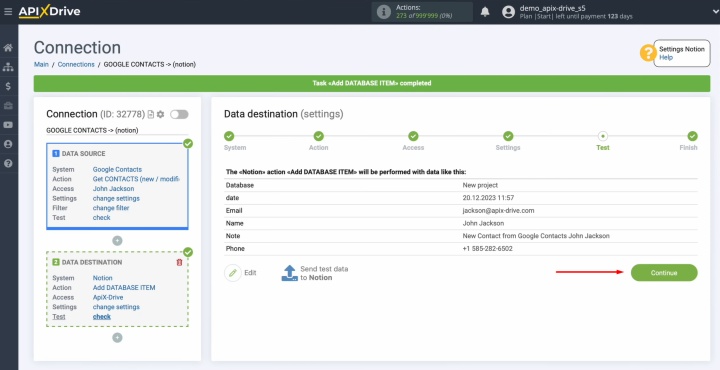
After that, go back to ApiX-Drive to continue with the configuration.
Auto-Update
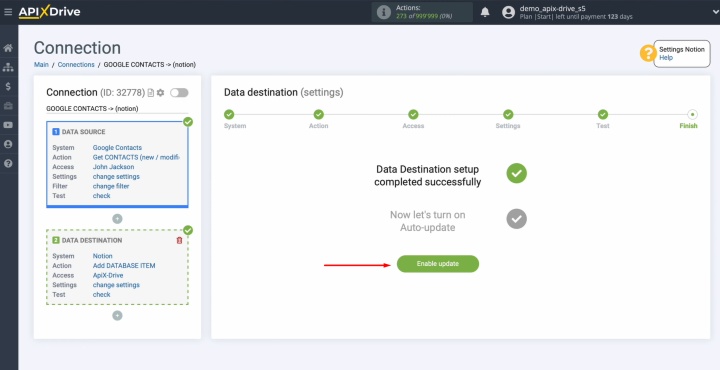
Now configure the auto-update settings for syncing Google Contacts and Notion. To do this, click the Enable update button.
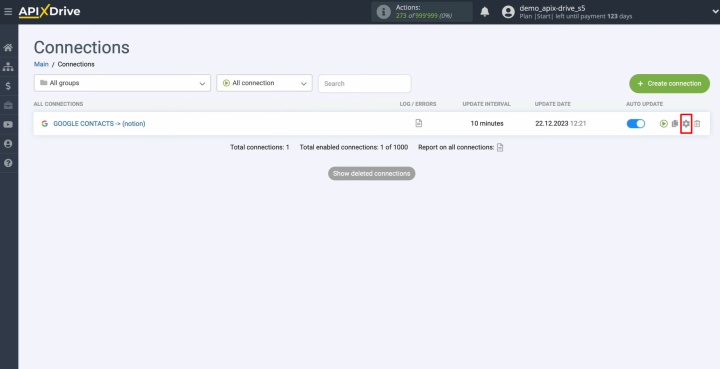
Next, click on the gear icon to access additional settings.
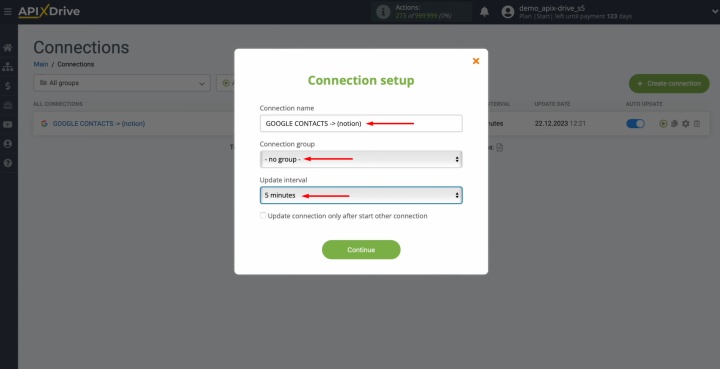
Choose how often the auto-update should be triggered. For example, you can set it to 5 minutes. In this window, you can also rename the connection and assign it to a specific group if needed. When you're done, click Continue.
The integration between Contacts and Notion has been set up successfully.
Result
Integrating Google Contacts and Notion is an effective, proven way to solve several challenges that every business faces today. It significantly reduces the time previously spent on manual lead data entry and helps unify it. In addition, such automation allows you to scale qualitatively without increasing the workload on the team. By integrating Google Contacts and Notion, the company receives quick updates of important information, minimizes the risk of errors, and increases the transparency of the processes of working with potential customers.
Read also about other integrations:
- Smartsheet and Google Calendar Integration: Automatic Event Creation
- Webflow and Slack Integration: Setting Up Automatic Notifications
- Facebook and Airtable Integration: Automatic Transfer of New Leads
- Google Lead Form and Google Sheets Integration: Automatic Lead Transfer
- TikTok and Google Calendar Integration: Automatic Lead Transfer