Google Drive to Gmail: How to Send File Attachments Automatically

Content managers can spend a lot of time on simple technical tasks. For example, sending a finished outline or article brief to an author usually involves several steps: opening Gmail, creating an email, attaching the file, and sending it to the right person. These steps are important, but when such tasks happen dozens of times a week, the routine can quietly take up hours.
Fortunately, you can get the same result without manual intervention by automatically sending files via Gmail using the ApiX-Drive no-code connector. For example, when a new outline appears in a selected Google Drive folder, ApiX-Drive can detect the file, create an email, and send it to the author with the attachment. Convenient, fast, and reliable. Next, we'll show you how to set up such automation.
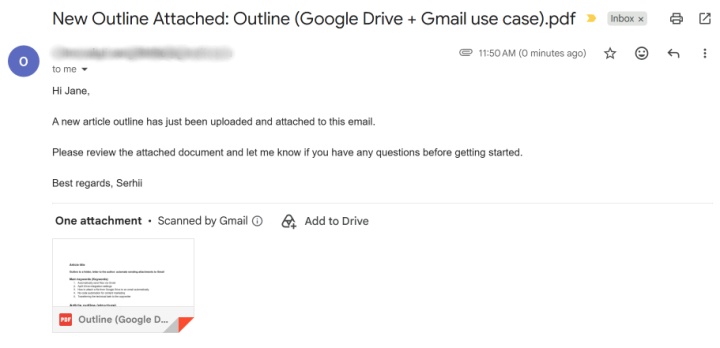
Automation Algorithm in ApiX-Drive
After setting up the automation, you will no longer need to send files to authors manually or spend working time on repetitive email tasks. What is needed for this? First, you need to prepare the basic setup. You will need:
- A separate folder in Google Drive where ready-made article plans will be added.
- The Gmail account from which emails will be sent.
- The author’s email address.
- ApiX-Drive account for setting up service integration.
This set is enough to fully automate the file transfer process. With ApiX-Drive, even users without a technical background can set up integration.
How do you attach a Google Drive file to an email automatically? Here is a quick setup overview:
- Step 1. Setting up the source (Google Drive). Set the trigger “Get file (new)” and specify the folder with outlines or briefs. This is necessary so that the system understands what exactly to monitor and where.
- Step 2. Set up the destination (Gmail). Select the action “Send Email.” Here you need to specify the recipient, subject, and email body.
- Step 3. File transfer settings. There is an “Attachments” field. For it, you should select a variable that contains a file from Google Drive. Specify the file name and type. Each new outline or task brief from the selected folder is automatically attached to the email.
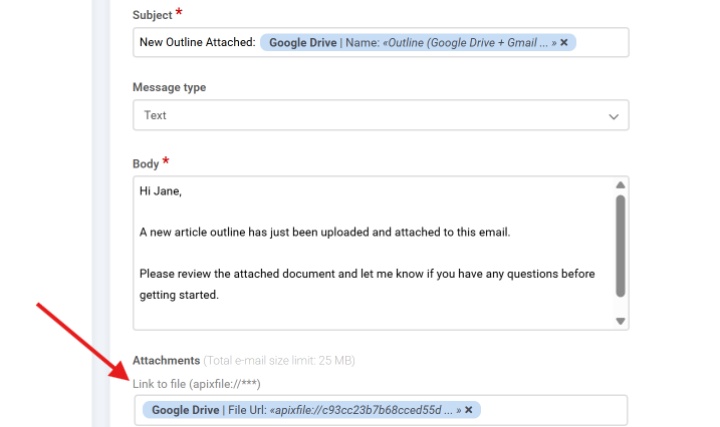
Important: to transfer a file, use the format variable apixfile://...
How to Distribute Tasks to Multiple Authors
If outlines or briefs need to be sent to multiple copywriters or designers, the automation logic doesn't change. The integration simply scales.
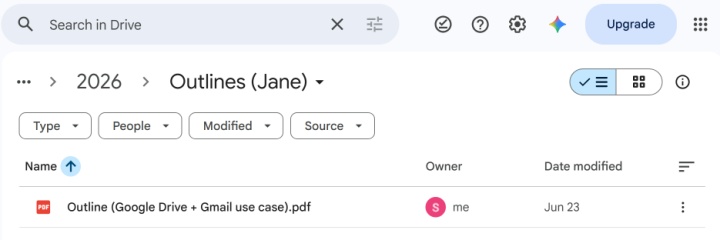
The easiest and most reliable option is to create a separate automation for each author. Create a dedicated folder in Google Drive for every specialist. Then, set up an automation for each author using the same logic described above.
Who Will Benefit From Such Automation
Automating file sending will be especially useful for those who work with streams of briefs, outlines, and creative tasks every day and strive to transfer them to performers faster. This setup is especially useful for:
- Content departments and editorial offices. To send an outline to a copywriter, a manager only needs to add the brief or article outline to a Google Drive folder. After that, the author automatically receives an email with the attached file.
- Production teams. The content manager uploads the promo video script file to a folder in the cloud storage. The producer, cameraman, or editor then automatically receives it in their inbox.
- Design studios. The manager adds a new task to a Google Drive folder. After that, the designer receives an email with the task file attached.
- Marketing teams. A digital marketer uploads a brief for a new advertising campaign. The responsible specialist then receives an email with an attachment.

Conclusion
Automating sending emails with attachments reduces the operational burden on managers. They can spend the freed time on better editing, publishing materials, and solving strategic tasks for the department or company.
The key advantage of using ApiX-Drive to automate the transfer of outlines or briefs by mail is its quick setup and accessibility for users without specialized technical skills. Once configured, the integration handles repetitive steps and helps managers save time.
Case implementation tips:
Other automation implementation cases: