
7 Google Calendar Secrets to Double Your Productivity

Google Calendar is one of the world’s most widely used online calendars. It not only provides convenient planning but also enables users to significantly increase their productivity. Our collection of Google Calendar productivity secrets for 2026 will help you manage your daily tasks faster and more efficiently.
Leverage Gemini AI for Smart Scheduling
The Gemini AI assistant is integrated into key Google Workspace services, including Calendar, Gmail, Tasks, Keep, and Drive. This native integration significantly expands the capabilities of the online calendar.
Understanding how to use Gemini AI in Google Calendar allows you to reduce your time spent managing your schedule and make decisions faster. This is especially true for regular planning, where the AI quickly adapts your calendar to changing priorities.

Tasks an AI assistant can help with in daily planning:
- Automate the creation of new calendar events. Simply send the AI a request and add the necessary context (time, date, event description, etc.). You can also provide additional context from emails, documents, or other Workspace content when available.
- Create events based on conversations. Gemini may use information from the current conversation and, in some cases, previous interactions to help create events.
- Get answers to questions about your events. Gemini can search your calendar and provide information about your schedule and upcoming events. For example, you can ask it to find available time in your schedule, learn about events scheduled for a specific day, and so on.
- Updating and canceling events. The AI assistant can make limited changes to your Google Calendar agenda. Currently, it can't edit event descriptions or locations or invite participants. However, it can change the date and time of events, as well as cancel and delete them from your calendar.
At the moment, Gemini supports only the primary Google Calendar associated with your account and does not work with secondary calendars.
Implement Workflow Automation
Automating Google Calendar through integrations with external services and apps is an effective way to boost your daily productivity. Google's online calendar offers several automation features:
- Native integrations. These allow you to automate processes involving not only Google Calendar but also other Google Workspace services. They allow you to automatically add new meetings/events to available slots, block work hours and focus time, create events based on information from Gmail messages, and more.
- CRM and sales platform integrations. Google Calendar integrations with Salesforce, HubSpot, Pipedrive, Zoho CRM, Copper, and other similar platforms allow you to automatically create meetings and other calendar events based on lead and order data from your CRM.
- Booking and scheduling system integrations. Integrations with Calendly, SavvyCal, YouCanBook, OnceHub, and similar tools help automate the online booking process by adding events to your schedule based on information from these services.
- Integrations with project management platforms. Integrations with Asana, ClickUp, Jira, Notion, Trello, and Monday.com allow you to create tasks in these systems based on calendar events. You can also reserve calendar slots for specific tasks.
To automate workflows by integrating Google Calendar with external systems, you can use their APIs and webhooks. If you don't have the necessary experience, the no-code ApiX-Drive connector service can help. With it, you can set up the integrations for Google Calendar you need and get them running smoothly in just a few minutes.
Streamline Meetings with Advanced Appointment Schedules
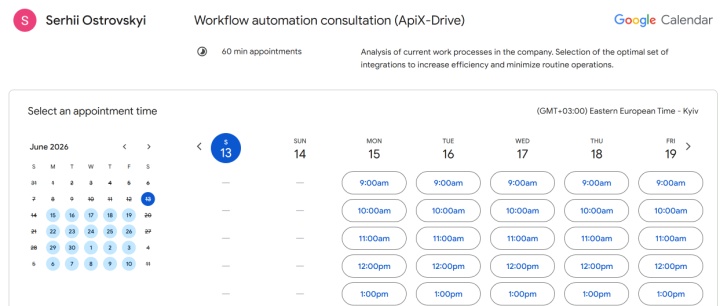
Modern Google Calendar planning tools go far beyond basic meetings and reminders. This is especially true in scenarios where not only time management is important but also managing the booking process and interactions with clients or attendees. They help transform your calendar into a fully fledged online booking system, integrating scheduling, notifications, verification, and even payment in a single interface.
Here are some helpful Google Calendar tips for using these features:
- The service allows you to create multiple pages for booking different services or types of appointments. When sharing, you can send a link to a specific page or a general list of appointments from all booking pages.
- To create a booking page, open Google Calendar in your browser and click Create > Appointment schedule in the left-hand menu. Then, enter the page name, appointment duration, and available date and time. You can also add questions for clients, the appointment location, and other details.
- Data from all booking pages in Google Calendar is automatically synchronized in real time. This helps prevent scheduling conflicts.
- When adding a new booking to the online calendar, or when changing or canceling a booking, you'll receive a confirmation email. The system sends clients automatic notifications before their appointment, which helps reduce the no-show rate.
- When creating a booking, clients undergo email verification to protect against spam. Integration with Stripe allows for automated online payment collection upon booking.
Any Google Calendar user can create a single booking page for free, including those with a personal Google account or the Business Starter plan. Premium features (unlimited booking pages, email verification, automatic reminders, and Stripe payment acceptance) are available with a paid Google Workspace (Business Standard, Business Plus, or Enterprise) or Google One subscription.
Protect Deep Work with Automated Focus Time
Time blocking with Google Calendar helps you effectively focus on important tasks by designating a separate event type in your schedule — Focus Time. These slots provide several productivity-focused features that are not available with standard calendar events. In addition to standard time slot blocking, the system automatically declines meeting invitations scheduled during focus time. Additionally, you can configure Google Chat to automatically switch to Do Not Disturb mode during focus time.
To create a Focus Time in Google Calendar, follow these steps:
- Open Google Calendar in your PC browser in Day or Week view.
- Click on the desired time slot.
- At the top of the slot, select the Focus Time option.
- Specify a start and end time — the event must have a clear time frame.
- Adjust settings. Here you can turn on or off automatic blocking of Google Chat notifications, as well as automatic decline of meetings.
- Click Save.
By default, both new and existing meetings are declined during Focus Time. However, you can set automatic decline for new meetings only. In Google Calendar, you can edit and delete focus slots, set their recurrence interval, and configure their visibility (public or private).
Focus Time is available for Google Workspace work and school accounts. This feature is not available to users with a personal Gmail account. A similar effect can be created manually using regular events or time blocks in your calendar.
Master Time Insights for Data-Driven Productivity
Among efficiency tips for Google Calendar users, the built-in Time Insights feature deserves special attention. It provides a detailed overview of how your time is spent across meetings, focus time, and other activities over a selected period.
To view your activity data, open Google Calendar in your desktop browser and click Time Insights in the left-hand menu. You'll see three data panels:
- Time breakdown. This section shows how your time is divided between work and meetings over a specified period.
- Time in meetings. This section displays data on days with the most meetings, recurring meetings, and time blocks allocated for meetings.
- People you meet with. You can add up to 10 of your contacts here to quickly view the duration and other details of your meetings with them.
Time Insights is available for eligible Google Workspace work and school accounts. Availability may vary depending on your Workspace edition and administrator settings.
Supercharge Navigation with Advanced Power-User Shortcuts
Using keyboard shortcuts is one of the best Google Calendar hacks for work. They will help you speed up and simplify many actions, as well as manage your online schedule much faster and more productively.
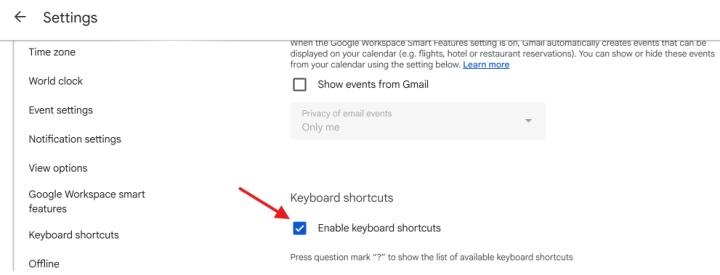
First, you need to enable keyboard shortcuts. To achieve this, go to Settings and check the box next to Enable keyboard shortcuts.
Calendar navigation:
- Move forward to the next date range — J or N
- Refresh calendar — R
- Move to the current day — T
- Move the cursor to the search box — /
- Open the settings page — S
- Move to a specific date — G
Change calendar view:
- Day — 1 or D
- Week — 2 or W
- Month — 3 or M
- Custom view — X
- Schedule view (formerly Agenda view) — 5 or A
Event management:
- Create a new event — C
- Quickly add an event — Q
- Open event details — E
- Delete an event — Backspace or Delete
- Undo changes — Z
- Save an event while editing — ⌘ + S (Mac) or Ctrl + S (Windows)
- Return to the calendar grid from the event page — Esc
Synchronize Hybrid Work and Working Locations
Google Calendar automation tips are especially useful for users who work in a hybrid environment, combining office hours with remote work. They help colleagues better understand your schedule and reduce the need for extra coordination.
To save time informing colleagues about your work schedule, automate this process with the Working locations feature. It allows you to set your working location in your calendar for specific days or hours. This location will be visible to everyone you share your schedule with.
To configure default Working locations, follow these steps:
- Open Google Calendar in your browser.
- In the upper right corner, click the settings icon and go to Settings.
- On the next page, open the General tab in the left menu and click Working hours & location.
- Specify your workdays. Add or change the location for each.
Google Calendar allows you to set your Out of Office status for specific days or hours — either one-time or recurring. Any attempts to schedule meetings with you during these periods will be automatically declined.
Your Out of Office status will be reflected in Gmail. When someone sends you a work email during this period, the system will automatically notify the sender that you are out of the office.
The Working locations feature is only available for company, organization, or institution accounts on the Business Plus, Enterprise Standard, Enterprise Plus, Education Fundamentals, Education Standard, Education Plus, Teaching and Learning Upgrade, and Nonprofits plans.
Conclusion
By following the tips and recommendations outlined in this article, you can optimize your use of Google Calendar and manage your daily schedule more efficiently. Advanced automation capabilities, AI support, and integration with the Google Workspace ecosystem transform this convenient online calendar into a multifunctional and personalized assistant with powerful capabilities.