
Google Drive: 5 Useful Integrations to Boost Productivity

Millions of people use Google Drive every day to store, share, and organize files for business and personal use. At the same time, a significant portion of their document work happens in other services. This creates a significant challenge: the need to quickly transfer important information and synchronize data across platforms, including those outside the Google ecosystem. You can automate these processes by integrating your storage with other systems.
In this article, we will look at the 5 most useful integrations for Google Drive that will help you optimize file processing, delegate manual work and routine to algorithms, and increase your productivity in business tasks and organization in everyday life. You can easily configure all the presented integrations using our ApiX-Drive platform. No special skills or knowledge are required.
Gmail and Google Drive Integration
When paired with Gmail, Google Drive often acts as a destination for automatically saving important email attachments. When an email with a document arrives, the system moves the file to a predefined folder in Drive.
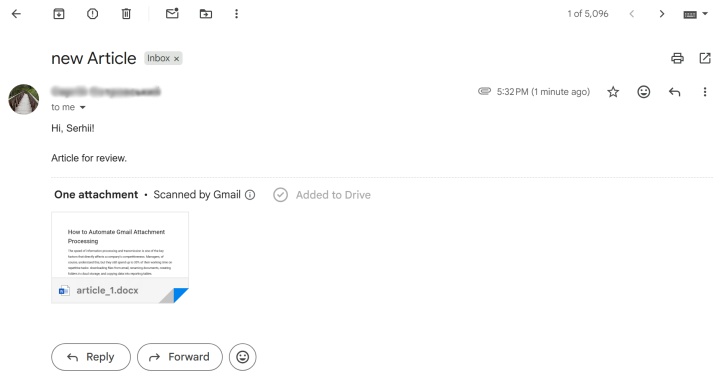
Such automation is especially useful for businesses whose mail includes contracts, invoices, technical documentation, or commercial offers that need to be organized in a timely manner and not lost among other messages.
For individual use, this integration is convenient because important email attachments with tickets, reservations, photos, PDF files, medical documents, checks, or receipts are automatically saved in one place, forming a personal archive in Drive.
Business use cases:
- Save reports from email to structured Drive folders. SEO reports, advertising analytics, or financial digests arrive in Gmail and automatically end up in Google Drive in the appropriate folder (e.g., “Reports,” “Finance,” “Marketing”).
- Archiving signed or approved documents. Clients send signed contracts or approved files via email, after which they are automatically saved in the “Contracts” folder in Google Drive for record keeping and storage.
- Save content received from editors or partners. Editors or external authors send articles, translations, or materials to corporate email, and attachments automatically go to the “To review” or “Content” folder in Google Drive.
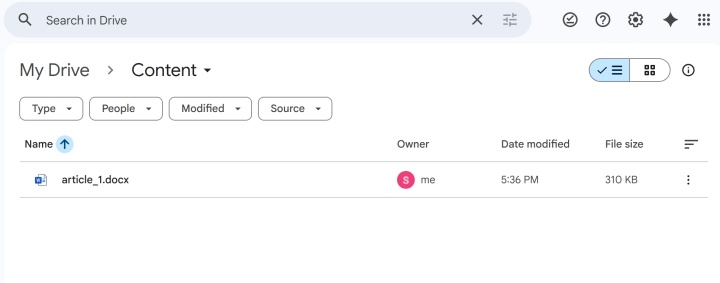
Scenarios for individual use:
- Save photos from email to Google Drive: Photos that arrive in Gmail (for example, from relatives) are automatically saved to the appropriate Google Drive folder for backup and organization.
- Create a personal library from files received in the mail. EPUB, PDF, magazines, and other “book” attachments from Gmail automatically go to Google Drive, where they are more convenient to store, organize, and open from different devices. It is also convenient to collect an archive of electronic receipts and checks.
Important: Only direct attachments up to 25 MB in total size are downloaded from Gmail. Files added as Google Drive links are not processed.
Google Drive can act as both a destination and a source of data. In this case, when a new file appears in the storage or an existing one is updated, the user receives a notification directly in their inbox. This eliminates the need to constantly check the storage for changes: for example, the appearance of a new work task, an important document, or photos of relatives from vacation that they downloaded but forgot to mention.
Useful materials:
- Gmail settings (source)
- Gmail settings (destination)
- Google Drive settings (source)
- Google Drive settings (destination)
- How to automate Gmail attachment processing (use case)
Tip: Follow security guidelines when storing documents and files in cloud storage platforms.
Google Drive and Dropbox Integration
Google Drive and Dropbox integration allows you to automatically transfer files between cloud storage platforms, avoiding manual uploads, document duplication, and constant folder monitoring.
Such automation helps synchronize work materials between teams working with different repositories, back up important files, centralize document flow, and simplify data access for employees or family members. Google Drive can be both a source and a destination.
Business use cases:
- At a marketing agency, designers can work with graphic files in Dropbox. Once the layouts are approved, they will automatically go to Google Drive, where managers and clients have access to the final versions of the documents.
- In a construction company, photos from facilities, estimates, and technical documents can be automatically copied from Dropbox to Google Drive to form an internal project archive and quick access for accounting or management.
- A law firm can automatically copy signed contracts from Google Drive to Dropbox, which is used by external auditors or partners.
- An online store can transfer updated product catalogs from Google Drive to Dropbox for regional partners or printing houses.
Scenarios for individual use:
- Automatically copy your personal photo archive or scanned documents from Google Drive to Dropbox as an additional backup archive.
- Transfer video files from Google Drive to Dropbox to collaborate on video projects.
- Sync e-books or educational materials between Dropbox and Google Drive for reading on different devices.
- Automatically transfer documents from Dropbox to Google Drive for relatives who only use Google Drive.
Useful materials:
Google Drive and Google Sheets Integration
In the Google Drive and Google Sheets integration pair, cloud storage usually acts as the data source. After setting up a connection between these services, information about new or updated files and folders kept in the storage is automatically transferred to the spreadsheets.
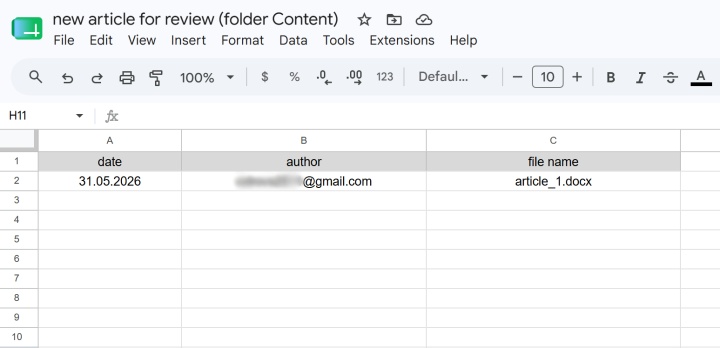
Such automation helps to keep important data constantly in sight, simplifies reporting, centralizes workflows, and minimizes the number of manual routine actions when working with files and analytics.
Business use cases:
- Control the receipt of financial documents. Contractors and partners upload invoices, reports, and estimates to shared company folders in Google Drive. When a new file is added to Google Drive, a record is automatically created in Google Sheets with the document name, upload date, and file link. The finance department receives a centralized list of all new documents.
- Automated accounting of contracts and legal documents. The legal department stores contracts, additional agreements, and certificates of work performed in Google Drive. The integration automatically generates a document register in Google Sheets. This allows you to quickly find the necessary contracts, control the deadlines for document updates, and simplify the preparation of internal reporting.
- Monitor marketing content production. Designers and video editors upload banners, videos, presentations, and promotional materials for various campaigns to Google Drive. After that, the content production table in Google Sheets is automatically updated: file names, material types, upload date, and links are added.
Scenarios for individual use:
- Control of educational materials and notes. A student or specialist stores e-books, PDF notes, presentations, and course recordings in Google Drive. After adding files to Google Drive, the list of materials is automatically updated in the spreadsheet with document names, upload dates, and links.
- Storage and accounting of financial documents. The user uploads receipts, warranty cards, invoices, or scanned checks to Google Drive, and the integration automatically generates a register of documents in Google Sheets. Such a list helps to quickly find the necessary confirmations of purchases, control expenses, or prepare documents for warranty service.
Useful materials:
Slack and Google Drive Integration
As a source, Google Drive can trigger notifications in Slack about new or updated files. This allows the team to quickly receive updates without wasting time constantly monitoring folders.
Usage scenarios:
- Notifications about new document versions. When a file is updated in Drive (for example, a commercial proposal or presentation), a notification is sent to the Slack channel that the latest version is available.
- Notifications about new materials for projects. When new files (layouts, texts, photos) appear in the project folder, the Slack channel receives a corresponding notification so that the team can start working on them without delay.
- Notifications about new resumes or candidate tests. When job seekers upload their resumes or completed test papers to a shared folder for a specific vacancy on Google Drive, the HR team or department head receives a notification in the recruiting Slack channel. This allows the company to respond quickly to feedback, not lose "hot" candidates, and significantly accelerate the hiring process.
Useful materials:
AI-Powered Integration: Gmail → Google Drive → AI → Notion
Gmail, Google Drive, and Notion integration automates the transfer of information between email, cloud storage, and the work environment. It allows you to automatically save attachments to the cloud while simultaneously creating notes, tasks, content plans, knowledge bases, or personal organizers in Notion without manually copying data.
This automation will be especially useful for teams that store everything important in Google Drive and use Notion as a management center for projects, content, documentation, and personal productivity.
Adding an AI block to the Gmail, Google Drive, and Notion integration significantly expands its capabilities. During setup, the user gives the AI a prompt that determines how to process the data: create summaries, structure information, highlight key points, or generate tasks or texts.
For the AI block in ApiX-Drive, you can choose popular solutions: Claude, Gemini, ChatGPT. The result is automatically transferred to Notion in a ready-made and easy-to-use format.
Business use cases:
- Automating text analysis for publishing. Authors send their work to Gmail, after which the attachments are automatically transferred to Google Drive. AI analyzes the text, creates a summary of the work, evaluates it according to specified criteria, and forms conclusions. The result is stored in Notion.
- Create an automated internal knowledge base. AI analyzes new or updated documents, work instructions, or company policies from Google Drive and creates short summaries and notes. The result is stored in Notion as a single knowledge base with a clear structure (for example: department → process → instruction). This allows employees to quickly find the necessary data without wasting time searching and reviewing multi-page documents.
Scenarios for individual use:
- Automated archive of important documents with analytical notes. Attachments from Gmail (receipts, booking confirmations, offers from marketplaces or educational institutions, etc.) are automatically saved to Google Drive. Then, AI processes the file and creates a short, structured card: document type, date, key data, and summary. The result is transferred to Notion, where a personal document registry is formed with the ability to quickly find the necessary records without viewing the original files.
- A personal planning system based on emails. Gmail attachments (documents, layouts, tasks) are automatically saved to Google Drive. After that, AI converts them into structured tasks. These data then automatically enter Notion as a personal to-do list. This allows you to turn regular email into a task management system without manually transferring information.
Useful materials:
Conclusions
Google Drive has long ceased to be just a file storage. Today, it acts as a full-fledged center for document management, team interaction, and process automation. That is why integrations with email services, corporate messengers, spreadsheets, and project management platforms are among the most popular automation scenarios.
The demand for no-code tools continues to grow, as companies seek to quickly implement integrations without complex development and additional costs for technical support. At the same time, users strive to minimize the number of manual routine actions, so automating file transfers, document synchronization, and notifications between different services and data processing is becoming an increasingly practical and popular solution.
In such conditions, an online connector like ApiX-Drive becomes a must-have tool for quickly setting up Google Drive integrations. It helps businesses accelerate workflows, reduce the number of routine operations, and increase the efficiency of interaction between services. As a result, businesses and individual users get a much faster, more flexible, and more manageable data interaction system that best matches the modern rhythm and pace of work.