
How to Send Data from Fillout to Airtable: Step-by-Step Integration Guide

Online forms are a modern and fast way to collect leads. To stay competitive, their further processing should take place at the same pace. If data from forms is lost due to carelessness or is transferred manually with errors or delays, this negatively affects conversion rates, sales figures, and the company’s reputation. The Fillout and Airtable integration helps solve all these problems at once, ensuring the automatic transfer of responses from forms to the database as clearly structured records. In this article, we will explain how this automation works and show you how to configure it using the ApiX-Drive connector.
Why Automate Data Transfer From Fillout to Airtable
In any business that uses online forms, a key part of operational processes is lead management. Collecting orders from landing pages, service requests, event registrations, or job applications through Fillout is very convenient. However, collecting data is only part of the job. It must quickly get into a database (for example, in Airtable) and begin to be processed by the team.
If lead data is transferred manually, the process slows down significantly. Managers have to copy the data and enter it into tables manually or periodically import it as CSV files. This creates critical delays and increases the risk of errors, which usually occur due to the human factor. As a result, the team spends valuable time not on communication and sales, but on routine copy-and-paste tasks.
Data transfer automation can radically change the situation. For this, you will need an Airtable and Fillout integration. After its successful setup, each new lead who submits a form automatically becomes a row in Airtable filled with the necessary data. Thus, after sending an application, potential clients do not have to wait indefinitely but are quickly processed and can count on prompt feedback.
This approach is particularly useful in scenarios where speed is crucial. Here are a few examples. With automation, the marketing team can quickly and easily pass orders to the sales team, HR specialists can process new candidate applications, and education platform managers can quickly compile student lists. In each of these cases, automation saves time and directly affects performance indicators.
How to Integrate Fillout With Airtable
Connecting Fillout to Airtable today is quick and straightforward. Modern online connectors allow a typical user to configure the integration of the necessary services without programming skills or an IT background. In particular, using the ApiX-Drive connector, the integration is built like a modular system — the data source and receiver are connected sequentially in a step-by-step format.
Thanks to the intuitive interface, understanding the integration logic is absolutely no problem. The flexibility of settings makes it possible to adapt automation to specific business processes and scale it as needed. Since the system operates reliably 24/7, the need to constantly monitor data transfer completely disappears.
Now we will show you how to integrate Airtable with Fillout, step by step. Using this guide, you can connect Airtable to Fillout right now, spending only a few minutes.
Data Source Settings — Fillout
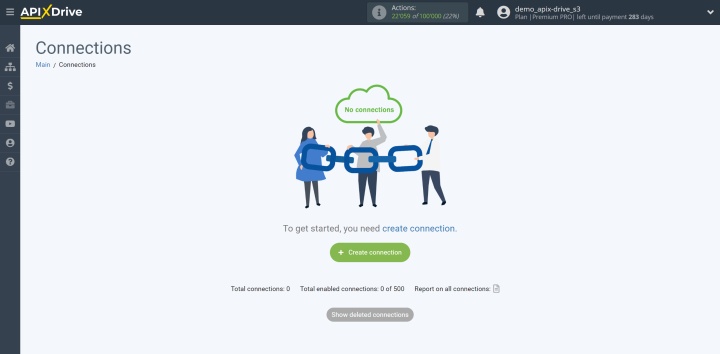
First, create a new connection.
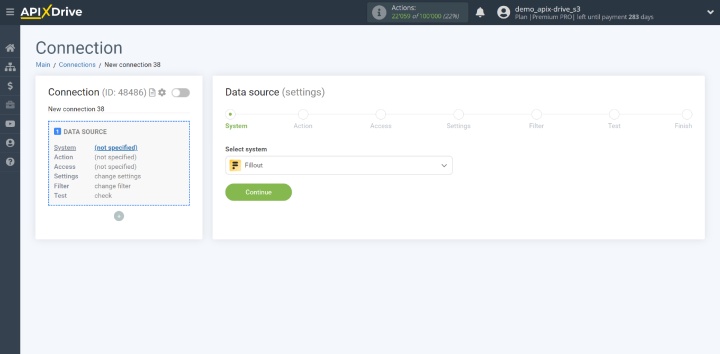
Choose the data source system. For this integration, select Fillout.
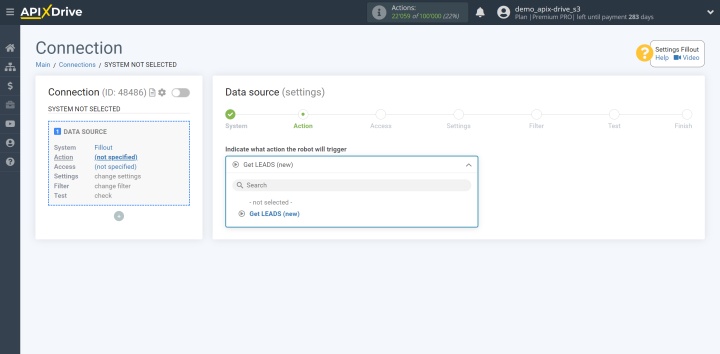
Select the required action. In this case, it's Get LEADS (new).
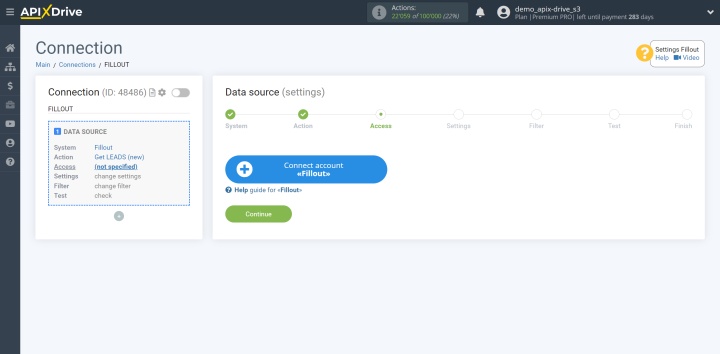
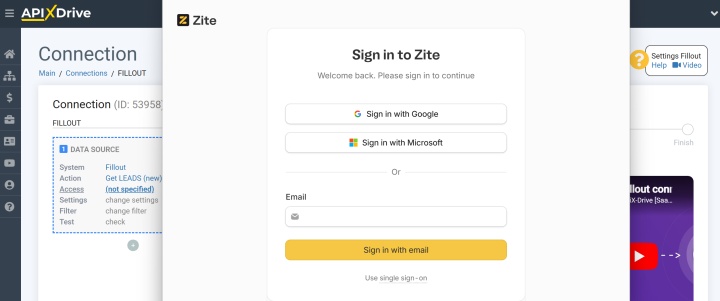
Link your Fillout account to the ApiX-Drive platform.
Provide your Fillout account login and password. Allow ApiX-Drive to access your account.
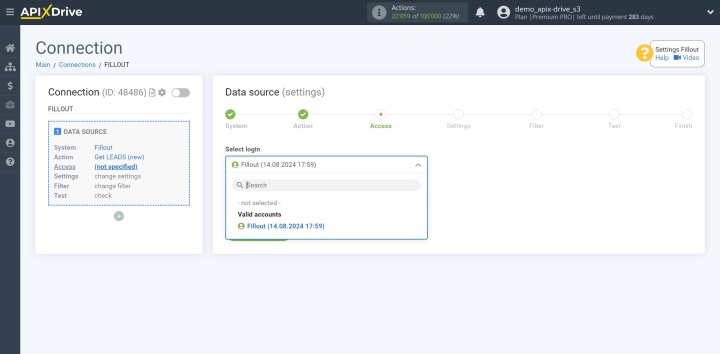
After your account shows up in the active accounts list, choose it and press Continue.
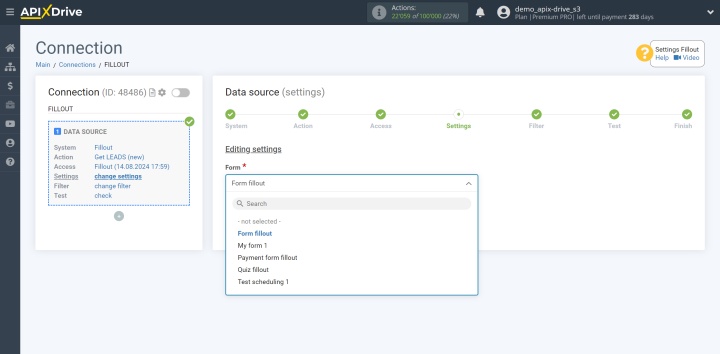
Choose the form that will be sending new data to ApiX-Drive.
The system will display test data from a Fillout lead here.
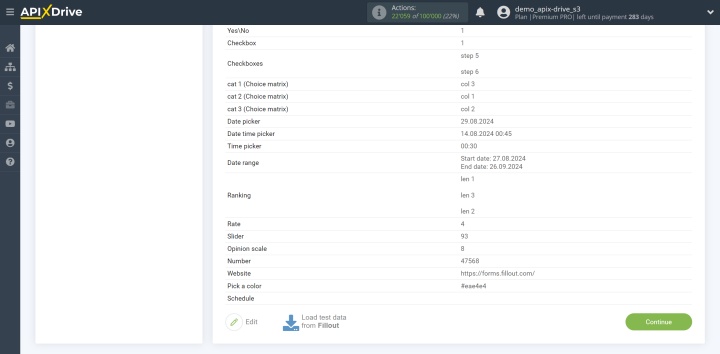
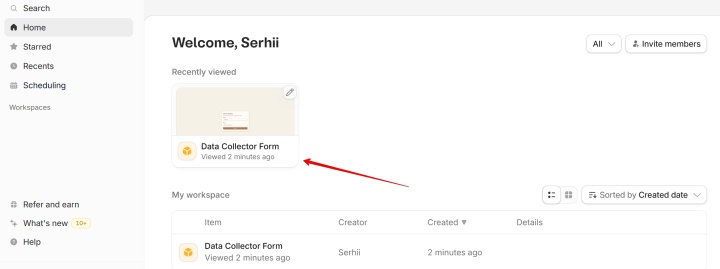
If the field is empty, go to your Fillout account and copy the share link of the form.
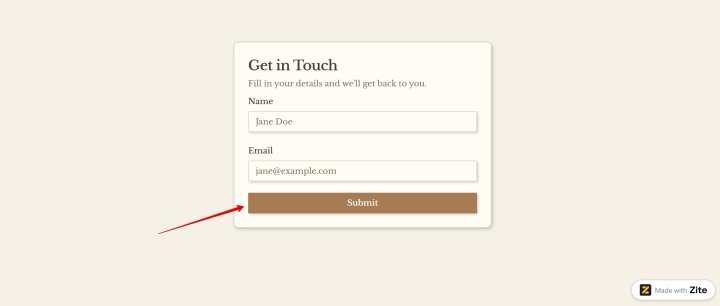
Then, fill out the form that should generate leads. Complete all the fields, and send the submission.
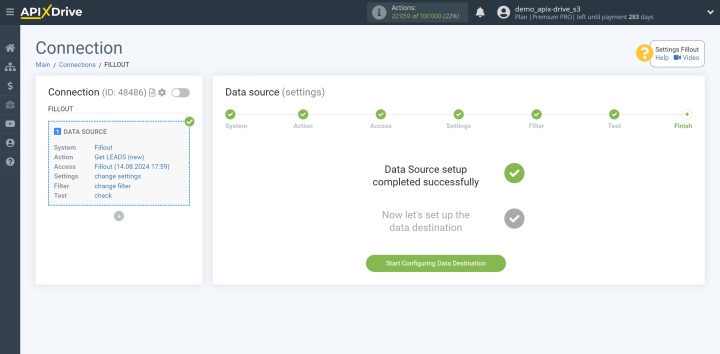
After the form has been sent, return to ApiX-Drive to proceed with configuration. When you see the test data displayed here, proceed by clicking Continue.
You have successfully finished setting up the Fillout data source.
Data Destination Settings — Airtable
The next step is setting up the data destination system.
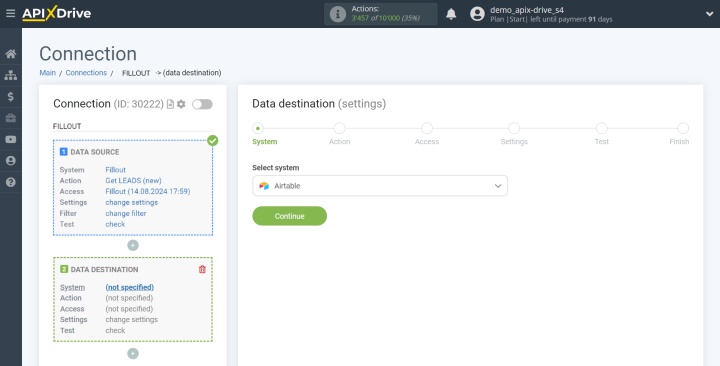
Choose the system where the data will be sent. Here, you need Airtable.
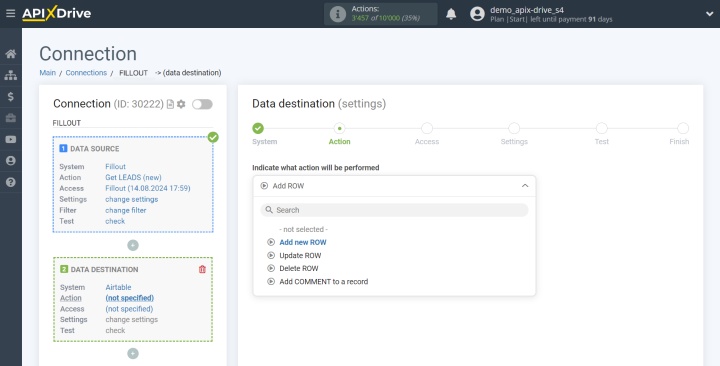
Choose the action Add new ROW.
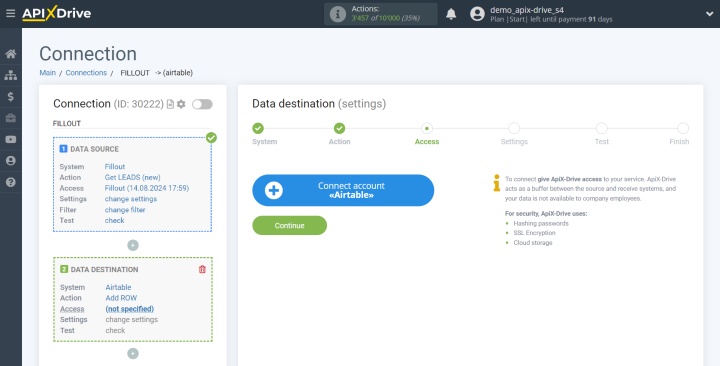
The next step is linking your Airtable account to the ApiX-Drive platform.
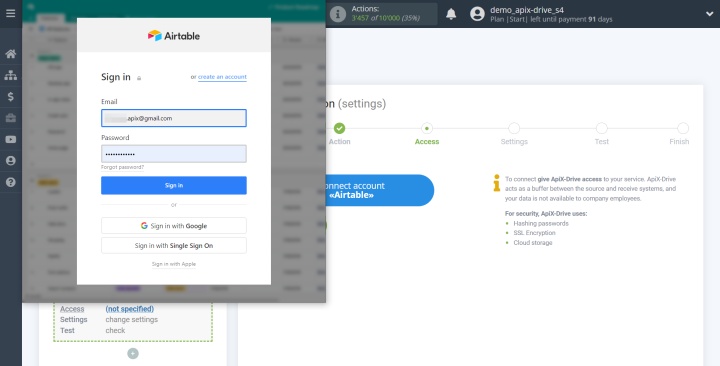
You need to sign in to your Airtable account. Use your login credentials for this.
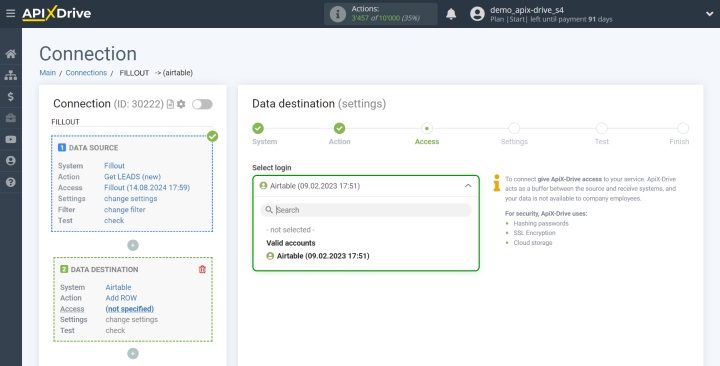
After your account shows up in the active accounts section, choose it and click Continue.
Choose the base where new leads from the form should be sent.
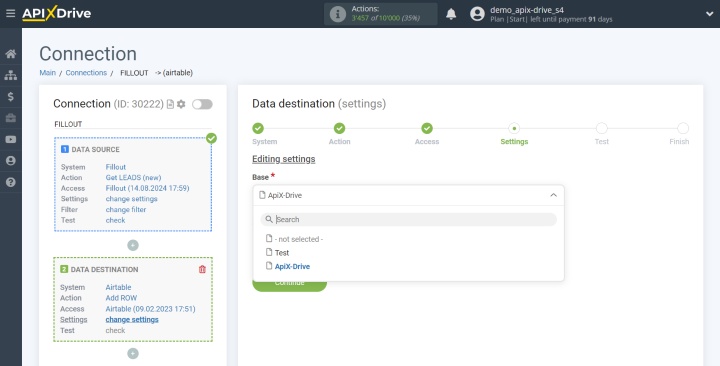
Select the table where new lead data should be entered.
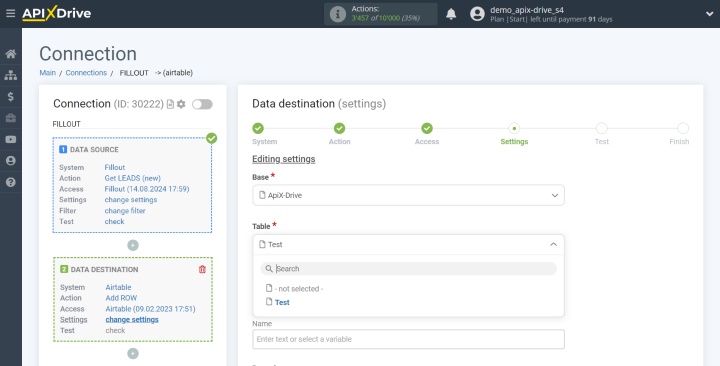
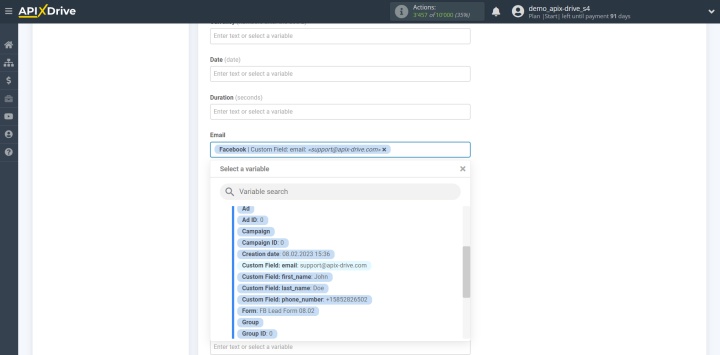
The text field allows you to insert variables from Fillout. Click in the field and pick the appropriate variable from the list that appears. After assigning all the required variables, press the Continue button.
Then, you will see a sample of what will be sent to Airtable each time a new lead submits a form. Click Send test data to Airtable to test the configuration. Navigate to Airtable to check if the message was received. After that, switch back to the ApiX-Drive interface and proceed with the setup.
Starting Auto-Update
To send Fillout data to Airtable, set up automatic updates. Click Enable update to proceed.
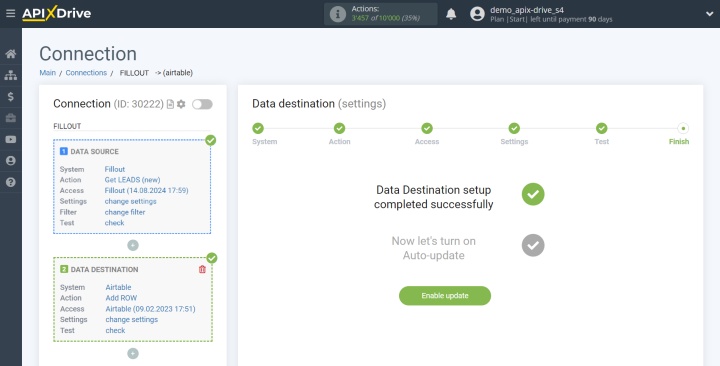
Click the gear icon to open the configuration options. Set the interval for auto-update. Additionally, you can change the connection name and organize it into the appropriate group here. That’s all. You've successfully completed the integration setup.
Results
Automating data transfer from Fillout to Airtable eliminates the need for manual lead processing and the associated delays and errors. Each new order or inquiry quickly becomes an organized record in the table, allowing the team to quickly communicate with potential customers without losing them. As a result, the likelihood of conversion increases, and, consequently, performance metrics improve.
At the same time, Fillout forms and Airtable integration create a foundation for systematic and well-organized work with lead data. Centralizing data in a single workspace allows teams to quickly involve it in other business processes, analyze it, and make timely decisions. Thanks to the ApiX-Drive online connector, such automation can be implemented in just a few minutes and without unnecessary technical difficulties.
Read also about other integrations:
- Google Contacts and Notion Integration: How to Set Up
- Webflow and Slack Integration: Setting Up Automatic Notifications
- Facebook and Airtable Integration: Automatic Transfer of New Leads
- Google Lead Form and Google Sheets Integration: Automatic Lead Transfer
- How to Get Data from Tally to Airtable: Step-by-Step Integration Setup