How to Connect Telegram as Data Search
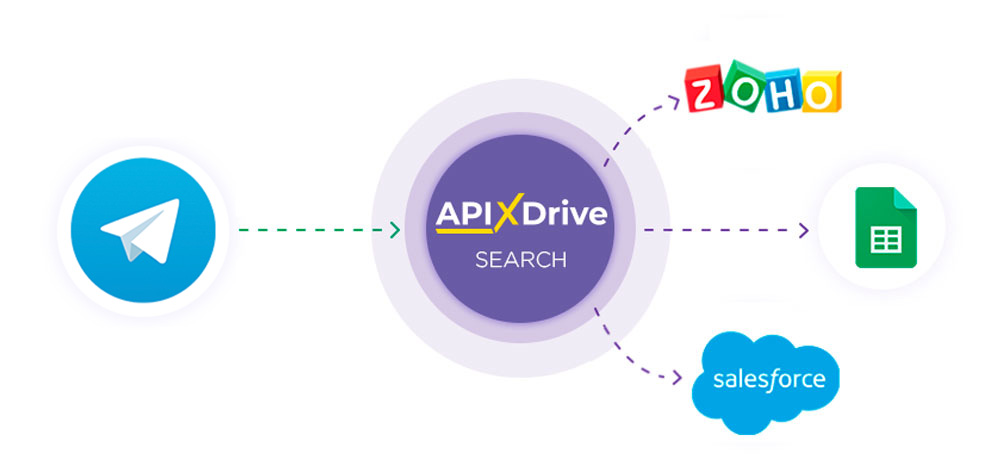
Telegram integration is implemented as a separate Search block, which can be placed between the Data Source and Data Reception. This allows you to retrieve data fields from the Data Source, request Telegram to download a file based on specified values, and transfer the file to the Data Reception. This allows you to automatically retrieve data from Telegram using Search and transfer it to the services and systems you use.
This function allows you to search for a File in Telegram and update data
Navigation:
Connecting Google Sheets as a Data Source:
1. What data can be get from Google Sheets?
2. How to connect your Google Sheets account to ApiX-Drive?
3. Select the table and sheet from which the rows will be exported.
4. Example of data that will be transferred from Google Sheets.
Connecting Telegram as Data Search:
1. What data can be get from Telegram?
2. How to connect your Telegram account to ApiX-Drive?
3. How to set up data search in Telegram in the selected action?
4. Example of data that will be transmitted from Telegram.
Setting up row updates in Google Sheets:
1. What will the Dropbox integration do?
2. How to connect your Dropbox account to ApiX-Drive?
3. How do I configure the selected action to transfer data to Dropbox?
4. Example of data that will be sent to your Dropbox.
5. Auto-update and update interval.
Setting Data SOURCE: Google Sheets
Let's look at how the Search function works using the example of uploading a file to Dropbox.
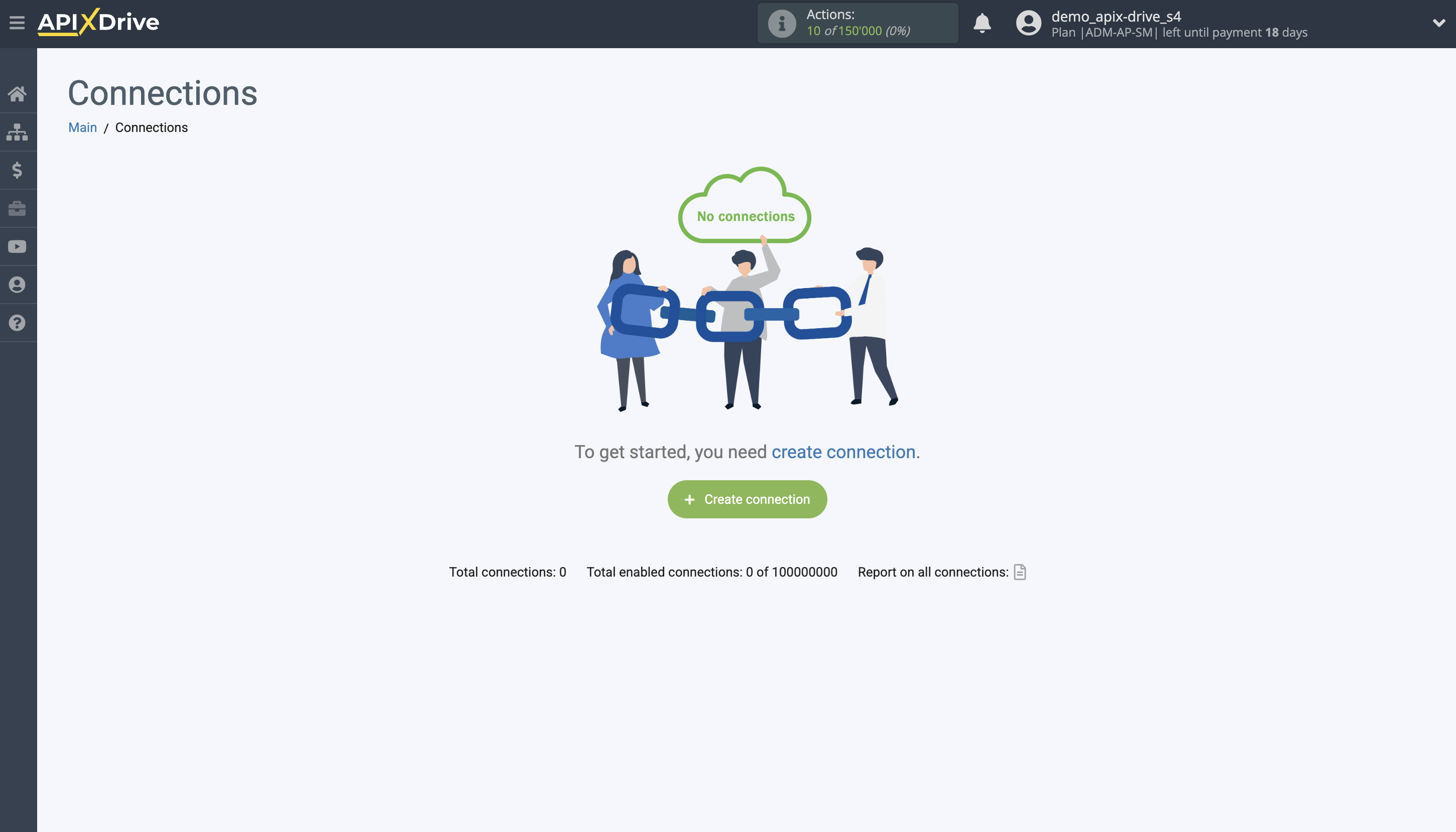
First you need to create a new connection.
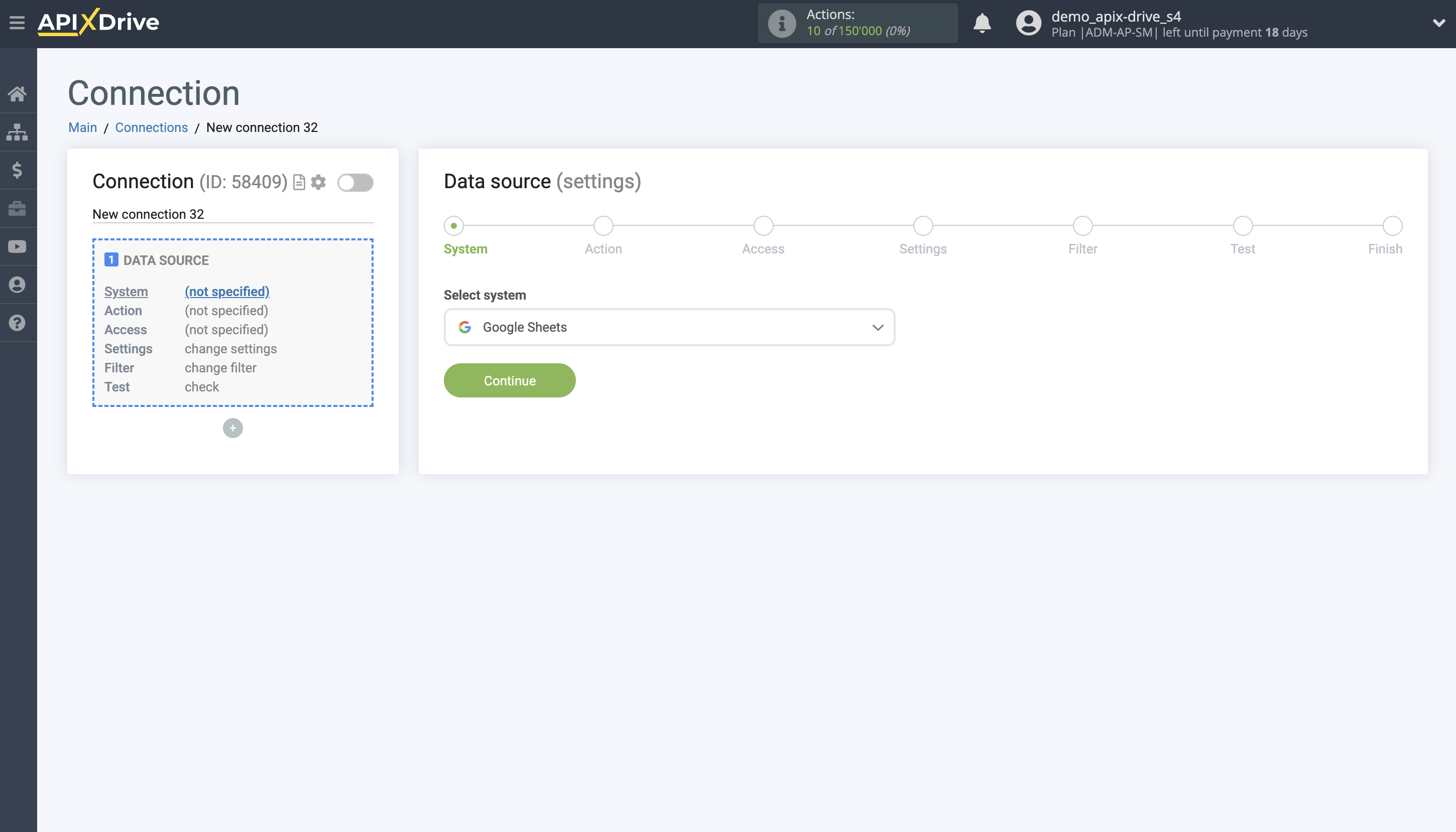
Select the system as the data source. In this case, you must specify Google Sheets.
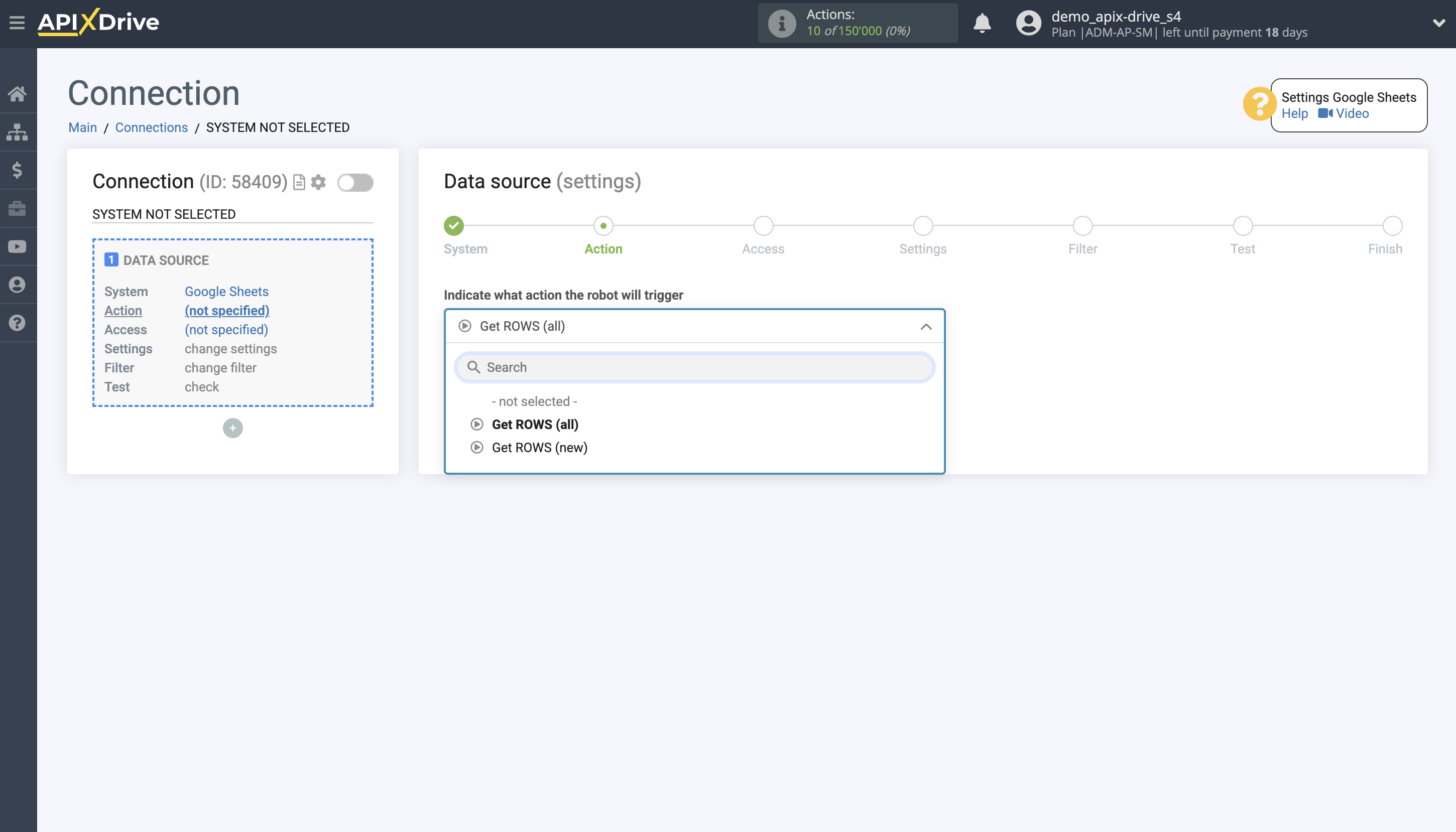
Next, you need to specify the action "Get ROWS (All)".
The next step is to select the Google Sheets account from which the data will be uploaded.
If there are no accounts connected to the system, click "Connect account".
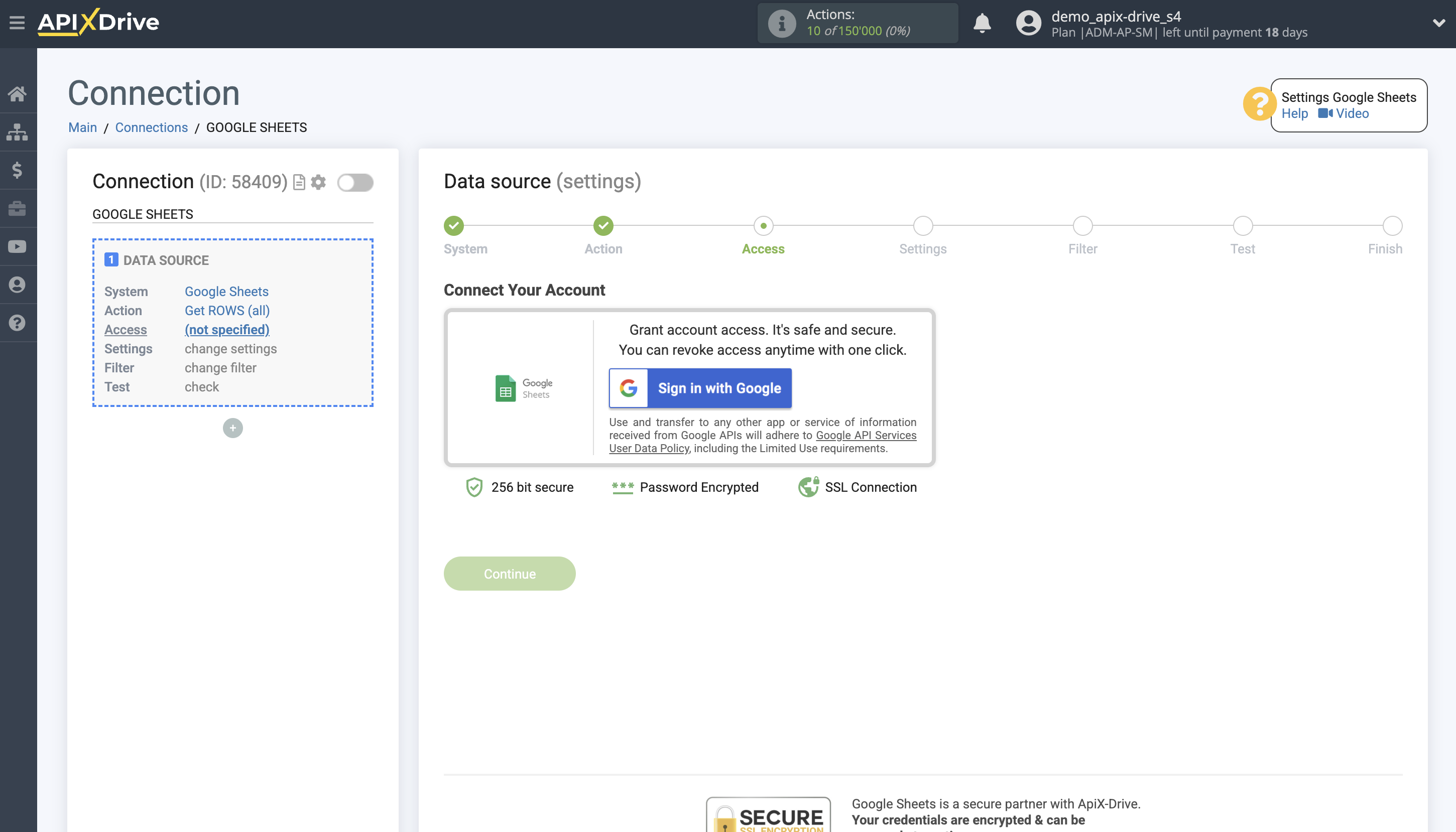
Select which account you want to connect to ApiX-Drive and grant all permissions to work with the account.
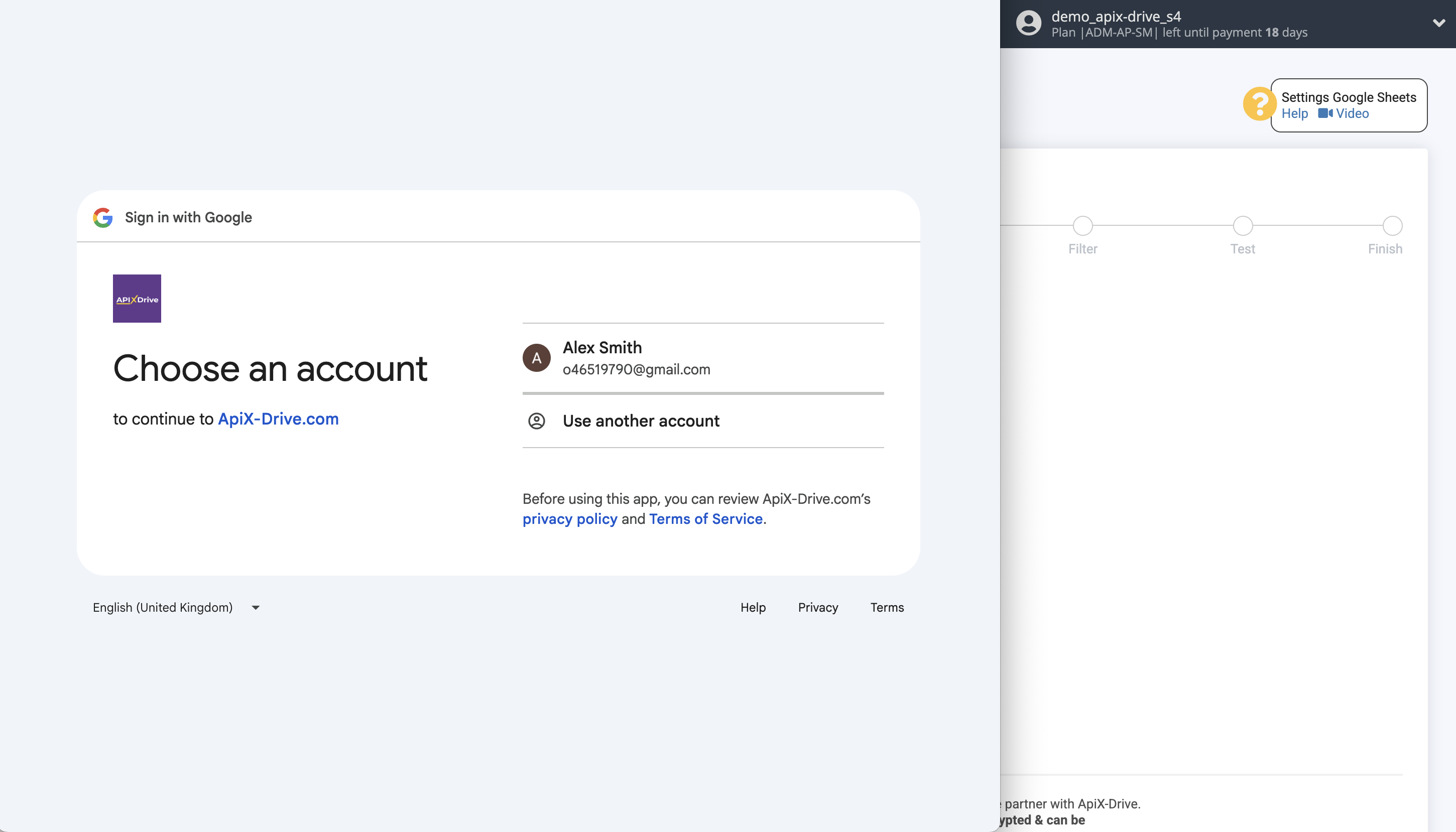
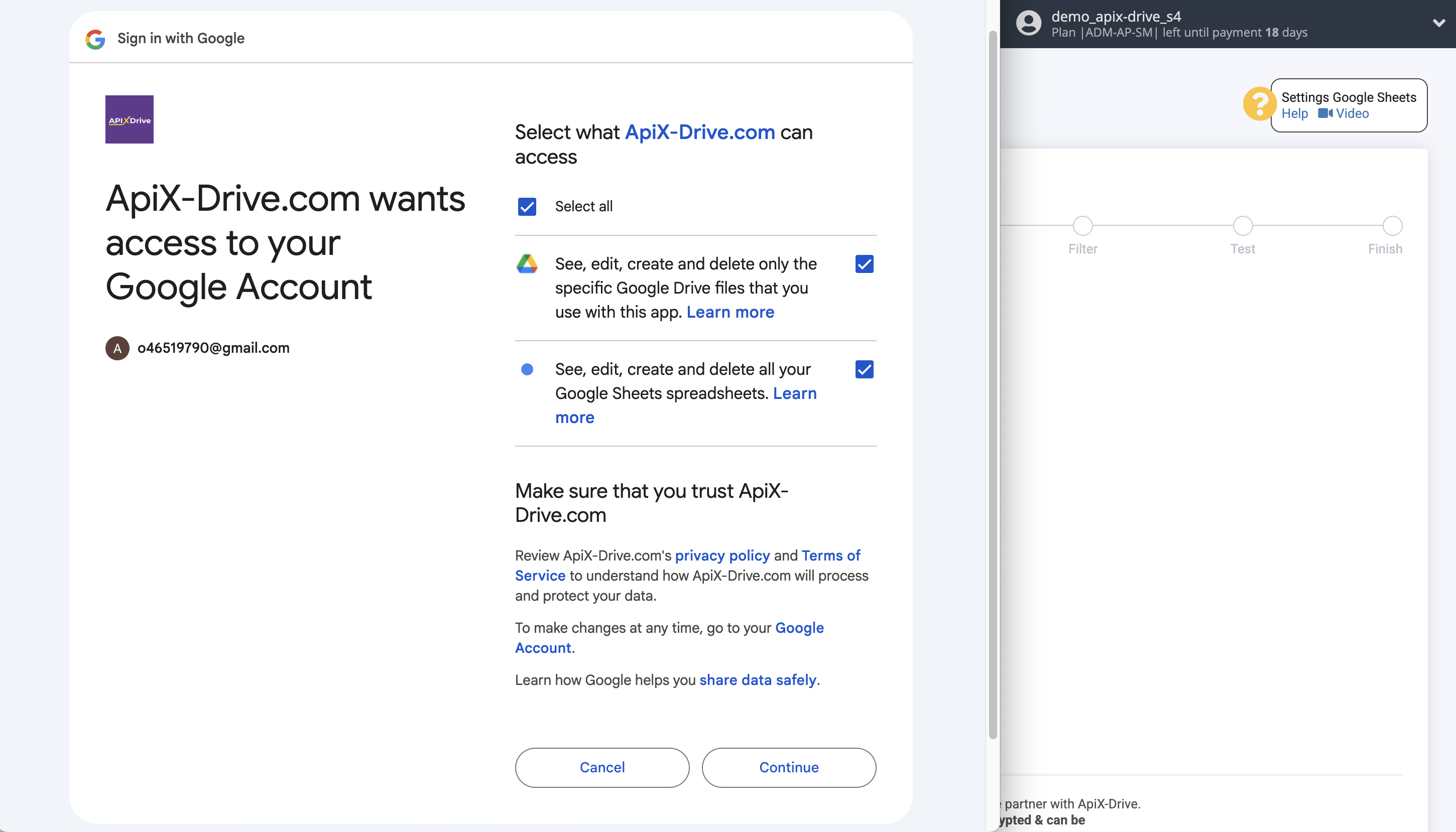
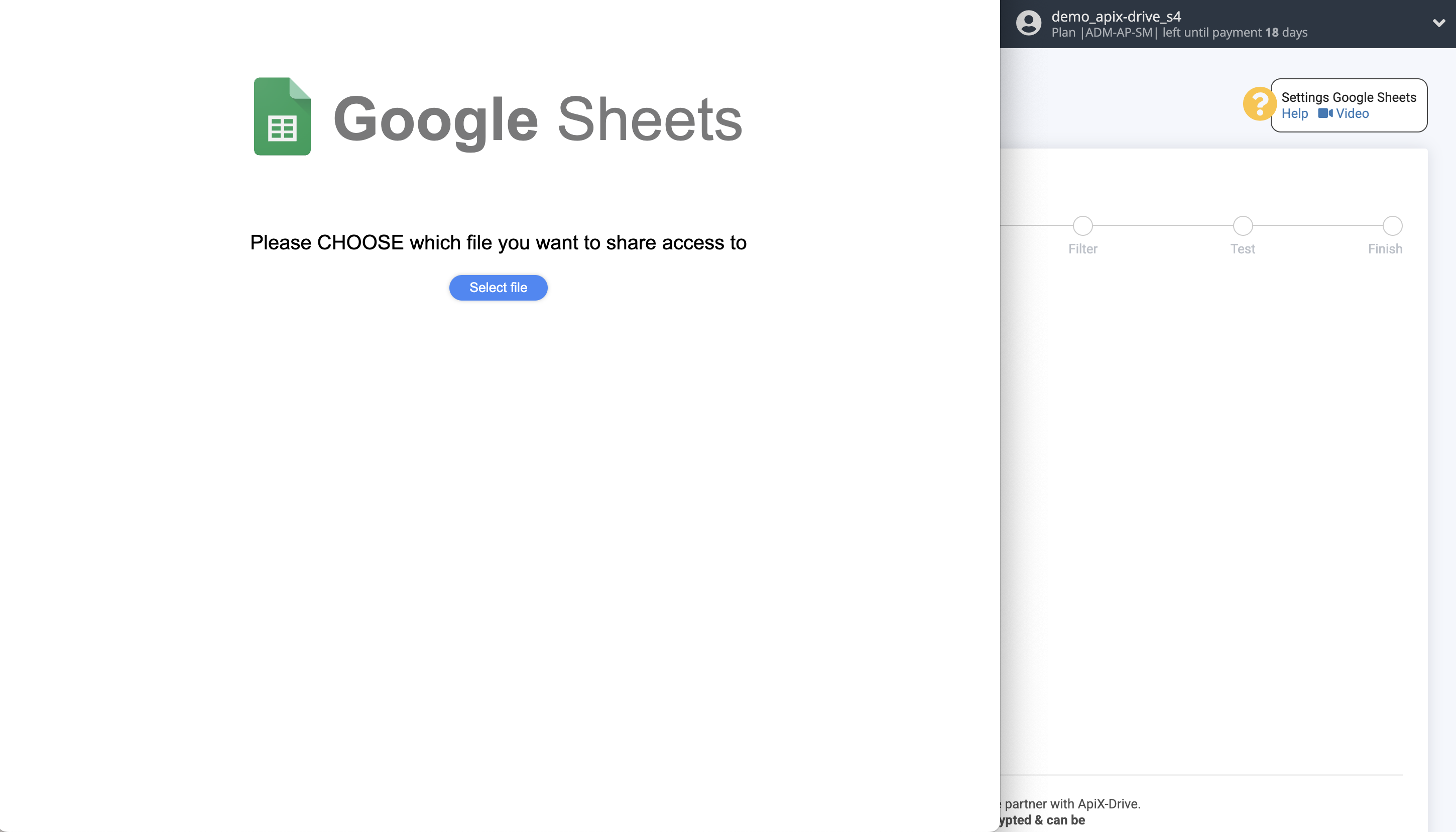
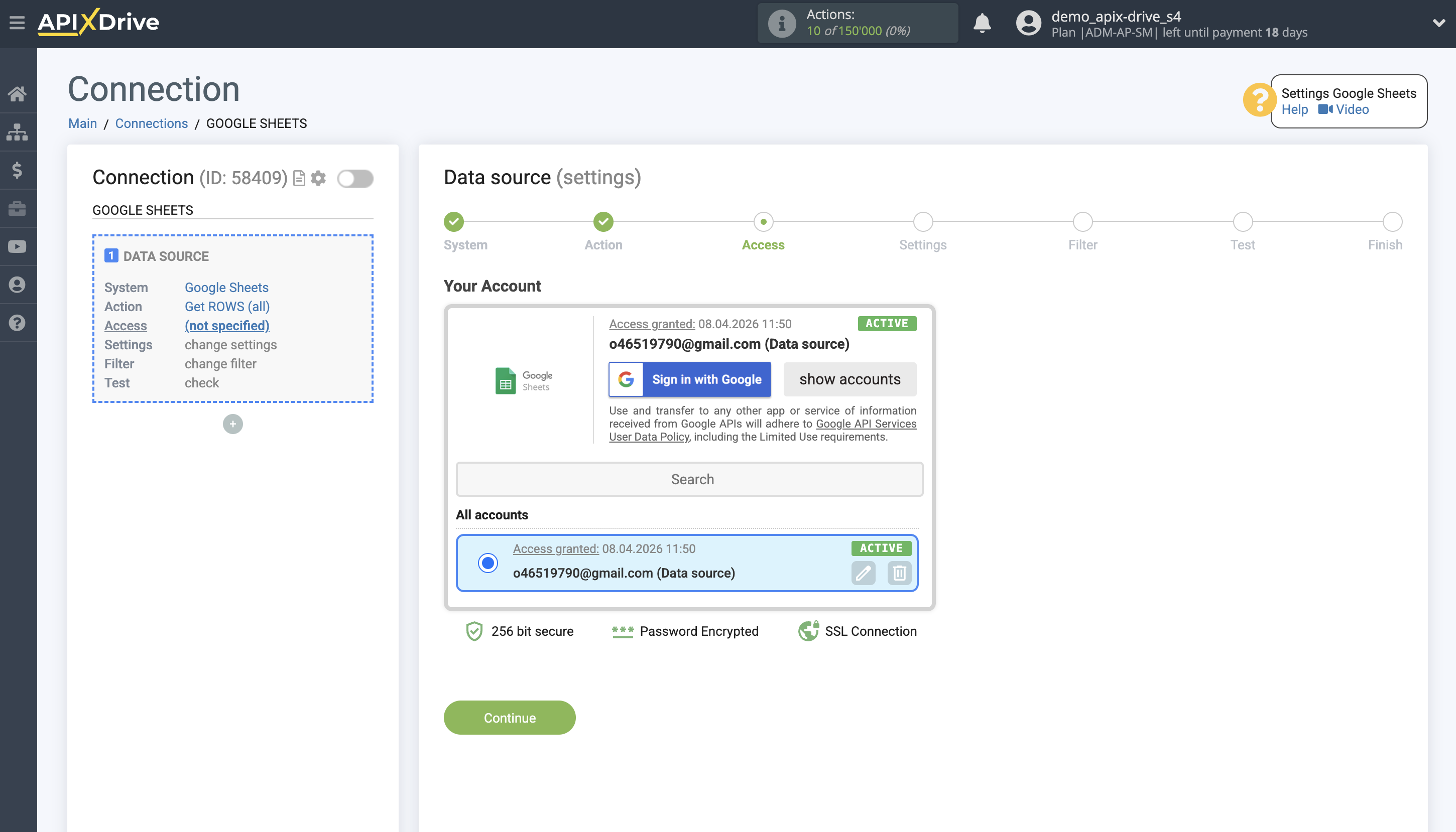
When the connected account appears in the list of active accounts, select it for further work.
Attention! If your account is on the "inactive accounts" list, check your access to this account!
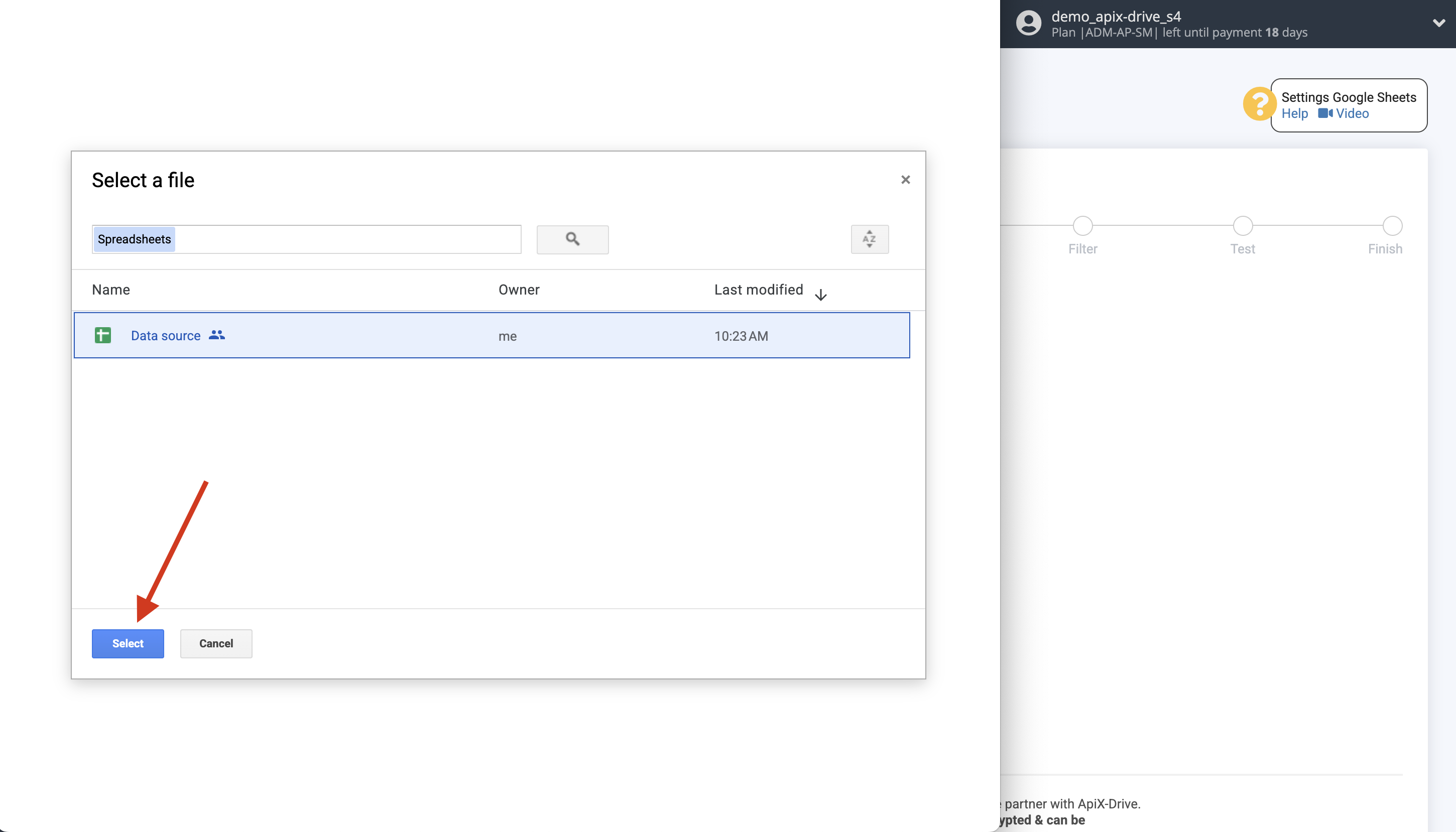
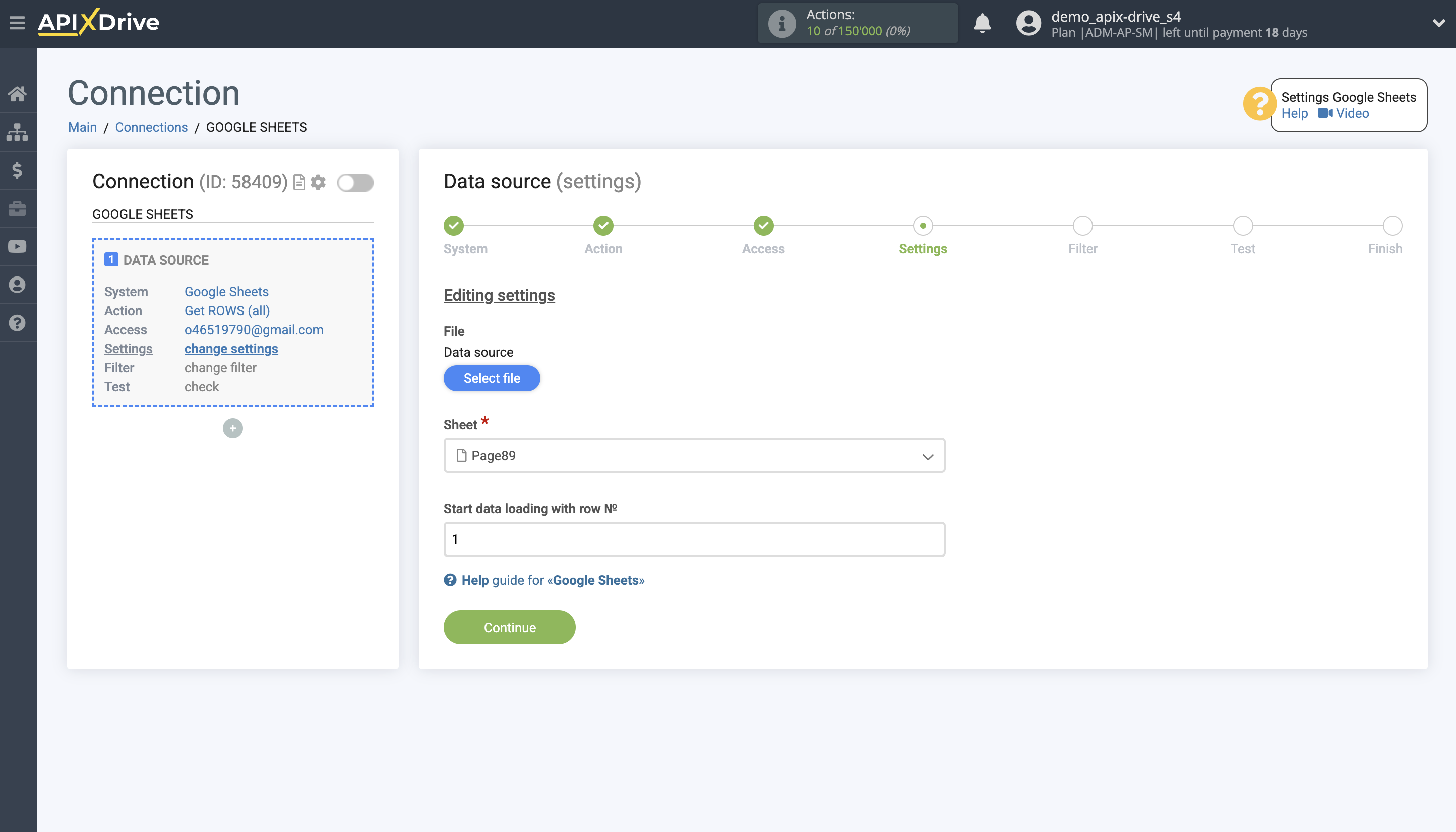
Select the Google Sheets table and sheet where the data you need is located.
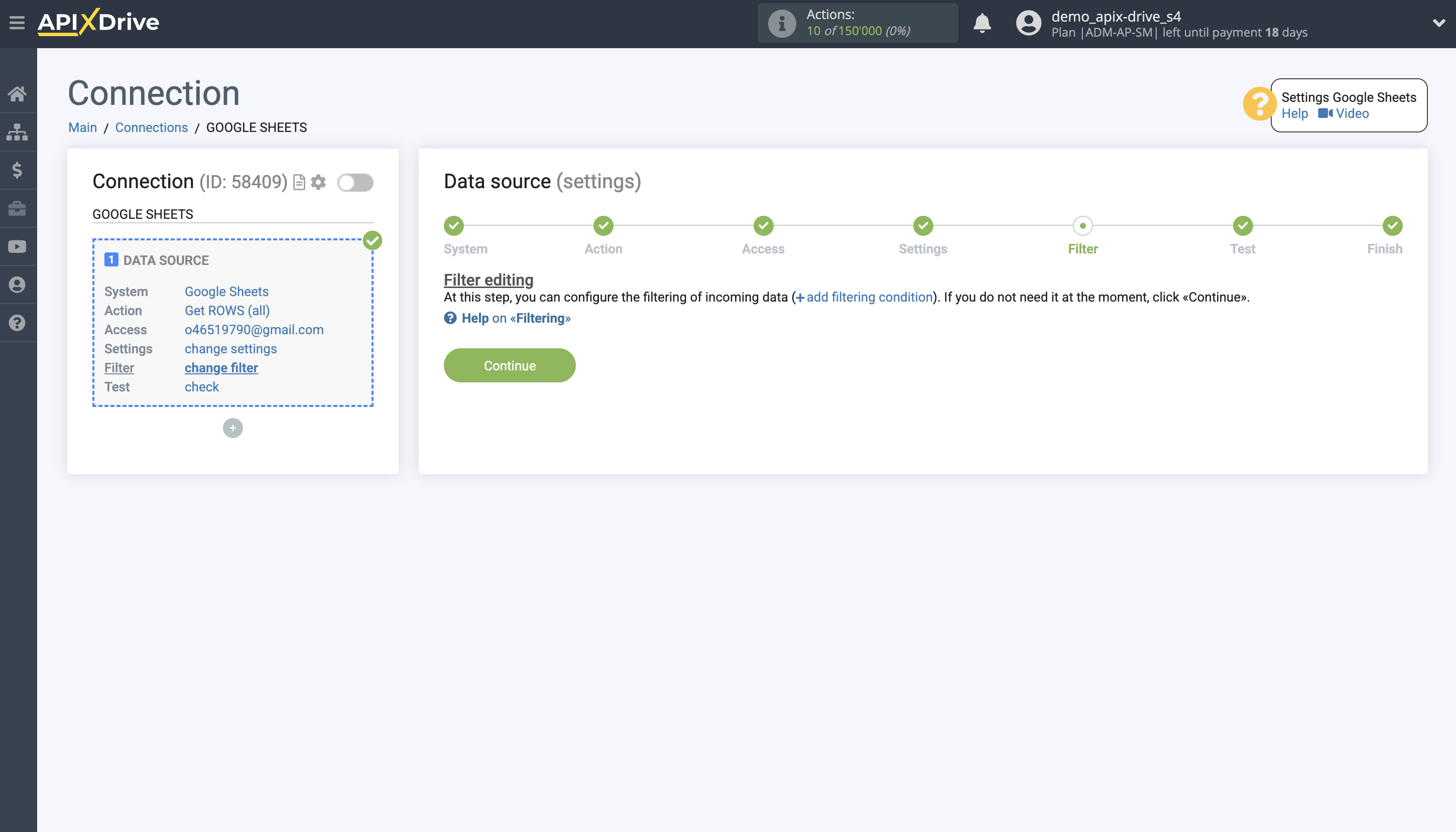
At this stage, you can add data so that you don't load all the rows into the filter, but only those for which you need to unload data.
Now you can see the test data one by one in the Google Sheets table.
If you want to update the test data - click "Load test data from Google Sheets".
If you want to change the settings, click "Edit" and you will go back one step.
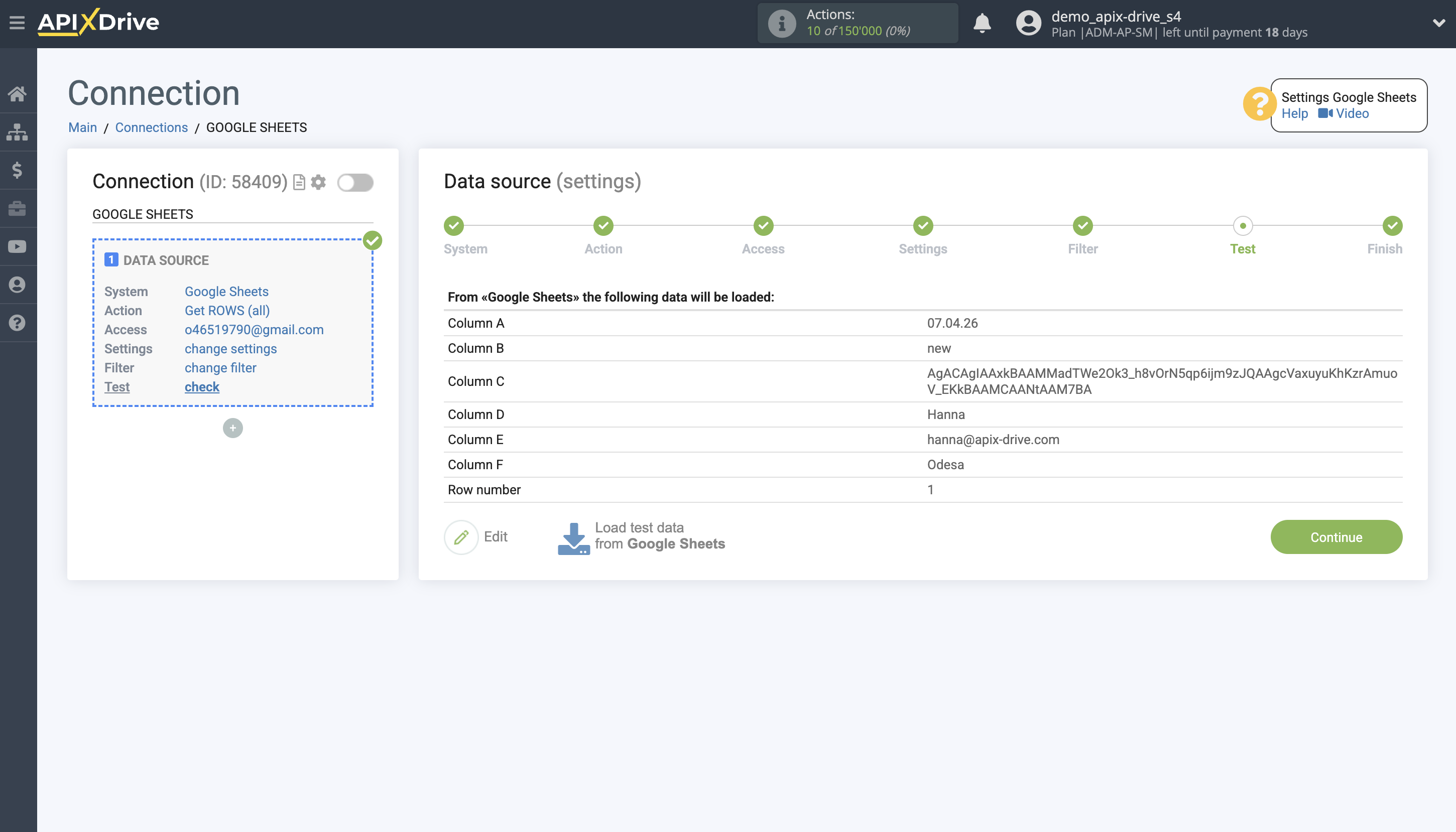
Now we connect an additional data search block. To do this, click on "+" and select "Add data SEARCH" from the list.
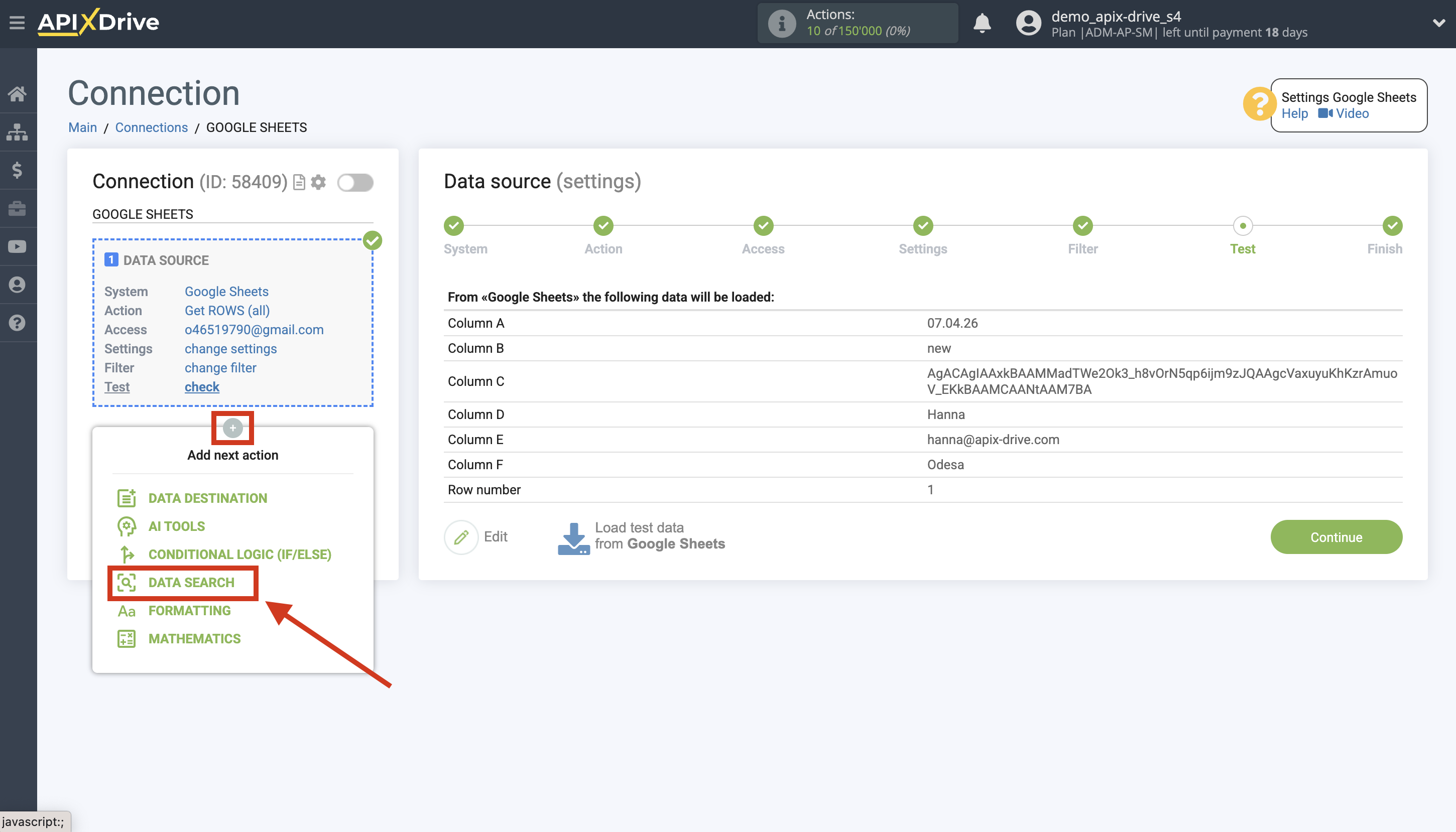
We select "Telegram" as the system in which the search will be performed.
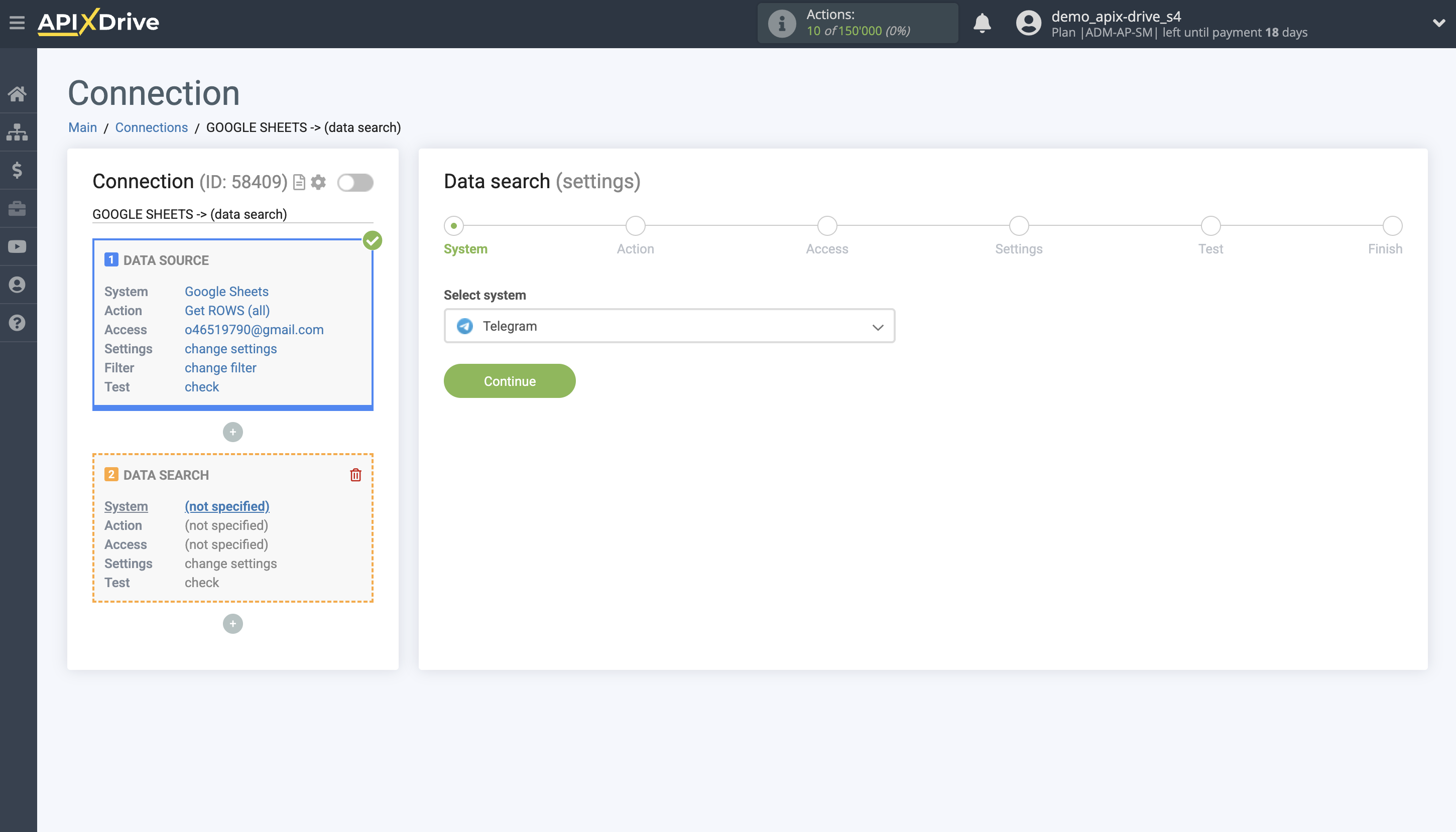
Next, for example, select the action "Download FILE".
The next step is to choose a Telegram account.
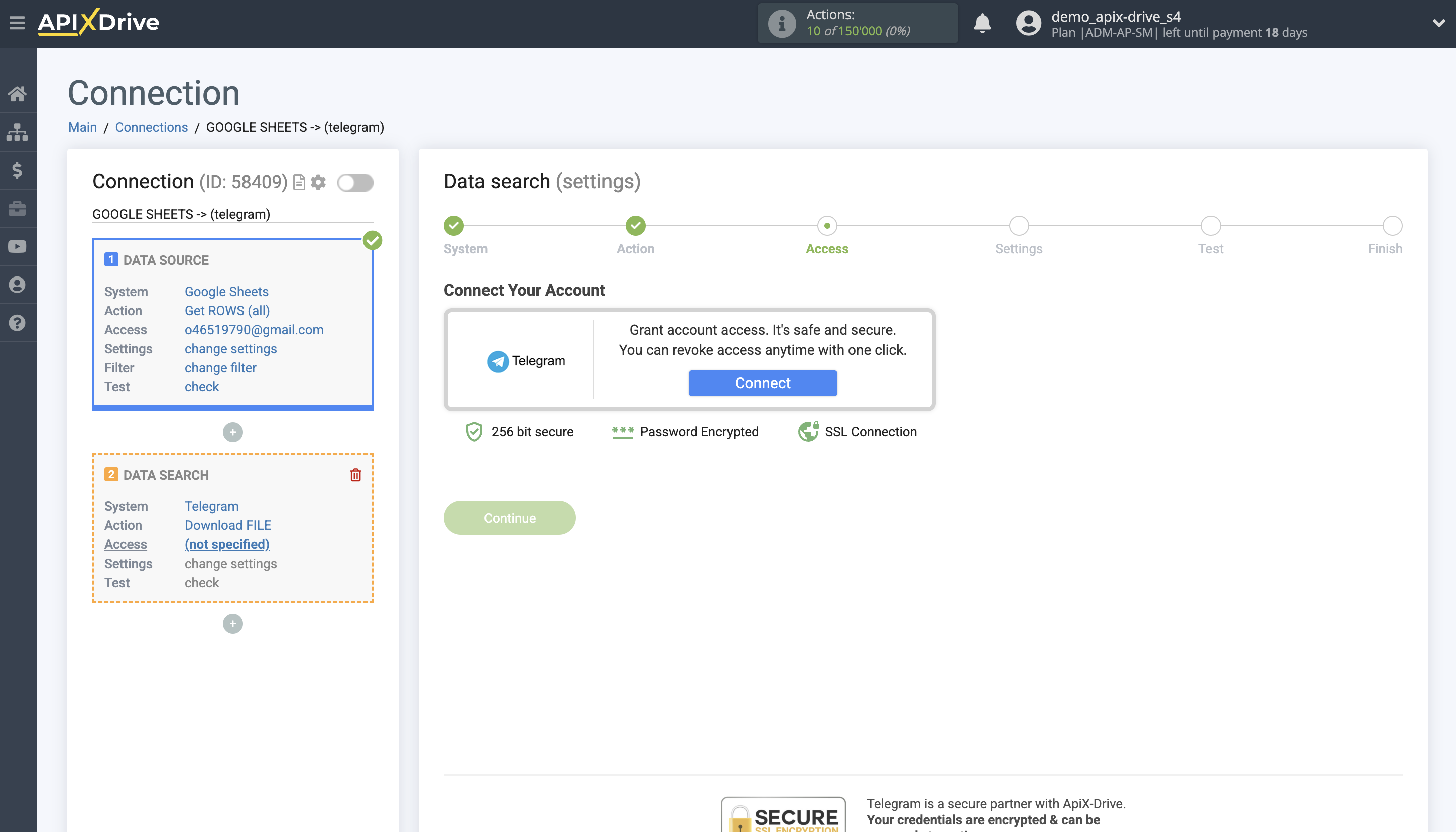
If there are no accounts connected to the ApiX-Drive system, click "Connect account".
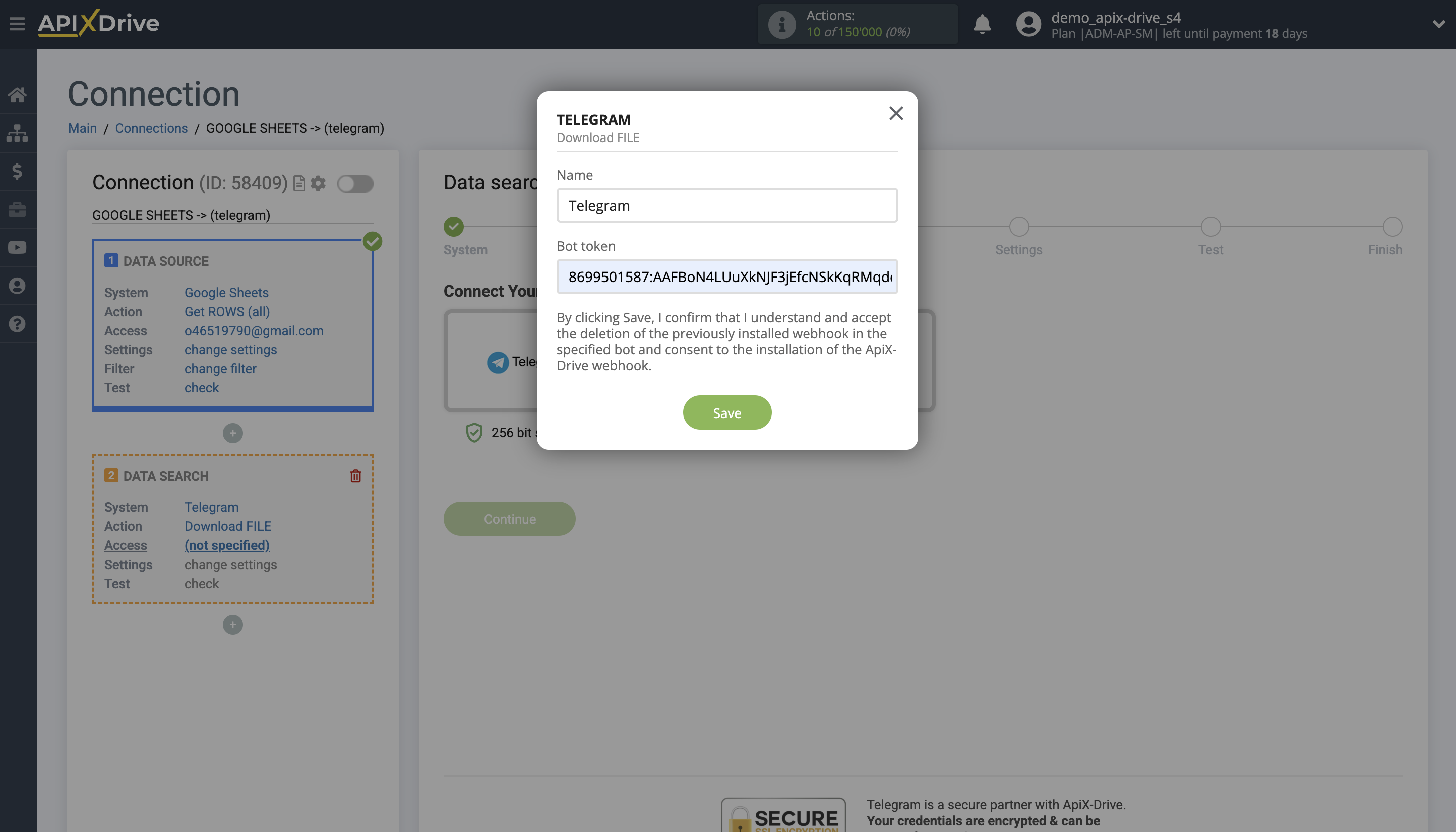
Fill in the fields with the appropriate information, where:
Token – the token for connecting your Telegram bot.
1. Create a new bot or use an existing one.
2. How to create a new bot is described here - https://hostiq.ua/blog/rus/chatbot-telegram
3. To find the token of an existing bot, you can enter the /mybots command in BotFather. Then, select the desired bot and click "API Token." Copy the token and paste it into the corresponding ApiX-Drive field.
Please note!
In the Access section, you can connect a private chat, channel, or group. To do this, you need to create your bot and add it as an administrator so it has write access.
If you have previously connected the bot to other services, you will need to disconnect the first connection and reconnect the bot or create a new bot.
After entering the token in the required field, click "Save." This confirms the deletion of the previously installed webhook in the specified bot and also agrees to the installation of the ApiX-Drive webhook.
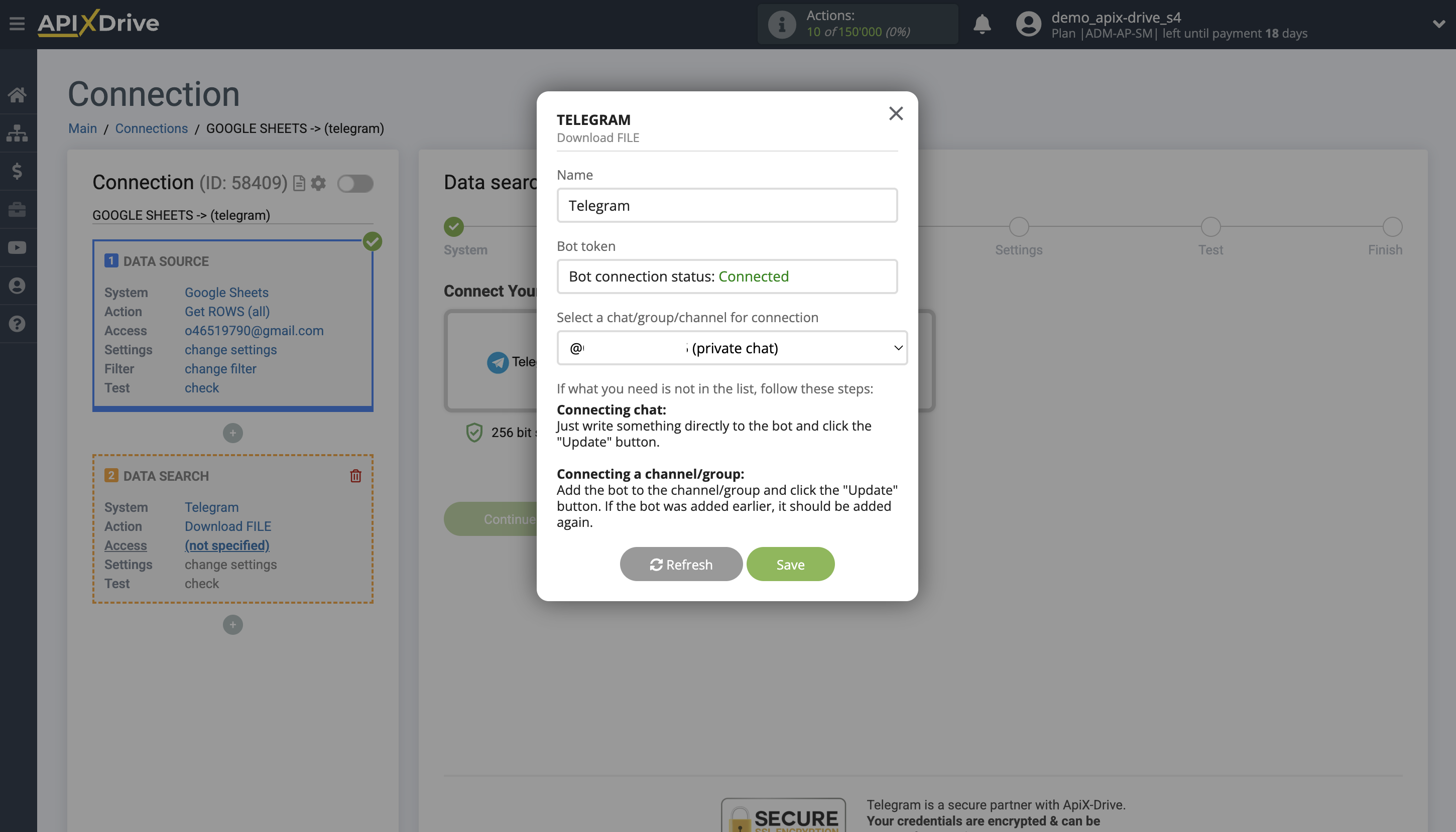
Please note: if the desired access is not listed, follow the steps described when connecting, namely, write something directly to the bot and click the "Update" button.
For a channel or group, add the bot and click the "Update" button. If the bot was added previously, you will need to add it again.
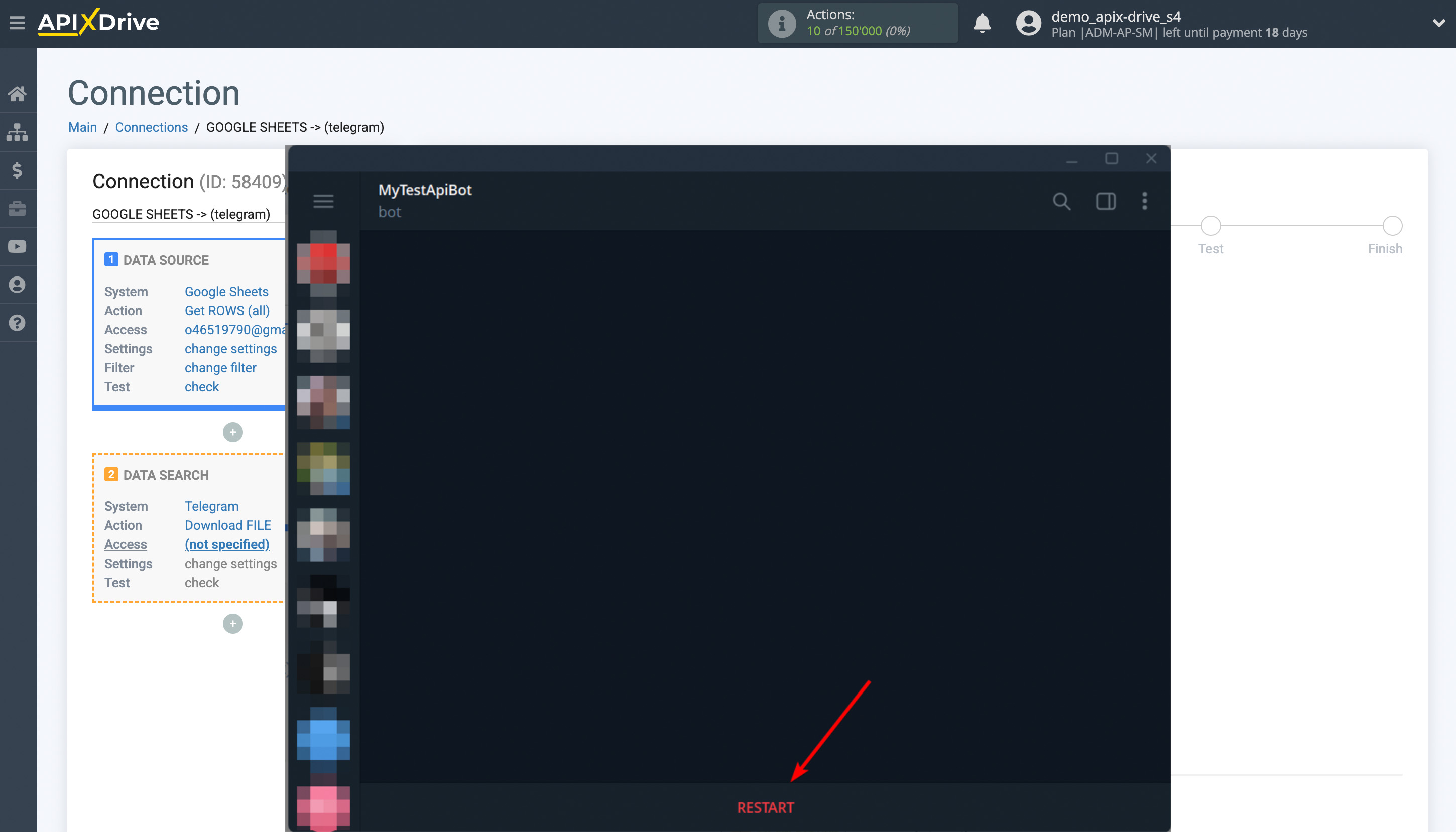
In your Telegram app, enter @here_insert_your_bot's_username in the search bar.
Click on the bot's profile and click "Start." If you've previously connected this bot, you'll see a "Restart" button; click it.
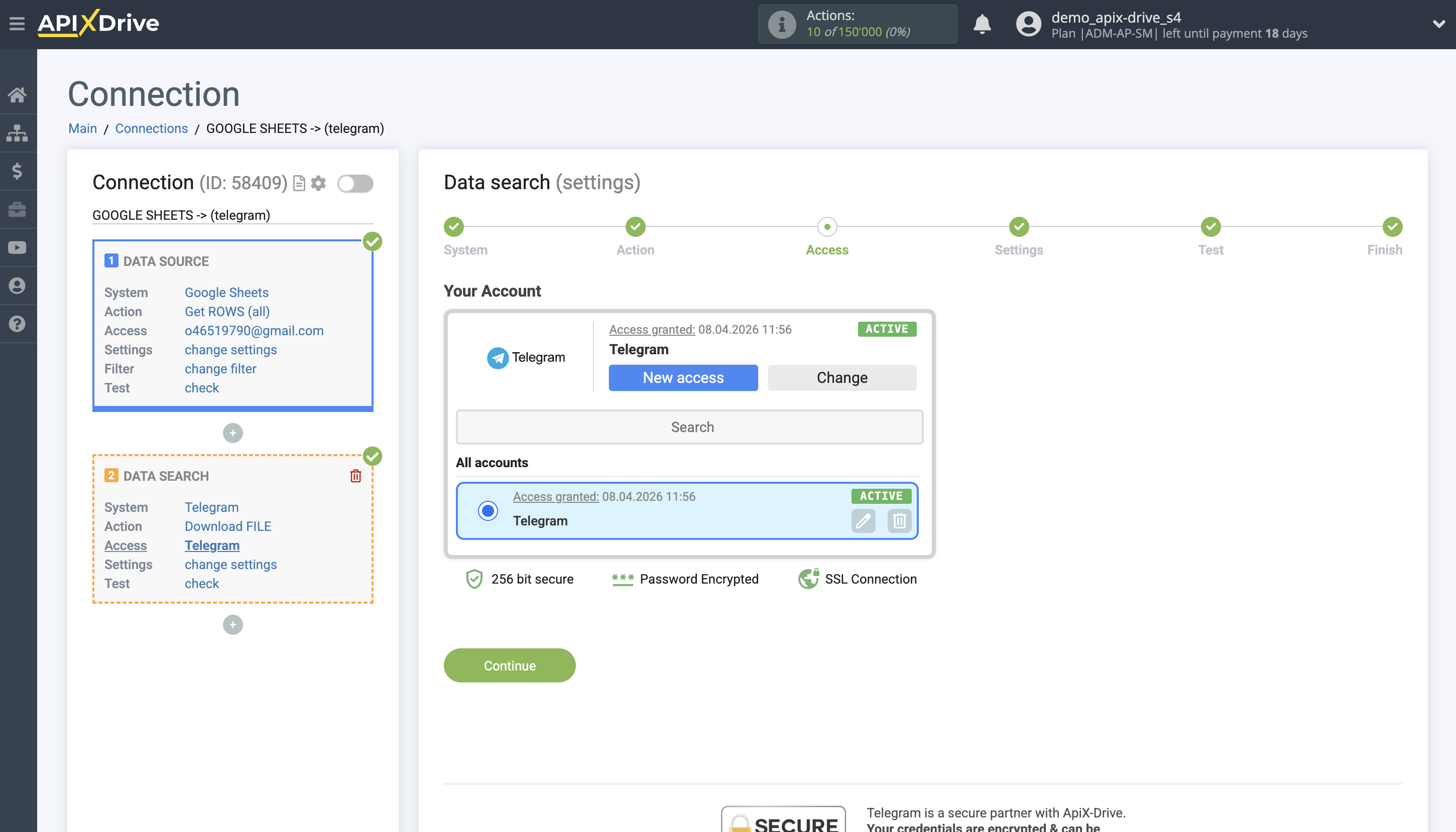
Once the connected account appears in the "active accounts" list, select it for further work.
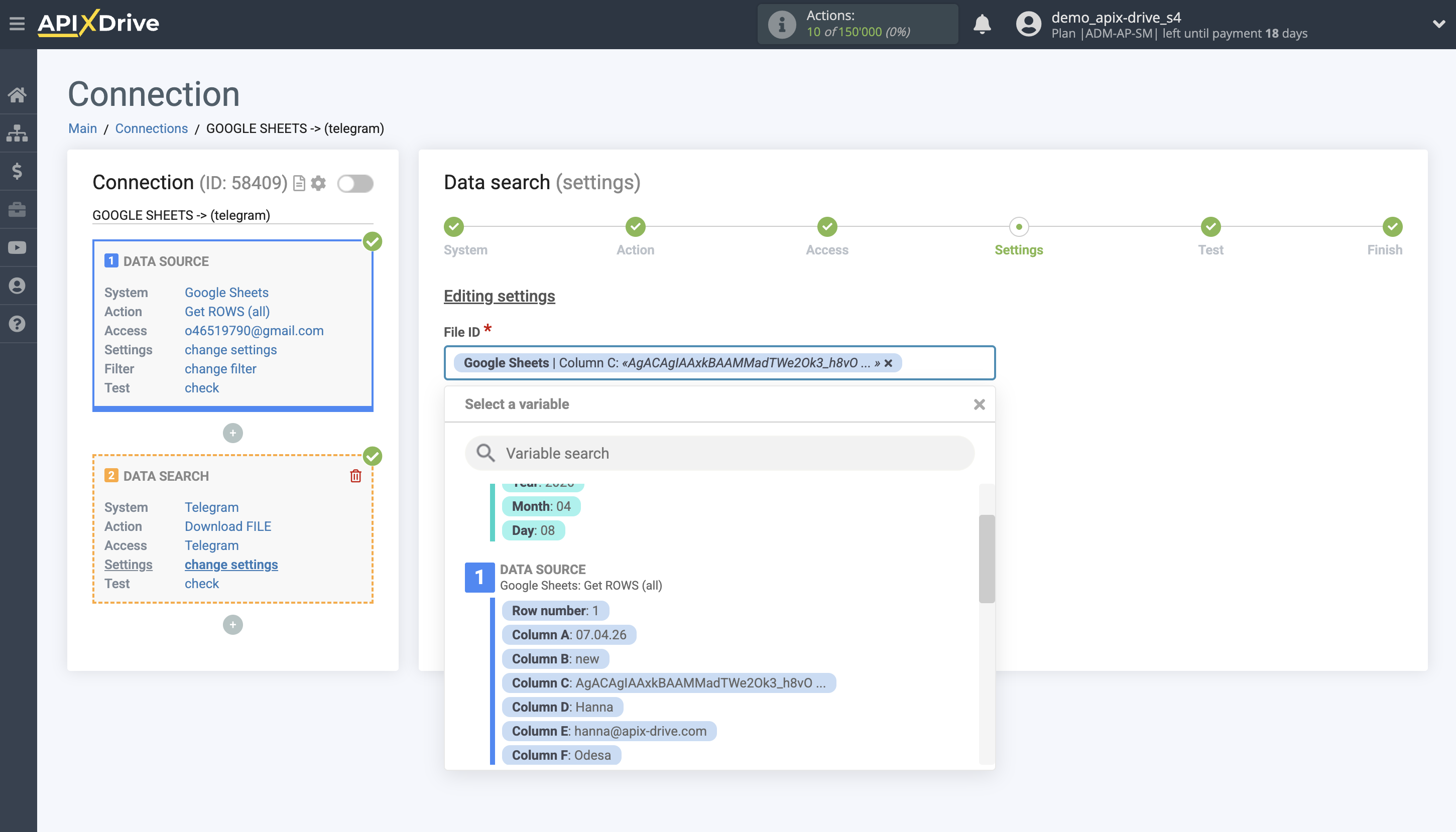
In the "File ID" field, you must specify the variable from the Data Source that will contain the search data. If a match is found, the file will be loaded.
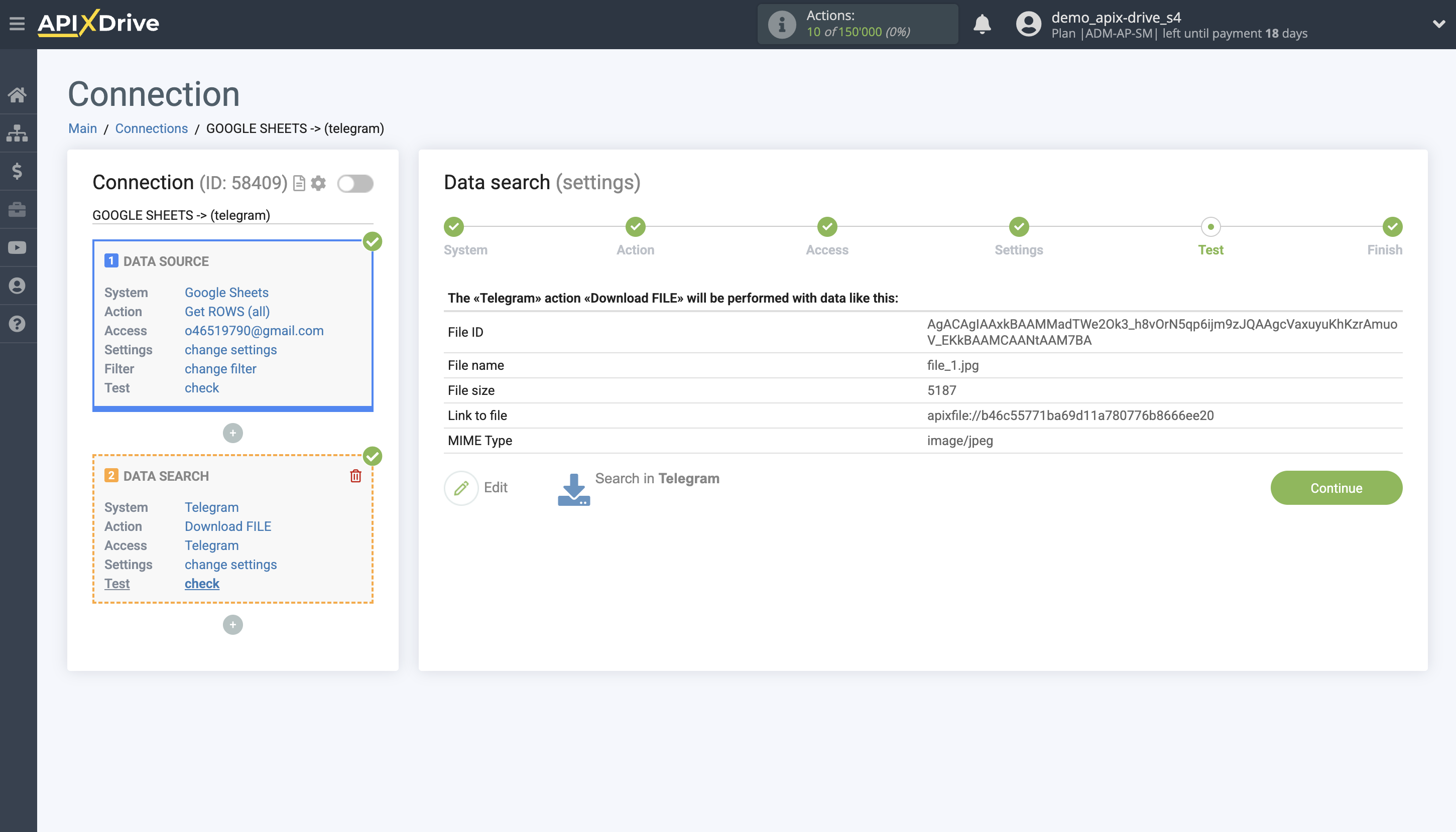
Now you see test data for one of the Files. You can transfer this data to your Receiver.
If the test data did not appear automatically, click "Search Telegram".
If you are not satisfied with something, click "Edit", go back a step and change the search field settings.
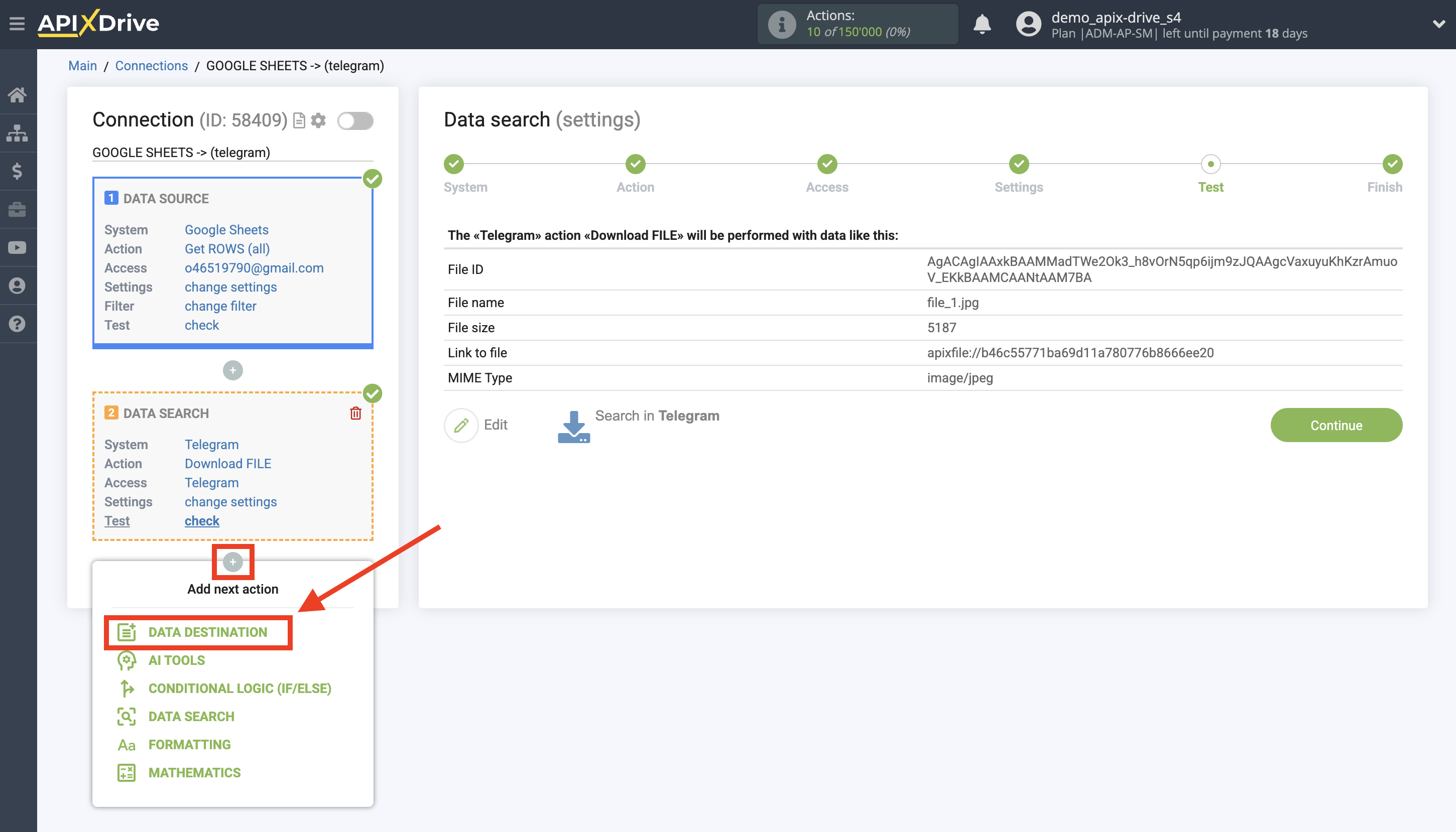
This completes the data search setup!
Now we can start setting up Dropbox as a Data Destination system.
To do this, click "Add Data DESTINATION".
Setup Data Destination system: Dropbox
Select the system as the Data Destination. In this case, you must specify Dropbox.
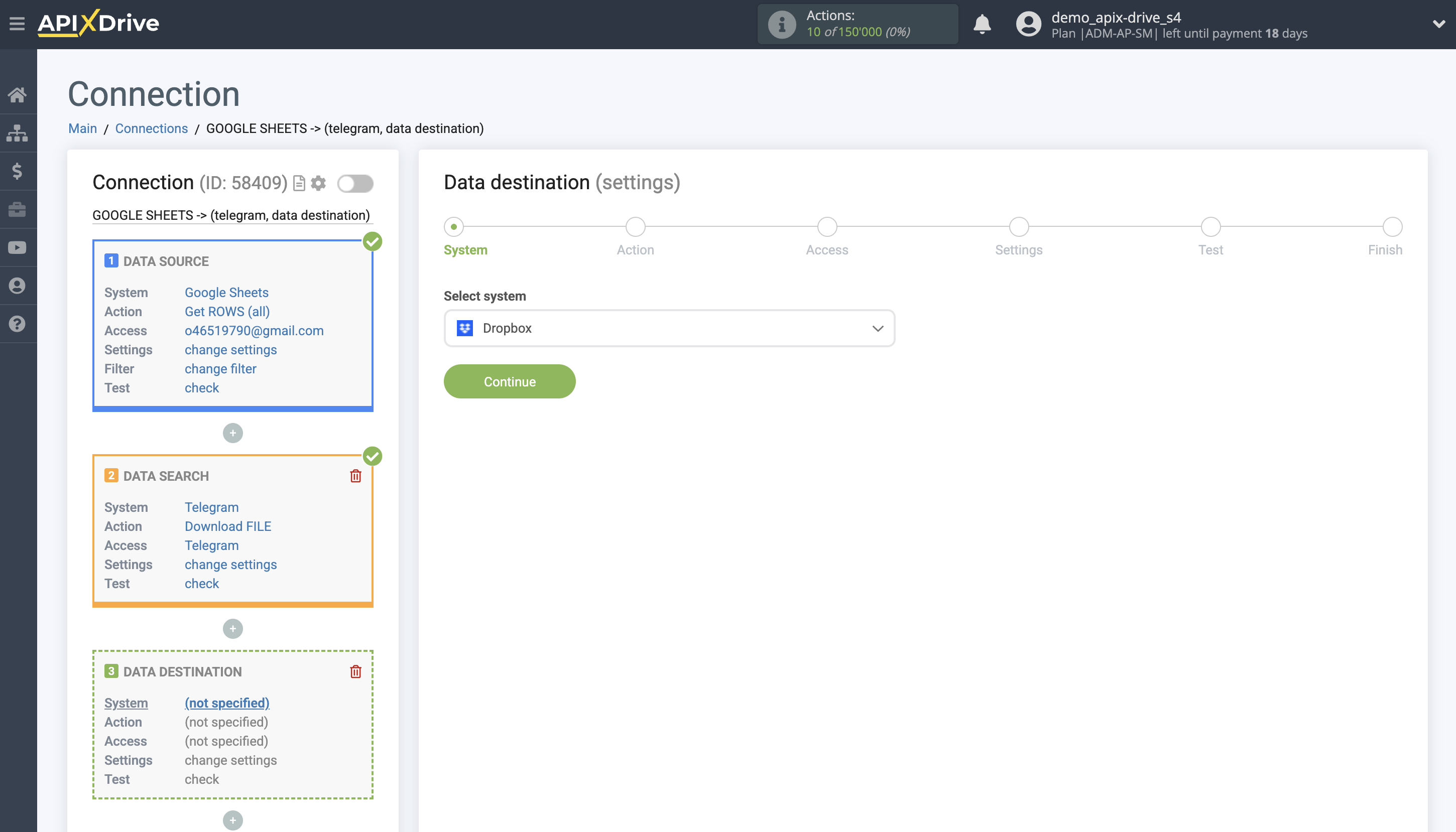
Next, you need to specify the "Upload FILE" action.
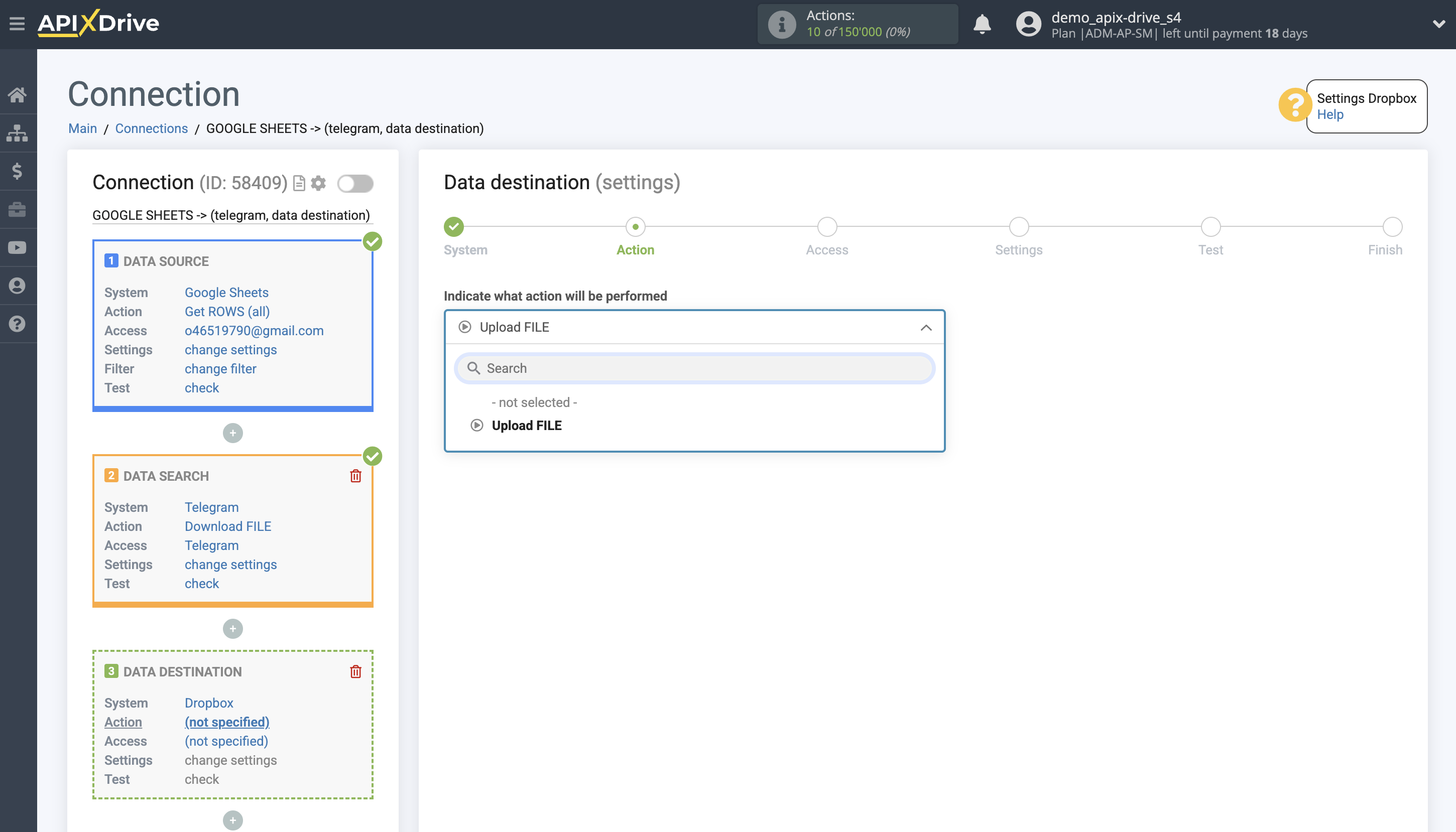
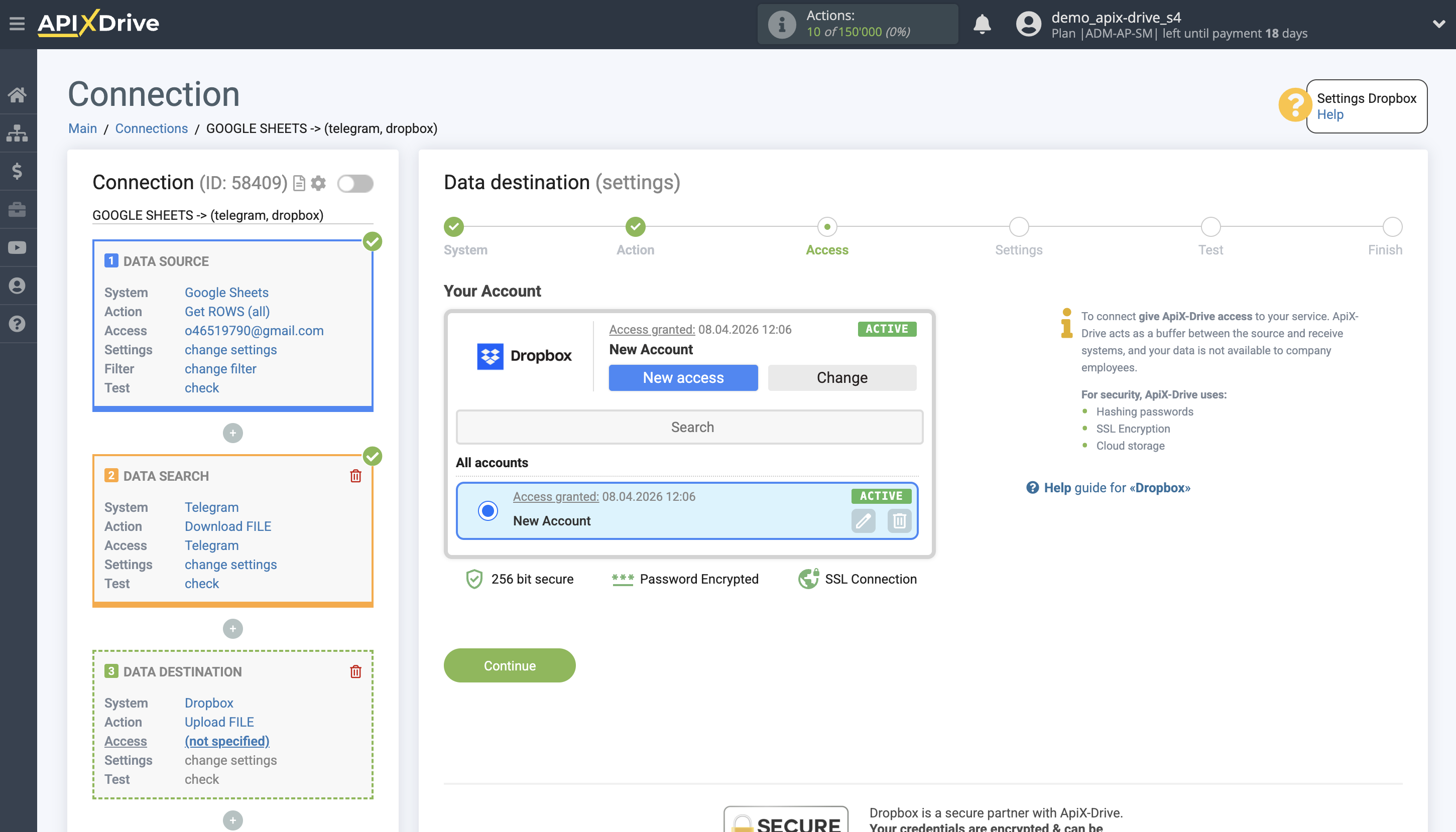
The next step is to select the Dropbox account to which the Telegram file will be transferred.
If you don't have any accounts connected to the ApiX-Drive system, click the "Connect Account" button.
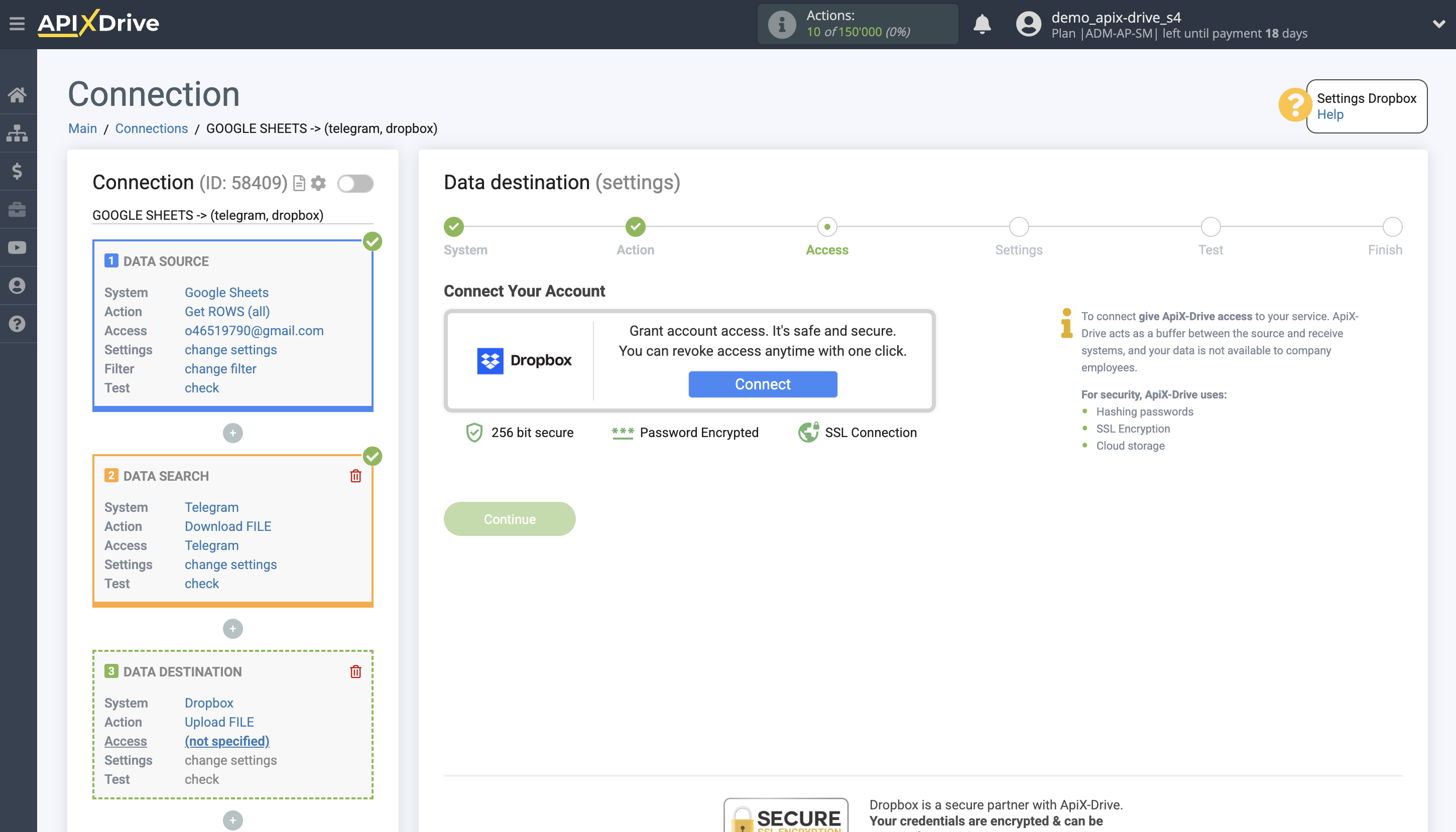
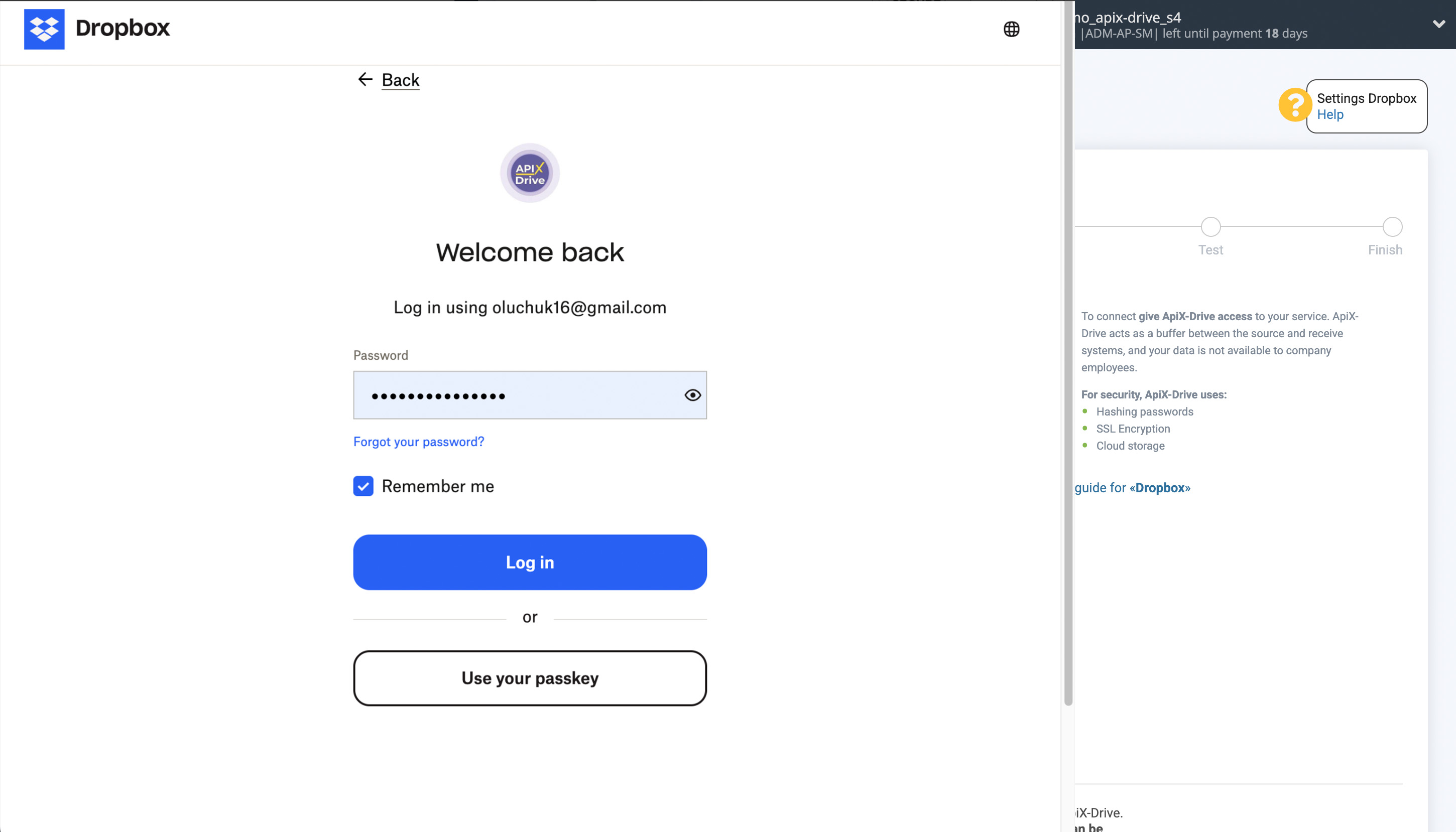
Enter your Dropbox login details and click Log in to connect.
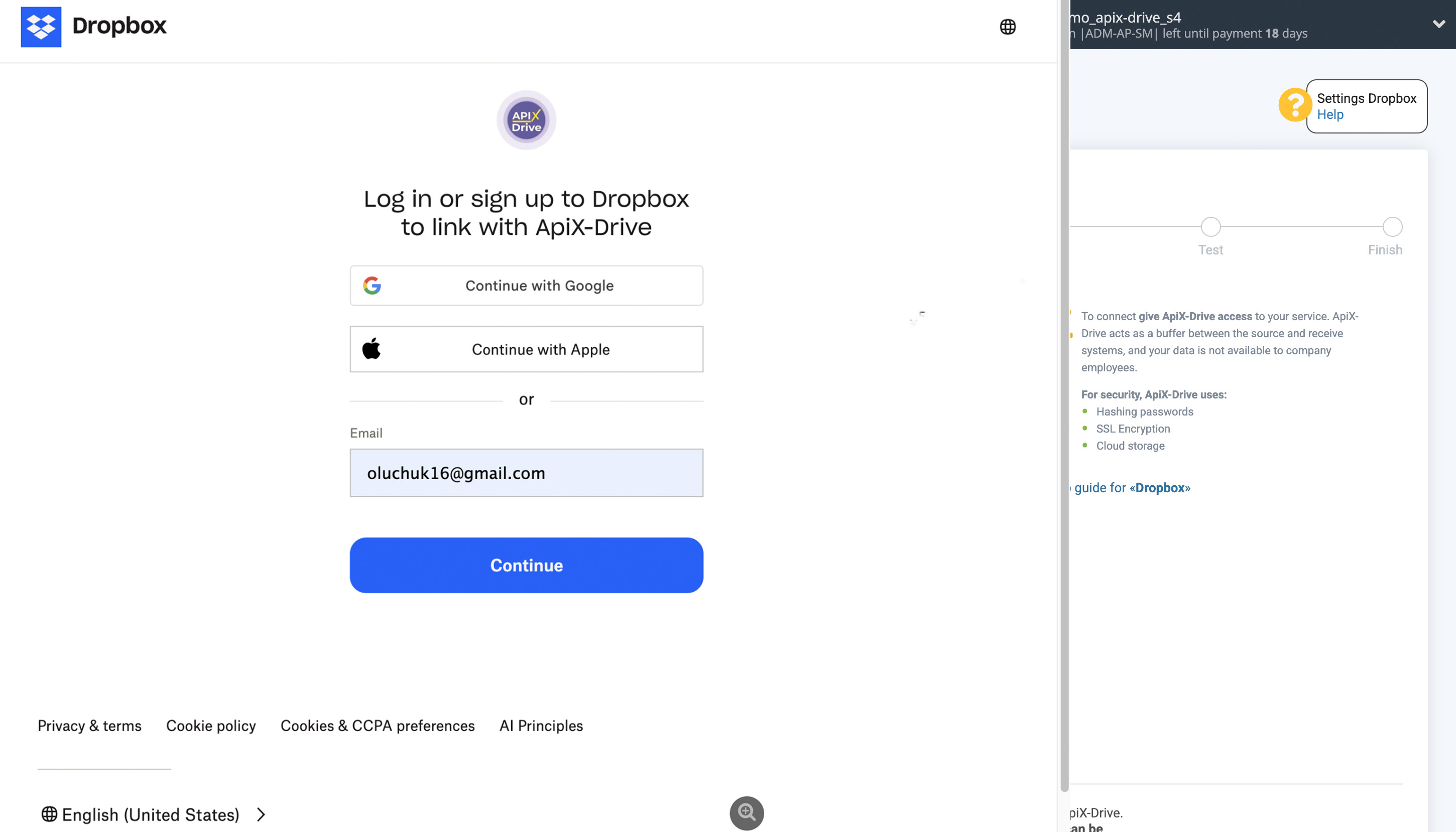
When the connected account appears in the list of active accounts, select it for further work.
Attention! If your account is listed as "inactive accounts," check your access to this login!
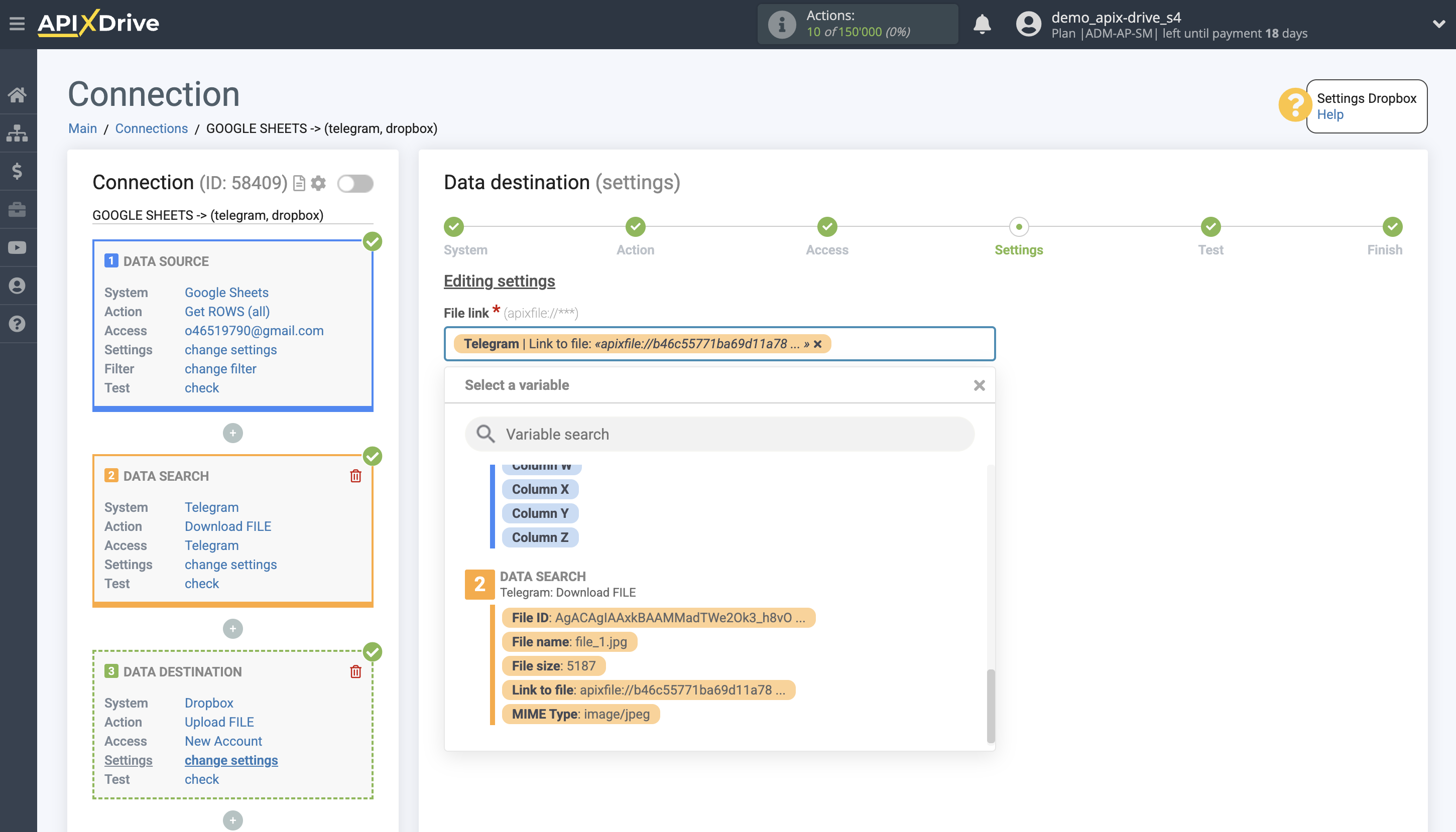
Now you need to configure the link between the fields in the Data Search block and the corresponding fields in Dropbox.
Fill in the File link and File name fields. To add a variable, click on the field and select the desired variable from the list.
Select the folder you want to send files to, then click "Continue."
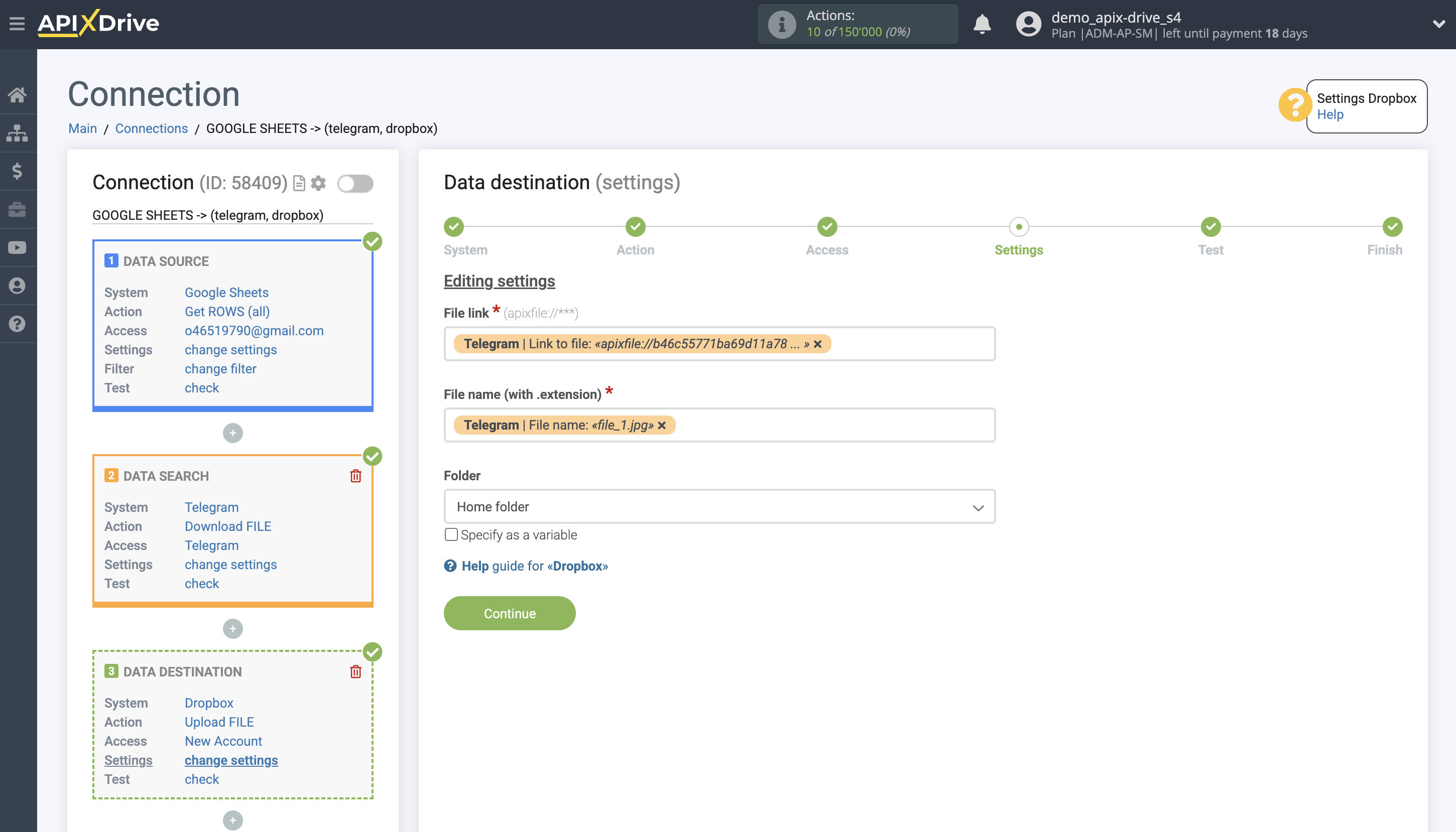
Thus, the Data Search block takes the field in which you have the file ID specified from the Data Source, checks the file in Telegram, and transfers the file to the Data Receiver.
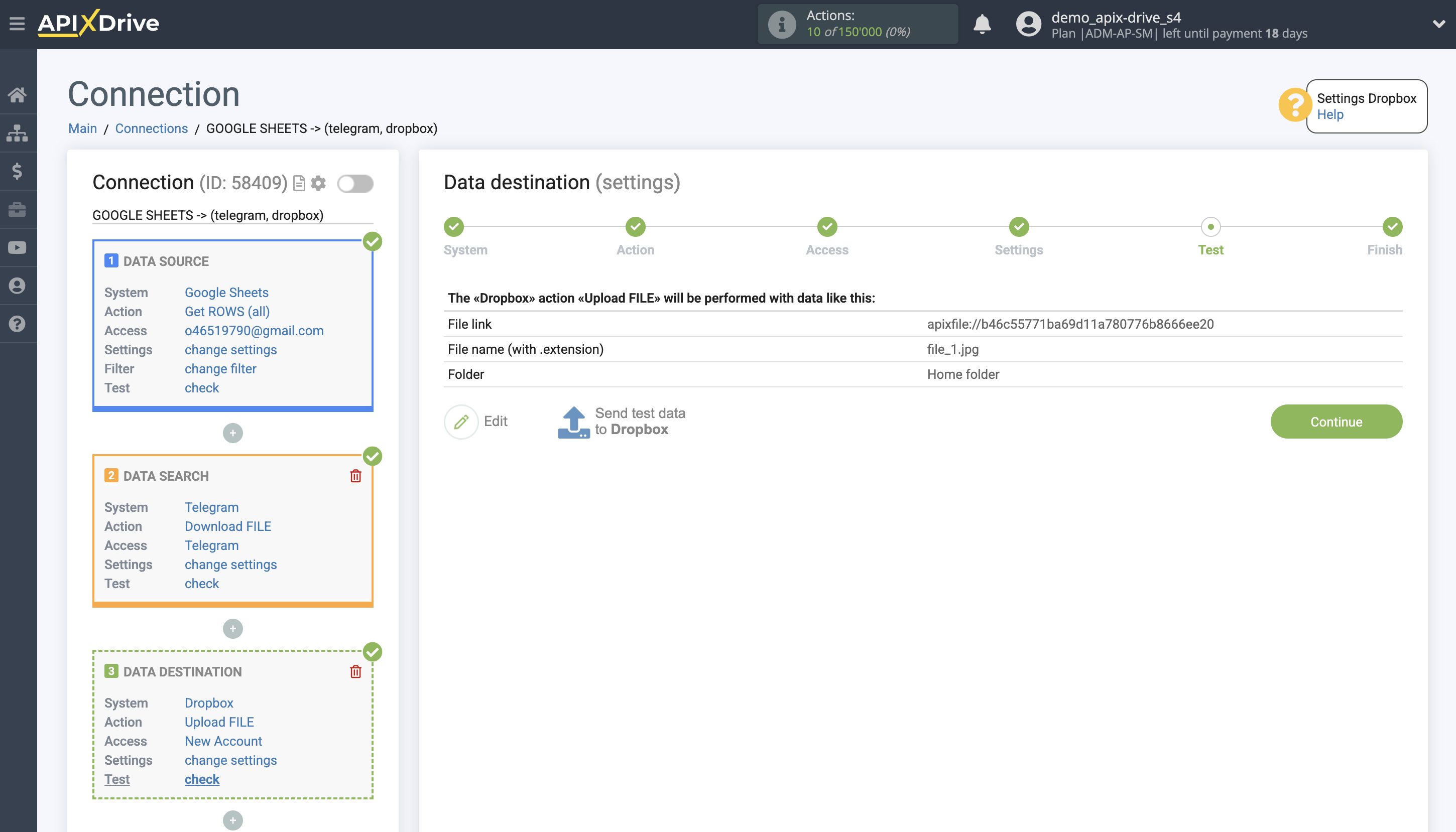
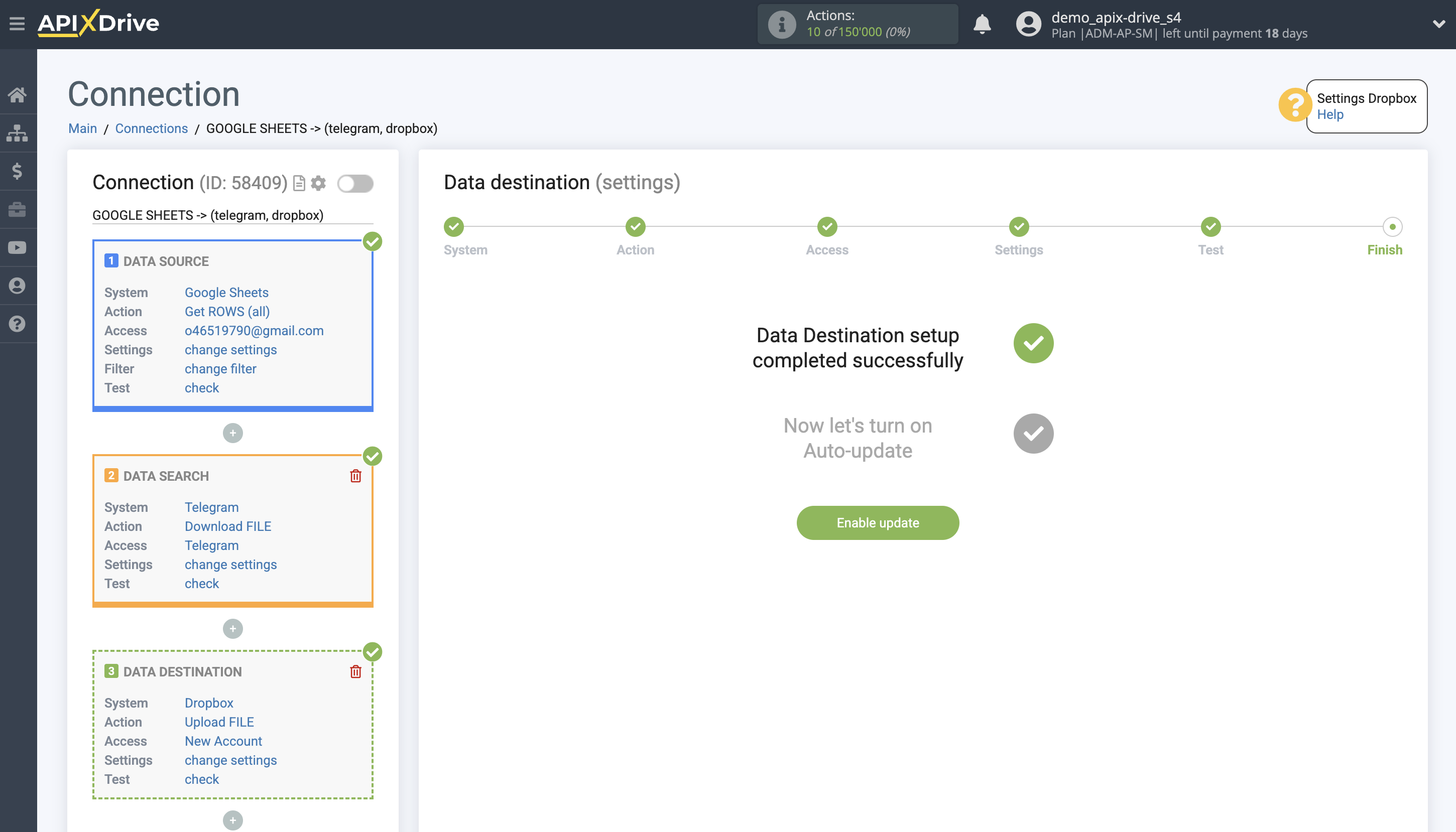
This completes the Data Destination system setup!
Now you can start choosing the update interval and enabling auto-update.
To do this, click "Enable update".
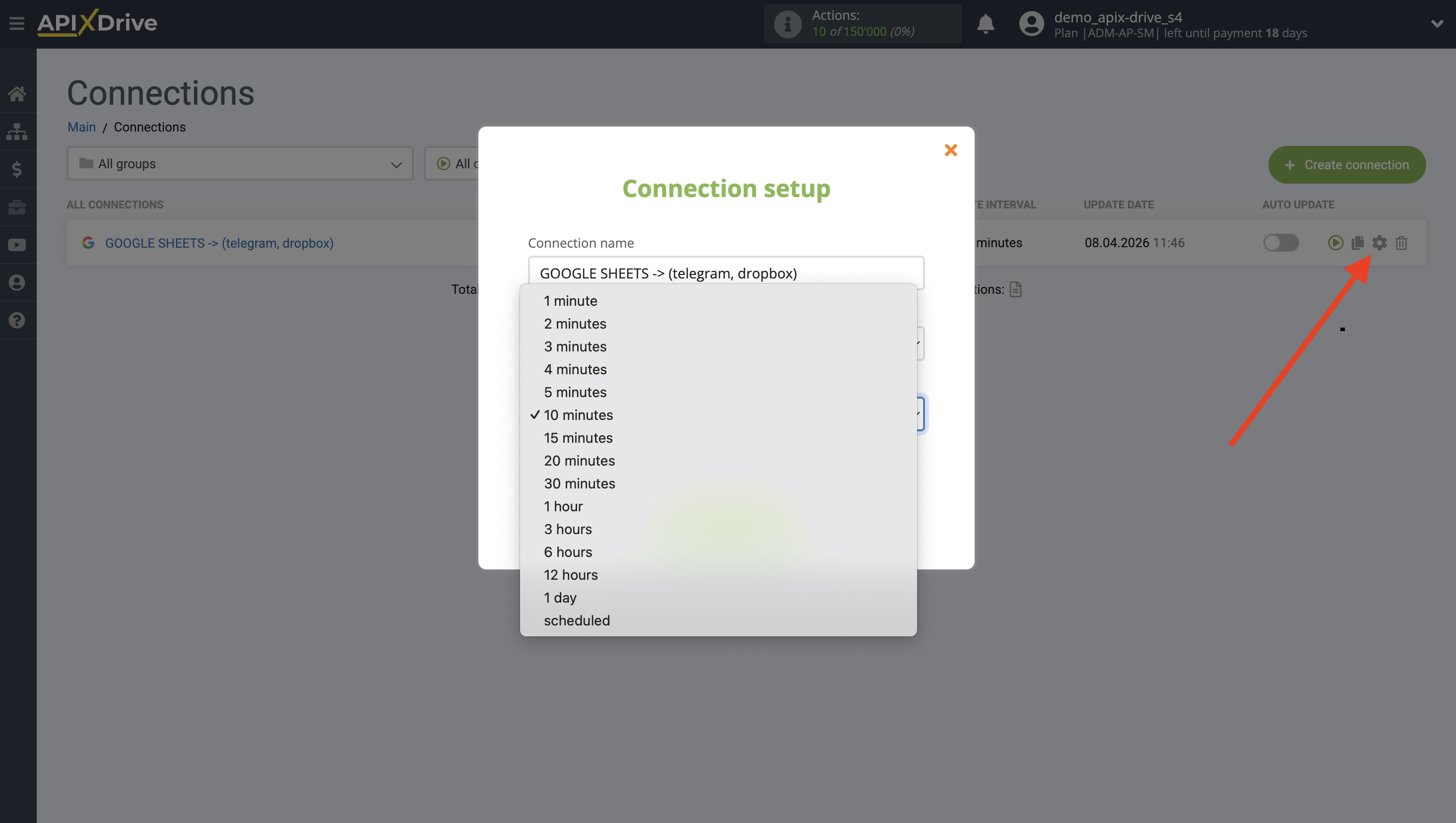
On the main screen, click on the gear icon to select the required update interval or set up scheduled launch. To start the connection by time, select scheduled start and specify the desired time for the connection update to be triggered, or add several options at once when you need the connection to be triggered.
Attention! In order for the scheduled run to work at the specified time, the interval between the current time and the specified time must be more than 5 minutes. For example, you select the time 12:10 and the current time is 12:08 - in this case, the automatic update of the connection will occur at 12:10 the next day. If you select the time 12:20 and the current time is 12:13 - the auto-update of the connection will work today and then every day at 12:20.
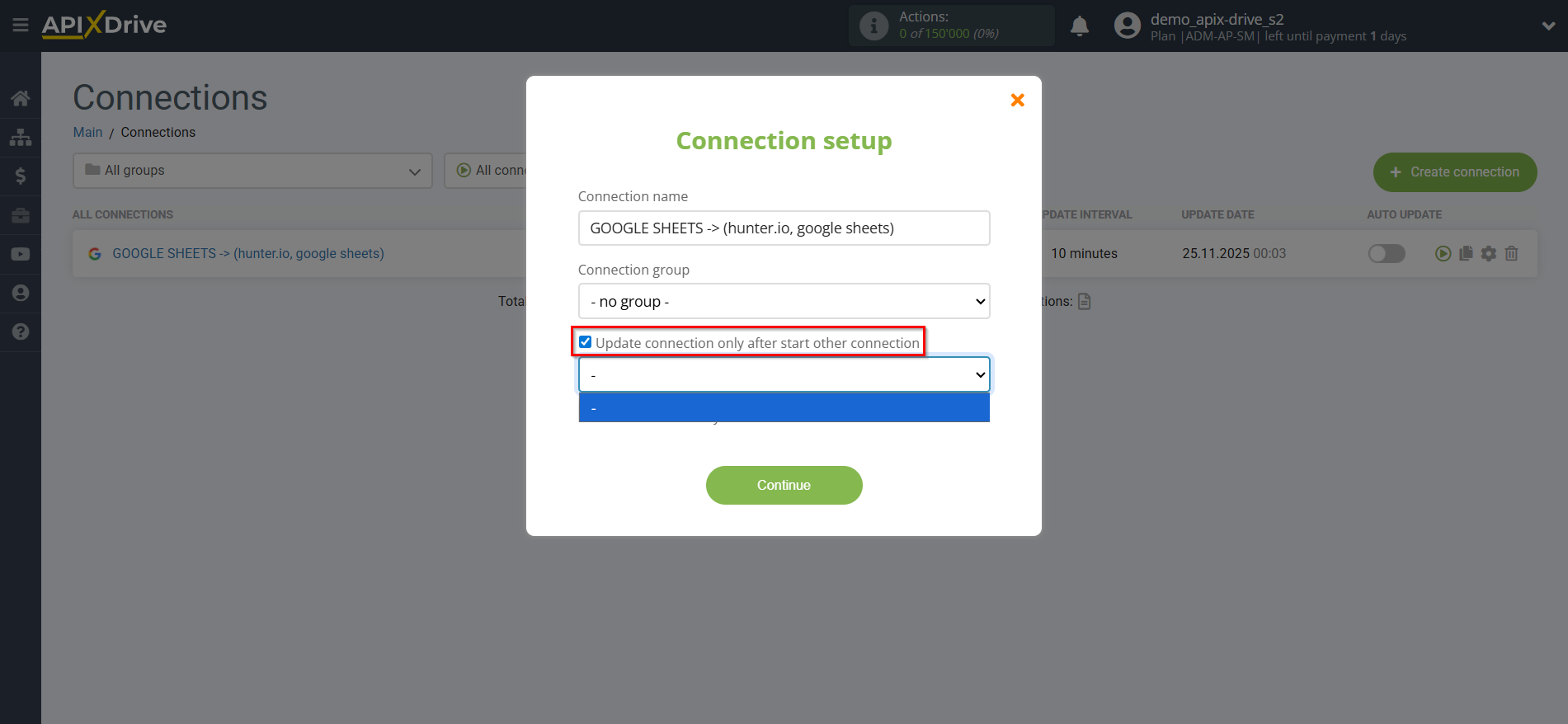
To make the current connection transmit data only after another connection, check the box "Update connection only after start other connection" and specify the connection after which the current connection will be started.
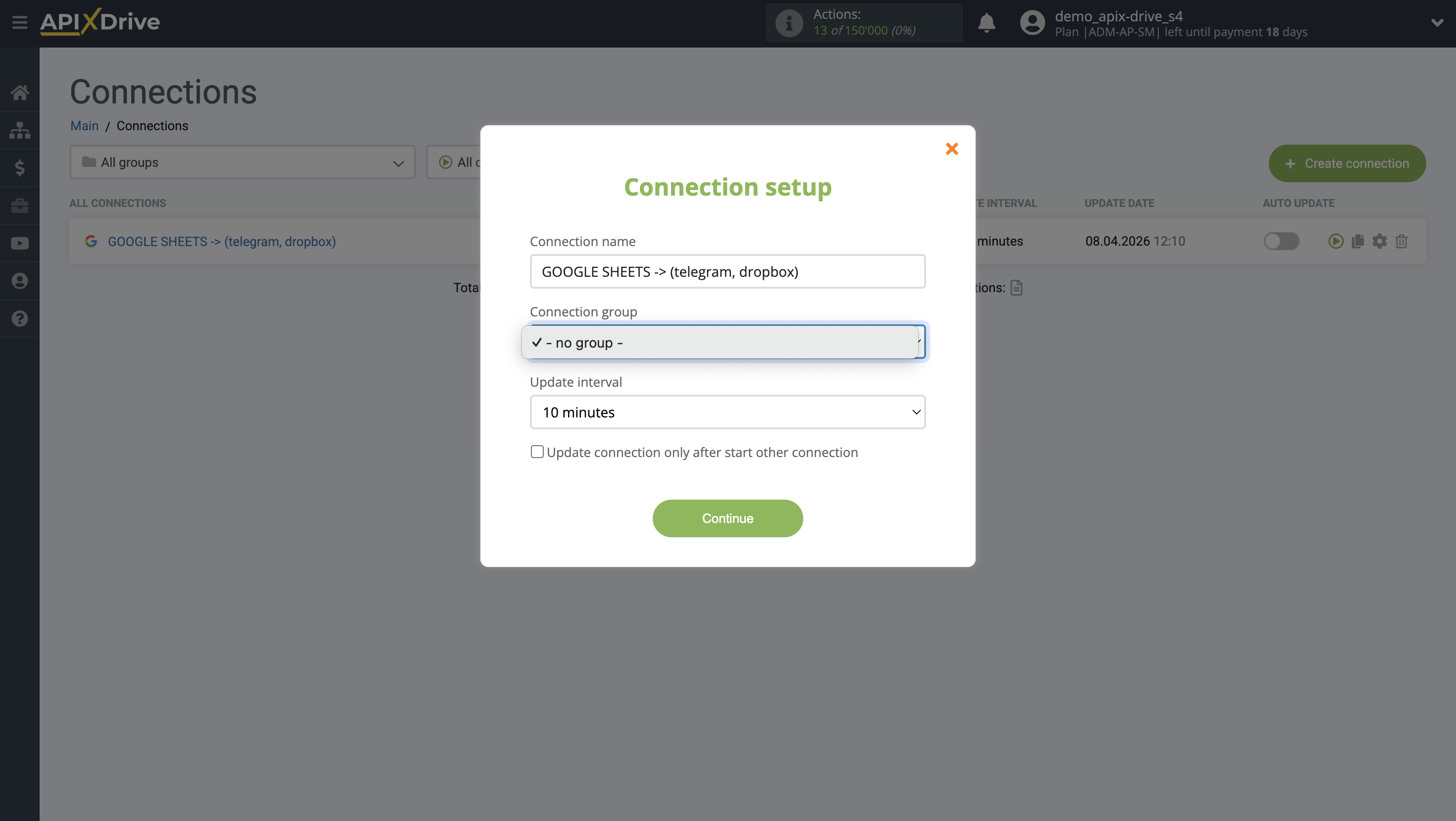
To enable auto-update, switch the slider to the position as shown in the picture.
To force the connection, click on the arrow icon.
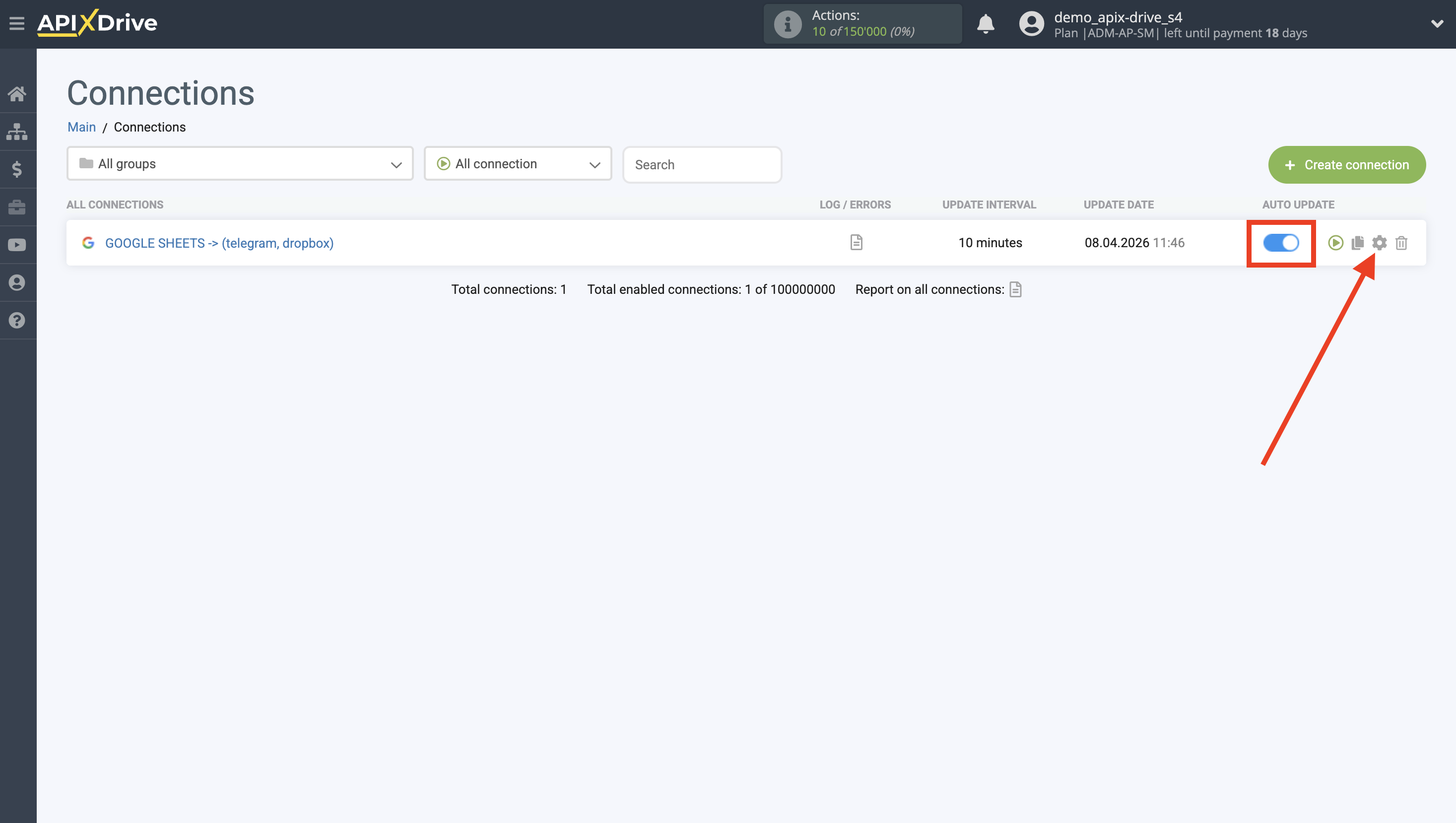
That's it, setting up Telegram File Upload is complete! It's all quite simple!
Now don't worry, ApiX-Drive will do everything on its own!