How to Connect Dropbox as Data Search
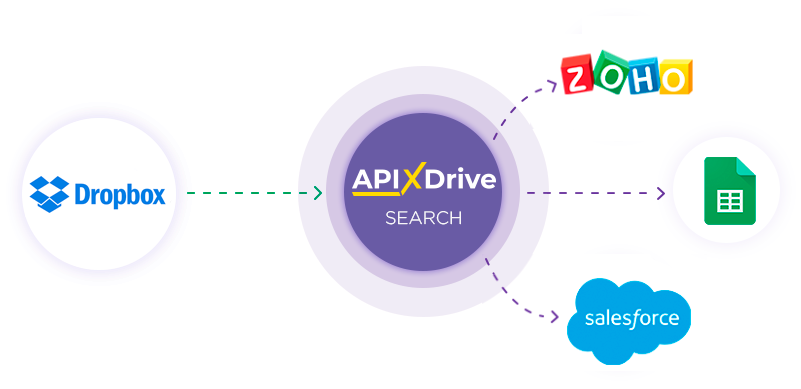
Dropbox integration is implemented as a separate Search block, which can be placed between the Data Source and Data Intake. This allows you to receive data fields in the Data Source, query Dropbox to search for files based on specified values, and transfer file data to the Data Intake fields. This allows you to automatically find files in Dropbox using Search and transfer data about them to the services and systems you use.
The function allows you to search Contact for Dropbox and update data
Navigation:
Connecting Google Sheets as a Data Source:
1. What data can be get from Google Sheets?
2. How to connect your Google Sheets account to ApiX-Drive?
3. Select the table and sheet from which rows will be unloaded.
4. An example of data that will be transferred from Google Sheets.
Connecting Dropbox as a Data Search:
1. What data can be get from Dropbox?
2. How to connect your Dropbox account to ApiX-Drive?
3. How to set up data search in Dropbox in the selected action?
4. An example of the data that will be transferred from Dropbox.
Setting up row updates in Google Sheets:
1. What will the Google Sheets integration do?
2. How to connect your Google Sheets account to ApiX-Drive?
3. How to set up data transfer to Google Sheets in the selected action?
4. An example of the data that will be sent to your Google Sheets.
5. Auto-update and update interval.
Setting Data SOURCE: Google Sheets
Let's look at how the Search function works using the example of updating Rows in Google Sheets.
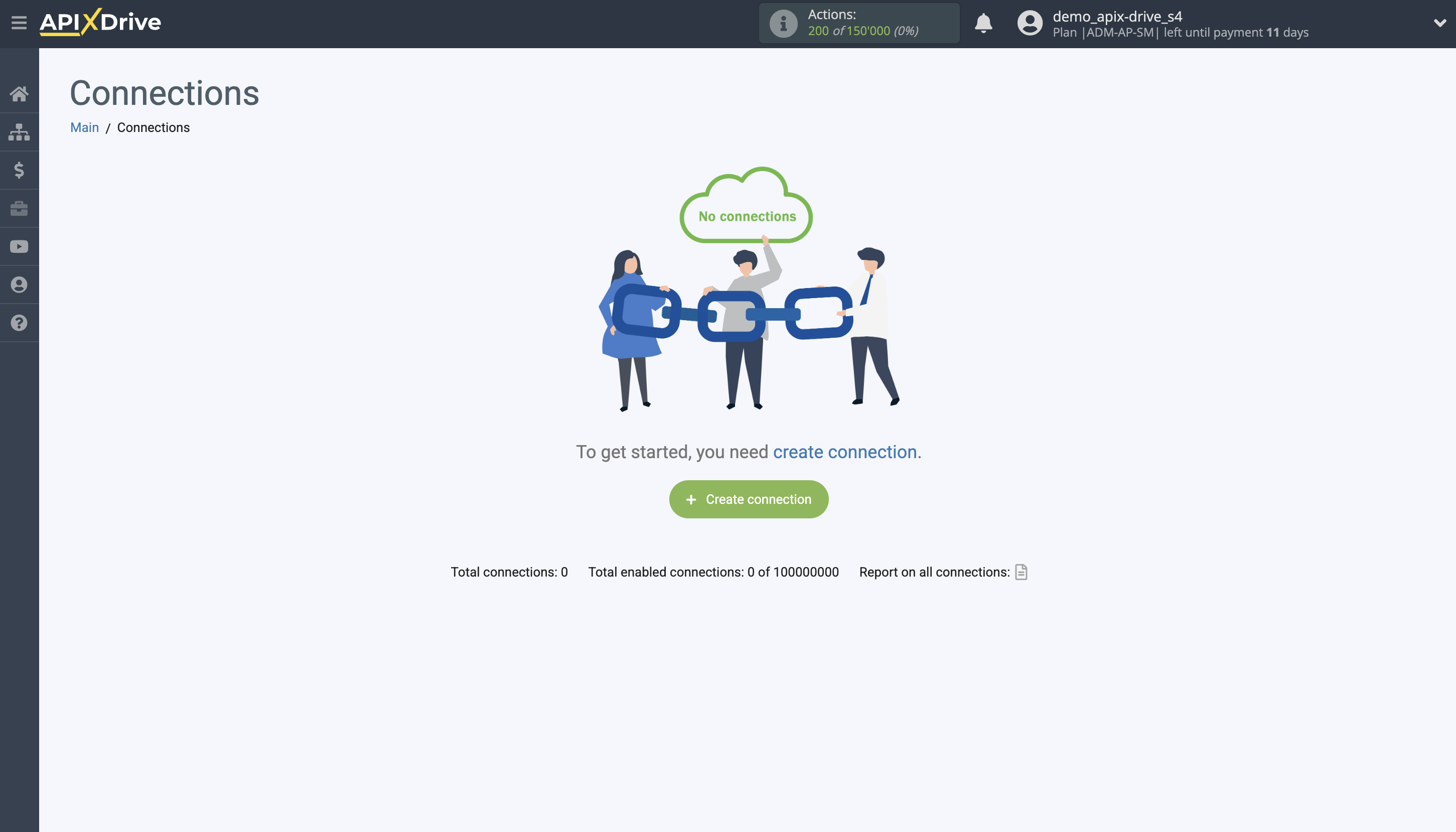
First, you need to create a new connection.
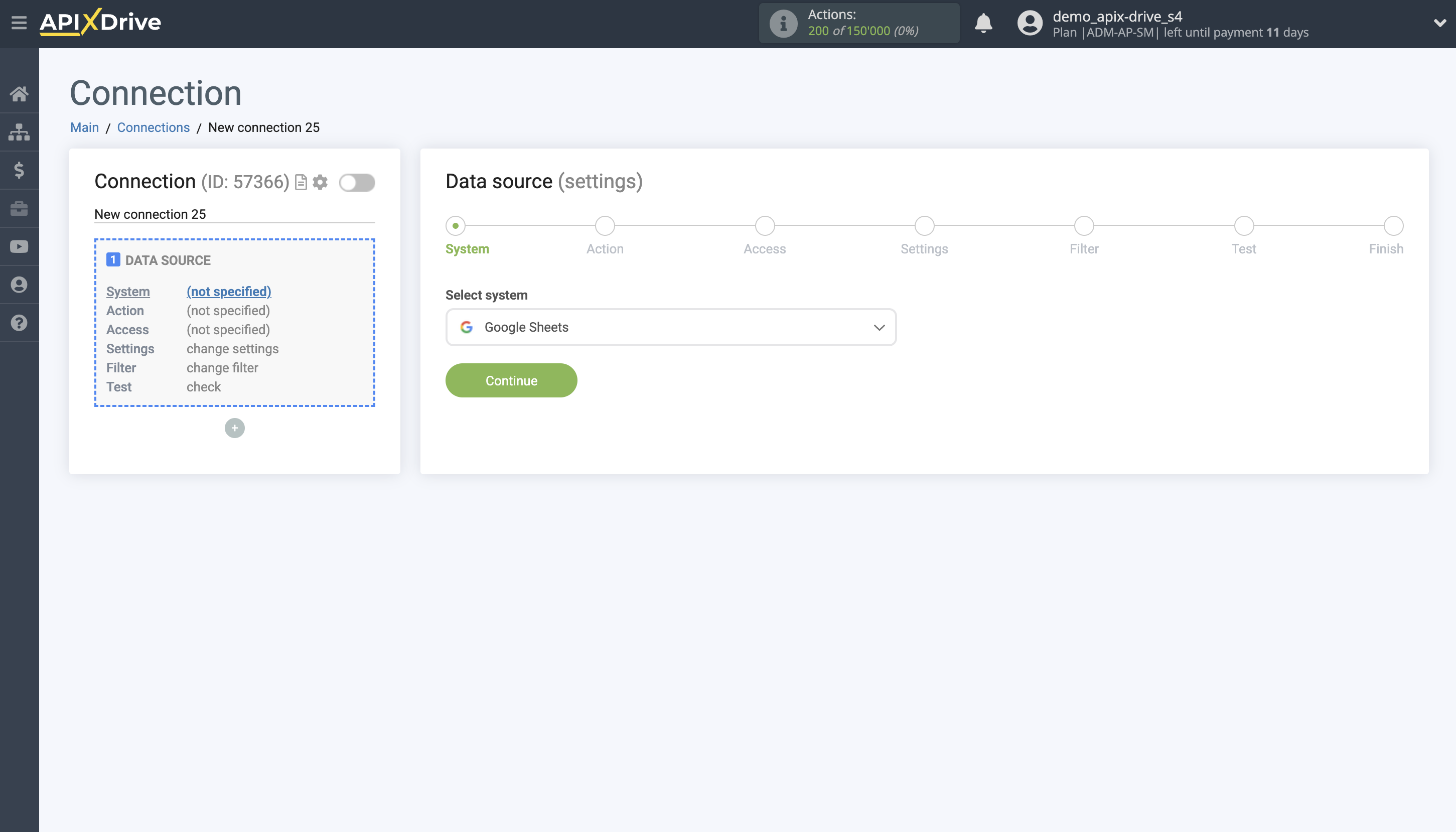
Select a system as the Data Source. In this case, you must specify Google Sheets.
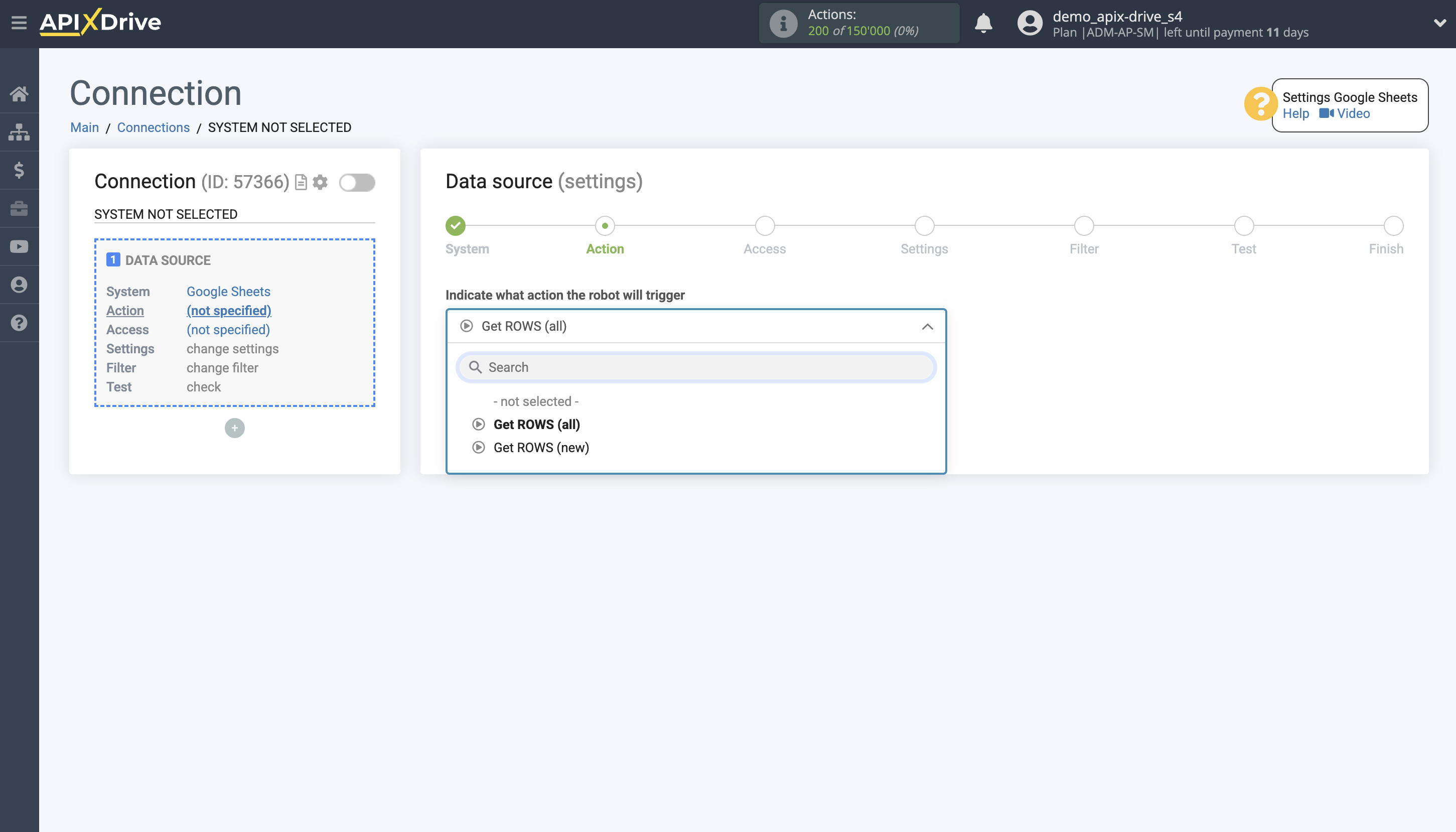
Next, you need to specify the action "Get ROWS (all)".
The next step is to select a Google Sheets account from which the data will be uploaded.
If there are no accounts connected to the system, click "Connect account".
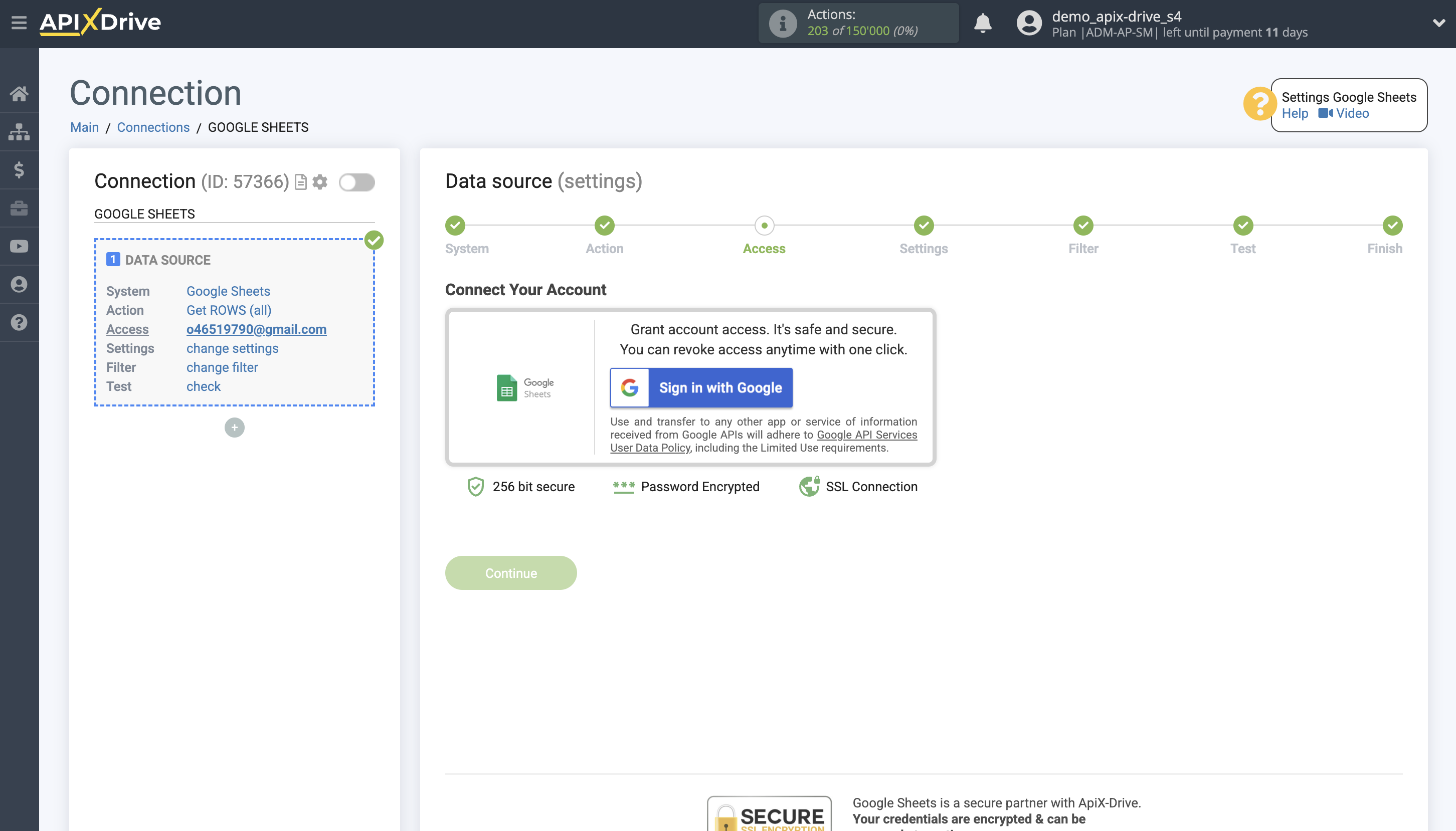
Select which account you want to connect to ApiX-Drive and provide all permissions to work with this account.
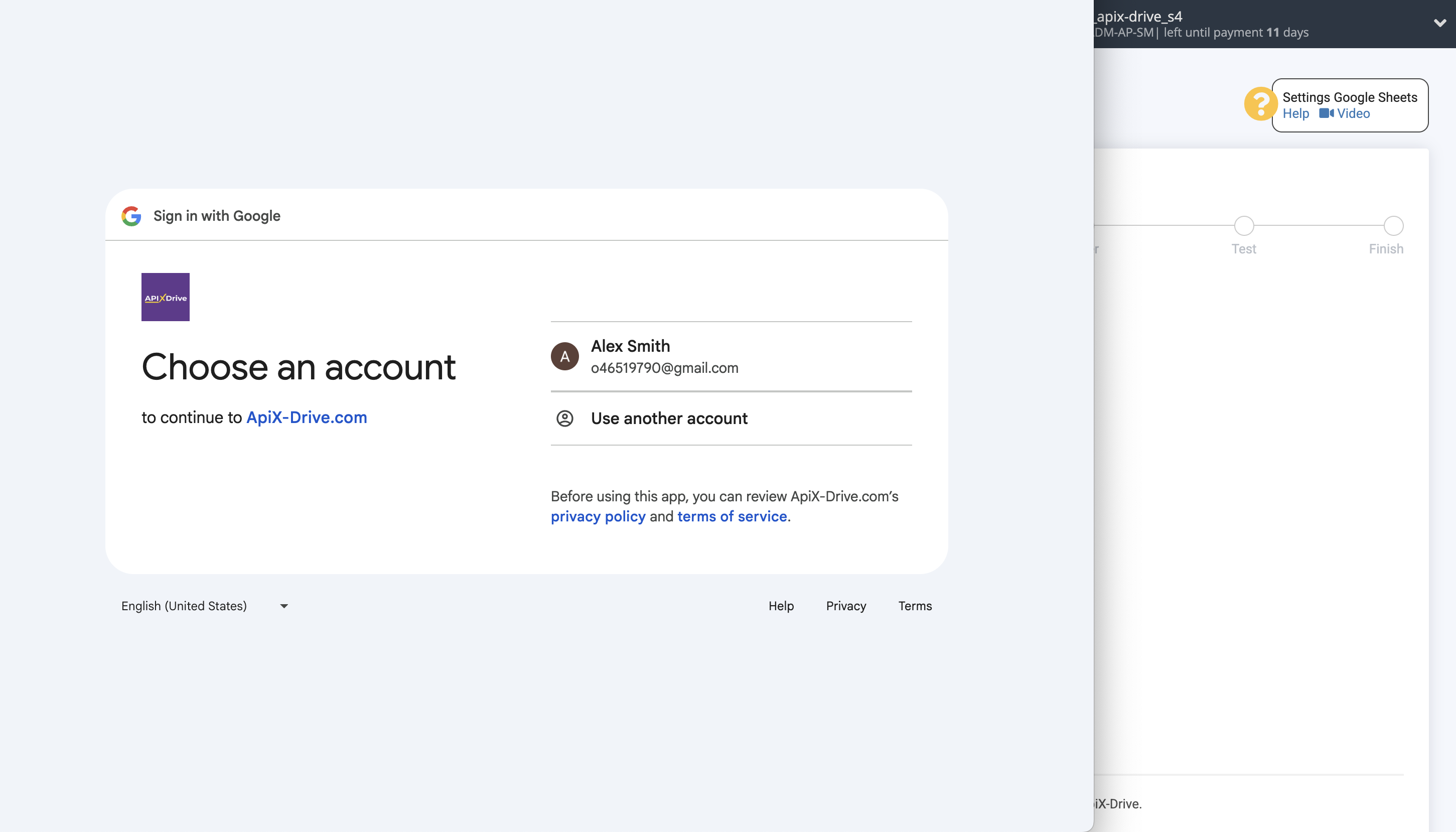
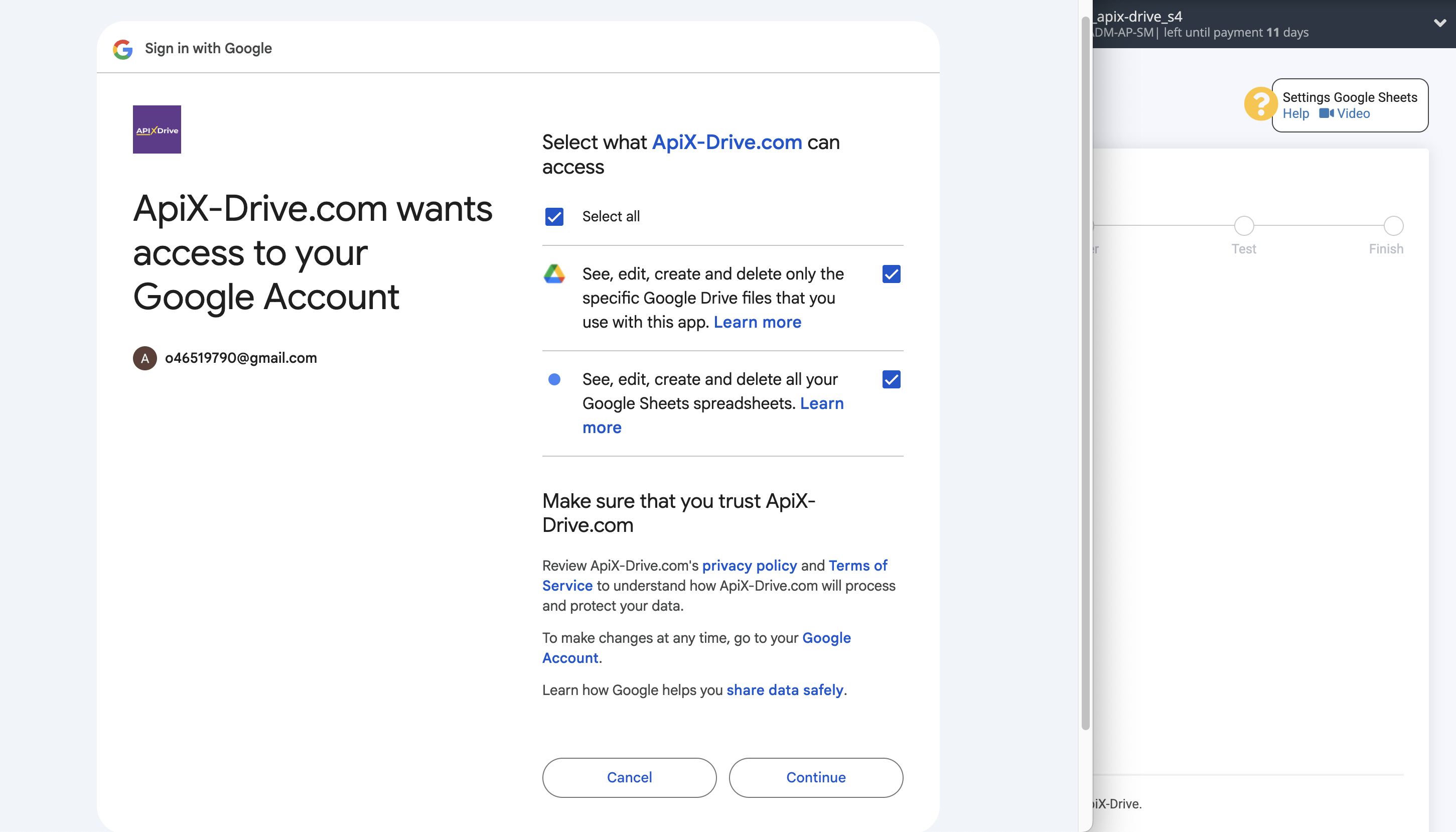
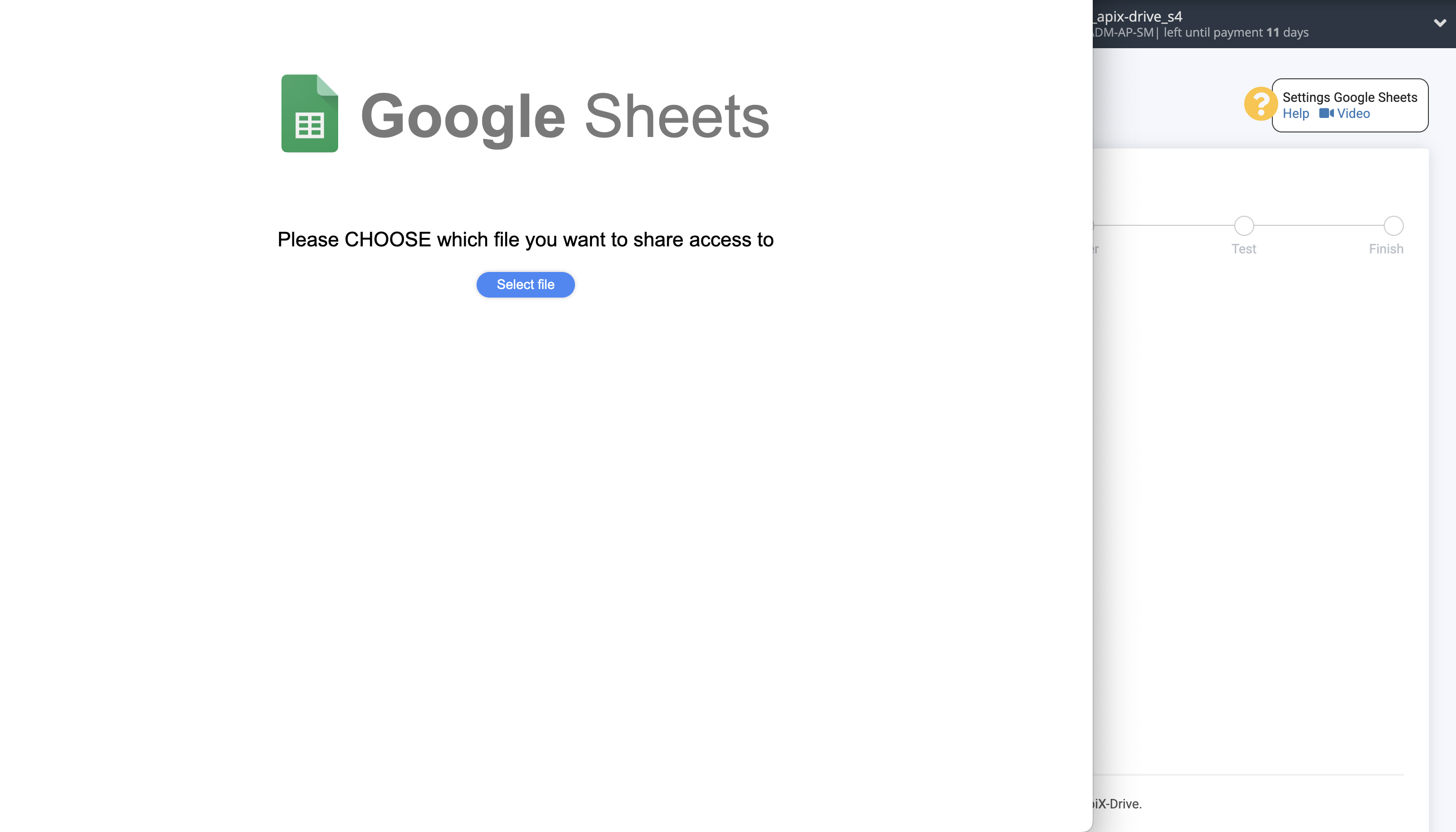
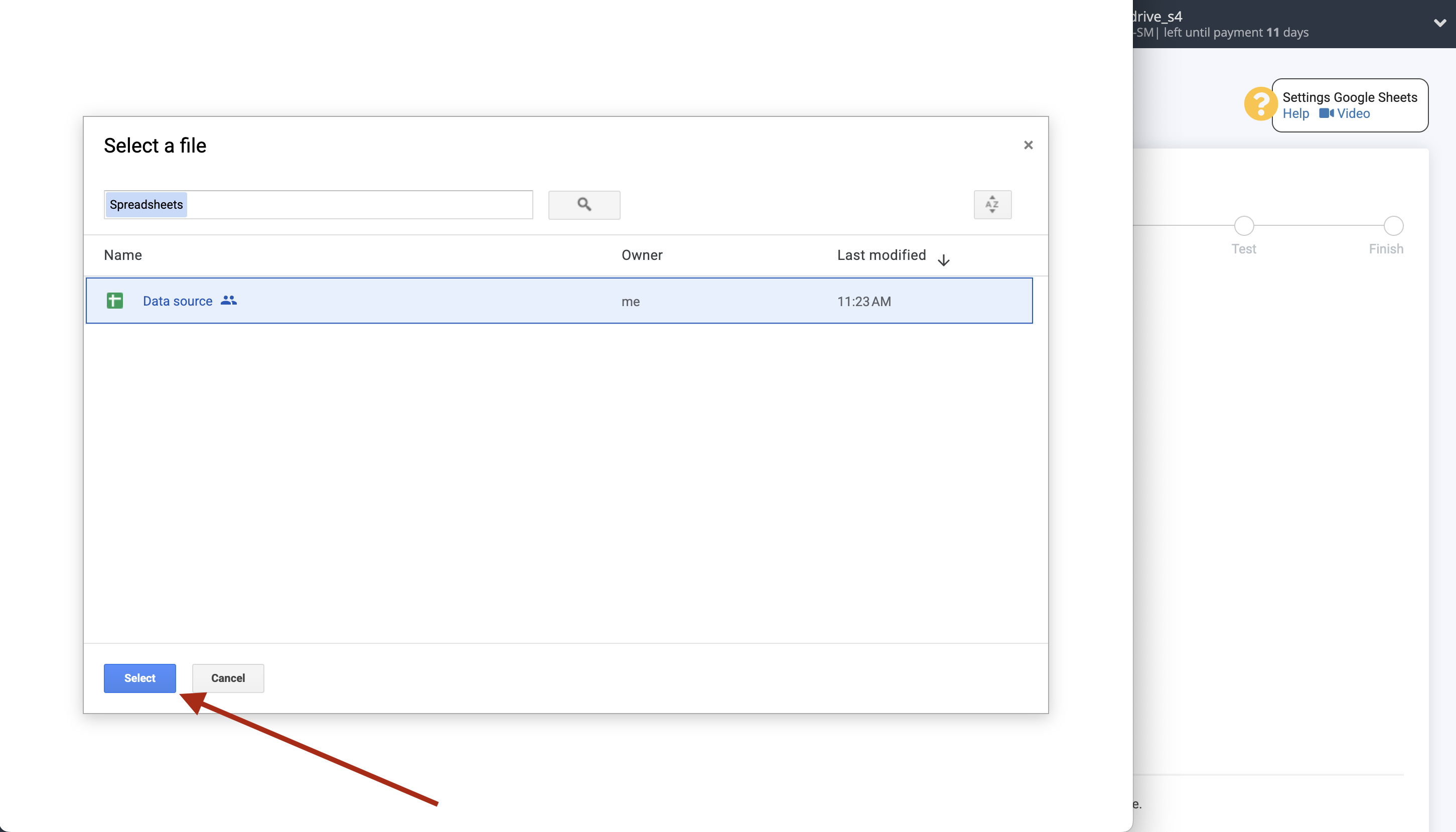
When the connected account is displayed in the "active accounts" list, select it.
Attention! If your account is in the "inactive accounts" list, check your access to this account!
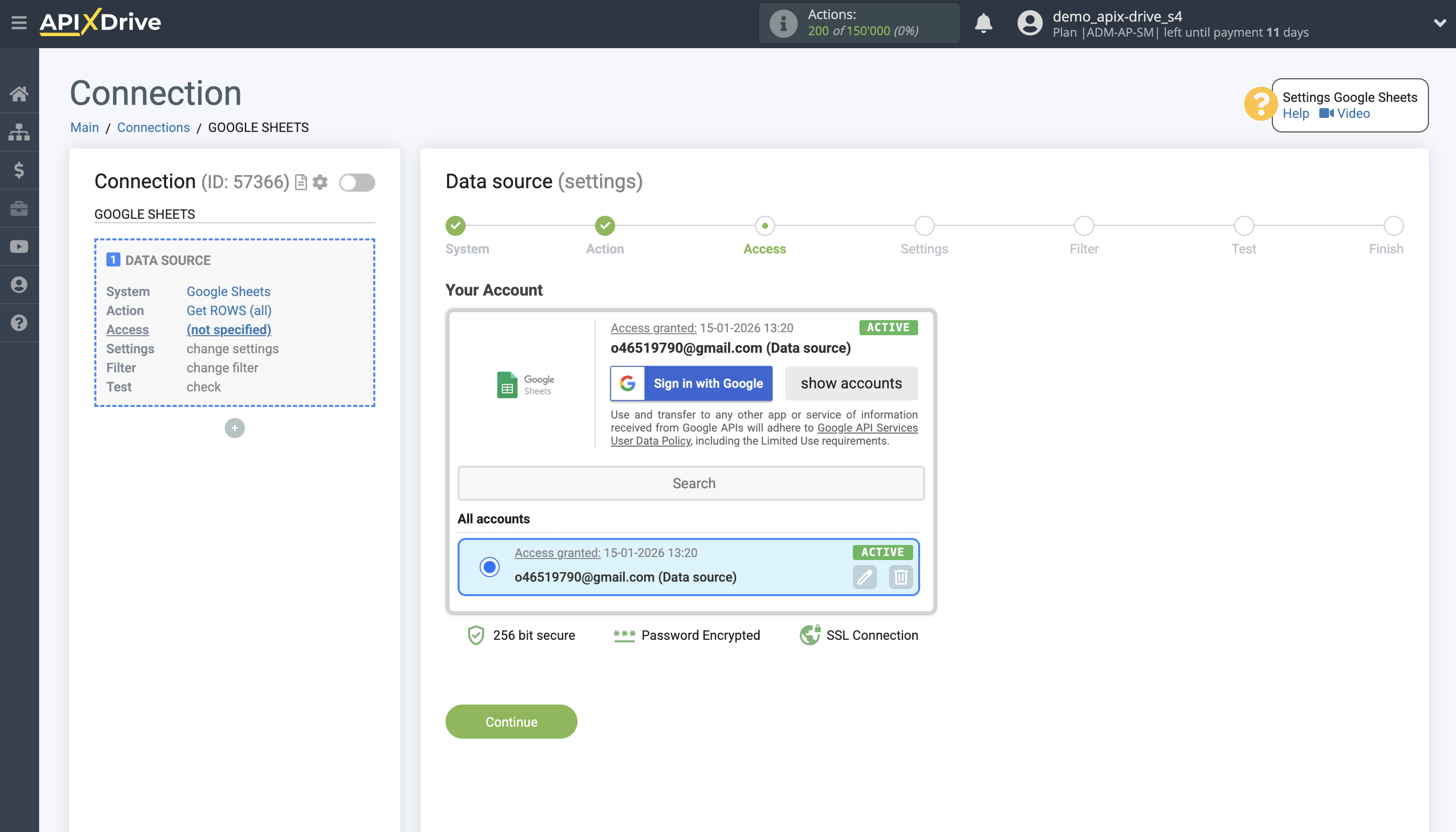
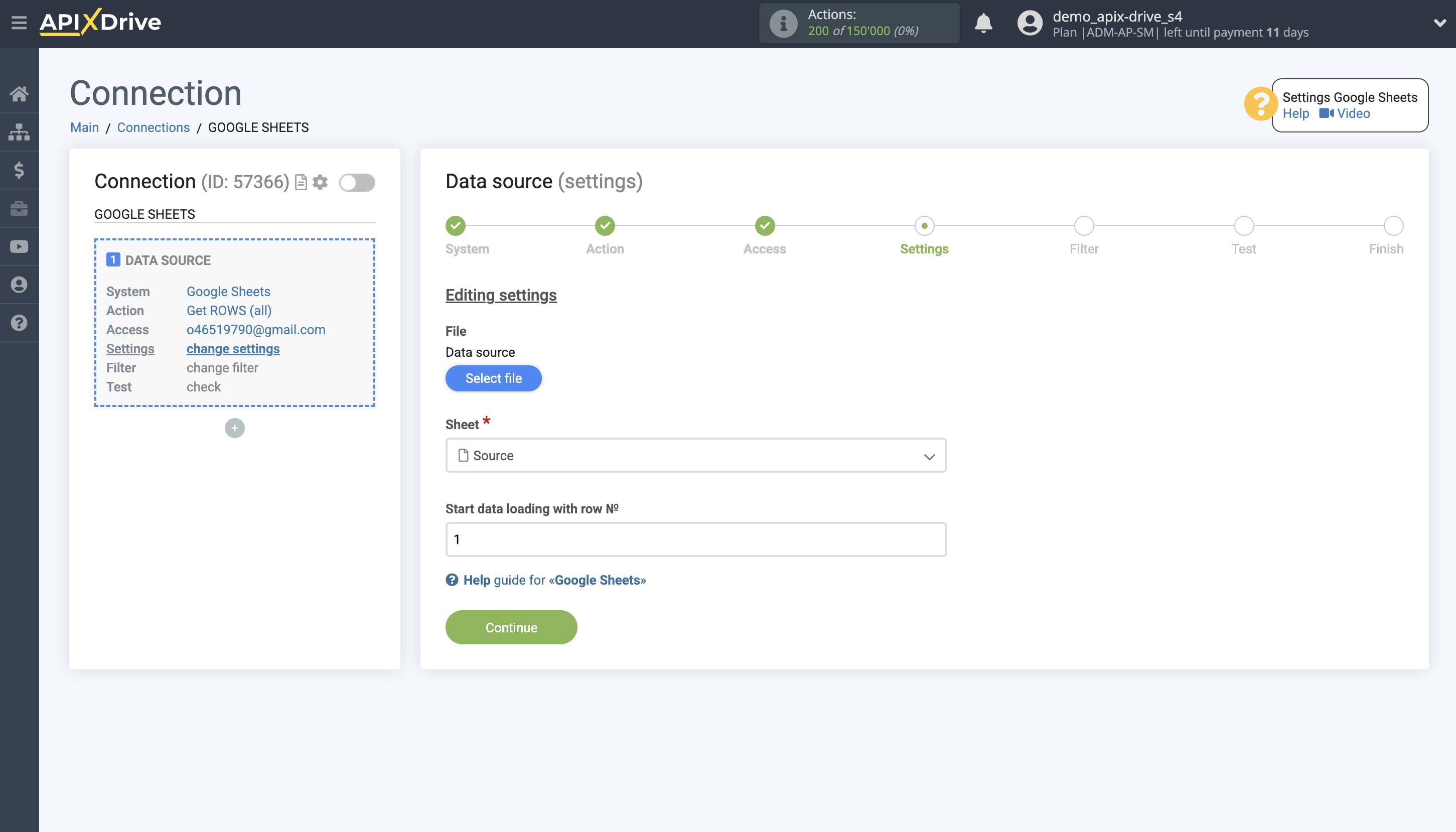
Select the Google Sheets table and sheet where the data you need is located.
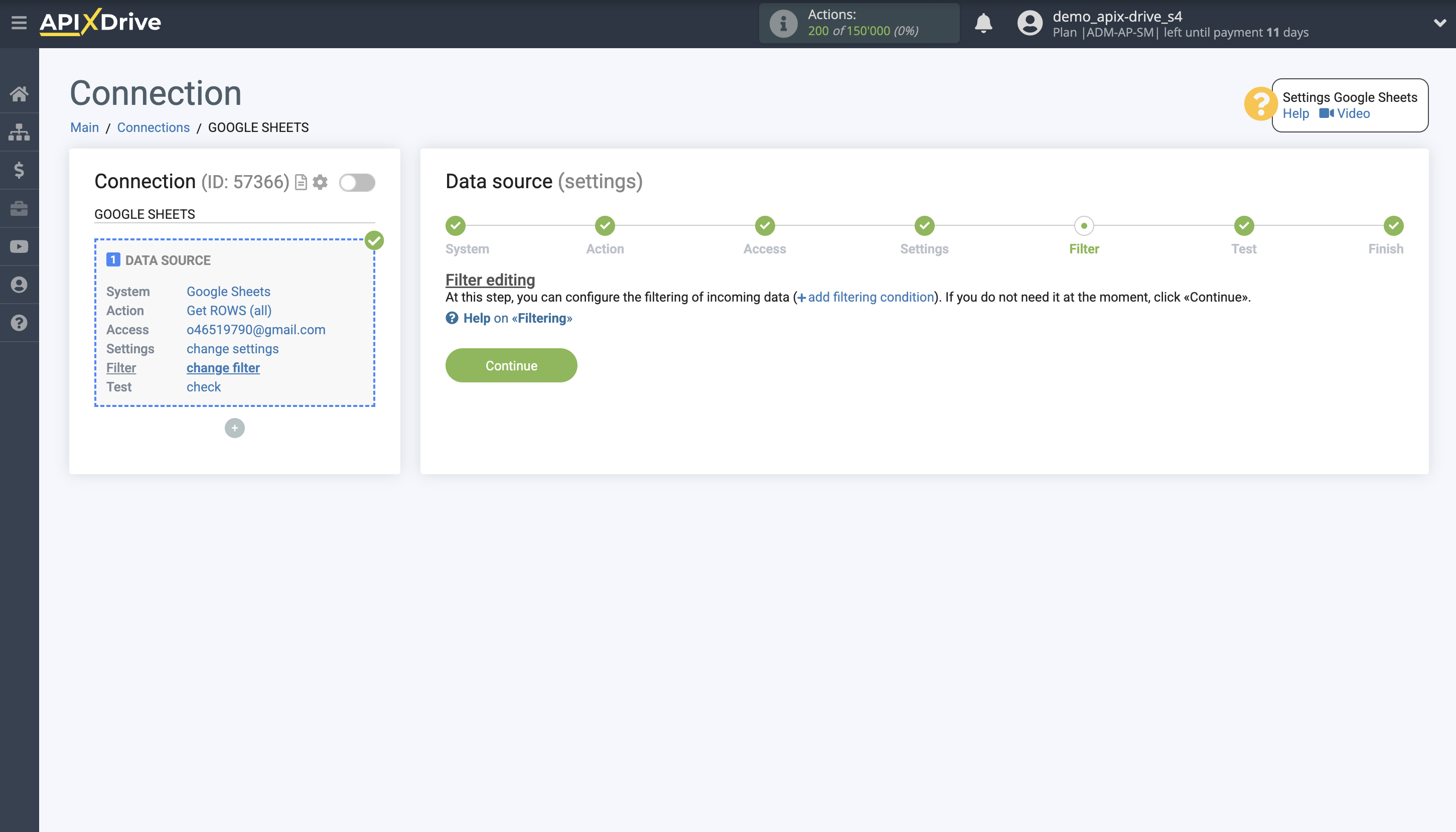
At this step, you can add a data filter to load not all rows, but only those for which you need to update the data, for example:
1. Select a column from the table in which you have the data you are looking for.
2. Select the "Does not contain" action.
3. Enter the value you want to filter by, for example, "jpeg."
With this filter, you won't be able to export rows containing images in this format. Why waste extra effort overwriting a file in this format if it already exists in your system?
You can now see test data for one of the rows in your Google Sheets table.
If you want to update your test data, click "Load test data from Google Sheets."
If you want to change the settings, click "Edit" and you will go back a step.
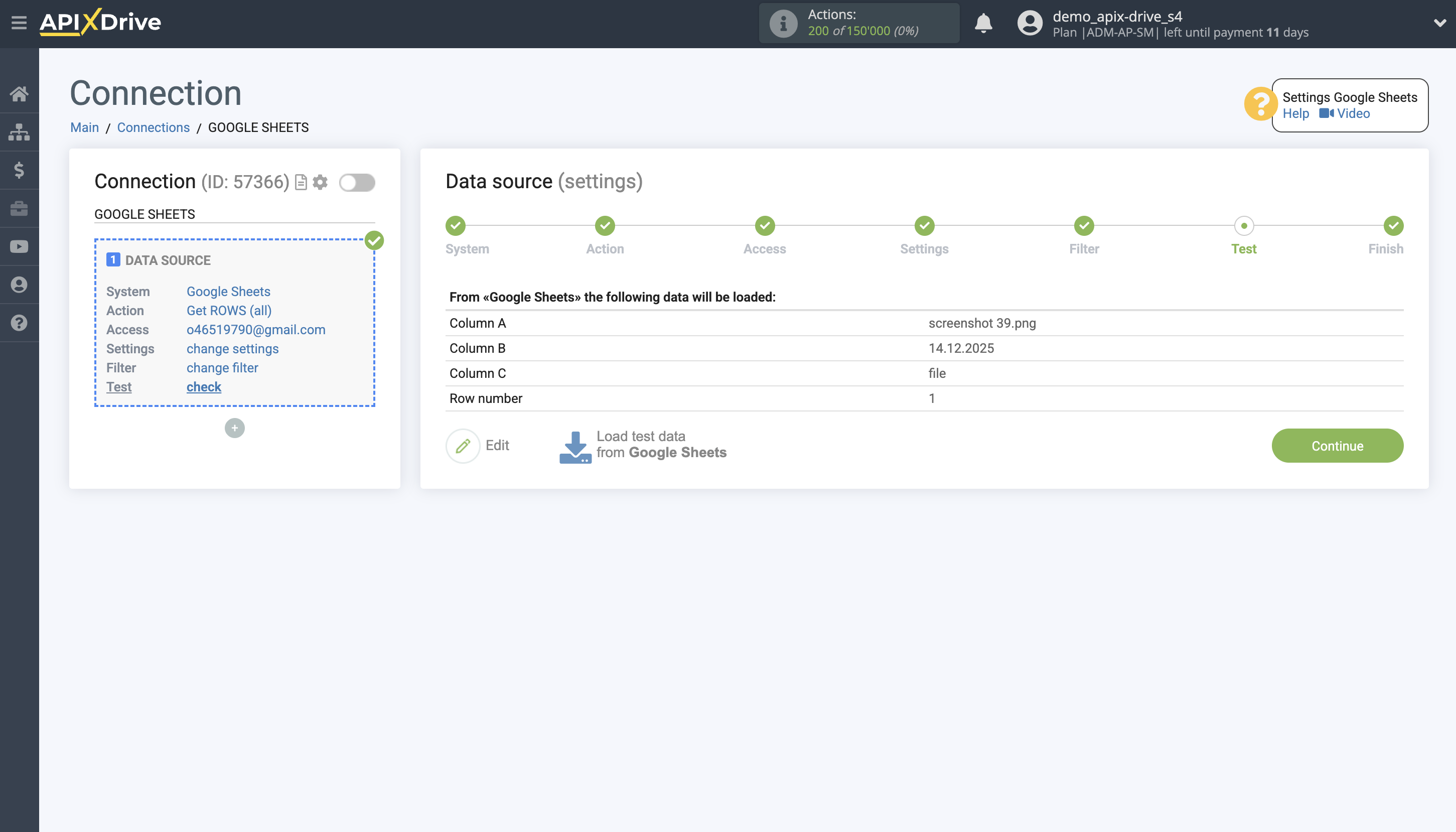
Now we connect an additional Data Search block. To do this, click on the "+" and select "Add data SEARCH" from the list.
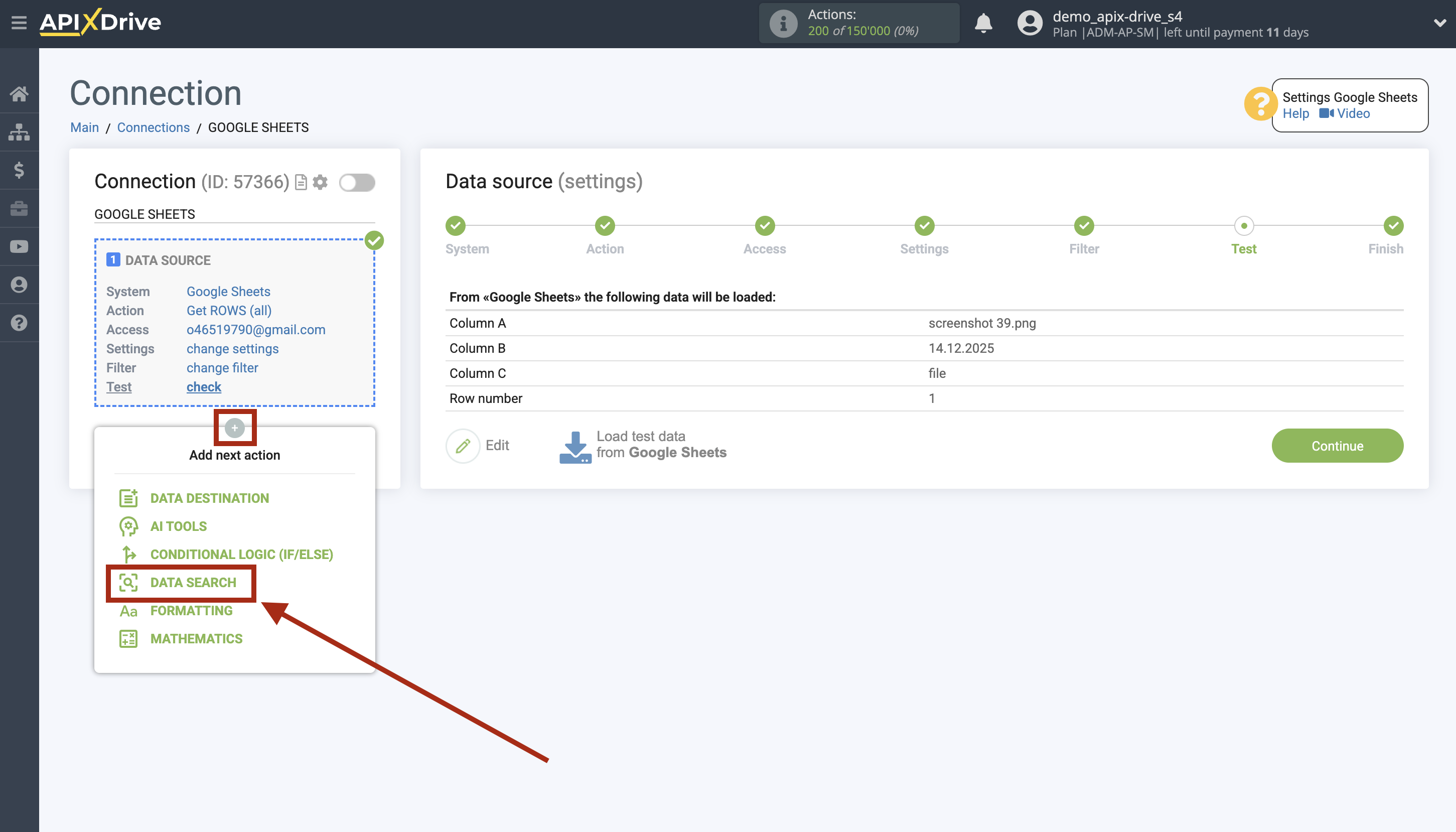
As the system in which the search will be performed, select "Dropbox".
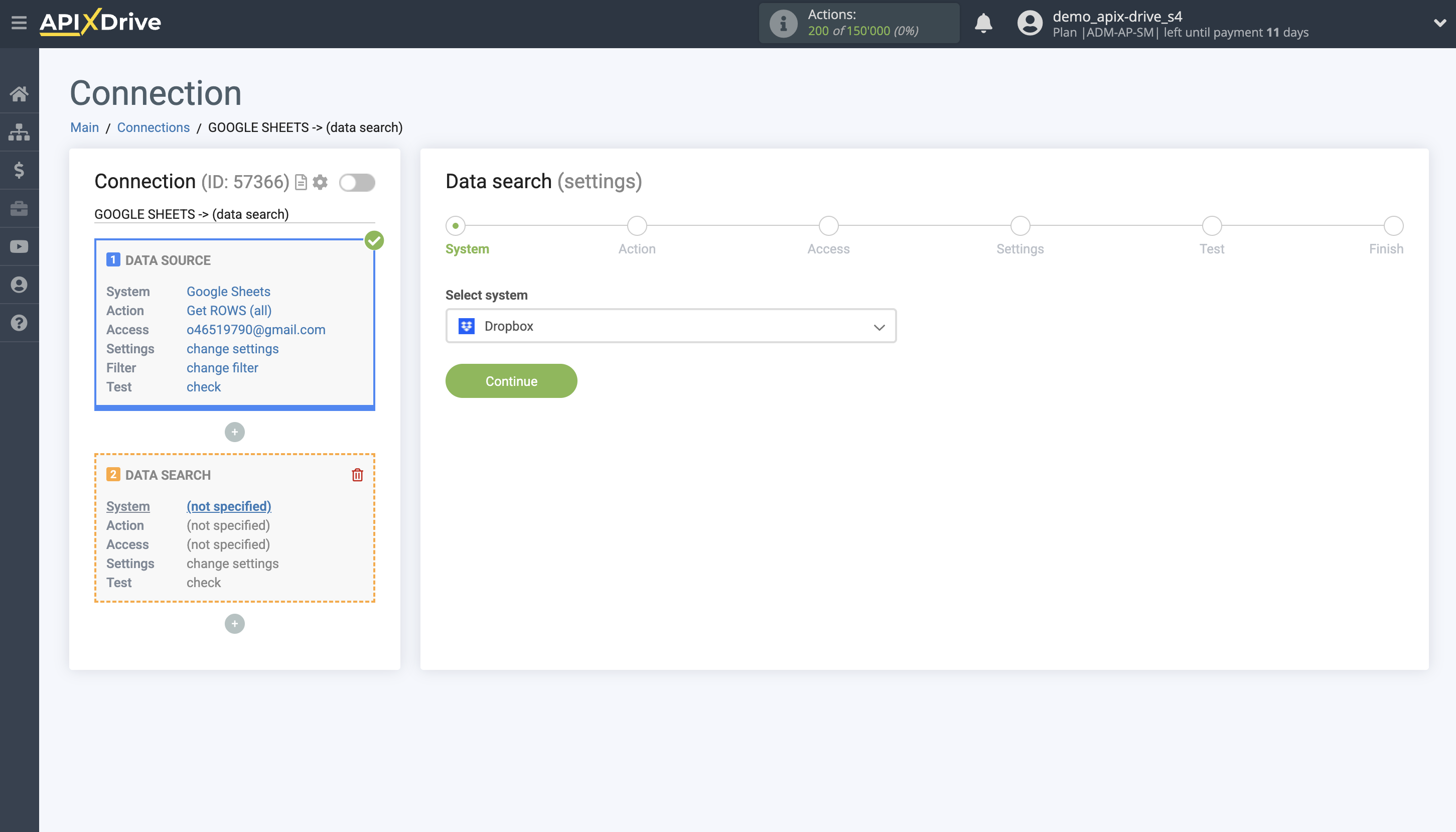
Next, select the action “Search for FILE”.
The next step is choosing a Dropbox account.
If there are no accounts connected to the ApiX-Drive system, click “Connect account”.
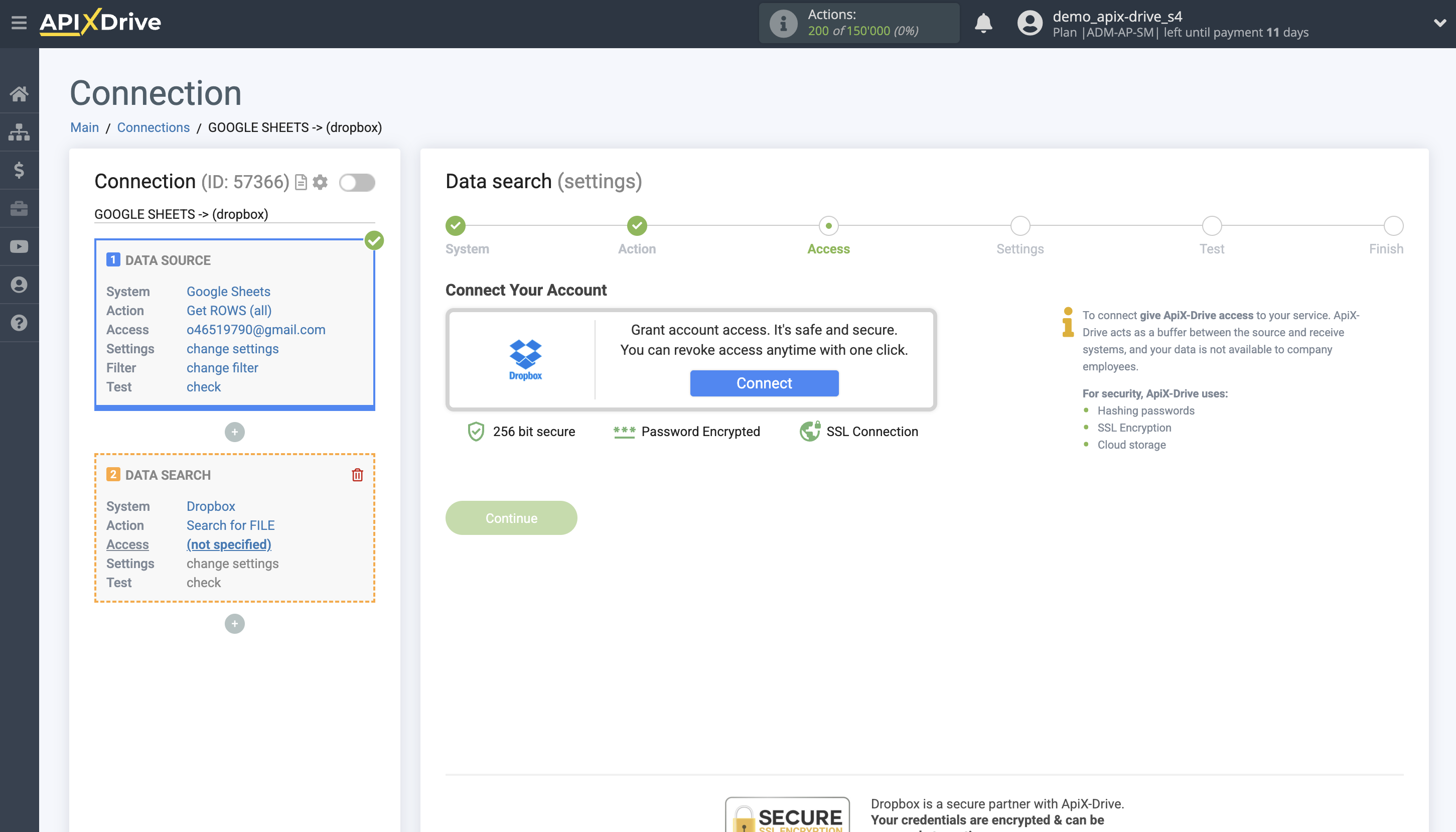
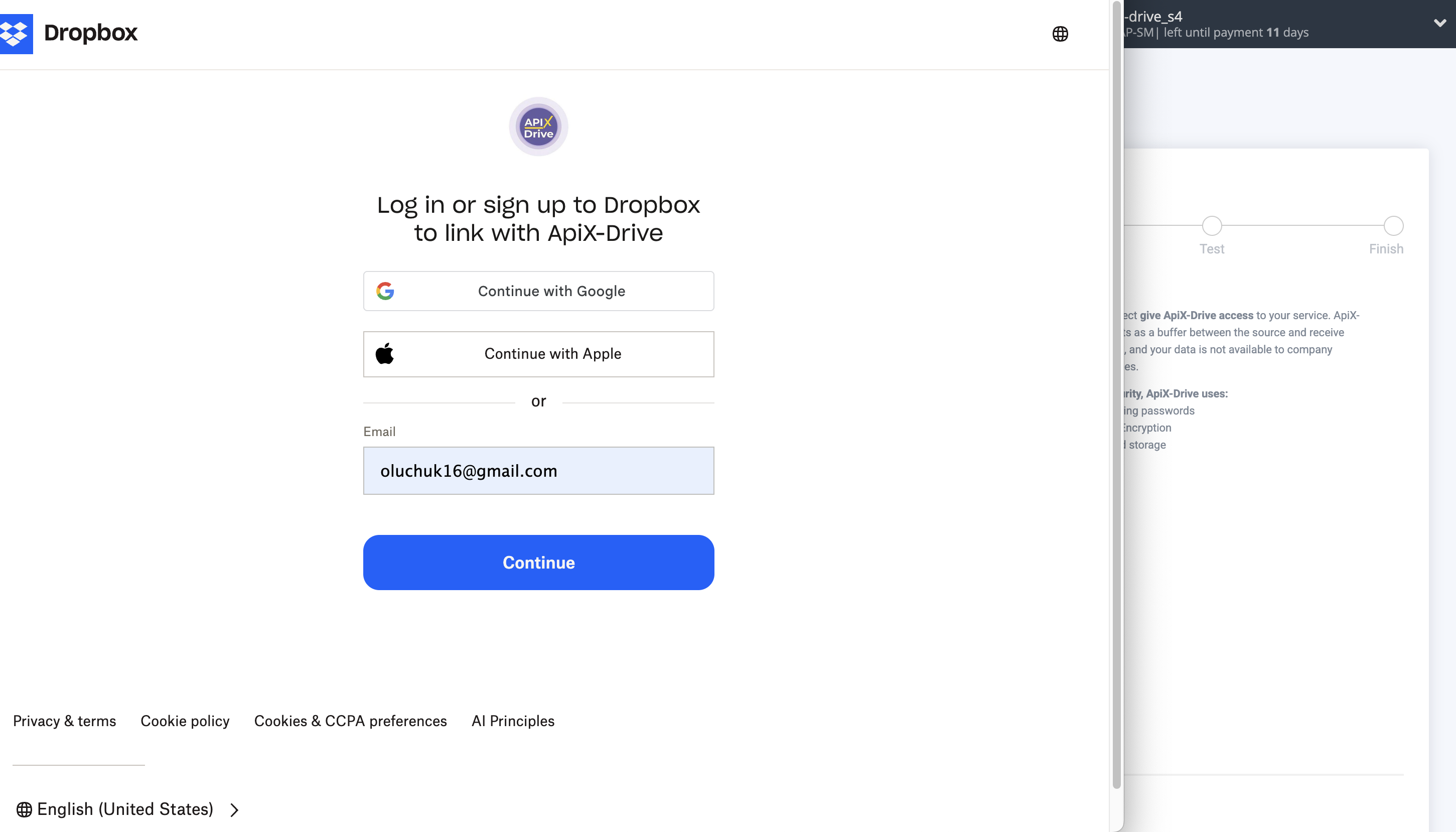
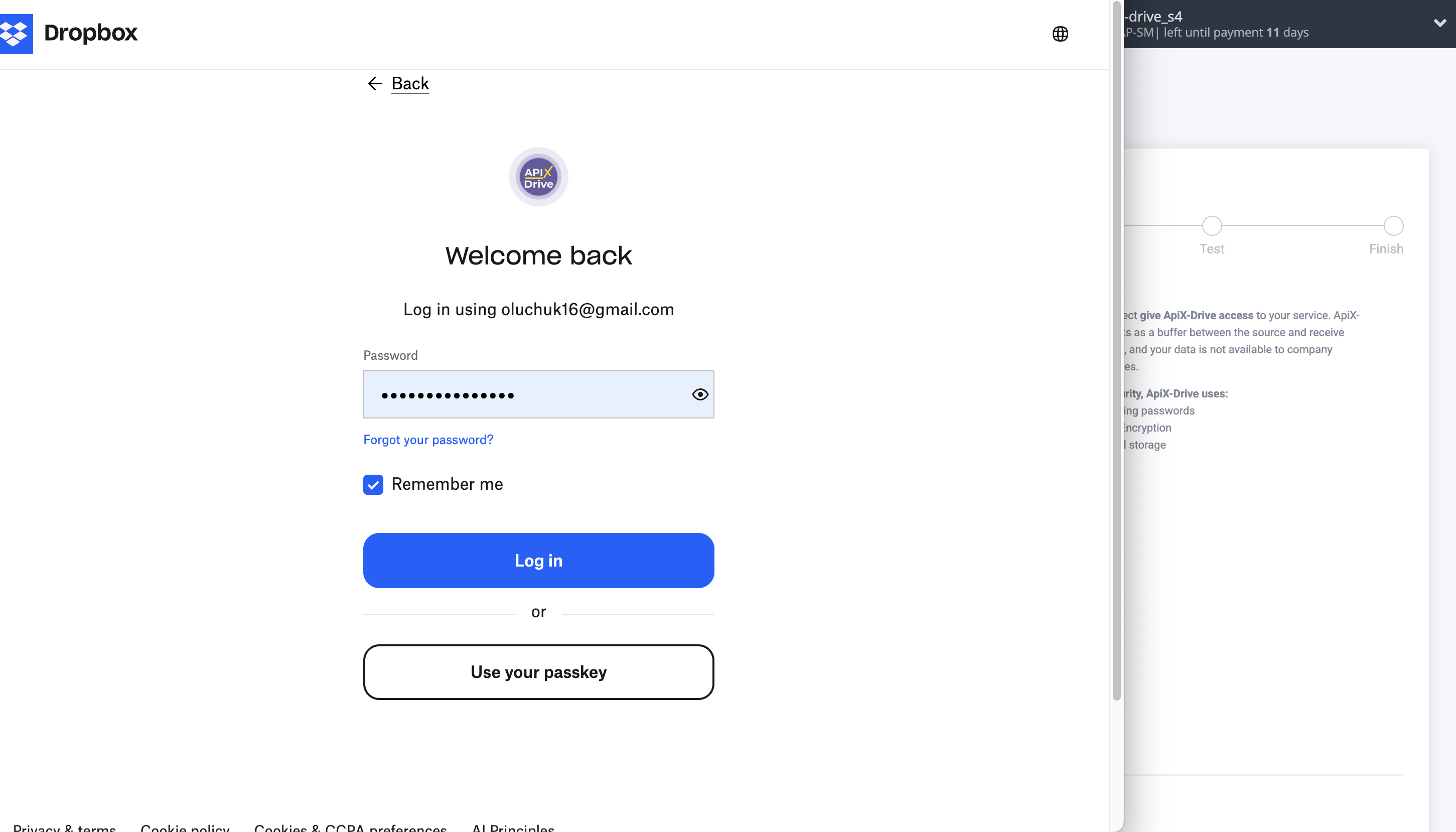
Enter authorization information into your Dropbox personal account and click Log in to connect.
When the connected account appears in the "active accounts" list, select it.
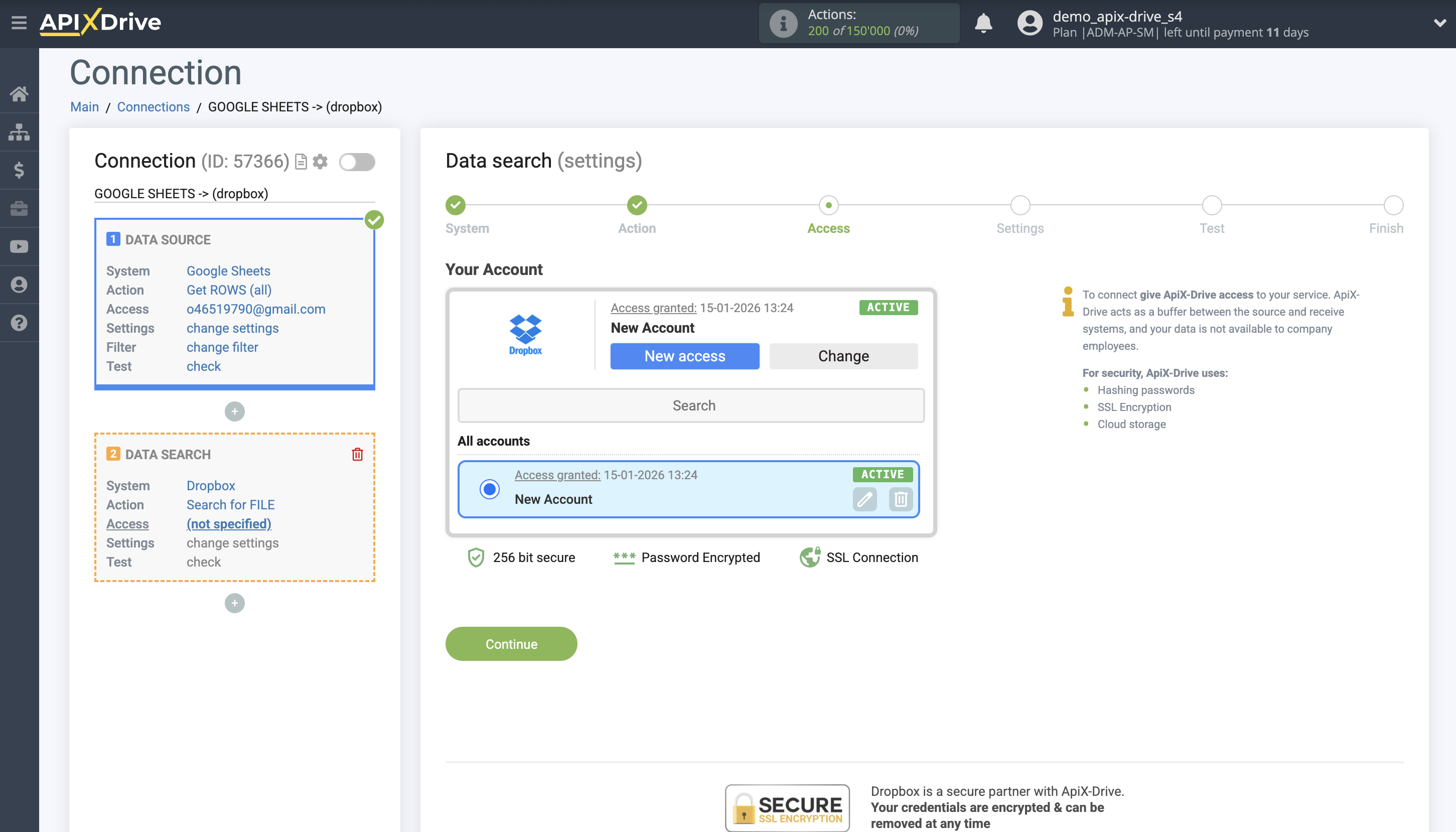
Select the account in which the f will be searched.
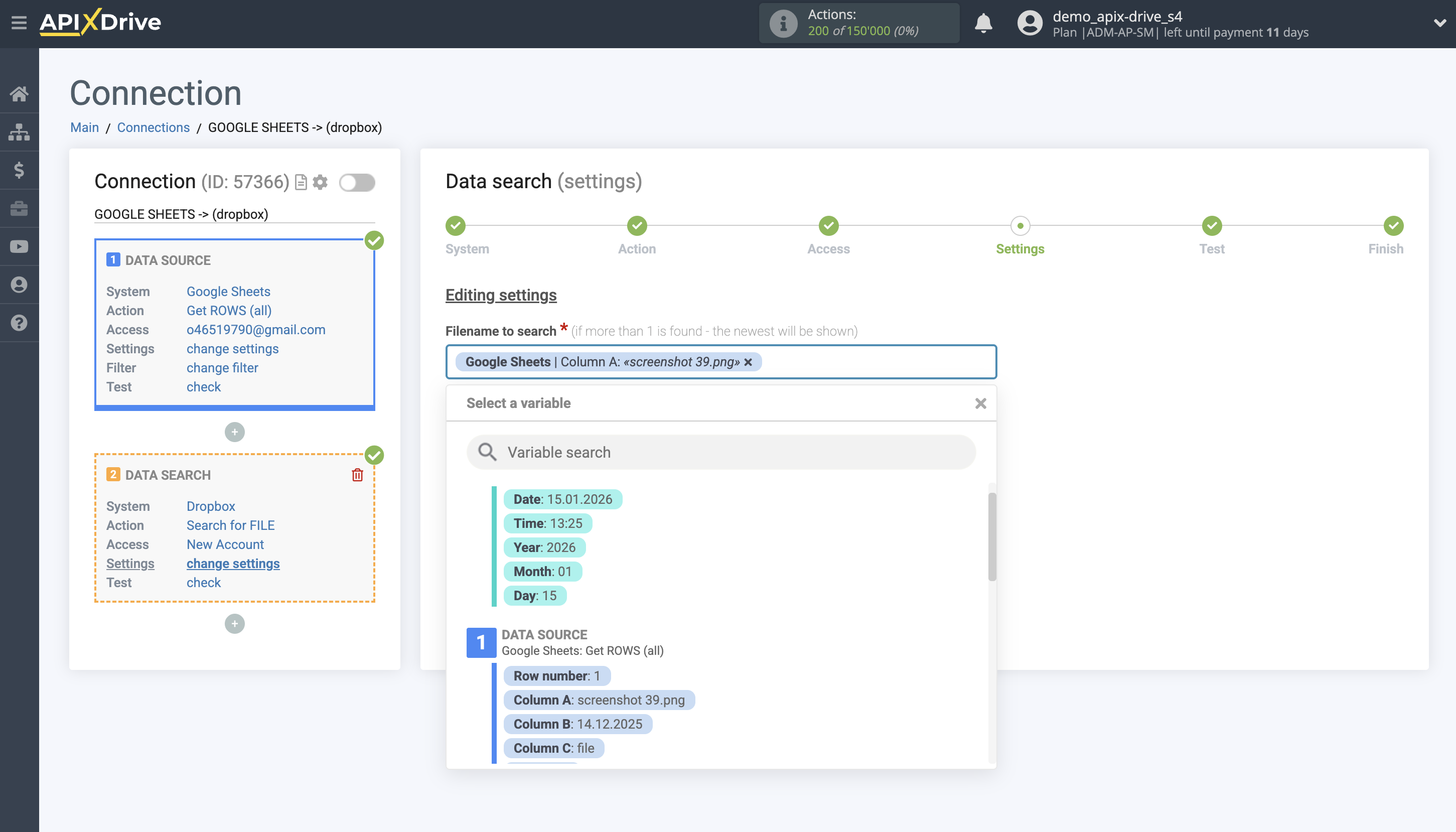
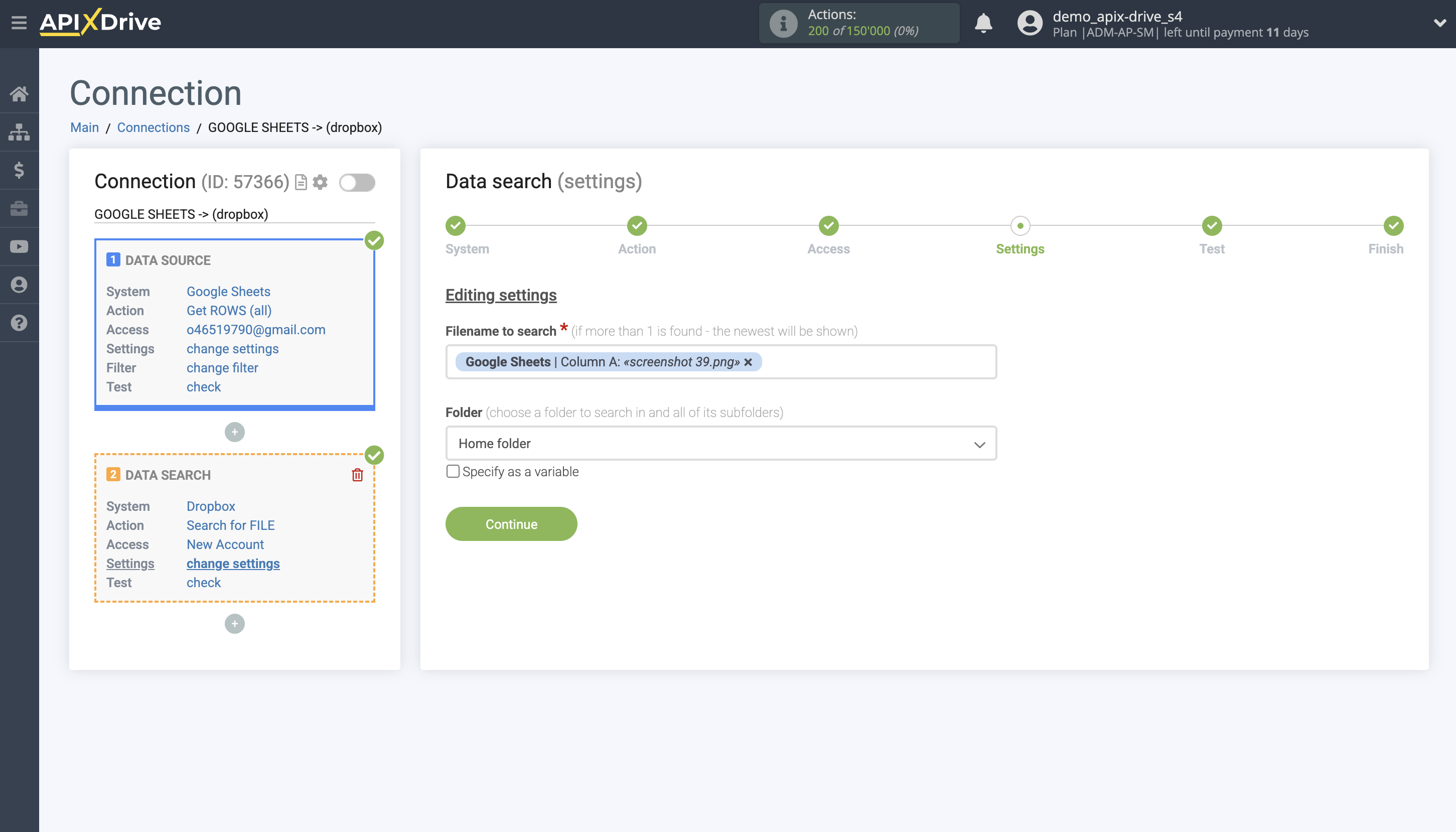
Next, specify the file name from the Source block and the folder in Dropbox to search for data.
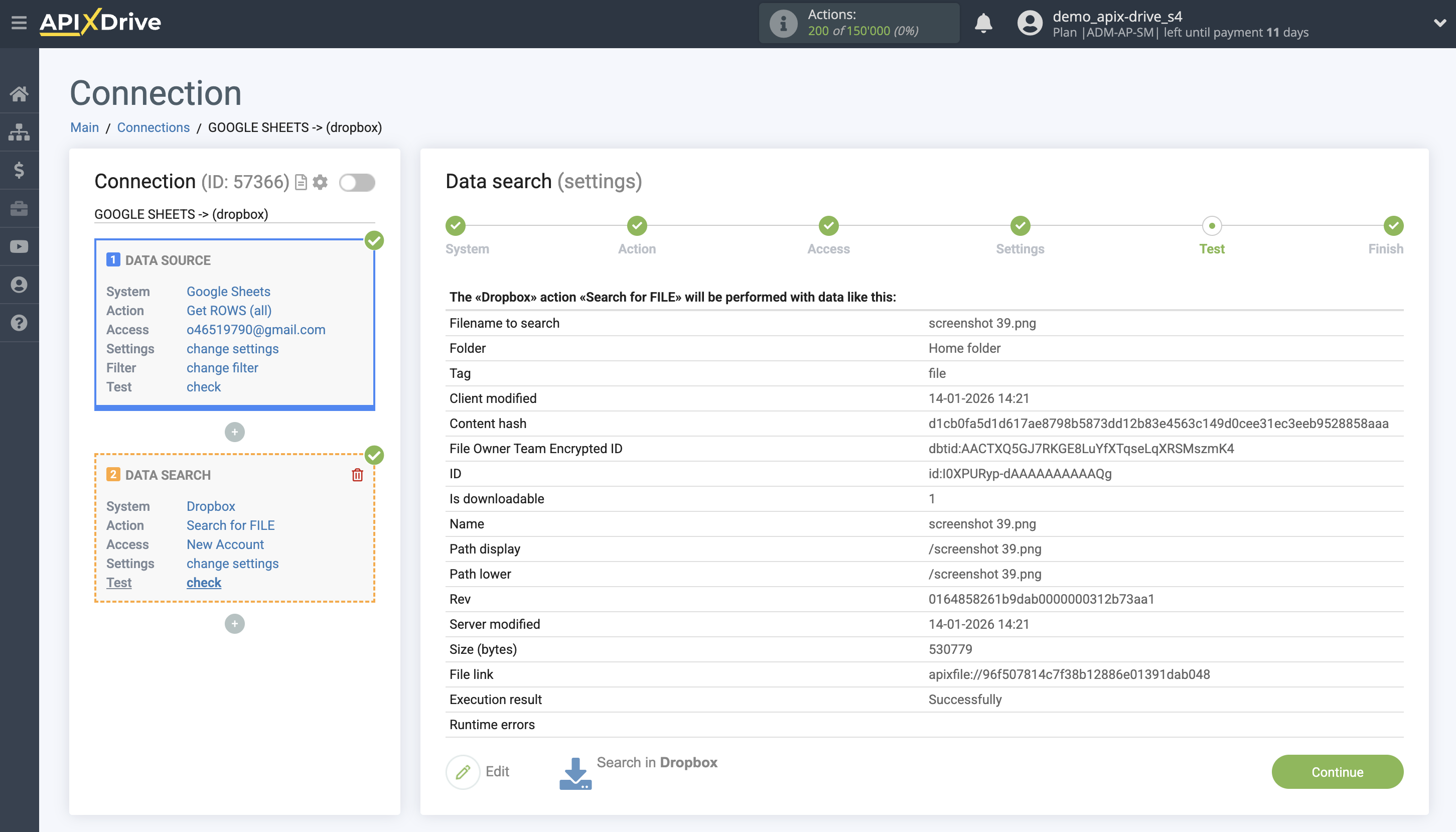
Now you see test data from the result of one of the contacts. You can pass this data to your reception table.
If test data does not appear automatically, click “Search in Dropbox.”
If you are not satisfied with something, click “Edit”, go back a step and change the search field settings.
This completes the Data Search setup!
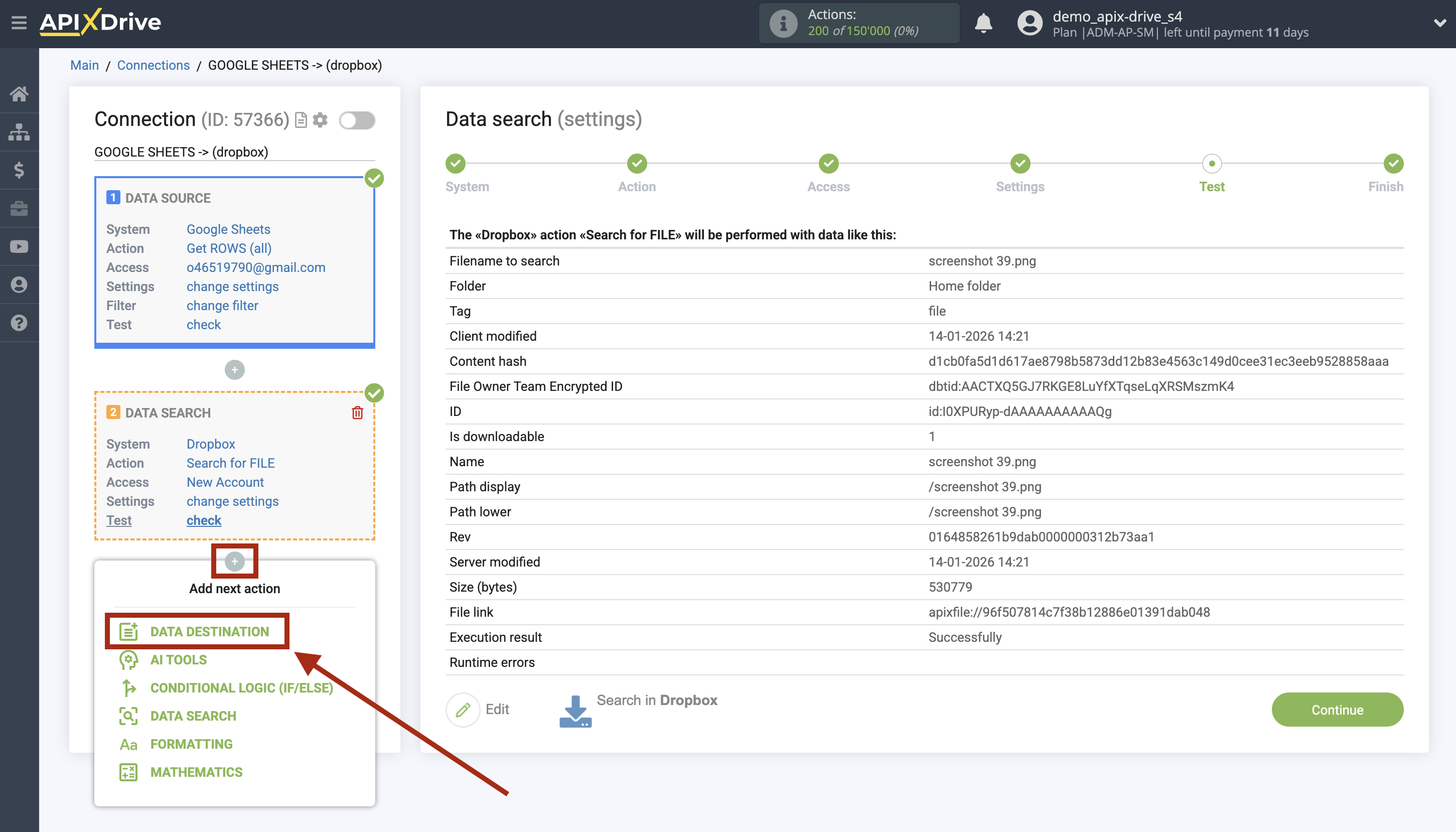
Now we can start setting up Google Sheets as a Data Reception system.
To do this, click "Add Data DESTINATION".
Setup Data Destination system: Google Sheets
Select the system as Data Destination. In this case, you must specify Google Sheets.
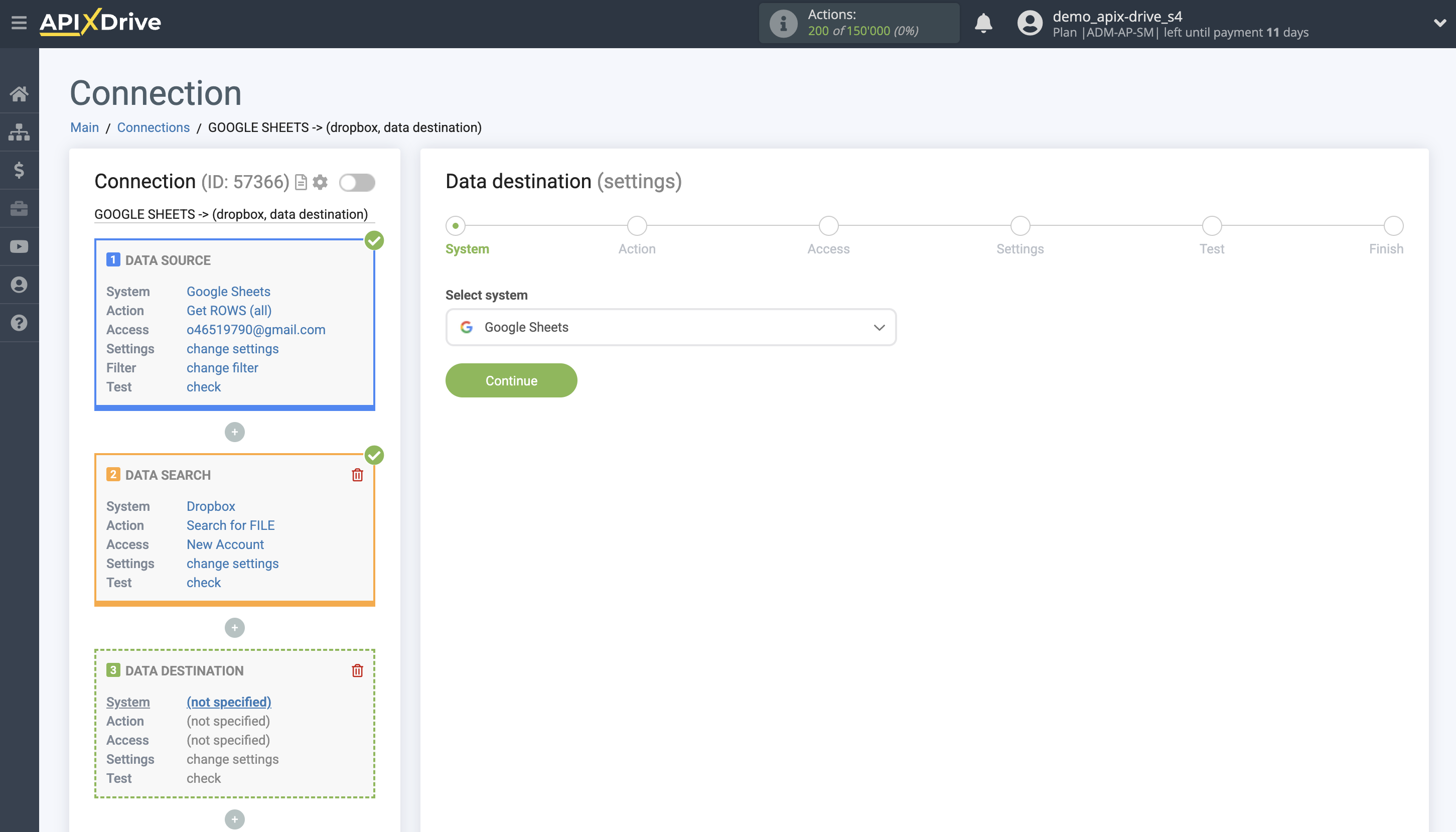
Next, you need to specify the action "Update ROW".
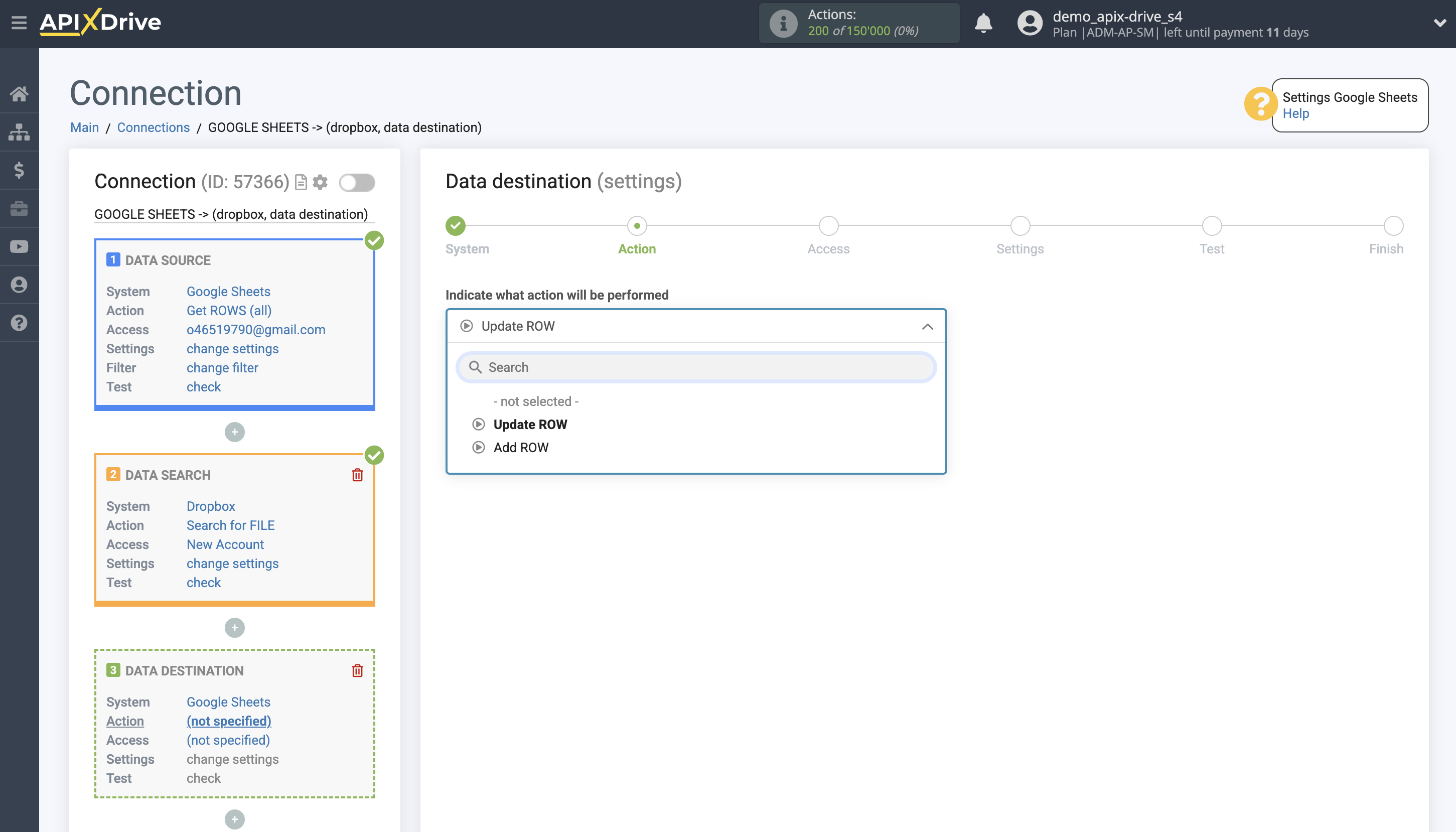
The next step is to select the Google Sheets account into which the Dropbox status will be transferred. If this is the same account, then we select it.
If you need to connect another login to the system, click “Connect account” and repeat the same steps described when connecting Google Sheets as a Data Source.
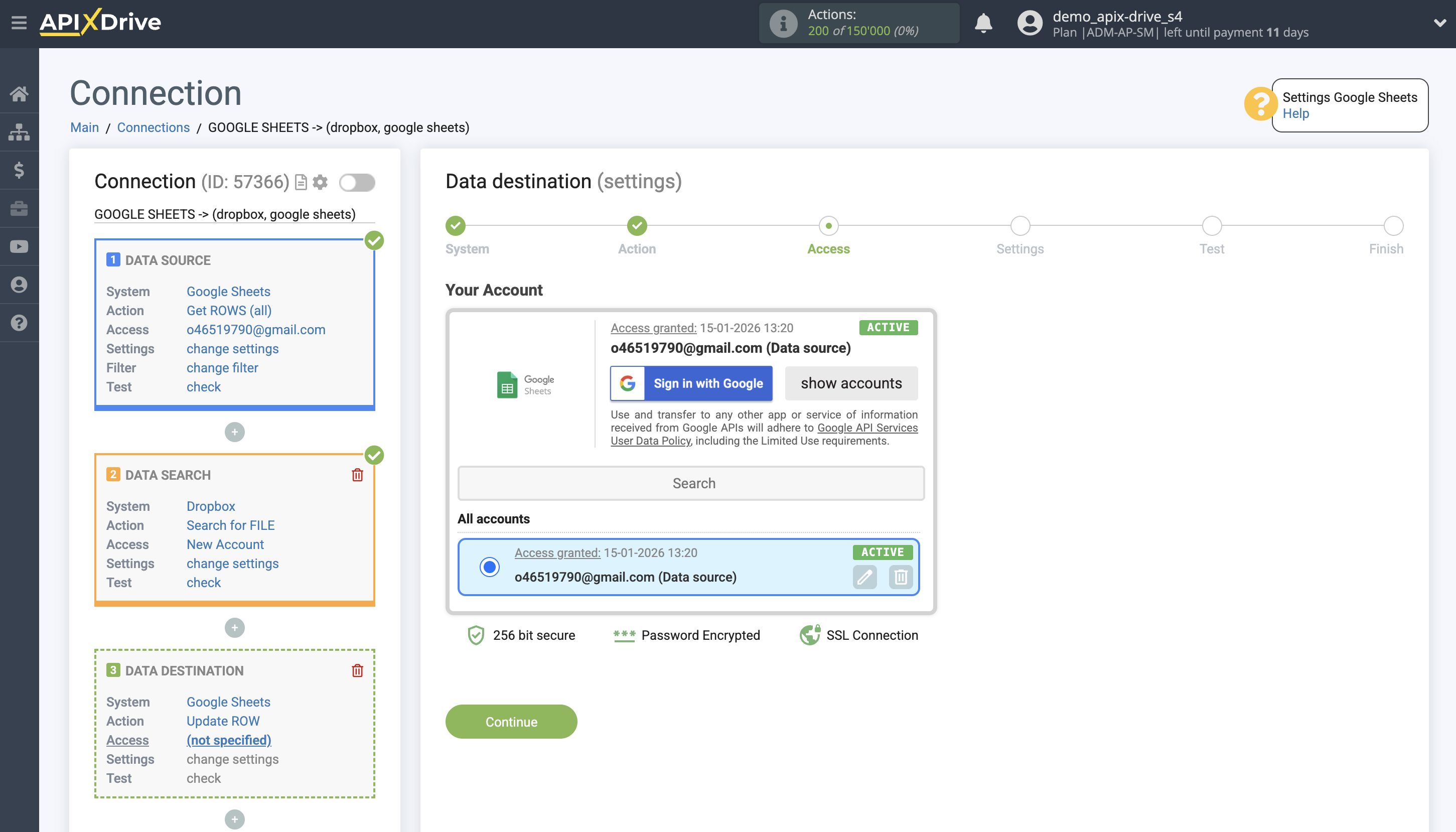
Now you need to select the File (Table) and Sheet in which the Dropbox file data will be updated.
In the "Search Column" field, select the column by which the data will be searched. This means where to look for data in the table.
Next, in the "Search What" field, you need to select a variable from the drop-down list or enter the data manually. This specifies the value by which the system will search for data to update the desired row. In our case, we'll select column "A," which contains the file name. The system will update the data in the desired row only if the name matches.
You also need to specify the Search Type in case multiple rows with the same name are found:
"First Found Row" - the search and update will occur in the first row found that meets the search criteria.
"Last Found Row" - the search and update will occur in the last row found that meets the search criteria.
"All Found Rows" - data will be searched and updated across all found rows that meet the search criteria.
Also specify the Overwrite Data parameter:
- Overwrite Old Data - the new data will be written over the old data.
- Append to Old Data - the new data from the Data Source will be appended to the old data.
Now you need to assign the file reference variable, which we'll get from the Data Search block, to the empty column. In the future, data will be updated in this column based on the references.
After setting up, click "Continue."
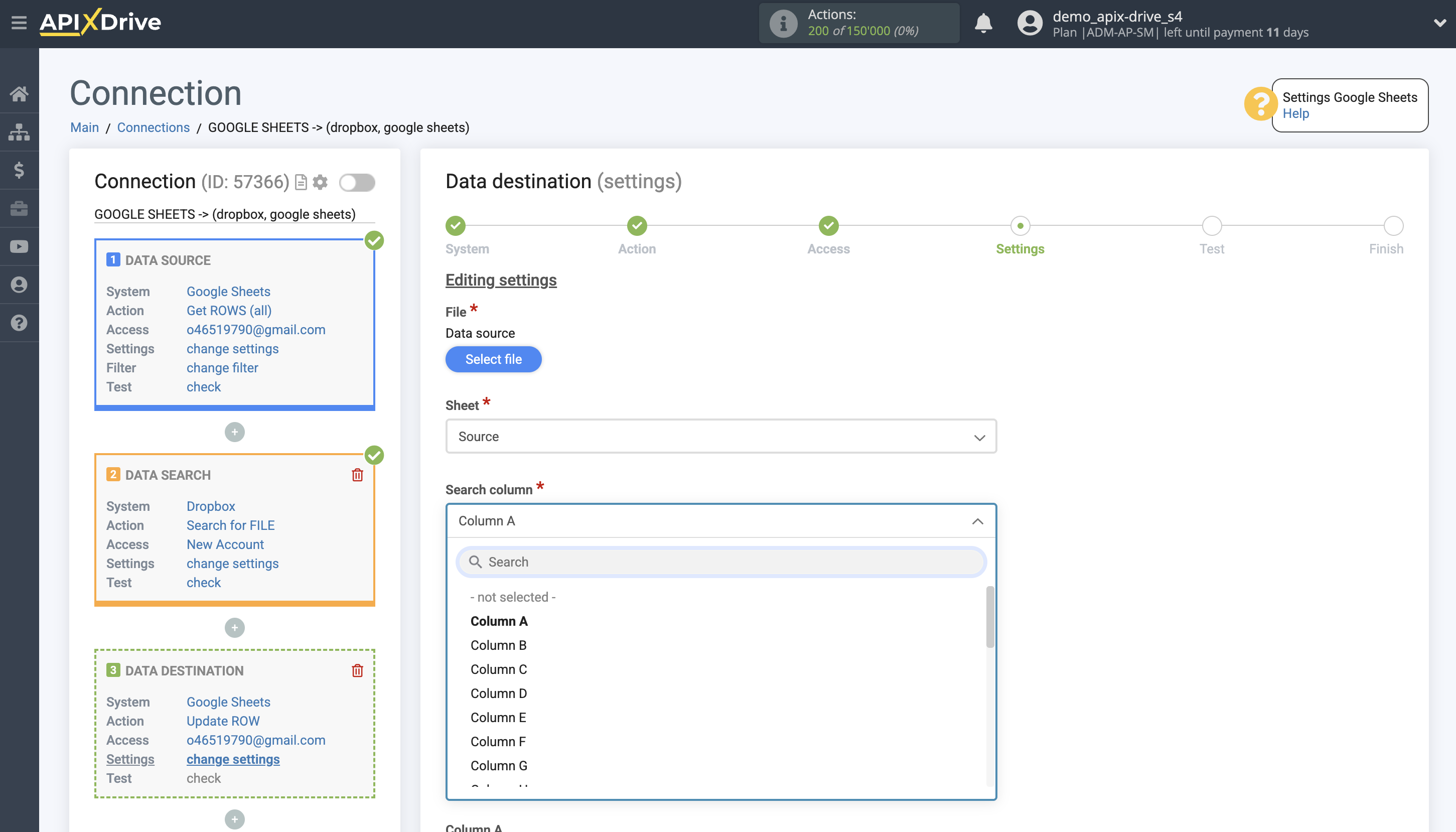
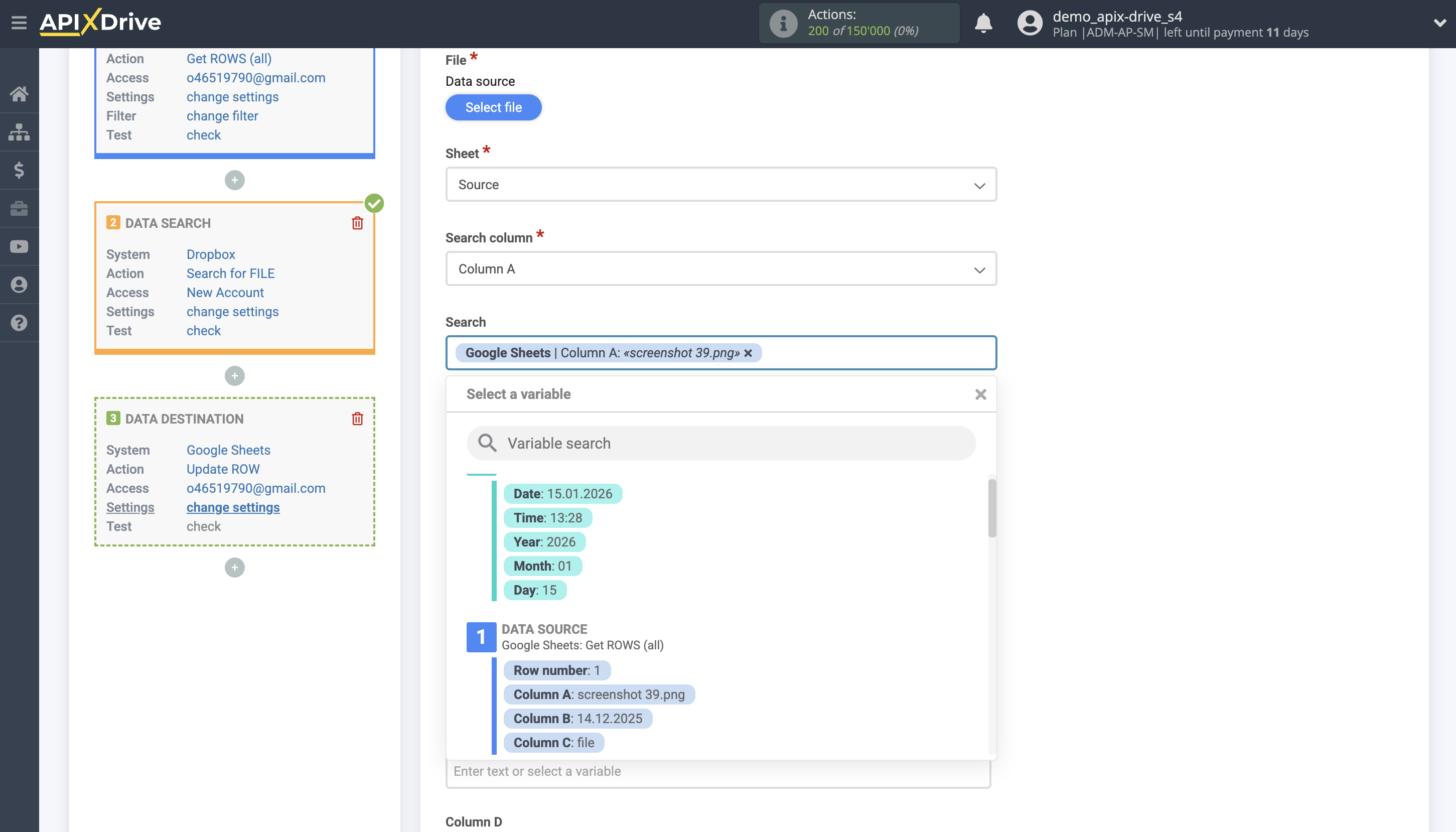
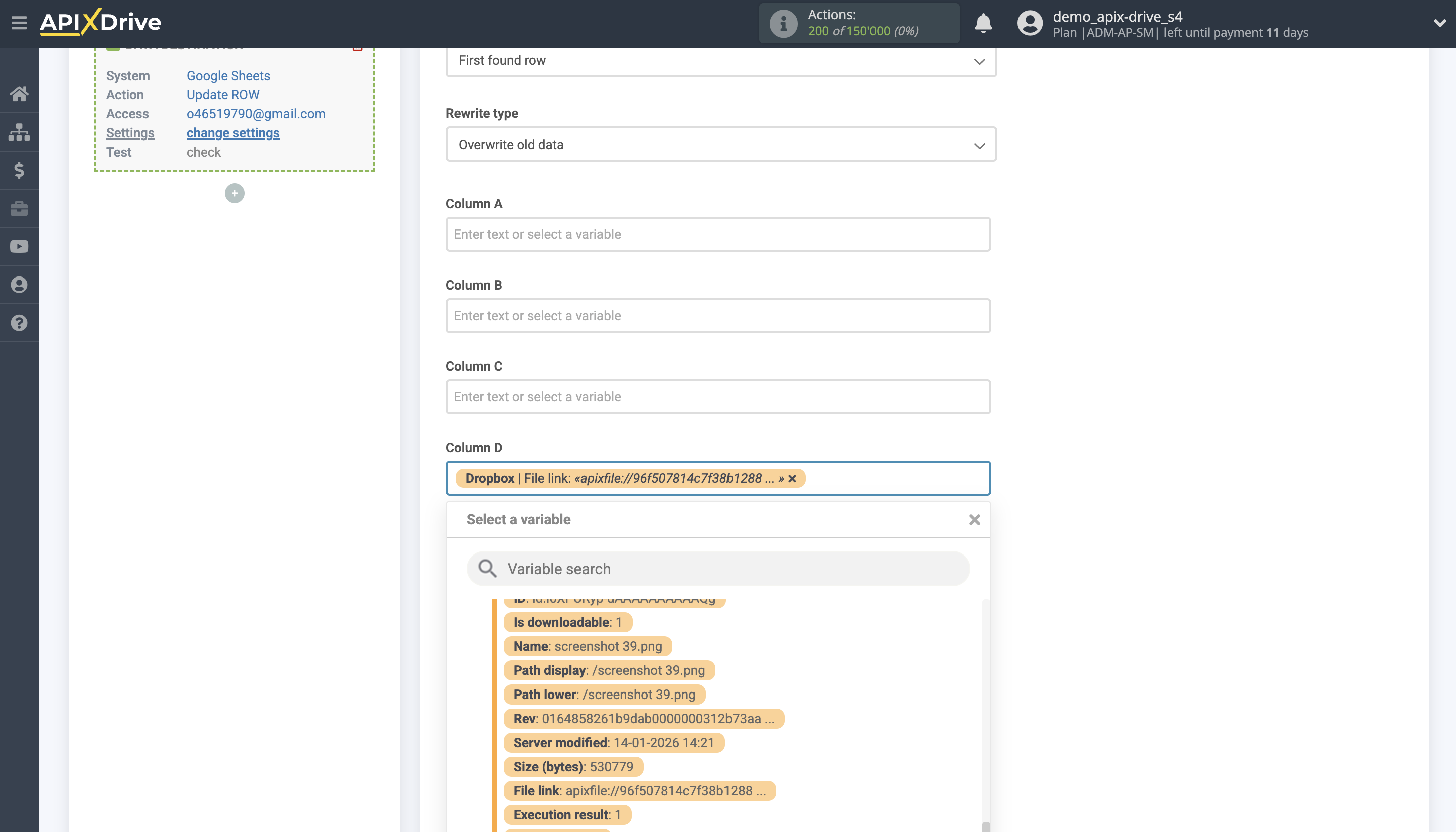
Thus, the Data Search block takes the field in the Data Source in which you have the file name, queries Dropbox for file data, in this case the file link, and passes this link to the Data Receive field, for example, in column "D".
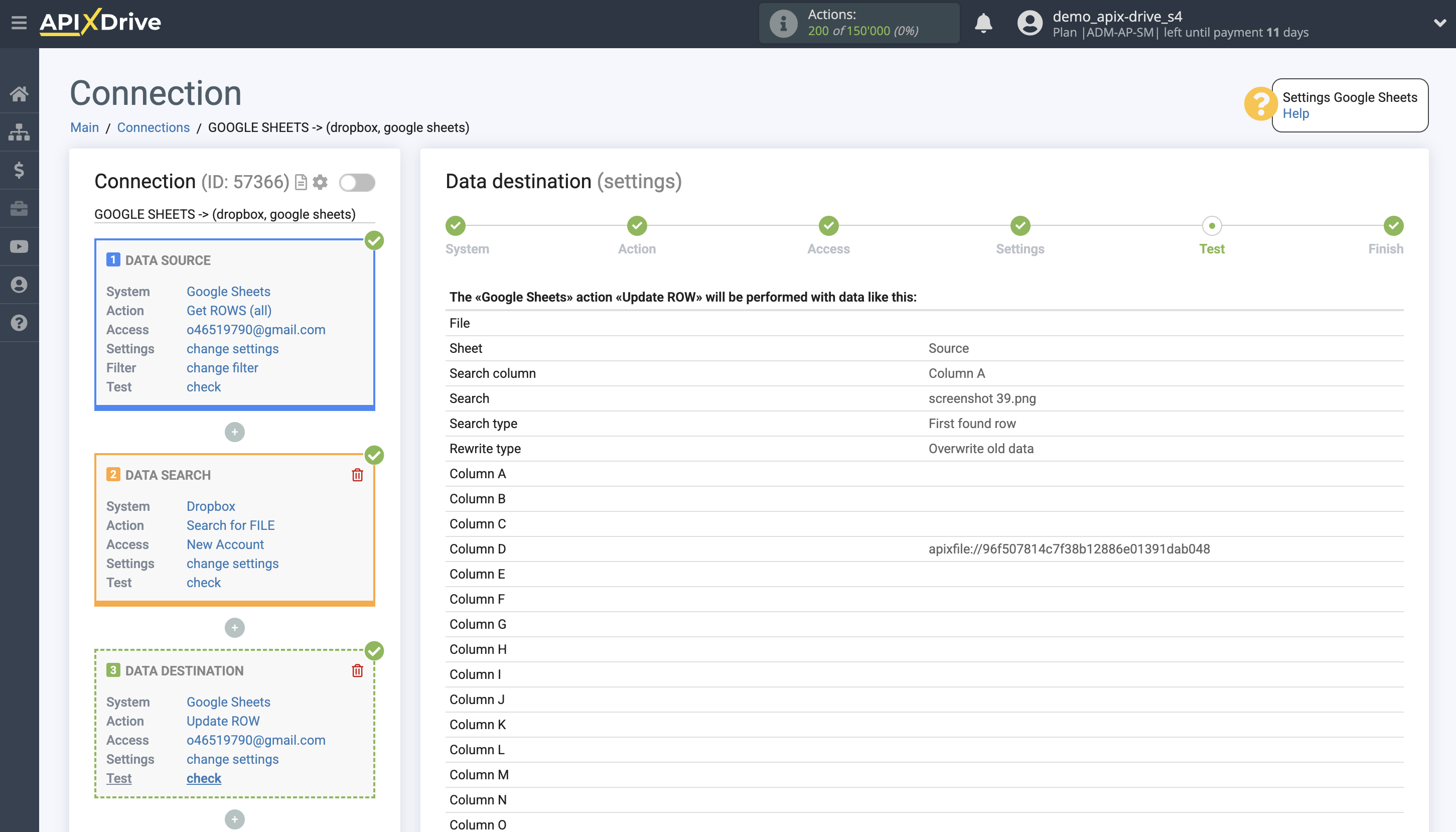
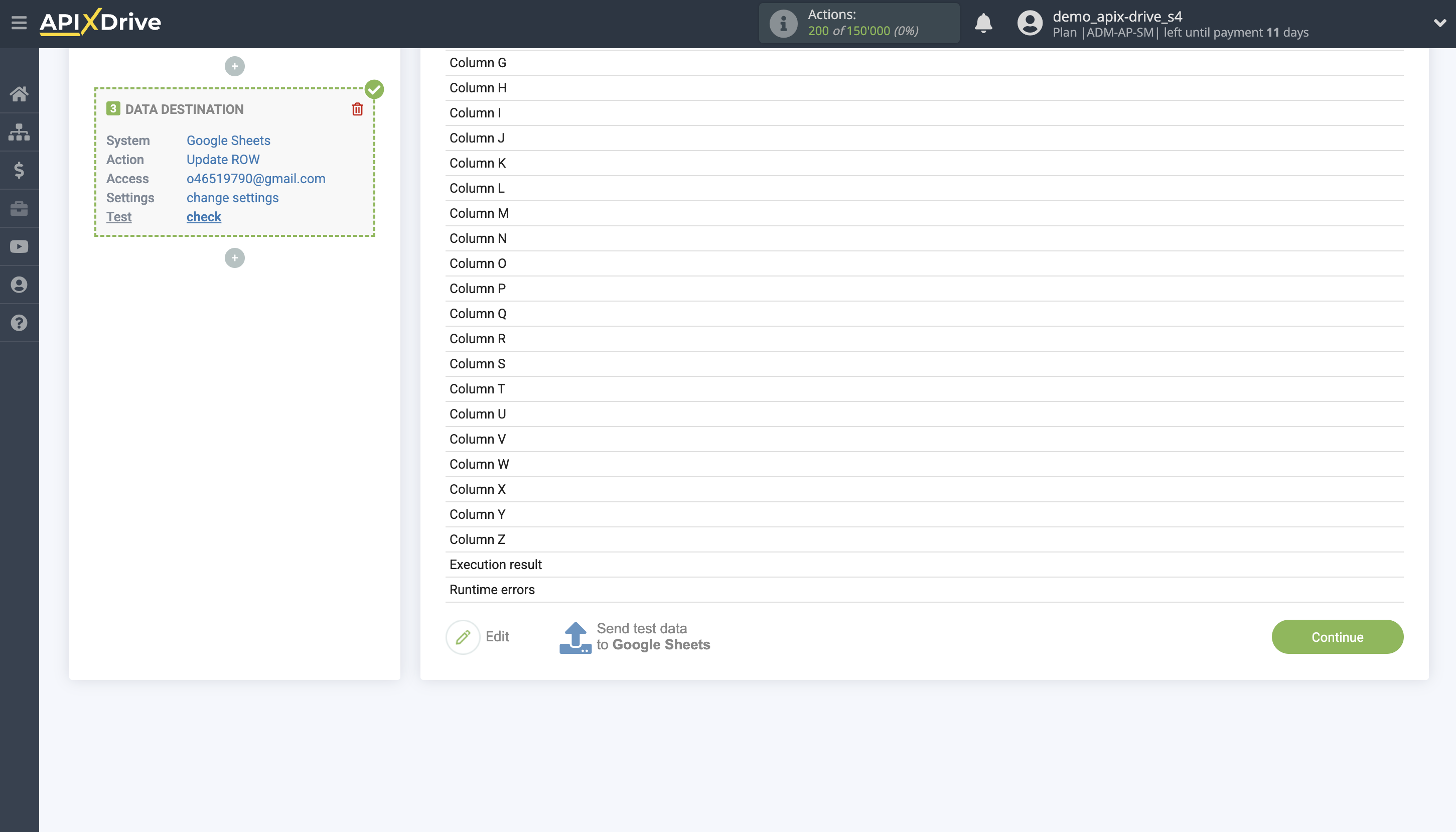
This completes the Data Destination system setup!
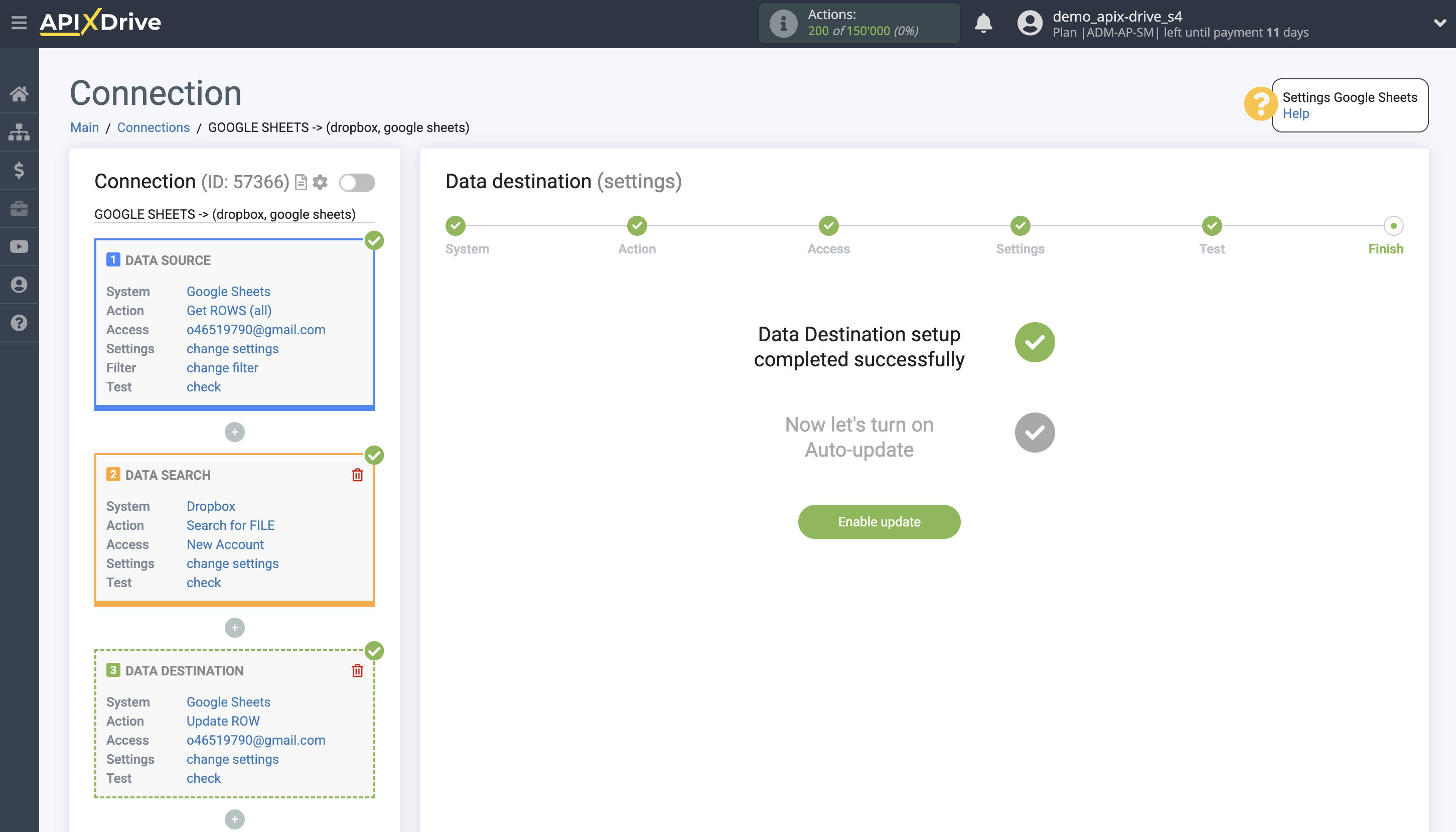
Now you can start choosing the update interval and enabling auto-update.
To do this, click "Enable update".
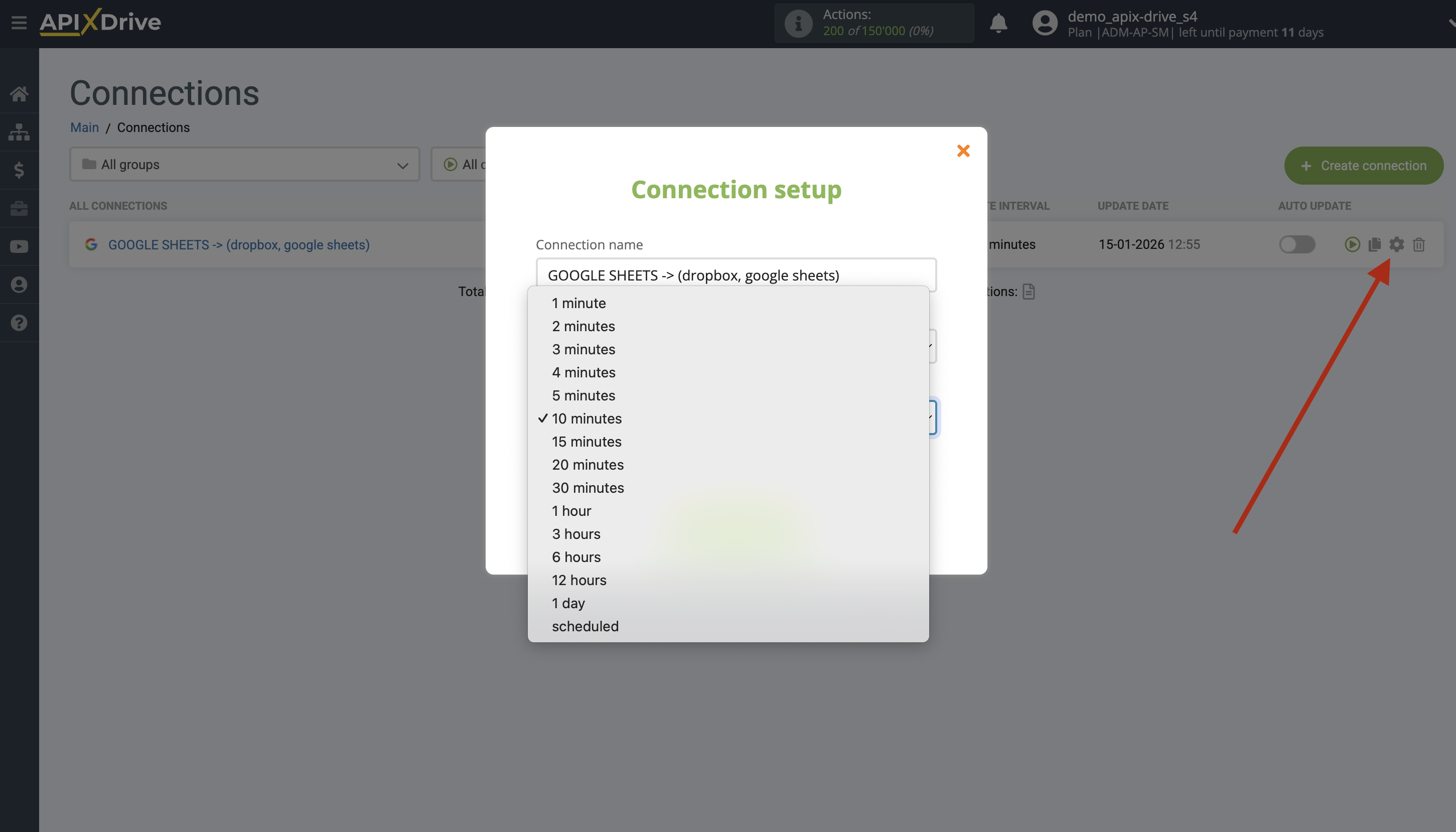
On the main screen, click on the gear icon to select the required update interval or set up scheduled launch. To start the connection by time, select scheduled start and specify the desired time for the connection update to be triggered, or add several options at once when you need the connection to be triggered.
Attention! In order for the scheduled run to work at the specified time, the interval between the current time and the specified time must be more than 5 minutes. For example, you select the time 12:10 and the current time is 12:08 - in this case, the automatic update of the connection will occur at 12:10 the next day. If you select the time 12:20 and the current time is 12:13 - the auto-update of the connection will work today and then every day at 12:20.
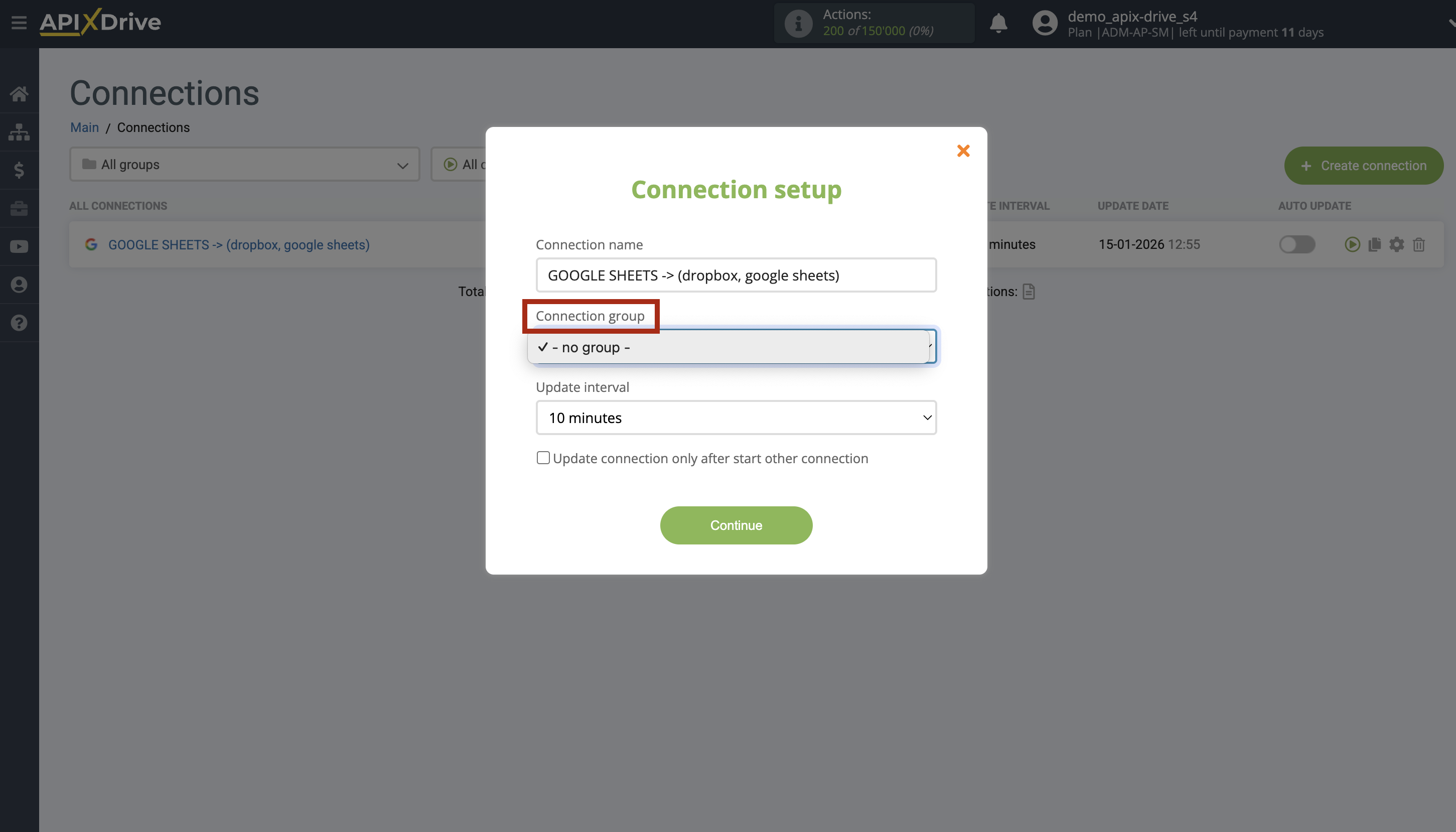
To make the current connection transmit data only after another connection, check the box "Update connection only after start other connection" and specify the connection after which the current connection will be started.
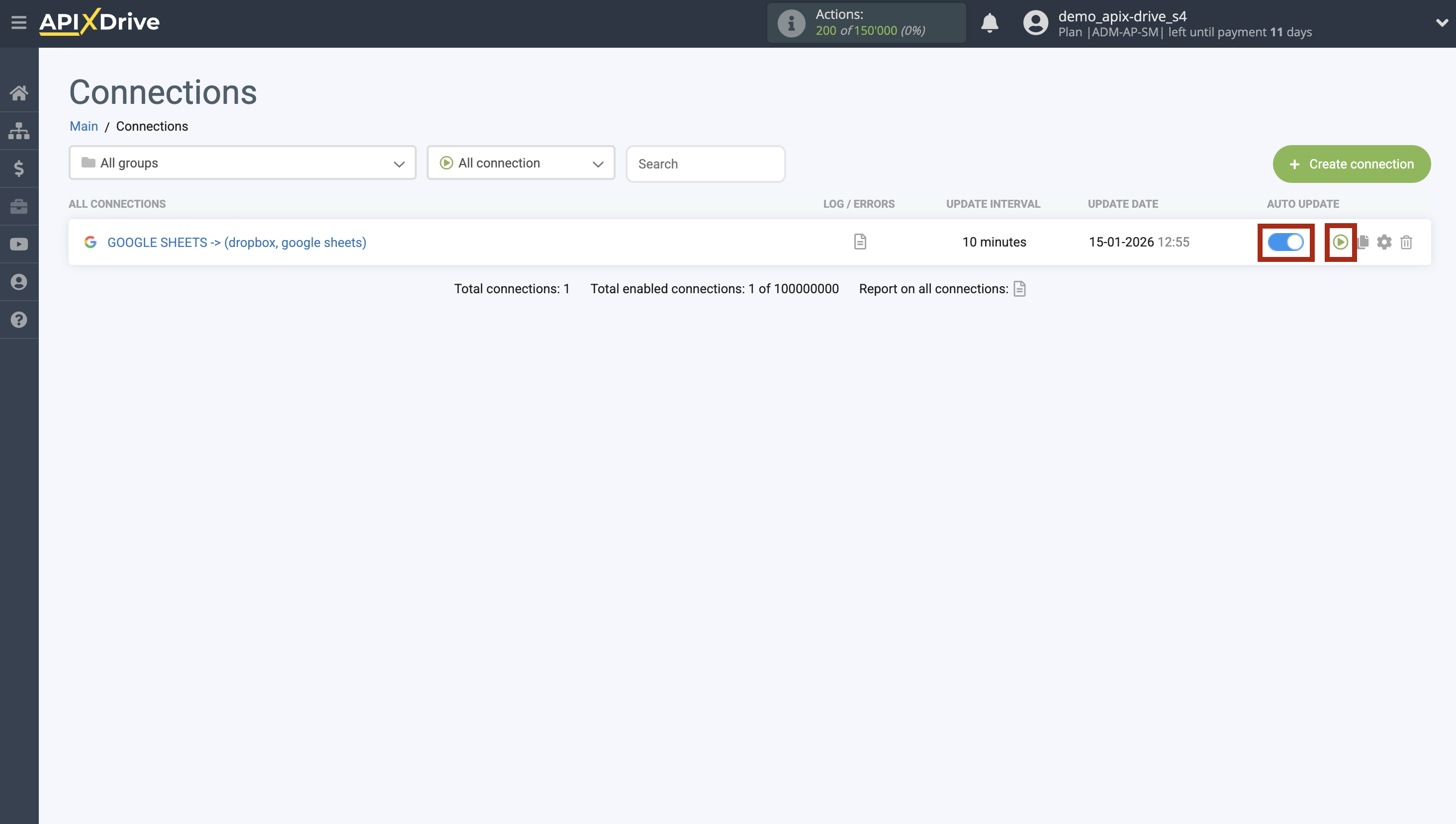
To enable auto-update, switch the slider to the position as shown in the picture.
To force the connection, click on the arrow icon.
This completes the Dropbox Contact Data Search setup! Everything is quite simple!
Now don't worry, ApiX-Drive will do everything on its own!